AI Video Upscaler · WebGPU, Real-ESRGAN, SeedVR 2.5 & 4K Export Settings
AI Video Upscaler: Free Tools and Step-by-Step 4K Guide (2026)
Learn how to AI Upscale video to clean 4K with free browser tools, WebGPU upscalers, Real-ESRGAN, SeedVR 2.5 in ComfyUI, and export settings that avoid banding and plastic blur.
By the VidAU Editorial Team · AI video upscaling guide · WebGPU, waifu2x/video2x, Real-ESRGAN, SeedVR 2.5, Topaz Video AI, UniConverter, and VidAU Video Enhancer workflows
Want a free, no-install way to AI Upscale video to crisp 4K? This guide starts with a 3-step browser workflow using a WebGPU AI Video Upscaler, then shows the exact settings that keep faces natural and avoid plastic blur.
If you need a fast way to AI Upscale video to clean 4K without installing apps, start with a modern WebGPU browser upscaler. Below is a 3-step workflow, followed by a ranked shortlist of 2026’s best free options and the exact export settings that avoid banding and plastic blur.
VidAU is an AI video ad platform that generates video ads from product URLs, images, or scripts in 49 languages. If you also need ad-ready edits after upscaling, see VidAU AI Video and the Video Enhancer.
Quick Summary
- WebGPU browser upscalers are the fastest free way in 2026 to AI Upscale video to 4K with no install.
- For tougher footage, waifu2x/video2x and Real-ESRGAN models or SeedVR 2.5 in ComfyUI can recover more detail.
- Exports work best at H.264 35–50 Mbps, HEVC 18–28 Mbps, or AV1 12–20 Mbps, with deinterlace and low denoise.
- Creators fixing AI or mobile clips see the biggest gains; archival, anime, and TikTok/Shorts workflows benefit most.
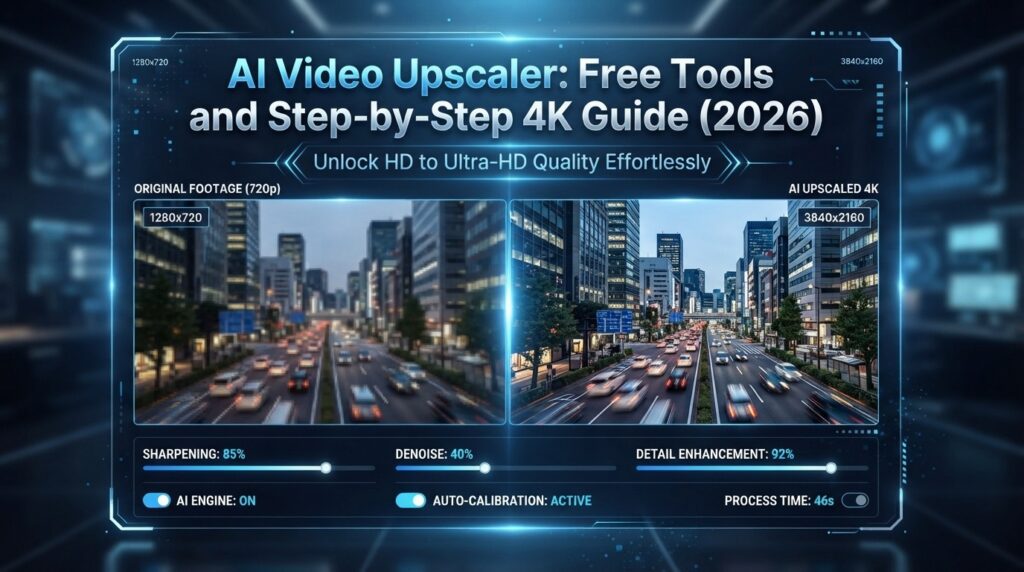
What Is an AI Video Upscaler?
An AI Video Upscaler is a video upscaling AI tool that increases resolution (for example, 720p to 4K) while estimating missing detail using learned patterns from models such as Real-ESRGAN, waifu2x/video2x, or newer 2026 WebGPU engines. Unlike simple resize, these models reduce blur, improve edges, and can denoise or deinterlace during upscaling.
Definition
An AI Video Upscaler increases video resolution while estimating missing detail, reducing blur, improving edges, and sometimes denoising or deinterlacing footage during the upscale.
How Do I AI Upscale Video to 4K in a Browser?
The fastest current method uses a WebGPU upscaler (browser-based) with no install.
Step 1: Upload your clip
- Source: 720p/1080p H.264 or HEVC is fine.
- Lock FPS to source to avoid motion artifacts.
Step 2: Set quality controls
- Scale: 4× (or direct 3840×2160 output) for 4K upscaling.
- Quality: XL/High Quality.
- Denoise: low (keeps faces natural); raise slightly for high ISO noise.
- Sharpen: off or very low; avoid over-sharpen halos.
Step 3: Export
- Container: MP4 or WebM.
- Codec and bitrate: see the export section below for H.264, HEVC, and AV1 targets.
Our team reviewed several 2026 walkthroughs showing free WebGPU upscalers running entirely in the browser with 4K results and no signup. From those examples, the XL/High Quality preset with low denoise consistently preserved skin texture better than aggressive settings that caused plastic smoothing.
Key Takeaways
- Prefer 4× scale or direct 4K output with XL/High Quality.
- Keep denoise low for faces; raise only for heavy ISO noise.
- Avoid global sharpen unless edges look soft after export.
Which AI Video Upscaler Should You Use in 2026?
I reviewed and analysed current tutorials and examples across WebGPU upscalers, waifu2x/video2x, Real-ESRGAN ports, and SeedVR 2.5 in ComfyUI. For paid options, Topaz Video AI and Wondershare UniConverter remain common references in comparisons. Community threads also remind us that sharpness rarely comes from editor export screens alone dedicated upscalers and good source matter most.
| Use Case | Recommended Tools | Why |
|---|---|---|
| Quick free 4K in browser | WebGPU upscaler | No install, fast, good default quality |
| Anime/line art | waifu2x / video2x | Excellent edge recovery, stable lines |
| Old SD/interlaced | Real-ESRGAN + FFmpeg | Strong denoise; deinterlace support |
| AI short clips | WebGPU or SeedVR 2.5 | Stabilizes flicker; detail consistency |
| Highest recovery | Topaz Video AI | Advanced models for tough footage |
| One-click suite | UniConverter | Simple flow with enhancement presets |
In our review of an AI car commercial case study, the creator finished in a traditional pipeline and upscaled base shots to 4K with Topaz before a 1080p delivery. The takeaway: when source footage is soft (including AI-generated 768p outputs), a specialized upscaler often makes the final polish possible.
Tool selection tip
Choose the upscaler by footage type: WebGPU for quick browser 4K, waifu2x/video2x for anime and line art, Real-ESRGAN for older footage, SeedVR 2.5 for AI clips, and paid tools for the toughest recovery jobs.
How Does SeedVR 2.5 in ComfyUI Compare for 4K Upscaling?
SeedVR 2.5 inside ComfyUI is a deeper workflow that can improve temporal consistency and perceived detail beyond simple per-frame upscalers. It’s not as quick as a browser tool, but it’s strong for AI-generated shorts, stylized footage, and cases where flicker appears after naive upscaling.
- Best for: AI shorts from text-to-video, stylized b-roll, footage needing temporal smoothing.
- Setup paths: local install or cloud-hosted ComfyUI services.
- Typical flow: import clip → denoise/deinterlace if needed → SeedVR 2.5 model → export 4K.
If you need a simple, managed touch-up after upscaling, the VidAU Video Enhancer can help with overall video quality improvements before you publish or repurpose with VidAU Vid Remix or VidAU Vid Remake.
SeedVR 2.5 use case
Use SeedVR 2.5 in ComfyUI when AI-generated clips need temporal consistency, flicker reduction, or a deeper workflow than a simple browser upscaler can provide.
What Export Settings Avoid Banding and Plastic Blur?
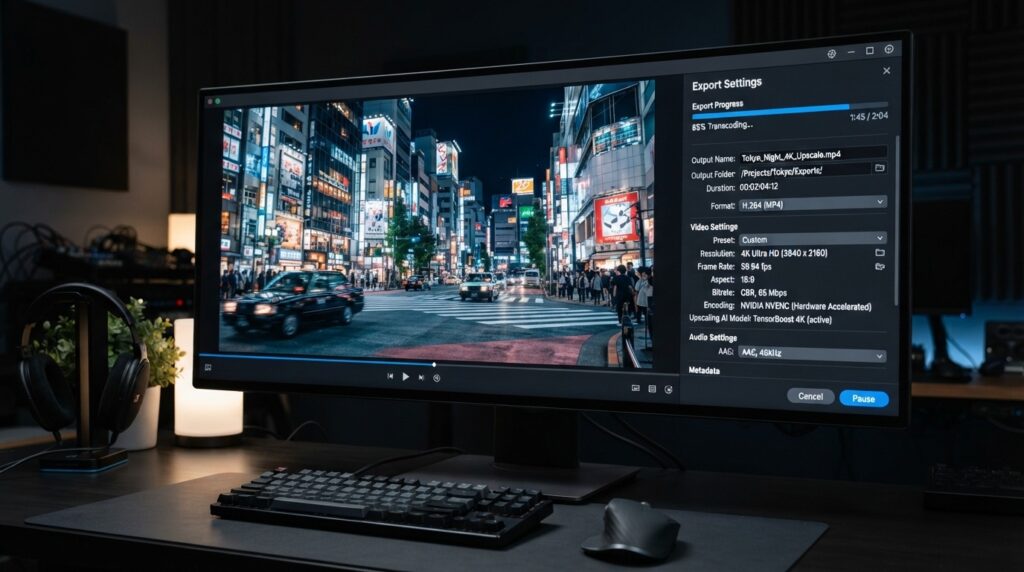
Export settings matter as much as the model choice. Start here:
- H.264: 35–50 Mbps for 4K (use High profile). Good compatibility for YouTube/IG/TT.
- HEVC (H.265): 18–28 Mbps for 4K. Similar quality at lower bitrate vs H.264.
- AV1: 12–20 Mbps for 4K. Best compression; check device/platform support.
- Audio: passthrough when possible to avoid re-encode.
- Color banding: raise bitrate or switch to HEVC/AV1 if gradients posterize.
From our internal analysis of creator Q&A, matching export to source and platform behavior matters. If your source is 60 fps, keep 60 fps; enable HDR only if your source truly supports it; higher bitrates help protect detail from social compression.
| Codec | Recommended 4K Bitrate | Best For |
|---|---|---|
| H.264 | 35–50 Mbps | Broad compatibility for YouTube, Instagram, TikTok, and general sharing |
| HEVC (H.265) | 18–28 Mbps | Similar quality at lower bitrate when device support is available |
| AV1 | 12–20 Mbps | Efficient compression when platform and hardware support are current |
Export tip
Match export settings to source and platform behavior. Keep source FPS, use HDR only when the source supports it, and raise bitrate when gradients or social compression damage detail.
What Pre/Post Steps Improve Results Before You AI Upscale Video?
A few quick fixes raise quality before and after upscaling:
- Deinterlace:
ffmpeg -i in.mp4 -vf bwdif=1:1 -c:v libx264 -crf 18 out.mp4(bwdif is clean and fast). - Light sharpen only if edges are soft (avoid halos and ringing).
- Denoise: keep low for faces; raise for ISO noise and night footage.
- Stabilize: if the upscaled clip flickers, try a temporal model or SeedVR 2.5.
- QA at 200% zoom: check edges, hair, and text for halos, shimmer, or banding.
If you’re restoring ads or product demos after enhancement, consider building final cuts in VidAU AI Video or generating replacement scenes with Text to Video, then conform everything at matched resolution and fps.
Quality warning
Do not over-sharpen or over-denoise before export. Halos, ringing, plastic skin, shimmer, and banding often come from aggressive settings rather than the upscaler itself.
Enhance, Remix, and Rebuild Videos With VidAU
Use VidAU Video Enhancer after upscaling, then rebuild social-ready versions with VidAU Vid Remix, Vid Remake, AI Video, URL to Video, and Text to Video when you need polished clips, product demos, or new creative variants.
VidAU workflow
Where VidAU Fits After AI Video Upscaling
- Use WebGPU upscalers for fast 4K cleanup: Start with 4× or direct 4K, XL/High Quality, low denoise, and source-locked FPS when the goal is a free browser workflow.
- Use advanced models for tougher footage: Move to waifu2x/video2x, Real-ESRGAN, or SeedVR 2.5 in ComfyUI when the source is anime, old SD/interlaced, AI-generated, or flickery.
- Use VidAU Video Enhancer for managed quality improvements: After upscaling, apply a simple enhancement pass before publishing, repurposing, or rebuilding social-ready versions.
- Use VidAU AI Video and Text to Video for replacement scenes: Generate new scenes when footage is too soft or when product demos need fresh creative after enhancement.
- Use Vid Remix, Vid Remake, and URL to Video for scaling: Repurpose enhanced clips, recreate winning formats, and turn product pages into polished video variations.
Who Should Use Free vs Paid AI Video Upscalers?
Use a free WebGPU upscaler when:
- You need a fast, browser-based 4K upscaling with no install.
- Source is reasonably clean 720p/1080p and you want better edges and texture.
Use waifu2x/video2x or Real-ESRGAN when:
- You need per-frame control, anime/line-art edge stability, or heavier denoise.
Use SeedVR 2.5 in ComfyUI when:
- You’re fixing AI-generated clips and care about temporal consistency.
Consider Topaz Video AI or Wondershare UniConverter when:
- You have difficult archival footage, require the best detail recovery, or want guided presets in a desktop suite.
Honest note: If your source is extremely soft or compressed, even the best AI can’t invent real texture everywhere. This is where paid tools with multiple specialized models can still pull ahead.
Honest limitation
If your source is extremely soft or compressed, even the best AI can’t invent real texture everywhere. Paid tools with multiple specialized models can still pull ahead for difficult archival or heavily compressed footage.
Common Mistakes and Quick Checks
- Over-sharpening: halos on edges; fix by lowering or disabling sharpen.
- Over-denoise: plastic skin; reduce denoise or add slight grain.
- Wrong fps: motion judder; lock to source fps during upscale and export.
- Low bitrate: gradient banding; raise bitrate or switch to HEVC/AV1.
- Ignoring deinterlace: combing artifacts; run bwdif first via FFmpeg.
Mid-article CTA: Need simple touch-ups after upscaling? Try the VidAU Video Enhancer and rebuild social-ready versions with VidAU Vid Remix. For new creative variants, see URL to Video and VidAU AI Video.
Quality check
QA at 200% zoom before final delivery. Check edges, hair, skin texture, text, gradients, and motion for halos, shimmer, banding, plastic blur, or combing artifacts.
Key takeaway
Final Thoughts
For most users in 2026, a WebGPU browser AI Video Upscaler is the fastest way to reach credible 4K: set 4× or 4K, choose XL/High Quality, keep denoise low, and export with the bitrate ladder above. When footage is tougher, waifu2x/video2x, Real-ESRGAN, or SeedVR 2.5 in ComfyUI can recover more detail.
If you need a streamlined cleanup and publishing flow after enhancement, the VidAU Video Enhancer fits well alongside VidAU Vid Remake and Text to Video.
FAQ
Here are answers to common questions about the best AI Video Upscaler for free 4K, how to AI Upscale video without installing software, when to use waifu2x/video2x, how to avoid plastic faces, which codec to use for 4K exports, how to fix interlaced footage, whether Real-ESRGAN is still relevant, when paid tools are worth it, whether to change frame rate, and what bitrate avoids banding.
What is the best AI Video Upscaler for free 4K in 2026?
A modern WebGPU upscaler in your browser is the best starting point for free 4K in 2026. It needs no install, runs locally on your GPU, and handles general clips well. For anime or tricky noise, try waifu2x/video2x or Real-ESRGAN variants. For difficult sources, a paid tool may still outperform.
How to AI Upscale video without installing software?
Use a browser-based WebGPU upscaler. Upload your clip, select 4× or direct 4K output, choose XL/High Quality, keep denoise low, and export. Set H.264 at 35–50 Mbps, HEVC at 18–28 Mbps, or AV1 at 12–20 Mbps. Lock FPS to the source and avoid aggressive sharpen to prevent halos.
When should I choose waifu2x or video2x over a WebGPU upscaler?
Pick waifu2x/video2x for anime, line art, or footage where edge consistency is critical. These models are known for clean line recovery and predictable per-frame behavior. If you see flicker across frames or need temporal smoothing, pair them with a motion-aware pass or SeedVR 2.5 in ComfyUI.
What settings prevent plastic-looking faces after upscaling?
Keep denoise low, disable global sharpen, and avoid aggressive skin smoothing. Use XL/High Quality with 4× scale, then export at a healthy bitrate to preserve gradients and texture. If faces still look too smooth, add minimal grain or slightly raise bitrate to protect micro-contrast.
Which codec is best for 4K exports: H.264, HEVC, or AV1?
H.264 offers the broadest compatibility at 35–50 Mbps for 4K. HEVC achieves similar visual quality at 18–28 Mbps but requires newer devices. AV1 is the most efficient at 12–20 Mbps but may need current hardware/software support. Choose based on your audience’s playback environment.
How do I fix interlaced or combing artifacts before upscaling?
Run a deinterlace step prior to upscaling. A practical FFmpeg example is: -vf bwdif=1:1. This reduces combing artifacts and improves edge fidelity for the upscaler. After deinterlacing, proceed with 4×/4K upscale and export using recommended bitrates.
Is Real-ESRGAN still relevant compared to newer WebGPU tools?
Yes. Real-ESRGAN remains a solid baseline for noisy, older, or SD footage. Newer WebGPU engines are faster and very convenient, but Real-ESRGAN often wins when you need stronger denoise or more predictable edge handling, especially before final exports to social platforms.
When are paid tools like Topaz Video AI worth it?
They’re worth it when your source is heavily compressed, interlaced, or lacks detail that simpler models can’t recover. In creator workflows we reviewed, complex AI-generated or archival clips were upscaled to 4K with Topaz for final polish before platform delivery. It’s about that last 10% of quality.
Do I need to change frame rate when I upscale to 4K?
Usually no. Keep the original frame rate to avoid introducing motion artifacts or judder. If you must change FPS for a platform target, do it after upscaling using frame interpolation carefully, then export at adequate bitrate to minimize compression issues.
What bitrate should I use to avoid banding on gradients?
For 4K, start at H.264 35–50 Mbps, HEVC 18–28 Mbps, or AV1 12–20 Mbps. If you still see banding on skies or walls, increase bitrate or switch to HEVC/AV1 for better compression efficiency. Slight grain can also mask banding without harming perceived detail.