VidAU Editorial · AI Search
Morph AI: A Guide to Morph Studio for AI Video and Talking Avatars
Learn Morph AI in Morph Studio: text-to-video, photo-to-talking-head, image-to-video morphs, motion control, Infinite Canvas, and exports. A practical step-by-step guide.
By the VidAU Editorial Team · Reviewed before publishing
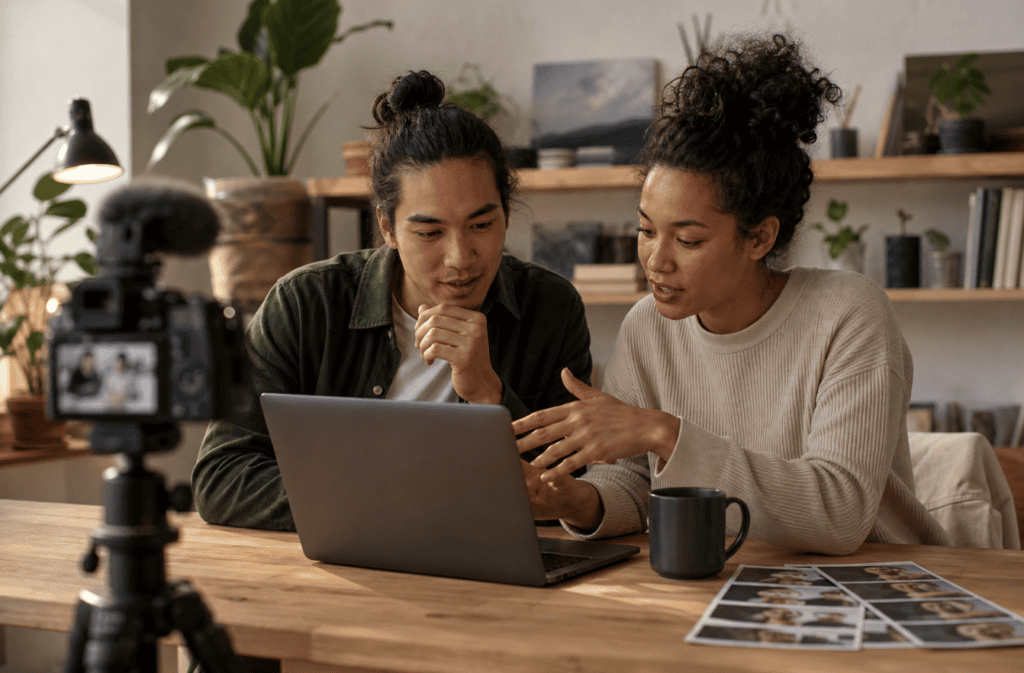
Skip the patchwork of apps: this Morph AI playbook walks you through Morph Studio’s Photo → Voice → Performance → Render pipeline to build a realistic talking avatar, plus how to morph image into another for clean morphing pics transitions. You will control motion, camera, and lip sync on the Infinite Canvas with Seedance 2.0, Veo, and Kling 3.0.
Creators want one place to go from a single photo to a believable talking avatar and then expand into cinematic clips. This hands-on Morph AI tutorial shows how to use Morph Studio’s latest pipeline, motion controls, and Infinite Canvas to turn ideas, images, and scripts into polished AI video.
Quick Summary
• Morph Studio’s Photo → Voice → Performance → Render pipeline is the fastest path to a realistic talking avatar in 2026.
• Seedance 2.0 with Motion Brush gives controllable performances; Veo and Kling 3.0 are strong alternate render engines for look and motion.
• Platform-first exports work best: lock aspect ratios (9:16, 1:1, 16:9), keep motion strength around 25–40% for lip sync stability, and add captions.
• US creators, social video editors, marketers, indie filmmakers, and small businesses get the most value from this streamlined workflow.
What Is Morph AI?
Morph AI refers to using Morph Studio’s multi-model AI video workflow to generate, control, and refine videos from text, images, or clips. It includes a talking-head pipeline that turns a photo into a lip-synced avatar, plus text-to-video, image-to-video, and video-to-video tools. The Infinite Canvas keeps prompts, assets, versions, and renders organized for rapid iteration.
How to Use Morph AI in Morph Studio: Photo → Voice → Performance → Render
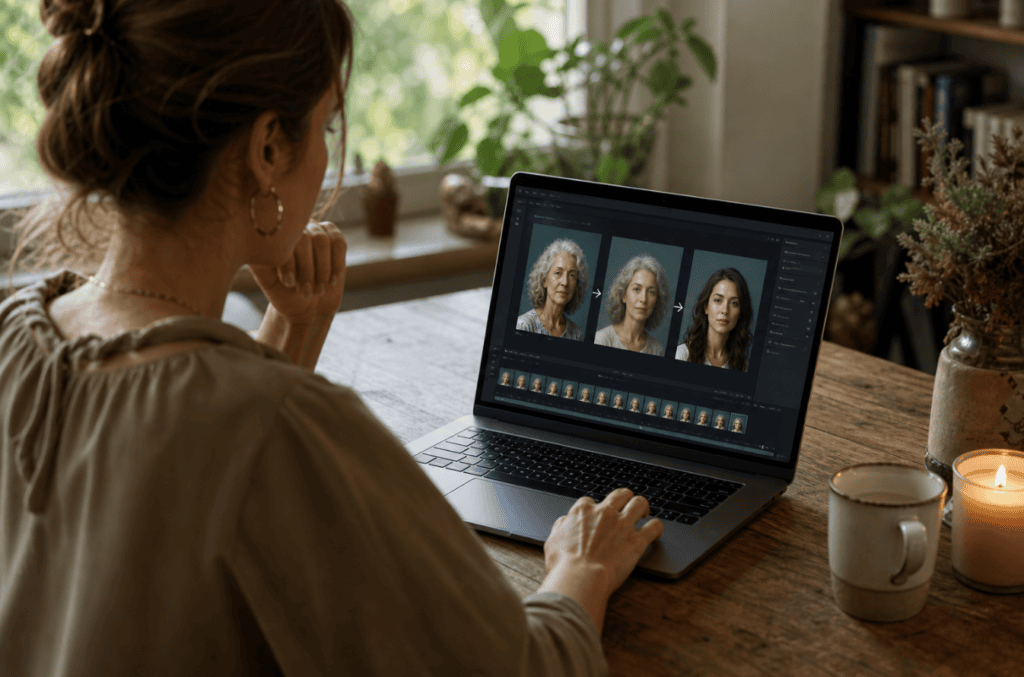
Follow this core pipeline to build a convincing talking avatar.
1) Photo setup
• Import a high-resolution, front-facing headshot with even lighting and minimal occlusions.
• Use GPT Image or Nano Banana to create 2–3 consistent variations of the same person if you plan multiple scenes or outfits.
• Align crop and eye line, and keep the background simple for cleaner results later.
2) Voice
• Choose text-to-speech or upload your own audio. Match language and speaking pace to the script’s tone.
• Leave 200–400 ms of silence at the start and end of the file to reduce cut-off artifacts.
3) Performance
• Select Seedance 2.0 for expressive but stable motion. Start motion strength at 25–40% to protect identity and lip sync.
• With Motion Brush, target mouth, jawline, and subtle head tilt; avoid overdriving cheeks and eyebrows in the same pass.
• Apply light camera moves only after the face performance looks right.
4) Render
• Pick a renderer based on your target look: Veo for cinematic tone and depth; Kling 3.0 for fluid motion and dynamic scenes. Hailuo can help when you need punchier movement detail.
• Enable medium lip sync smoothing and preview short segments before final render.
Text-to-Video, Image-to-Video, and Video-to-Video
1. Text-to-video
• Draft a concise prompt: subject, action, setting, lighting, lens, and tone. Example: Close-up of a confident spokesperson in a sunlit studio, gentle dolly-in, 35mm look.
• Use GPT Image or Nano Banana to storyboard frames, then generate the sequence with Seedance 2.0 controlling motion.
Image-to-video
• Start with a cohesive character image and a short motion goal. Keep motion strength low for identity consistency.
• Add a slight dolly or pan (2–4% over duration) after the identity locks.
Video-to-video
• Feed a base clip and apply your preferred renderer for style transfer or enhancement.
• Keep camera in the base clip stable; large shakes can cause inconsistent frames.
Morphing Pics: How to Morph Image Into Another Smoothly
Use image-to-video to create a clean transition from Image A to Image B without jarring warps.
• Prepare sources: ensure both images have similar framing and eye line. If needed, use GPT Image or Nano Banana to generate a harmonized second image.
• On the Infinite Canvas, place A and B near each other. Run image-to-video starting from A, using B as a guiding reference for the endpoint look.
• Settings to try: motion strength 15–25% for faces, static camera, medium temporal consistency, and a 3–5 second duration.
• Limit transformation with Motion Brush if you only want the face to change while hair, clothing, or background stays steady.
• For brand or influencer content, keep the mouth closed during the morph. Add talking only after the identity settles.
Motion and Camera Control Tips
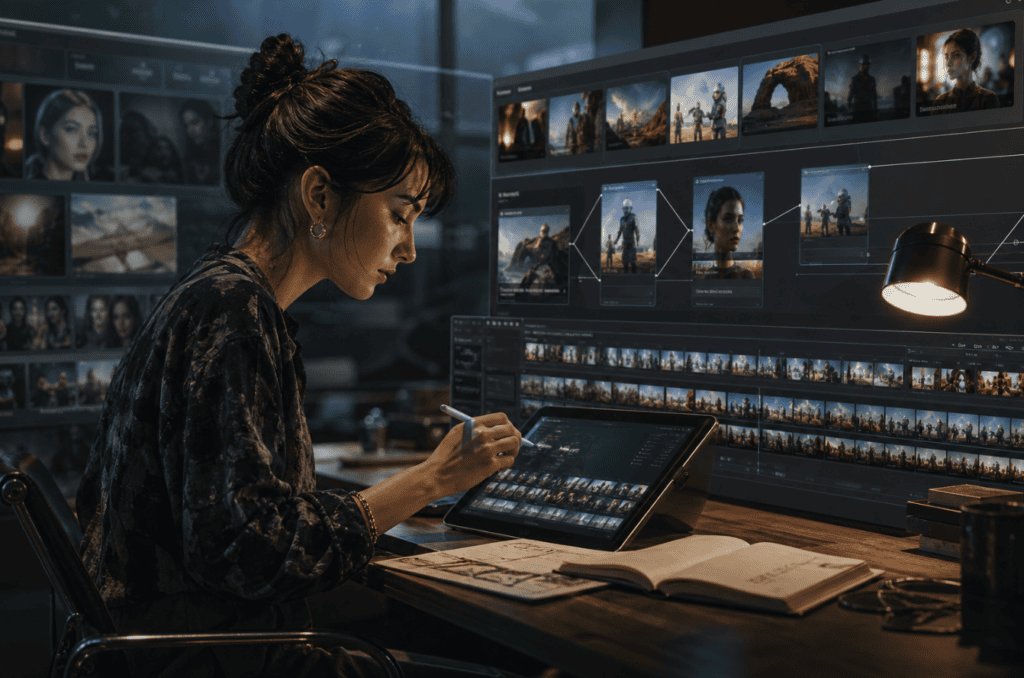
• Start small: 25–40% motion strength is a safe baseline for talking avatars.
• One move at a time: first lock facial performance, then add a gentle dolly-in (2–4%) or pan (1–3 degrees) with ease-in-out.
• Use Motion Brush surgically: mouth and jaw for speech, eyebrows for emphasis, head tilt for attitude. Avoid animating all zones at once.
• Lip sync: set smoothing to medium; if phonemes lag, slightly slow the voice or shorten plosives in the audio.
• Lighting continuity: keep highlights stable across iterations to prevent flicker.
Key Takeaways
• Under-drive motion for natural lip sync and identity stability.
• Layer camera after facial performance is solid.
• Small brush zones yield cleaner, more believable results.
Model and Renderer Selection
Choose a model based on the job at hand.
• Model: Seedance 2.0
Best For: Performance control
Why: Natural face and body nuance
• Model: Veo
Best For: Cinematic look
Why: Filmic color and depth
• Model: Kling 3.0
Best For: Fluid motion
Why: Consistent dynamic movement
• Model: Hailuo
Best For: High-energy scenes
Why: Strong motion detail
Morph AI Infinite Canvas: Iterate and Version Like a Pro
• Branch versions: duplicate nodes to test new prompts, voices, or brush patterns without losing a proven setup.
• A/B rapidly: keep a stable seed for baseline and only change one variable at a time.
• Stack references: place your photo, storyboard frames, and style references together so each generation can reference the same visual cluster.
• Annotate and label: name nodes by intent, for example, v3_seedance_30pct or v5_kling_dolly2.
• Curate winners: star the best takes and line them up for sequence planning.
Export and Delivery Best Practices
• Aspect ratios: 9:16 for TikTok and Reels, 1:1 for some feeds, 16:9 for YouTube and web. Decide early and lock it.
• Duration: keep talking avatars tight; 6–15 seconds for hooks, 20–45 seconds for explainers.
• Captions: add burned-in captions or sidecar files for accessibility and watch-time gains.
• Audio: maintain -14 to -12 LUFS integrated loudness for social consistency. Keep room tone under dialogue.
• Renderer choice: Veo for a cinematic finish; Kling 3.0 for smoother motion renders; test both on a 3–5 second slice before committing.
If you are producing product-focused short-form ads, a fast route is product URL or images in VidAU AI Video → draft multiple ad-ready cuts → import selects into Morph Studio for finishing touches like talking avatars or morph transitions.
Create With VidAU
Turn scripts, product URLs, and creative ideas into ad-ready video assets with a structured AI workflow.
Key takeaway
Final Thoughts
Morph AI inside Morph Studio gives creators a practical, end-to-end path from a single photo or script to finished, platform-ready video. Anchor your workflow to Photo → Voice → Performance → Render, iterate on the Infinite Canvas, and keep motion conservative for realistic lip sync.
If your goal is rapid ad variants, create draft videos from product URLs or images in VidAU AI Video, then bring your favorites into Morph Studio for expressive talking-heads or image-to-image morphs before final export.
Frequently asked questions
What is Morph AI in Morph Studio?
Morph AI refers to Morph Studio’s multi-model video creation workflow, including talking avatars, text-to-video, image-to-video, and video-to-video. It combines tools like Seedance 2.0, Veo, Kling 3.0, GPT Image, and Nano Banana inside an Infinite Canvas so you can plan, generate, and iterate in one workspace.
How do I create a talking avatar from a photo?
Import a clean, front-facing headshot, select text-to-speech or upload your voice, then drive motion with Seedance 2.0. Start motion strength around 25–40%, use Motion Brush for mouth and jaw, preview with medium lip sync smoothing, and render with Veo or Kling 3.0 depending on your desired look.
What settings help achieve stable lip sync?
Use medium lip sync smoothing, keep motion strength modest, and avoid animating too many facial zones at once. Provide an audio file with clear diction and brief silence at the head and tail. If timing drifts, slightly reduce speaking speed or trim excessive breaths and plosives.
How can I morph one image into another smoothly?
Use image-to-video with Image A as the start and Image B as a guiding reference. Keep the camera static, set motion strength near 15–25% for faces, and run a 3–5 second transition. Mask with Motion Brush to isolate the face if you want hair, clothes, or background to remain steady.
When should I pick Veo versus Kling 3.0?
Choose Veo when you want a more cinematic, filmic feel with rich color and depth. Pick Kling 3.0 when fluid, dynamic motion is the priority. For subtle talking-head content, test both on a short segment and select the one that preserves identity and lip sync best.
What is Seedance 2.0 used for in Morph Studio?
Seedance 2.0 controls performance and motion. It is particularly useful for expressive but stable facial and body movement in talking-head videos. Start with 25–40% motion strength, refine with Motion Brush on the mouth and jaw, and only then add light camera moves.
How do I use the Infinite Canvas effectively?
Branch versions for A/B tests, keep a stable seed for your baseline, and change one variable per branch. Stack references—photo, storyboard, and style guide—close together. Label nodes clearly and star the best outputs to assemble your final sequence efficiently.
What export settings work best for social platforms?
Decide aspect ratio early: 9:16 for vertical, 1:1 for square, and 16:9 for widescreen. Keep talking-head pieces concise, add burned-in captions for accessibility, and maintain consistent loudness. Render short test clips first to confirm look, motion, and lip sync before full-length export.
Can I combine outputs from other tools with Morph Studio?
Yes. You can generate draft ads or scenes elsewhere and import them for finishing. For example, create ad-ready short videos from product URLs or images in VidAU AI Video, then refine inside Morph Studio with talking avatars, motion control, or image-to-image morph transitions.
How do I avoid identity drift across multiple scenes?
Use consistent headshots or generate cohesive variations with GPT Image or Nano Banana. Lock seeds where available, keep motion strength conservative, and avoid dramatic lighting changes between shots. Test a short A/B render whenever you switch models, styles, or camera moves to confirm continuity.