VidAU Editorial · AI Search
Animaker Tutorial 2026: Create AI Animated Videos Step-by-Step
Learn Animaker fast. A 2026 step-by-step tutorial to create AI animated explainer videos and presentations, plus practical tips and review takeaways for beginners.
By the VidAU Editorial Team · Reviewed before publishing

Open the Animaker app and follow a true step-by-step path that uses Animaker AI to turn a short script into an explainer video or presentation in 2026. We will go from first scene to export, with quick notes from current Animaker reviews so you know what to expect.
Use this zero-to-publish walkthrough to build animated videos with Animaker AI. You will paste a short script, auto-generate scenes and voiceover, refine templates, characters, text, and effects on the timeline, then export with the right settings. Quick Animaker reviews insights are included to set realistic expectations.
Quick Summary
• Animaker AI is the fastest 2026 workflow to turn a script into explainer videos or presentations, auto-building scenes, characters, and a starter timeline.
• A template-first build inside the Animaker app is the best alternate method when you want tighter creative control over each scene.
• Exports should match platform specs: 16:9 for YouTube, 1:1 for Feeds, and 9:16 for TikTok/Shorts; 1080p is a safe default.
• Beginners, educators, marketers, and small US businesses benefit most from a script-to-scenes approach for quick, polished results.
What Is Animaker?
Animaker is a web-based animation platform for creating animated videos, explainer videos, and presentations without pro animation skills. In 2026, Animaker AI helps generate scenes, characters, narration, and a timeline from a script or prompt. You then refine templates, text, effects, transitions, and audio, before exporting to the aspect ratio and resolution you need.
Animaker Tutorial: Step-by-Step (2026)
Follow these steps to go from script to publish.
1) Prepare your script or bullet outline
• Keep it 90–150 words for a 60–90 second explainer.
• Break content into sections that map to scenes: problem, solution, benefits, proof, and call to action.
2) Start a new project in the Animaker app
• Click Create, choose aspect ratio (16:9, 1:1, or 9:16), and name your project.
• Pick a simple template layout if you plan to customize heavily later.
3) Generate a first draft with Animaker AI
• Open Animaker AI, paste your script or a clear prompt.
• Select a visual style (professional, playful, corporate, or classroom) and a voice profile.
• Let Animaker AI create scenes, place characters, and build a starter timeline with narration and basic transitions.
4) Review and restructure scenes
• In the timeline, ensure each scene covers a single idea; split or merge scenes as needed.
• Trim long scenes for better pacing; 4–7 seconds per scene is a practical range.
5) Apply or swap templates per scene
• Use templates to quickly set backgrounds, color schemes, and layout.
• Align with brand colors and fonts for consistency across your animated videos.
6) Refine characters and props
• Choose characters that match your audience; adjust poses and expressions for clarity.
• Add relevant props or icons to reinforce key points.
7) Edit text for clarity
• Use short headlines, bullets, and callouts; avoid on-screen paragraphs.
• Add enter/exit effects to draw attention without distracting from narration.
8) Tune effects, transitions, and motion
• Keep transitions simple and consistent across scenes.
• Use moderate effects to highlight important moments; avoid stacking multiple effects at once.
9) Voiceover and audio polish
• Keep the AI voiceover or record/upload your own track.
• Balance background music with narration; reduce music volume under voice.
10) Final pass and preview
• Play from start to finish; watch for timing glitches, crowded text, or abrupt transitions.
• Fix overlaps on the timeline and confirm scene order matches your story arc.
Key Takeaways
• Start with Animaker AI to draft scenes and narration fast.
• Keep one clear idea per scene and concise, readable text.
• Use consistent templates, transitions, and colors for a professional finish.
Animaker Timeline: Pacing, Scenes, Transitions
Good pacing keeps viewers engaged:
• Keep scenes short and purposeful; remove filler visuals.
• Use simple transitions (fade, slide) across all scenes for cohesion.
• Stagger text, character, and icon entries so key messages land on beat with the narration.
• Adjust effect durations on the timeline rather than stacking multiple effects at once.
If your message feels rushed, lengthen scene durations by small increments. If it drags, trim silence and tighten transitions.
Key Takeaways
• Edit timing on the timeline, not just on the canvas.
• Favor one strong effect over several competing effects.
• Align text reveals with spoken keywords.
Export and Share from Animaker
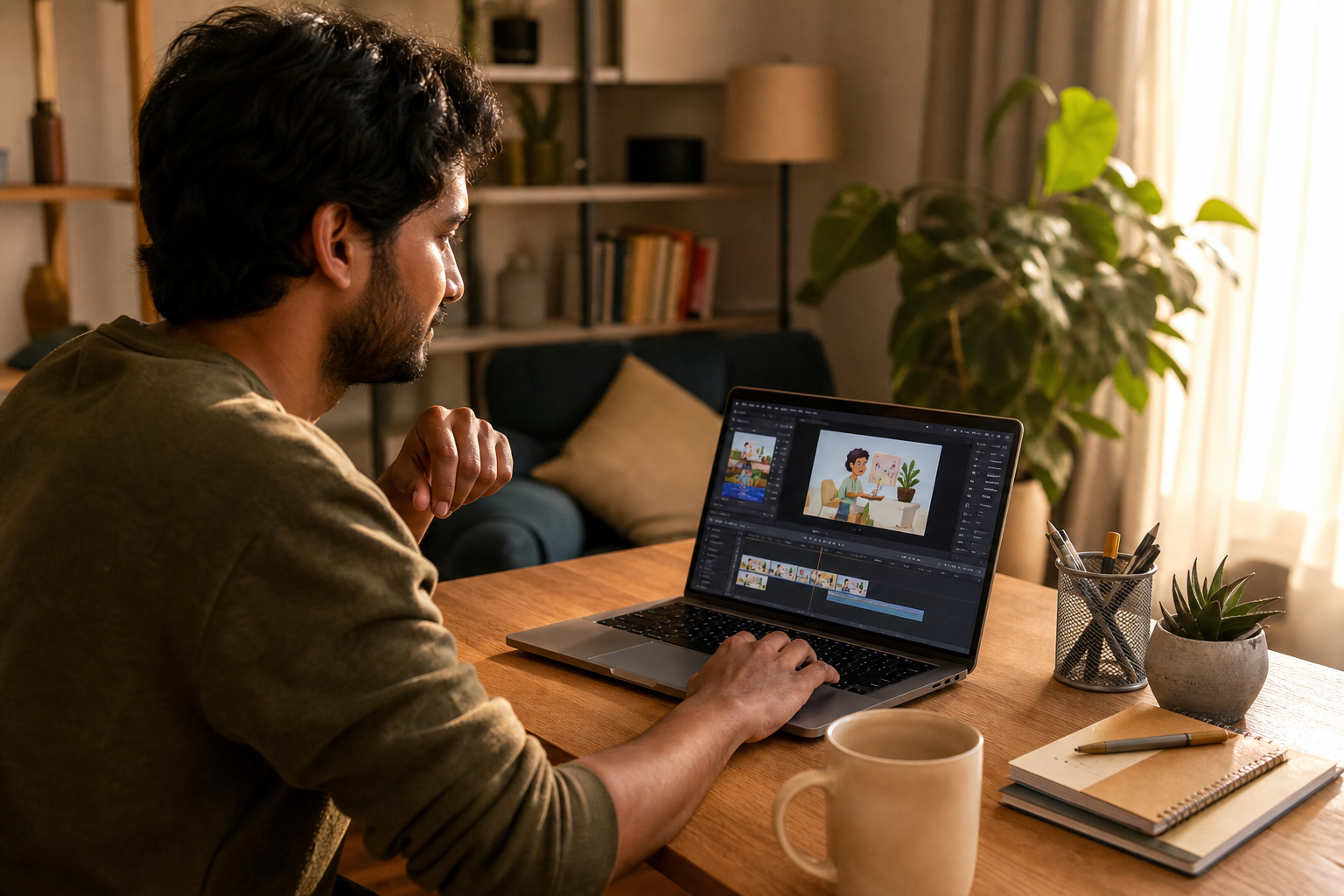
Before exporting, confirm:
• Aspect ratio fits your platform: 16:9 (YouTube/web), 1:1 (Feeds), 9:16 (Shorts/Reels/TikTok).
• Resolution: 1080p is a reliable standard; higher resolutions depend on your needs and available options.
• Audio levels: narration audible, music supportive, no clipping.
Export steps
• Click Export/Publish.
• Choose resolution and format, then confirm the project name and destination.
• Start export and wait for rendering; playback the file fully before publishing.
When you need ad-focused variants
• Input: your product URL, key images, or approved script.
• Capability: VidAU AI can turn them into ad-ready short videos for TikTok, Meta, and YouTube with editable scenes.
• Output: multiple creative variants to test messaging and hooks.
• Review: pick early winners, then refine in your editor or iterate again for new angles.
Quick Pros and Cons from Recent Animaker Reviews
Pros noted in Animaker reviews
• Fast scene generation with Animaker AI for explainers and presentations.
• Large template and asset library for beginners.
• Clean timeline controls for text, effects, scenes, transitions, and audio.
Cons to keep in mind
• AI drafts often need manual editing to tighten pacing and visuals.
• Rendering can take time during busy periods.
• Advanced, frame-level animation controls are lighter than pro animation suites.
If features or export options are critical, check the official site for the latest plan details and capabilities.
A Simple Animaker Workflow Map
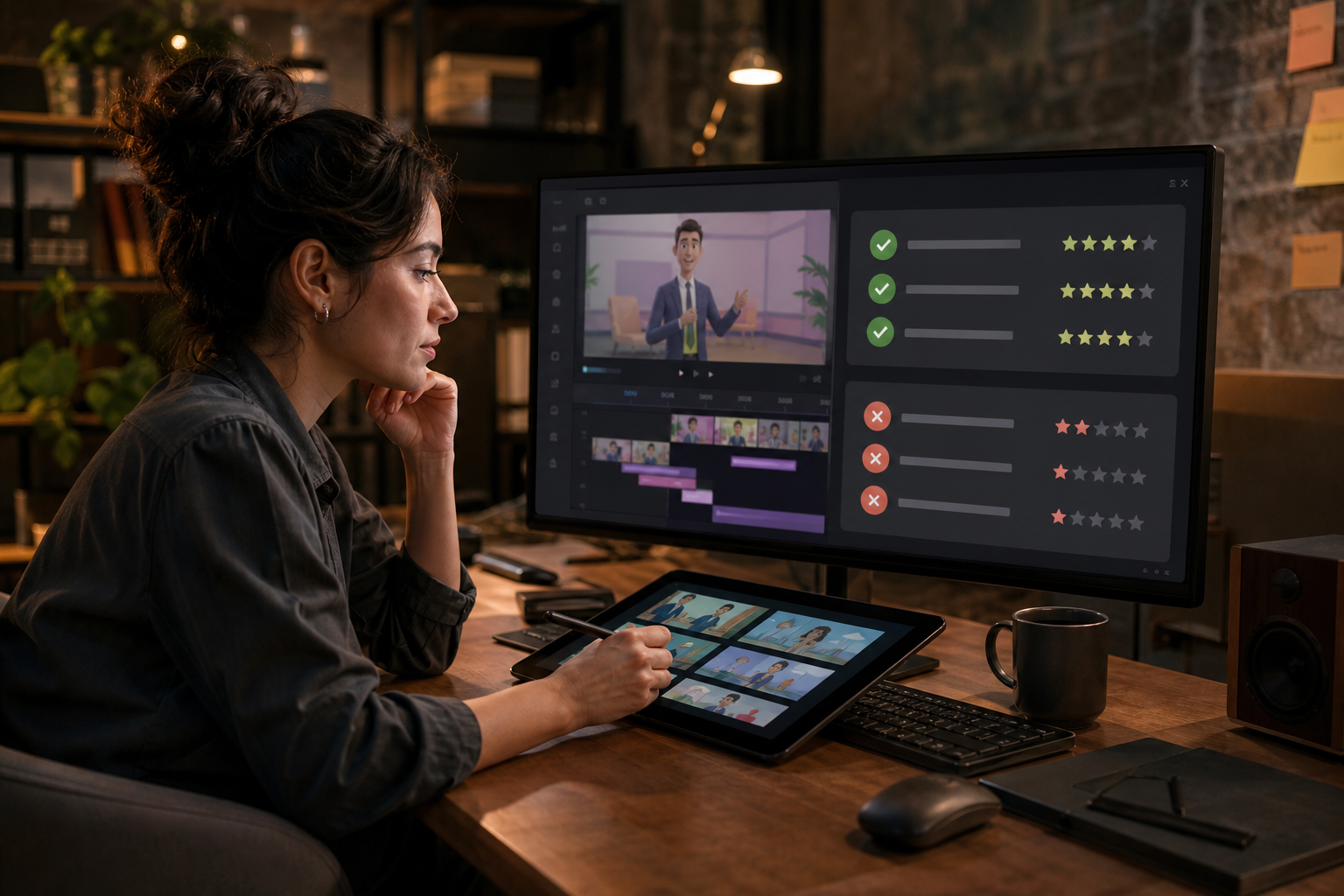
• Stage: Script to draft
Animaker feature: Animaker AI
Why: Fast scenes and narration
• Stage: Visual baseline
Animaker feature: Templates
Why: Consistent style in minutes
• Stage: Story detail
Animaker feature: Characters, props
Why: Clarify message visually
• Stage: Readability
Animaker feature: Text, effects
Why: Emphasize key points
• Stage: Flow
Animaker feature: Timeline, transitions
Why: Control pacing and order
• Stage: Delivery
Animaker feature: Export settings
Why: Match platform specs
Create With VidAU
Turn scripts, product URLs, and creative ideas into ad-ready video assets with a structured AI workflow.
Key takeaway
Final Thoughts
Animaker AI gets you from script to a solid animated video draft quickly, then the timeline tools help you refine templates, characters, text, effects, scenes, transitions, and audio for a clean finish. Keep scenes focused, text concise, and transitions consistent.
If your goal is performance marketing, create your explainer version here, then generate ad-ready variants from a product URL, images, or your script using VidAU AI to test different hooks and lengths. Export, review, and iterate to find what resonates.
Frequently asked questions
How do I use Animaker AI to create an explainer quickly?
Paste a short script into Animaker AI, pick a style and voice, and let it auto-generate scenes and a starter timeline. Then refine templates, characters, text, effects, and transitions. Keep each scene to one idea, balance audio, and export in the aspect ratio your platform needs.
What aspect ratio and resolution should I use when exporting from Animaker?
Use 16:9 for YouTube or websites, 1:1 for square feed placements, and 9:16 for TikTok/Shorts/Reels. 1080p is a dependable default for clarity and file size. If you need different resolutions or formats, verify available options inside the Animaker app before exporting.
Can I make presentations in Animaker as well as animated videos?
Yes. Build slide-like scenes using templates, concise headlines, and supporting icons or characters. Keep text readable, use simple transitions, and add narration or music if helpful. Animaker AI can also draft a presentation-style sequence from your prompt or script to speed setup.
How do I improve pacing on the Animaker timeline?
Shorten long scenes, split dense sections into two scenes, and align text reveals to spoken keywords. Use consistent, minimal transitions, adjust effect durations, and trim silence or dead time. Always preview end-to-end to catch crowded text, abrupt cuts, or audio imbalances.
What do Animaker reviews say in 2026?
Recent Animaker reviews praise the speed of Animaker AI, the depth of templates, and beginner-friendly controls. Common cautions include variable AI output quality that requires manual edits, longer renders during peak times, and lighter advanced controls than pro animation software.
Is there a way to add custom voiceover in Animaker?
Yes. You can keep the AI voiceover, record directly, or upload a pre-recorded track. After adding audio, refine timing on the timeline so scene changes and text cues match narration. Adjust music levels so speech remains clear throughout your animated videos.
How do I choose the right templates and characters?
Start with templates that match your brand tone and audience. Use characters whose style fits your message—professional, playful, or educational. Keep colors and fonts consistent across scenes, and use props or icons to reinforce key points without cluttering the frame.
Can I control transitions and effects per scene in the Animaker app?
Yes. On the timeline, select each scene or element and choose transitions and effects. Keep a single transition style across scenes for cohesion, and use effects sparingly to emphasize headlines, stats, or calls to action. Preview frequently to ensure smooth flow.
What if I need multiple ad variants after finishing my Animaker video?
Create your core explainer in Animaker, then generate short-form ad variants elsewhere to test hooks and formats. For example, you can use VidAU AI to turn a product URL, images, or a script into ad-ready variants for TikTok, Meta, or YouTube, then iterate based on performance.
Does Animaker support advanced, frame-by-frame animation?
Animaker focuses on template-based, scene-level animation with accessible controls for text, characters, transitions, and audio. While it offers useful effects and timing edits, highly granular, frame-by-frame animation is better suited to specialized professional tools.