
AI Photo Editor · Generative Fill, Upscaling & Object Removal
Best AI Photo Editor in 2026: Top Tools Compared
Compare the best AI photo editor tools for generative fill, object removal, background removal, upscaling, enhancement, fast browser edits, and social media content workflows.
By the VidAU Editorial Team · AI photo editing guide · 13 min read
The best AI photo editor depends less on a feature checklist and more on how you actually work, whether that is precise object removal, fast enhancement, or quick social posts.
The best AI photo editor in 2026 isn’t a single winner. It’s the tool that fits how you work. Adobe Photoshop leads on precision and generative fill, Topaz Photo AI handles enhancement and upscaling, and Pixlr covers fast browser-based edits. Your right pick depends on whether you need detailed retouching, quick fixes, or social-ready output.
This guide is for photographers, content creators, social media managers, and hobbyists who feel buried under too many AI options. I reviewed and analysed the most-watched tool comparisons and tutorials to map each editor to a specific use case, so you can choose by workflow instead of by feature list.
Quick Summary
- Adobe Photoshop with generative fill is the best AI photo editor for precision edits, object removal, and complex compositing in 2026.
- Topaz Photo AI is the strongest alternative for enhancement, denoising, and image upscaling on existing photos.
- Generative fill output caps near 1024px on the long edge, so selection size and prompt quality directly affect resolution and realism.
- Hobbyists and social media managers benefit most from browser tools like Pixlr or Canva Magic Eraser that need no software installation.
What Is an AI Photo Editor?
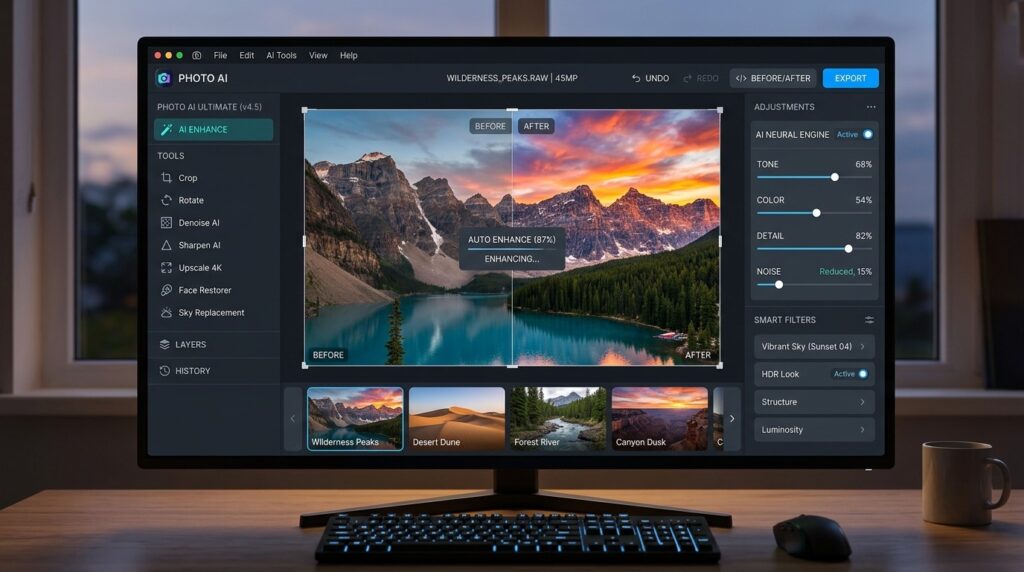
An AI photo editor is software that uses machine learning to edit images through tasks like generative fill, object removal, background removal, enhancement, and upscaling. Instead of manual masking and cloning, you describe a change or click an area, and the tool generates or repairs pixels automatically.
These tools fall into three rough groups: precision editors like Adobe Photoshop, enhancement specialists like Topaz Photo AI, and fast accessible editors like Pixlr and Canva. The category also overlaps with generation tools such as Adobe Firefly, which create new imagery rather than only editing existing photos.
Key definition
An AI photo editor uses machine learning to handle tasks such as generative fill, object removal, background removal, enhancement, and upscaling, replacing many manual masking, cloning, and retouching steps.
Why the Right AI Photo Editor Matters for Your Workflow
The right AI photo editor saves hours and protects image quality. The wrong one forces you to fight the software or accept soft, artifact-heavy results. A professional retoucher and a social media manager need very different things, and picking by hype usually leads to overpaying or under-delivering.
In my review of the top tool comparisons, the clearest trend is the shift from feature lists toward workflow fit. The strongest 2026 content shows creators chaining tools together, ideating in one app, editing in another, and publishing in a third, rather than expecting one editor to do everything well.
Key Takeaways
- Choose your AI photo editor by primary task: precision, enhancement, or speed.
- No single tool wins for every creator or budget.
- Workflow integration matters more than raw feature count.
Best AI Photo Editor Tools Compared by Use Case
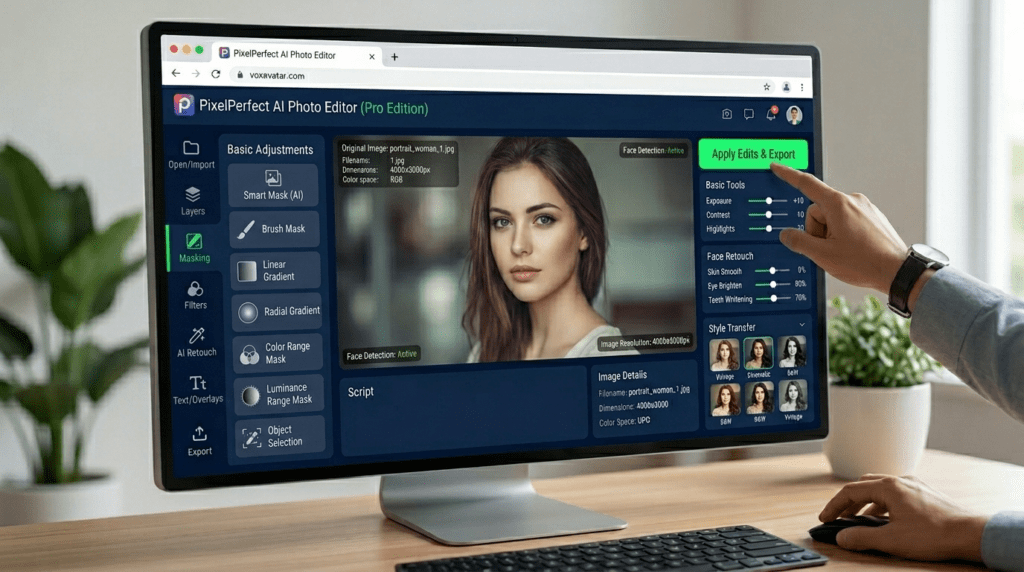
Here is how the leading tools map to real jobs. Each gets a short verdict so you can match it to your needs.
Adobe Photoshop (Best for precision and generative fill)
Photoshop remains the standard for detailed editing, layered compositing, and generative fill powered by Adobe Firefly. You can remove objects, extend backgrounds, and replace elements with text prompts, then refine with traditional tools. A newer reference image feature lets you guide generative fill with an image instead of words, which improves consistency for clothing swaps and object placement.
Verdict: Best for professionals and serious hobbyists who want full control.
Topaz Photo AI (Best AI photo enhancer and upscaler)
Topaz Photo AI focuses on enhancement, denoising, sharpening, and image upscaling. It’s the tool I’d reach for when a photo is technically weak but otherwise good, like a noisy low-light shot or a small file that needs to print large. It does not generate new scenes; it improves what you already have.
Verdict: Best for photographers who need clean, high-resolution output.
Pixlr (Best free browser-based editor)
Pixlr runs in the browser and needs no software installation, which makes it ideal for quick edits on any machine. It covers background removal, basic AI tools, and fast adjustments without a steep learning curve.
Verdict: Best for hobbyists and anyone editing on the go.
Remove.bg (Best dedicated background removal)
Remove.bg does one job well: fast, automatic background removal. It’s useful inside a larger workflow when you need clean cutouts for product images, thumbnails, or composites.
Verdict: Best as a single-purpose background remover.
Canva Magic Eraser (Best for quick social edits)
Canva Magic Eraser lets you brush over unwanted objects and remove them inside Canva’s design environment. It’s not as precise as Photoshop, but for social posts where the image sits inside a layout anyway, it’s quick and good enough.
Verdict: Best for social media managers who design and edit in one place.
Comparison Table
| Tool | Best Use Case | Skill Level |
|---|---|---|
| Adobe Photoshop | Precision edits, generative fill | Intermediate to pro |
| Topaz Photo AI | Enhancement and upscaling | Beginner to pro |
| Pixlr | Fast free browser edits | Beginner |
| Remove.bg | Background removal only | Beginner |
| Canva Magic Eraser | Quick social edits | Beginner |
How to Use Generative Fill Effectively for Object Removal
Generative fill works best when your selection and prompt are precise. The tool reads the area you select, then generates pixels to match the surrounding context, so sloppy selections produce sloppy results. Object removal is one of its most reliable uses, especially for distractions like wires, people, or signs.
Follow these steps:
Step 1: Make a clean selection slightly larger than the object you want gone.
Step 2: Leave the prompt empty to remove and fill with background, or type a short prompt to replace it.
Step 3: Generate several variations and pick the cleanest blend.
Step 4: Refine edges with a layer mask or a second small selection if seams appear.
For replacement rather than removal, keep prompts specific. “Wooden park bench, daytime” beats “a bench.” The reference image feature can also guide the fill when wording fails to capture a look, which is one of the more useful recent advances.
Tip
For removal, a clean selection slightly larger than the object usually works best. For replacement, short specific prompts produce better results than vague labels.
Resolution Limits and Practical Workarounds
Generative fill in Photoshop outputs roughly 1024px on the long edge of the selection, then scales it to fit. Stretch that fill across a large area and you’ll see softness or pixelation. This is the single biggest limitation creators run into, and it’s fixable.
Workarounds that hold up in practice:
- Keep selections close to 1024px so the fill stays sharp.
- Generate large areas in smaller sections rather than one big fill.
- Expand the canvas in steps for generative expand instead of one huge crop.
- Send the final image through Topaz Photo AI to upscale and recover detail.
This is where most people waste time. They fill a huge region, get a soft result, and blame the tool. Working in resolution-appropriate selections solves it.
Key Takeaways
- Generative fill quality depends on selection size and prompt specificity.
- Keep fills near 1024px to avoid pixelation.
- Pair generative fill with an upscaler for large final outputs.
Create With VidAU
After polishing product photos and creative assets, use VidAU AI Image, VidAU AI Video, Product Sample to Video, URL to Video, UGC Avatars, Text to Video, and Object Remover to turn still images into ad-ready video content.
VidAU workflow
Where VidAU fits after AI photo editing
- Edit photos first: Use Photoshop, Topaz Photo AI, Pixlr, Remove.bg, or Canva Magic Eraser to clean up product photos, portraits, thumbnails, or social images.
- Create new visuals: Use VidAU AI Image when polished assets need creative variations or new visual directions.
- Turn images into video: Use VidAU AI Video or Product Sample to Video to move edited product photos into short ad-ready clips.
- Build product-led workflows: Use URL to Video when an ecommerce page or product listing needs to become a marketing video.
- Add people, scripts, and cleanup: Use UGC Avatars for presenter-led content, Text to Video for script-based video, and Object Remover when a clip needs video-level cleanup instead of photo editing.
Platform and Skill-Level Recommendations
Your best AI photo editor shifts with your platform and experience. Beginners and browser-only users get the most from Pixlr and Canva Magic Eraser. Professionals who need layered control should stay in Photoshop, often paired with Lightroom for fast batch enhancement and Adobe Express for social-ready exports.
The Adobe ecosystem is worth calling out as a complete workflow option: Firefly for ideation, Photoshop for precision, Lightroom for quick enhancement and retouching, and Express for publishing. If you already pay for that suite, it covers most needs without adding new tools. The trade-off is cost and a learning curve that casual users may not want.
| User Type | Best Fit | Why |
|---|---|---|
| Beginners | Pixlr or Canva Magic Eraser | Easy, browser-based, and useful for common edits without a steep learning curve. |
| Browser-only users | Pixlr, Canva Magic Eraser, Remove.bg | No software installation is needed for background removal, quick cleanup, or social edits. |
| Professional retouchers | Adobe Photoshop | Layered control, precision edits, generative fill, and advanced compositing. |
| Photographers needing better quality | Topaz Photo AI | Enhancement, denoising, sharpening, and upscaling existing photos. |
| Adobe suite users | Firefly, Photoshop, Lightroom, Express | Full workflow from ideation to precision editing, enhancement, and publishing. |
Tip
Beginners should start with browser tools. Professionals who need layers, compositing, and precision should stay in Photoshop, often paired with Lightroom and Topaz Photo AI.
Common Mistakes Creators Make With AI Editing
The most common mistake is choosing a tool by its marketing instead of your task. A social media manager rarely needs Photoshop’s full depth, and a retoucher won’t be happy with a simple brush eraser.
Other frequent errors:
- Selecting too loosely before generative fill, which causes visible seams.
- Writing vague prompts and expecting consistent results.
- Filling oversized regions and getting low-resolution output.
- Skipping a final upscale pass on heavily edited images.
- Buying a full subscription for occasional edits a free browser tool could handle.
Fix these and most AI editors perform far better than people expect.
Watch out
Do not choose tools by hype, select too loosely, write vague prompts, fill oversized regions, skip upscaling after heavy edits, or buy a full subscription for occasional edits that a free browser tool can handle.
How AI Image and Video Tools Fit a Full Content Workflow
Editing photos is often one step in a larger content pipeline. Once your images are clean, many creators turn them into video ads, product clips, or social content. This is where image and video tools start to overlap.
VidAU is an AI video ad platform that generates video ads from product URLs, images, or scripts in 49 languages. After polishing product photos in your AI editor, you can move them into video with tools like VidAU AI Image for creative visuals or VidAU AI Video for ad-ready clips. For eCommerce, the Product Sample to Video and URL to Video workflows turn assets into short videos quickly.
VidAU isn’t a photo editor and shouldn’t replace Photoshop or Topaz for detailed retouching. But if your goal is turning edited images into video creatives, UGC Avatars and Text to Video extend the workflow past the still image. If you only need to remove an object from a clip, the Object Remover handles that for video instead of photos.
Workflow note
VidAU is not a replacement for Photoshop or Topaz Photo AI. It fits after photo editing, when polished still images need to become ad-ready clips, product videos, avatar videos, or social content.
Key takeaway
Final Thoughts
There is no universal best AI photo editor in 2026. Photoshop wins on precision and generative fill, Topaz wins on enhancement and upscaling, and Pixlr or Canva Magic Eraser win on speed and access. Pick the one that matches your main task, then add a second tool only where your primary editor falls short.
If your editing eventually feeds into ads or social video, line up your image tools first, then move polished visuals into video. You can start by turning edited product images into short clips with VidAU AI Video.
FAQ
Here are answers to common questions about the best AI photo editor, generative fill, Photoshop, Topaz Photo AI, Pixlr, Canva Magic Eraser, Remove.bg, object removal, resolution limits, upscaling, beginner tools, and turning edited photos into video.
What is the best AI photo editor in 2026?
The best AI photo editor in 2026 depends on your task. Adobe Photoshop leads for precision edits and generative fill, Topaz Photo AI is best for enhancement and upscaling, and Pixlr or Canva Magic Eraser suit fast, casual edits. Choose by workflow rather than feature count, since no single tool wins for every creator.
Which AI photo editor is best for generative fill?
Adobe Photoshop is the best AI photo editor for generative fill, powered by Adobe Firefly. It supports text prompts, object removal, background extension, and a reference image feature that guides fills with an image. Results depend heavily on clean selections and specific prompts, so technique matters as much as the tool.
What is the resolution limit of generative fill?
Photoshop’s generative fill outputs roughly 1024px on the long edge of your selection, then scales it to fit. Stretching that across a large area causes softness. Keep selections near 1024px, fill large regions in sections, and run the final image through an upscaler like Topaz Photo AI for sharp results.
Is there a good free AI photo editor?
Yes. Pixlr is a strong free, browser-based AI photo editor that needs no software installation and covers background removal and basic AI edits. Remove.bg handles automatic background removal, and Canva Magic Eraser removes objects inside Canva’s design tools, which is convenient for social media managers working in layouts.
What is the best AI photo editor for beginners?
Beginners should start with Pixlr or Canva Magic Eraser. Both are easy to learn, run in the browser, and handle common tasks like background removal and object cleanup without a steep learning curve. They avoid the complexity of Photoshop while still offering useful AI editing features for everyday images.
Can AI photo editors remove objects from photos?
Yes. Most AI photo editors include object removal. Photoshop’s generative fill removes objects and rebuilds the background, Canva Magic Eraser brushes objects away, and dedicated tools handle backgrounds. For best results, select slightly larger than the object and generate a few variations, then clean up any visible edges or seams.
How do I get sharper results from generative fill?
Make clean selections close to 1024px, write specific prompts, and generate several variations. Fill large areas in smaller sections rather than one stretch, use generative expand in steps, and finish with an upscaler like Topaz Photo AI. Selection quality and prompt detail control most of the final sharpness.
Should I use one AI photo editor or several?
Most creators use several. A common workflow pairs Photoshop or Pixlr for editing with Topaz Photo AI for enhancement and upscaling. The Adobe ecosystem of Firefly, Photoshop, Lightroom, and Express covers ideation to publishing. Use one primary editor for your main task and add tools only where it falls short.
Can I turn edited photos into video?
Yes. After editing photos, you can move them into AI video tools to create ads or social clips. Platforms like VidAU generate video from images, product URLs, or scripts. This works well for eCommerce and marketing, though a video tool is not a replacement for a dedicated photo editor.


