Roblox Avatar Guide · Skin Tone, Outfit Codes & UGC Items
How to Change Skin Color or Tone in Catalog Avatar Creator
Learn where to change skin tone first, how to enter outfit codes and asset IDs, and how to build Roblox looks without losing your color settings.
By the VidAU Editorial Team · Catalog Avatar Creator guide · Roblox outfits, asset IDs, body scale, skin tone settings, and avatar workflows
Can’t find the skin tone setting in Catalog Avatar Creator ? This fast tutorial shows where to change skin tone first, then test outfit codes and free looks without losing your color.
Changing skin tone and trying outfits should be quick in catalog avatar creator. This tutorial shows exactly where to set your color, how to enter outfit or asset codes, scale your body for layered clothing, copy outfits, and fix common issues.
If your tone keeps resetting after you try items, set a base skin tone first, then equip in order. This guide is for Roblox players who want fast, reliable steps inside Catalog Avatar Creator, not a talking avatar creator or AI tools.
Quick Summary
- Catalog Avatar Creator steps: set skin tone first (Body or Head & Body > Skin/Body Colors), then equip layered clothing and UGC items in order.
- Asset IDs and outfit codes: copy the numeric ID from a Roblox item URL, paste into the in-game code box, and try on to preview.
- Body scale: adjust Height, Width, Head, Body Type, and Proportions before layering clothes to reduce clipping.
- Best fit: players building free Roblox outfits, previewing UGC items, or testing bundles without changing their main Roblox Avatar Editor settings.
What Is Catalog Avatar Creator?
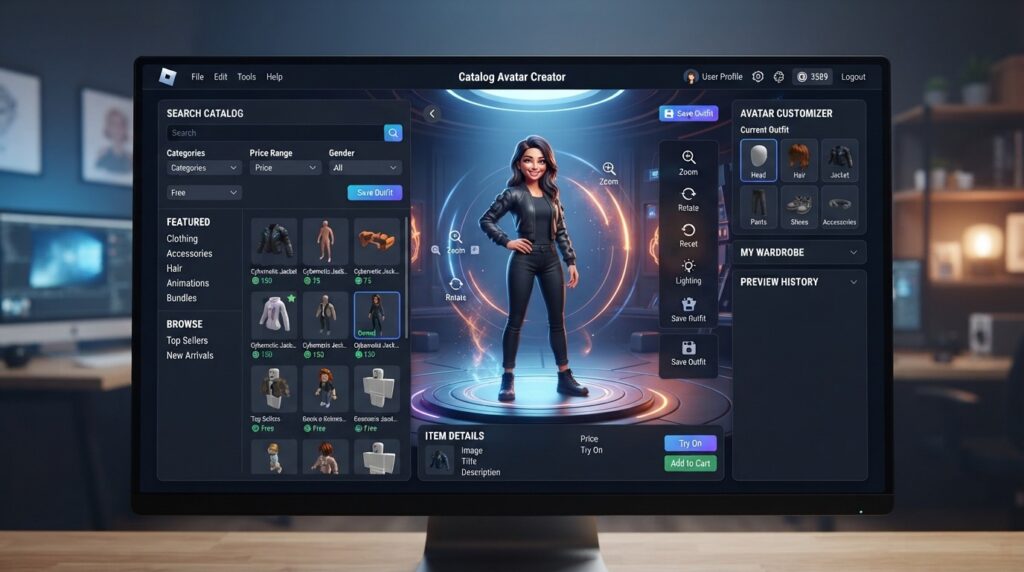
Catalog Avatar Creator is a popular Roblox experience where you preview outfits, UGC items, layered clothing, and body scale changes without committing them to your main Roblox avatar. It uses asset ID and outfit code try-ons so you can build and test looks before deciding what to use in the Roblox Avatar Editor.
Definition
Catalog Avatar Creator is a Roblox experience for previewing outfits, UGC items, layered clothing, body scale changes, asset IDs, and outfit code try-ons before committing changes in the Roblox Avatar Editor.
Who Is This For?
This is for US Roblox players who want fast, practical steps to set skin tone, test outfit codes, adjust body scale, and copy looks in a single session. It also helps anyone comparing Catalog Avatar Creator previews with the Roblox Avatar Editor (the roblox avatar creator) to finalize their style.
Best fit
This guide is for Roblox players who want to set skin tone, test outfit codes, adjust body scale, copy looks, and compare Catalog Avatar Creator previews with the Roblox Avatar Editor.
How Do You Change Skin Tone in Catalog Avatar Creator?
You change skin tone from the avatar panel inside the experience.
Step 1: Join Catalog Avatar Creator on Roblox
Join Catalog Avatar Creator on Roblox.
Step 2: Open the avatar panel/menu
Open the avatar panel/menu.
Step 3: Go to Body or Head & Body
Go to Body or Head & Body.
Step 4: Select Skin or Body Colors
Select Skin or Body Colors.
Step 5: Pick a tone and apply it
Pick a tone and apply it to your full body (or specific limbs if available).
Step 6: Confirm your selection
Confirm your selection so it becomes your base before equipping items.
Step 7: Optional: note your selection
Optional: Note your selection so you can quickly reapply if a code overrides it.
About extra hex colors: some creators share tricks for hidden shades, but results can change after updates. Use the built-in palette for reliable previews and confirm final colors later in the Roblox Avatar Editor
Skin tone note
Use the built-in palette for reliable previews and confirm final colors later in the Roblox Avatar Editor. Hidden shade tricks can change after updates.
How to Change Skin Tone in Catalog Avatar Creator While Keeping It After Try-Ons
To keep your color from resetting, apply tone first and equip items in a controlled order.
- Set your base skin tone.
- Equip body/bundle parts next if you plan to use them.
- Add layered clothing (shirts, jackets, pants, dresses) from thinnest to thickest.
- Add accessories (hats, hair, face, neck, shoulder, back, waist) last.
- If a code reverts your tone, clear the outfit, reapply tone, then re-equip in this order.
Tone-saving tip
Apply skin tone first, then equip body parts, layered clothing, and accessories in order. If a code resets your tone, clear the outfit and rebuild from the base tone.
How Do You Enter Outfit Codes and Asset IDs in Catalog Avatar Creator?
You can preview items by pasting their asset ID or outfit code into the in-experience input box.
Step 1: Find an item on the Roblox catalog
Find an item on the Roblox catalog (UGC items, layered clothing, accessories).
Step 2: Copy the numeric asset ID
Copy the numeric asset ID from the item URL (the long number in the link).
Step 3: Open the code or outfit input field
In Catalog Avatar Creator, open the code or outfit input field.
Step 4: Paste the asset ID or outfit code
Paste the asset ID or outfit code, then select Try On or Add (wording may vary).
Step 5: Repeat for each item
Repeat for each item to assemble the full outfit.
Step 6: Fix tone conflicts if needed
If a code alters skin tone, clear, reapply your tone, and re-add items in order.
Notes and Cautions
- Previewing items in Catalog Avatar Creator does not grant free ownership; use the Roblox marketplace to purchase if you want to wear them in games.
- Some full outfit codes include body parts or bundles that can override skin or proportions.
Ownership warning
Previewing items in Catalog Avatar Creator does not grant free ownership. Use the Roblox marketplace to purchase items you want to wear in games.
How Do You Scale Your Avatar for Layered Clothing and UGC Items?
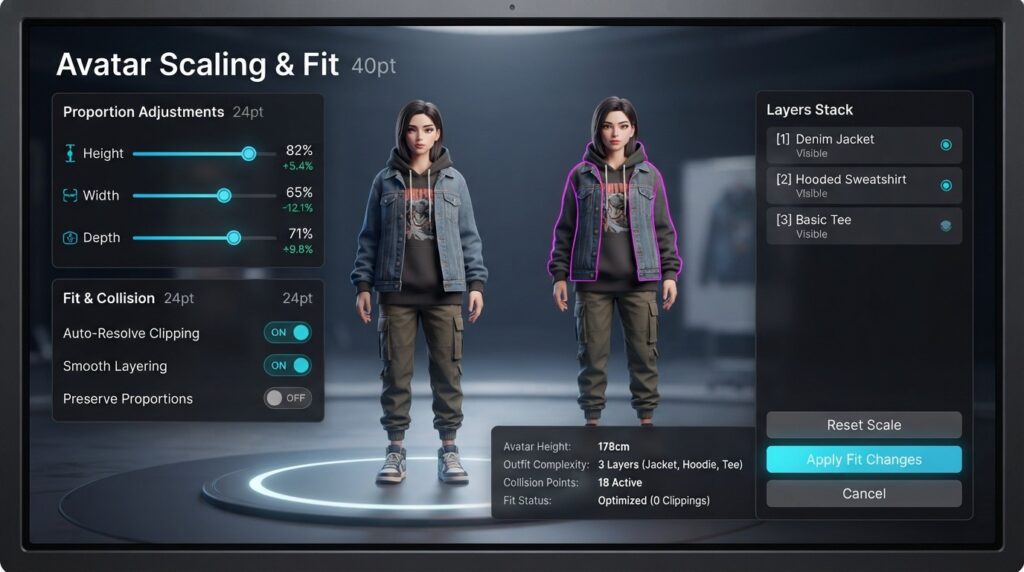
Use the body scale controls to reduce clipping and improve the fit before stacking layers.
Step 1: Open the avatar panel and find Scale
Open the avatar panel and find Scale or similar controls.
Step 2: Adjust Height and Width first
Adjust Height and Width first for overall proportions.
Step 3: Tune Head size
Tune Head size so hair and hats align better.
Step 4: Change Body Type and Proportions
Change Body Type and Proportions to match the style you want.
Step 5: Equip layered clothing from inside to outside
Equip layered clothing from inside to outside and check for clipping.
Step 6: Make small adjustments
Make small adjustments, then re-check hats, hair, and shoulder/back accessories.
Quick Tips
- Bigger Head can affect hair and accessory fit.
- Slimmer Width often reduces jacket or backpack clipping on layered clothing.
Layered clothing tip
Adjust Width, Body Type, and Proportions before stacking layers. Then add clothes from inside to outside and re-check hair, hats, and accessories.
How Can You Copy or Rebuild a Free Roblox Outfit in Catalog Avatar Creator?
You can replicate looks by gathering each item’s ID and trying them on in sequence.
Step 1: Open a look to view its items
If the server has outfit boards or mannequins, open a look to view its items.
Step 2: Copy each asset ID
For each piece, copy the asset ID and try it on via the code box.
Step 3: Replace missing items
Replace any missing items with similar free UGC items from the Roblox catalog.
Step 4: Fine-tune body scale
Fine-tune body scale so layered clothing sits correctly.
Step 5: Save or note your item list
Save or note your item list so you can rebuild the look later.
Tip: If there’s no direct copy button, rebuild manually with IDs. It’s slower, but you’ll learn which pieces create the style.
Rebuild tip
If there’s no direct copy button, rebuild manually with IDs. Save your item list so you can recreate the outfit later.
How Do You Keep Skin Tone From Resetting While Previewing Outfits?
Keep your tone by controlling the order of operations and clearing conflicts.
- Apply skin tone first and mark it as your base.
- Try bundles or body parts next; if they change tone, switch parts off or reapply tone.
- Add layered clothing and UGC items last.
- If a full outfit code resets tone, clear all, set tone, then add items piece by piece.
CTA: Generate UGC Avatars with VidAU
Create Talking Avatars and UGC Avatars With VidAU
Use Catalog Avatar Creator for Roblox outfit previews, then use VidAU UGC Avatars, Text to Speech, and AI Video workflows when you need talking-avatar content, voiced characters, or avatar-style videos outside Roblox.
VidAU workflow
Where VidAU Fits Beside Catalog Avatar Creator
- Use Catalog Avatar Creator for Roblox previews: Set skin tone, test outfit codes, enter asset IDs, scale body proportions, and preview UGC items before changing your main Roblox avatar.
- Use the Roblox Avatar Editor for final wearable looks: Confirm final tone, scale, and owned items in the Roblox Avatar Editor after testing combinations inside Catalog Avatar Creator.
- Use VidAU UGC Avatars for talking-avatar content: When the goal is a voiced or animated avatar instead of a Roblox wearable outfit, use a talking avatar creator workflow with VidAU UGC Avatars.
- Use Text to Speech for voiceovers: Add natural spoken lines to avatar-style videos when you need tutorials, explainers, or social clips.
- Use VidAU AI Video for finished video assets: Turn avatar concepts, scripts, or product messages into video content outside the Roblox outfit-preview workflow.
Troubleshooting Common Catalog Avatar Creator Errors
Here are fast fixes you can try immediately in the experience.
- My skin tone changed after a code: Clear outfit, reapply skin tone, then re-equip items in order (body parts, layers, accessories).
- Asset ID won’t load: Recheck the number from the Roblox URL, ensure it’s the item’s numeric ID, and try again.
- Layered clothing clips through: Adjust Width, Body Type, and Proportions; re-order layers from tightest to bulkiest.
- Hair or hats float: Decrease Head size slightly; re-position with compatible hair if available.
- Outfit code is incomplete: Add missing pieces with individual asset IDs from the Roblox catalog.
- Preview looks different in Roblox Avatar Editor: Confirm tone and scale in the Roblox Avatar Editor, then mirror the setup; some previews may render slightly differently.
- Items vanished after reset: Rebuild with your saved item list or re-enter codes.
Mistake to avoid
Do not equip full outfit codes before setting your base skin tone. Some outfit codes include body parts or bundles that can override your tone or proportions.
Key Takeaways
- Set skin tone first, then equip items.
- Paste accurate asset IDs from Roblox URLs.
- Use scale sliders to fix clipping before stacking layers.
Key takeaway
Final Thoughts
If you start with skin tone, then scale, then codes, Catalog Avatar Creator becomes a quick lab for free Roblox outfits and UGC tests. Treat the experience as a preview space, keep an ordered workflow, and confirm final choices in the Roblox Avatar Editor when you’re ready.
Your best next step: set a base tone, adjust scale, and rebuild one favorite look using asset IDs. Save your item list so you can re-create it anytime.
FAQ
Here are answers to common questions about Catalog Avatar Creator, changing skin tone, outfit codes, asset IDs, Roblox item ownership, layered clothing, the Roblox Avatar Editor, copying outfits, hidden skin colors, talking avatar creator workflows, and why bundles may override tone or scale.
How do I change skin tone in Catalog Avatar Creator without it resetting?
Apply your skin tone first in Body or Head & Body > Skin/Body Colors. Then equip body parts or bundles, followed by layered clothing and accessories. If a code overrides your tone, clear the outfit, reapply the tone, and re-equip items in that order.
Where do I enter outfit codes or asset IDs in Catalog Avatar Creator?
Use the in-experience code or outfit input field. Copy the numeric asset ID from a Roblox catalog URL, paste it into the box, and choose Try On or Add. Repeat for each piece. If a full outfit code conflicts with your tone, rebuild with individual item IDs.
How do I find the asset ID for a Roblox item?
Open the item on the Roblox catalog and look at the URL. The long number in the link is the asset ID. Copy only the digits. Paste that ID into Catalog Avatar Creator’s input box to try the item on before you commit to anything in the Roblox Avatar Editor.
Can I get UGC items for free by using codes in Catalog Avatar Creator?
No. Catalog Avatar Creator previews items; it doesn’t grant ownership. To wear UGC items in games, purchase them through the Roblox marketplace. Use the experience to test combinations, skin tone, and scale so you only buy pieces that fit your final look.
Why is my layered clothing clipping or looking bulky?
Layered clothing stacks can clip when body scale isn’t tuned. Adjust Width, Body Type, and Proportions first, then add clothing from inside to outside. Reorder or swap pieces if they collide. Small Head and Width tweaks often fix hair, hats, backpacks, and jackets.
What’s the difference between Catalog Avatar Creator and the Roblox Avatar Editor?
Catalog Avatar Creator is a try-on space inside a Roblox experience. The Roblox Avatar Editor (roblox avatar creator) changes your real avatar. Build and preview in Catalog Avatar Creator, then confirm final tone, scale, and items in the Avatar Editor when you’re satisfied.
How do I copy someone’s outfit from Catalog Avatar Creator?
Open the look, note each item, and collect their asset IDs from the Roblox catalog. Paste those IDs into the code box and try them on in order. If there’s a built-in copy button, use it; otherwise manual rebuilds are reliable and teach you which pieces matter most.
Can I use hex or hidden skin colors in Catalog Avatar Creator?
Some videos show tricks for extra shades, but results can change after updates. For reliable previews, pick from the built-in Skin or Body Colors palette. If color accuracy is crucial, test the same tone in the Roblox Avatar Editor to confirm how it renders across games.
Is this the same as a talking avatar creator?
No. This guide covers Catalog Avatar Creator for visual outfits, UGC items, skin tone, and body scale. A talking avatar creator focuses on animated or voiced characters, which is a different workflow. Use Catalog Avatar Creator when you want to build and test wearable looks.
Why does a bundle change my skin tone or scale?
Bundles may include body parts that override tone or proportions. If that happens, clear the outfit, reapply your preferred skin tone, re-add desired parts, and finish with layered clothing and accessories. Confirm the final setup in the Roblox Avatar Editor if needed.