ClipGrab Review: Is It Safe, Why It’s Not Working, and Better Alternatives
For creators and marketers needing to source video content, a tool like ClipGrab seems like a simple solution. It’s a free application that promises easy video downloads from popular sites. But users often run into two major problems: persistent “ClipGrab not working” errors and serious questions about safety, like “Is ClipGrab safe to install?”
This article provides a transparent ClipGrab review, explains why it breaks, and explores more reliable ClipGrab alternatives for Windows, Mac, and Android. We’ll also cover the crucial compliance rules for downloading content and how to integrate media you own into a professional editing workflow.
What is ClipGrab?
ClipGrab is a free desktop application built to download and convert videos from websites like YouTube, Vimeo, and Dailymotion.
Its main appeal is simplicity. Users paste a video link, choose an output format like MP4 or MP3, and the tool attempts to save the file locally.
Key features of ClipGrab:
- Simple interface: ClipGrab is designed to be easy to use, with a straightforward process of pasting a URL to download.
- Multiple formats: It can download videos in various formats, including MP4.
- Cross-platform: The software supports multiple operating systems.
- Donationware: It is available for free but encourages donations.
How does ClipGrab work for downloading videos?
ClipGrab functions as both a downloader and a converter.
- Downloader: This part of the software parses the webpage URL you provide. It sifts through the site’s code to find the source video file (or “stream”) and then fetches that file to save it on your hard drive.
- Converter: Once the file is downloaded, the app can perform transcoding. Transcoding is the technical process of converting a file from one digital format and codec to another. For example, it can take a high-resolution web-based stream and convert it into a smaller, universally compatible MP4 file or an audio-only MP3 file.
What are the pros and cons in a quick ClipGrab review?
While ClipGrab is free, its limitations are significant for professional or even regular use.
Pros:
- Completely free: There is no cost to use the software.
- Simple interface: It is very straightforward, with one window for pasting links and choosing formats.
- Basic conversion: The ability to output directly to MP3 or MP4 is convenient.
Cons:
- Reliability: The most common complaint is “ClipGrab not working,” as it breaks frequently when websites update.
- Safety concerns: The installer has a reputation for bundling unwanted software, triggering “ClipGrab virus” alerts.
- Slow updates: As a free tool, it often lags behind website changes, leaving it broken for days or weeks.
- No native Apple Silicon support: It is not optimized for modern Macs, making it a poor ClipGrab alternative for Apple Silicon users.
Is ClipGrab safe to install?
ClipGrab itself is generally considered safe, but its installer has a history of bundling third-party software, known as Potentially Unwanted Programs (PUPs), that users may not want.
This bundling is a primary reason for the concern, “Is ClipGrab safe?” While the core app’s function is to download videos, the installer may try to add browser toolbars, adware, or other unrelated applications to your system.
Is ClipGrab Safe? Quick Answer
ClipGrab is not generally considered a virus, but users should be careful when installing it. Some versions or third-party download pages may include bundled offers, adware warnings, or potentially unwanted programs. The safest approach is to download ClipGrab only from the official website, avoid unofficial mirrors, scan the installer before opening it, and review every installation step carefully.
Takeaway: ClipGrab may be safe when downloaded from a trusted source, but users should treat the installer carefully and avoid unknown download sites.
| Question | Short Answer |
|---|---|
| Is ClipGrab safe? | Mostly safe from official sources, but installer warnings and bundled offers can be a concern. |
| Is ClipGrab a virus? | ClipGrab itself is not usually described as malware, but some installers or mirrors may trigger security warnings. |
| Why is ClipGrab not working? | Common reasons include outdated site support, video platform changes, blocked URLs, or connection issues. |
| What is the best ClipGrab alternative? | For technical users, yt-dlp is powerful. For easier workflows, tools like 4K Video Downloader or browser-based video tools may be better. |
| Should creators use ClipGrab? | Only for videos they own, have permission to use, or are legally allowed to download. |
Why do scanners sometimes flag a “ClipGrab virus”?
Antivirus tools often flag a “ClipGrab virus” not because the program is a malicious trojan, but because its installer’s behavior is deceptive.
Security software identifies installers that use “dark patterns” to trick users into installing adware as a potential threat. Because the ClipGrab installer has included these bundles in the past, many security suites will warn you or even block the installation to be safe.
To reduce risk, users should:
- Download ClipGrab only from the official website.
- Avoid APK sites and unknown software mirrors.
- Scan the installer before opening it.
- Choose custom installation when available.
- Decline any unrelated add-ons or bundled offers.
- Remove the installer after setup if it is no longer needed.
Takeaway: Most safety concerns around ClipGrab come from installers, mirrors, or bundled offers rather than the core idea of the tool itself.
How can you download ClipGrab safely?
If you still want to try ClipGrab, you must be extremely cautious during installation.
- Official Source Only: Download the installer only from the official clipgrab website.
- Scan the File: Before running the installer, right-click it and scan it with your antivirus software.
- Choose “Custom Install”: During the installation process, never click “Express” or “Recommended.” Always choose “Custom” or “Advanced.”
- Read and Uncheck: Read every single screen carefully. Uncheck all boxes for optional offers, toolbars, or other software. Click “Decline” or “Skip” on any offers.
If you are uncomfortable with these steps, we strongly recommend using one of the cleaner ClipGrab alternatives listed below.
Why is ClipGrab not working?
The “ClipGrab not working” error almost always occurs because the video website it’s trying to download from has changed its code, breaking ClipGrab’s ability to find the video file.
Why Is ClipGrab Not Working?
ClipGrab may stop working when video platforms change how videos are loaded, protected, or delivered. This is common with video download tools because websites frequently update their streaming systems, page structure, and access rules.
| Problem | Possible Cause | Recommended Fix |
|---|---|---|
| ClipGrab cannot retrieve video link | The video platform changed its URL structure | Update ClipGrab or try another supported source |
| Download is stuck | Slow connection, server block, or unsupported format | Restart the app, switch format, or try later |
| ClipGrab crashes | Outdated software or OS compatibility issue | Reinstall the latest version from the official source |
| No audio after download | Format conversion issue | Try MP4 instead of audio-only formats |
| Video quality is low | Source video or selected output setting is limited | Choose a higher available resolution |
| ClipGrab does not open on Mac | macOS security or compatibility restriction | Check system permissions and download from the official source |
How do website updates break video downloaders?
Video platforms like YouTube are in a constant battle with download tools. They actively update their site’s code, player scripts, and data request methods for two reasons:
- To protect copyrighted content.
- To improve their own streaming performance.
A tool like ClipGrab is hard-coded to look for video data in a specific way. When a website changes its structure, the tool can no longer find the file, and it fails. This is why tools like ClipGrab that rely on a small team (or single developer) for updates are often broken.
What are the common fixes for “ClipGrab not working” errors?
If ClipGrab suddenly stops working, your options are limited:
- Update ClipGrab: Check the official website to see if a new version has been released that patches the problem.
- Restart the App: Sometimes a simple restart can clear a temporary glitch.
- Wait: You may have to wait days or weeks for the developer to release a fix.
- Find an Alternative: The most effective fix for “ClipGrab not working” is to switch to a more reliable ClipGrab alternative that is updated more frequently.
Does ClipGrab Work on Both Mac and Windows?
The short answer is yes. ClipGrab offers separate installers for Windows, macOS, and Linux. The core functionality—pasting a link, selecting a format, and downloading—remains the same across all platforms.
However, the user experience is not identical. Differences in update frequency, stability, and hardware optimization mean the app often feels “flakier” on one platform than the other.
Supported Operating Systems
While exact requirements shift with every update, here is the current compatibility landscape:
- Windows: Officially supports Windows 7, 8, 10, and 11. It is available in both 32-bit and 64-bit builds, covering the vast majority of PC hardware.
- macOS: Typically requires macOS 10.12 (Sierra) or newer.
- Linux: Available as standard builds and portable binaries.
The Windows Experience
Windows is generally considered ClipGrab’s “home turf.” It is where the software feels most stable and receives the most consistent support.
- Availability: The installer is widely distributed, and most mirrors host recent builds (3.9.x) that play nicely with Windows 10 and 11.
- Performance: Core features usually work as advertised, provided the software is up to date.
- Common Issues:
- Freezing: Users frequently report the app becoming unresponsive after pasting a link, particularly when YouTube changes its backend code.
- Stuck Downloads: Even after a fresh install, downloads may hang at the “Preparing” stage without a clear error message. This usually indicates that ClipGrab is waiting for a developer update to bypass new streaming restrictions.
The macOS Experience (Intel vs. Apple Silicon)
While ClipGrab works on Mac, the experience is often described as “legacy” or “clunky.” The performance depends heavily on which processor your Mac uses.
1. Intel Macs On older Intel-based Macs, ClipGrab behaves similarly to the Windows version: simple and functional, though the interface looks dated compared to modern macOS design standards.
2. Apple Silicon (M1, M2, M3) This is where significant issues arise. ClipGrab is not yet optimized for Apple Silicon. It requires Rosetta 2 (Apple’s translation layer) to run, which leads to several performance drawbacks:
- High Resource Usage: The app uses more CPU than a native application would, which can drain battery life on laptops.
- Instability: Users report frequent crashes, often immediately after pasting a link.
- UI Lag: The interface can feel sluggish or unresponsive compared to native apps.
Note: Because the Mac build often lags behind Windows in updates, bugs tend to persist longer on macOS.
Verdict: Which Platform is Better?
If you are looking for stability, Windows has the edge. The Windows builds are updated more frequently and generally behave more predictably.
On macOS, ClipGrab works, but it feels like a relic from a previous era. If you are using a modern Mac with an M-series chip, you will likely find the experience frustrating due to the reliance on Rosetta 2 and frequent crashes.
The Bottom Line: It works on both, but expect a smoother ride on Windows. As you noted, ClipGrab isn’t unusable on Mac—it just “has a mind of its own sometimes.”
Which ClipGrab alternatives are best for desktop (Windows & Mac)?
The best ClipGrab alternatives for desktop users are typically paid tools like 4K Video Downloader for its simplicity and reliability, or open-source projects like yt-dlp for maximum power.
How does 4K Video Downloader compare?
The 4K Video Downloader is a popular, well-maintained application that serves as an excellent replacement.
- Reliability: As a paid product, it has a dedicated development team that updates the app quickly when sites change.
- Features: It supports playlists, channels, subtitles, and resolutions up to 8K.
- Safety: It has a clean installer with no bundled adware.
- Platform Support: It works on Windows, macOS, and Linux, and it offers a native ClipGrab alternative for Apple Silicon users.
If you are frustrated with ClipGrab not working, the 4K Video Downloader is one of the most dependable paid options.
What about command-line tools like yt-dlp?
For technical users, the best ClipGrab alternative is yt-dlp. It is an open-source, command-line program that is a fork of the (now slower-moving) youtube-dl project.
- Power: It supports thousands of websites, far more than any other tool.
- Updates: It is updated by a large community, often multiple times per day, so it is almost never “broken.”
- Control: It gives you precise control over format, quality, subtitle downloads, and more.
- Downside: It has no graphical interface. You must use it from the Terminal or Command Prompt, which is a major barrier for non-technical users. [Cite: GitHub yt-dlp documentation]
What is the best ClipGrab alternative for Apple Silicon Macs?
The best ClipGrab alternative for Apple Silicon (M1, M2, or M3 chips) is an application that runs natively on the ARM64 architecture, such as the 4K Video Downloader or yt-dlp.
ClipGrab itself is an older application that does not run natively; it must run through Apple’s Rosetta 2 translation layer.
Why does native support matter for M1/M2/M3 chips?
Native Apple Silicon apps are built specifically for the new chip architecture. This allows them to run significantly faster, use less energy (saving battery life), and be more stable than older Intel apps running through Rosetta 2 translation. [Cite: Apple Developer Documentation on Rosetta 2]
While ClipGrab might run on an M-series Mac via Rosetta, it will be less efficient and potentially buggier than a native alternative.
Which tools run natively on Apple Silicon?
- 4K Video Downloader: The company provides a separate, native installer for Apple Silicon Macs, which offers the best performance for a GUI-based app.
- yt-dlp: When installed via the package manager Homebrew (brew install yt-dlp), it runs natively and is incredibly fast.
What are the best ClipGrab alternatives for Android?
Reliable ClipGrab alternatives for Android are typically open-source apps found outside the Google Play Store, such as NewPipe or Seal.
Google’s policies forbid video downloaders for platforms like YouTube, so you will not find these apps there.
How can you safely install tools like NewPipe or Seal?
Because these ClipGrab alternatives for Android are not on the Play Store, you must “sideload” them. The safest way to do this is:
- Use F-Droid: F-Droid is a trusted, community-run repository for free and open-source Android apps. You can install the F-Droid app first, then search for “NewPipe” or “Seal” within it.
- Use GitHub: You can also download the official APK (the Android app file) directly from the project’s “Releases” page on GitHub.
Avoid downloading these APKs from random third-party “APK mirror” sites, as they can be bundled with malware.
How can you use downloaded content in your editing workflow?
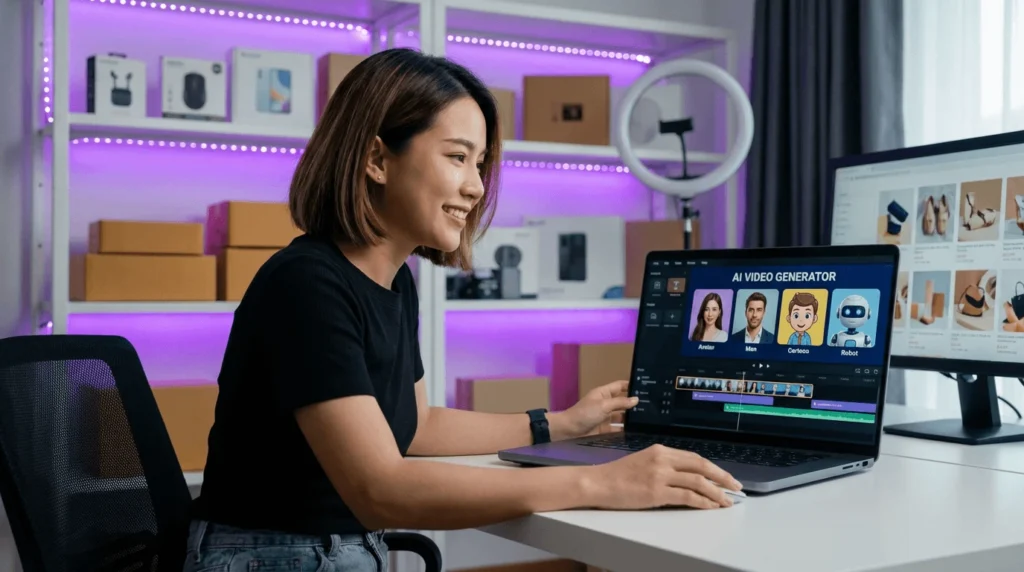
Once you have downloaded a video file that you have the legal rights to use, a simple downloader like ClipGrab is only the first step. To prepare that content for marketing or distribution, you need to add captions, translations, and potentially new audio.
This is where a creator-first platform like VidAU is essential, moving you from a raw file to a finished, accessible asset.
What is the workflow for adding accurate captions and translations?

Raw downloaded videos rarely come with perfect, editable captions.
- Upload: Import your MP4 file into an editor like VidAU.
- Transcribe: Use an AI-powered tool to automatically transcribe the audio into text captions.
- Clean Up: Perform a caption cleanup. AI is fast but not perfect. Review the text to fix punctuation, spelling, and grammar.
- Translate: To reach a global audience, use an AI Subtitle Translator to generate new subtitle tracks in languages like Spanish, French, or Japanese. This is far more efficient than manual translation. [Link to: AI Subtitle Translator]
How do you add a professional AI voiceover?
If you are localizing your video for a new market or creating a new voiceover, you no longer need to hire a voice actor.
- Prepare Script: Use your translated caption script from the previous step.
- Generate Voice: Paste the text into an AI Voice Generator. You can choose from hundreds of natural-sounding voices and languages.
- Sync Audio: The AI-generated audio track will be perfectly timed to your video, ready for export. [Link to: AI Voice Generator]
What are best practices for compression and export?
When you’re ready to export your final video, the settings you choose will determine its quality and file size.
- Codec: A codec (like H.264 or HEVC) is the technology used to compress your video. H.264 (or AVC) offers the widest compatibility for web and social media.
- Bitrate: The bitrate controls the amount of data used per second. A higher bitrate means higher quality but a larger file. For 1080p web video, a variable bitrate (VBR) between 5,000 and 10,000 kbps is a great balance.
Platforms like VidAU simplify this by providing “quick export” presets optimized for platforms like YouTube, TikTok, and Instagram, so you don’t have to guess the settings.
How to download YouTube videos legally and ethically?
You can legally download YouTube videos only when YouTube provides an explicit “Download” button, when you own the content (e.g., your own channel’s videos), or when you have explicit written permission from the copyright holder.
Using any third-party tool like ClipGrab, 4K Video Downloader, or yt-dlp to download YouTube videos you don’t own is a violation of YouTube’s Terms of Service.
What do YouTube’s Terms of Service say?
YouTube’s terms are very clear. By using the service, you agree not to “access, reproduce, download, distribute, transmit… or otherwise exploit any Content for any purpose… without the prior written consent of YouTube or the respective licensors.” [Cite: YouTube Terms of Service]
Using ClipGrab to download YouTube videos for personal or commercial use puts you in violation of this agreement.
What about copyright and Fair Use?
Beyond the Terms of Service, downloading content you don’t own is a copyright violation. While “Fair Use” (or “Fair Dealing”) exists as a legal defense for purposes like criticism, commentary, or research, it is a complex and limited doctrine, not a blanket permission.
For all professional and commercial work, you must use content you have created, content you have licensed, or your own videos downloaded from your YouTube Studio dashboard.
How do you use ClipGrab (if you still choose to)?
If you understand the risks—including the “Is ClipGrab safe” installer issues and the “ClipGrab not working” errors—and you have the legal right to the content, you can use ClipGrab with this simple process.
A simple step-by-step process
- Download & Install: Get the installer from the official clipgrab.org site. As warned, be extremely careful during installation and uncheck all bundled software offers.
- Copy the URL: Go to the video site and copy the full URL of the video you have rights to.
- Paste in ClipGrab: Open the ClipGrab application. It usually detects the URL in your clipboard automatically.
- Choose Format: In the “Format” dropdown, select your desired output, such as MP4 for video or MP3 for audio.
- Select Quality: Choose your desired resolution (e.g., 1080p).
- Click ‘Grab this clip!’: The tool will attempt to download and convert the file to your specified folder.
If you get a “ClipGrab not working” error, the site is likely unsupported, and you will need to use a ClipGrab alternative.
Comparison of ClipGrab Alternatives
| Tool | Best For | Native Apple Silicon | Key Feature(s) |
| ClipGrab | Basic, free downloads | No (Uses Rosetta 2) | Simple, all-in-one downloader/converter. |
| 4K Video Downloader | Ease of use, high quality | Yes (Separate build) | Reliable, supports playlists, 4K/8K, clean installer. |
| yt-dlp | Power users, max compatibility | Yes (Via Homebrew) | Supports thousands of sites, fastest updates, command-line only. |
| NewPipe (Android) | Android users (privacy) | N/A | Lightweight, background playback, no ads, privacy-focused. |
| VidAU | Editors & Marketers | Yes (Web-based) | Edits, transcribes, translates, and adds AI voiceovers (for content you own). |
Conclusion
ClipGrab can still be useful for basic video downloading, especially for users who understand the risks around installers, mirrors, and platform restrictions. However, it is not the best option for everyone. If you are mainly worried about safety, reliability, or long-term support, a trusted alternative may be a better choice.
For creators, marketers, educators, and businesses, the bigger question is not just how to download a video, but what to do with it afterward. If you are working with videos you own or have permission to use, VidAU can help you turn those assets into edited, translated, captioned, or repurposed content.
Final takeaway: Use ClipGrab carefully for basic downloads, but choose a safer or more creator-focused alternative when you need reliability, editing, or professional video workflows.
Frequently Asked Questions
1. Why do so many ClipGrab review articles mention a “ClipGrab virus”?
Most ClipGrab review articles mention this not because ClipGrab is a virus, but because its installer has historically included “Potentially Unwanted Programs” (PUPs) or adware, which security software flags as a threat.
2. What is the fastest fix when “ClipGrab not working”?
The fastest fix is to check the official website for an update. If there is no update, the next best step is to use a ClipGrab alternative like 4K Video Downloader or yt-dlp, as they are generally updated more quickly to fix compatibility issues.
3. Is there a ClipGrab alternative for Apple Silicon that is easy to use?
Yes, the 4K Video Downloader offers a specific, native build for Apple Silicon (M1/M2/M3) chips. It provides excellent performance and a simple graphical interface, making it a great ClipGrab alternative for Apple Silicon users who don’t want to use the command line.
4. Are ClipGrab alternatives for Android safe?
ClipGrab alternatives for Android like NewPipe and Seal are generally considered safe if you download them from their official F-Droid or GitHub repositories. Avoid downloading APKs from random websites, as they can be tampered with.
5. Can I use ClipGrab to download YouTube videos for my business?
No. Using ClipGrab to download YouTube videos you don’t own violates YouTube’s Terms of Service and infringes on copyright. For business use, you must license content, use YouTube’s official embedding tools, or download your own content from your YouTube Studio dashboard.
6. How is VidAU different from a downloader like ClipGrab?
ClipGrab is a downloader built to save videos from other sites (which often violates ToS). VidAU is a creator platform built to edit, caption, translate, and add AI voiceovers to videos you already own and have the rights to use.