how to create video with images Guide · 2026
How to Create a Video with Images: Step-by-Step Guide for Beginners
Learn how to create videos with images using beginner-friendly tools like Canva, VEED, CapCut, and AI video generators for social media, memory montages, and marketing content.
By the VidAU Editorial Team · Updated May 2026 · 16 min read
Have a collection of cherished photos you want to turn into a video? Whether you’re creating a family holiday montage, preserving wedding memories, or crafting social media content, transforming static images into engaging videos has never been easier. With accessible tools like Canva and emerging AI generators, you can create stunning videos in minutes without any prior editing experience.
Creating a video from images serves countless purposes in today’s visual-first digital landscape. Personal users preserve precious memories from holidays, birthdays, and weddings, while content creators produce Instagram Reels, YouTube Shorts, and TikTok content. The good news? You don’t need expensive software or technical expertise to create professional-looking photo videos.
This guide explores practical methods accessible to complete beginners, focusing on tools that deliver results quickly. You’ll learn traditional slideshow creation techniques alongside emerging AI approaches that can animate your photos in ways previously impossible without advanced skills.
How to Create a Video With Images in 5 Steps
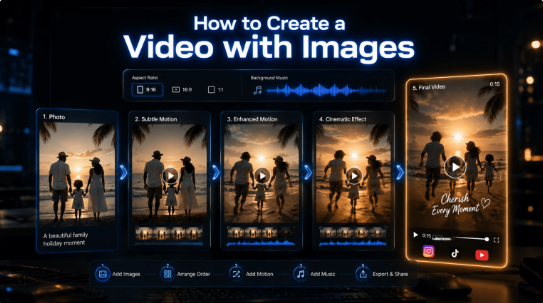
To create a video with images, choose your photos, select the right video format, arrange the images in sequence, add motion and audio, then preview and export the finished video. Use a slideshow editor when combining several pictures. Use an AI image-to-video generator when you want to animate a single image.
- Choose your images and decide where you will publish the video.
- Select an aspect ratio, such as vertical for short-form social media or landscape for YouTube.
- Arrange your images in the correct order and adjust the timing.
- Add transitions, text, music or an AI motion prompt.
- Preview the finished video and export it as an MP4 file.
Quick summary
- Photo-to-video tools make it easy to turn images into social media videos, slideshows, and marketing content.
- Canva, VEED, CapCut, and VidAU AI provide beginner-friendly workflows for creating videos with transitions, music, captions, and effects.
- AI video generators can animate static photos with cinematic movement and AI-powered effects.
- Platform optimization matters: TikTok, Instagram Reels, YouTube Shorts, and Facebook all require different formats and pacing.
Jump to section
- Understanding Photo-to-Video Creation Methods
- Creating Videos with Canva
- Creating Videos with VidAU AI
- Creating Videos with VEED
- Popular AI Video Generation Tools
- Combining Traditional and AI Video Methods
- Optimizing Videos for Different Platforms
- Creating Different Types of Videos
- Future Trends in Photo-to-Video Creation
- Conclusion
- FAQ
Understanding Photo-to-Video Creation Methods
Before diving into specific tools, understanding the fundamental approaches helps you choose the right method for your project
Traditional Slideshow Videos
Traditional slideshow videos turn multiple images into engaging video content using transitions, text overlays, and background music. This format works well for memory montages, event recaps, product showcases, and social media posts.
Most AI video makers and editors like Canva, VEED, and CapCut offer slideshow templates that simplify the creation process.
- Sequential image transitions
- Background music or audio tracks
- Text overlays for storytelling
- Adjustable image duration
- Platform-specific aspect ratios
Slideshow videos remain popular because they are beginner-friendly, quick to create, and effective for simple visual storytelling.
AI Animation Tools
AI video generator tools like Kling AI, Vidau AI, Luma Labs, and Dreamina AI can animate static photos by adding motion effects, camera movement, and environmental animations. Instead of using multiple images like traditional slideshow videos, these tools create more cinematic results from fewer photos.
- Camera pan and zoom effects
- Motion within static images
- Animated backgrounds like water, clouds, or lighting
- Cinematic visual styles
Although AI animation offers creative possibilities, traditional slideshow videos are still easier for beginners and more reliable for most projects.
Which Image-to-Video Method Should You Use?
The best workflow depends on the number of images you have and the type of result you want. Use the table below to choose the right method before you start editing.
| Your goal | Best method | What you need | Main features to use |
|---|---|---|---|
| Turn several photos into a video | Traditional slideshow | Multiple images and optional music | Image order, duration, transitions, captions and audio |
| Animate one still image | AI image-to-video generator | One clear image and a short motion prompt | Camera movement, subject motion and background animation |
| Create a social media ad | Hybrid workflow | Product images, AI-generated clips and branding | AI motion, captions, music, logo placement and a clear call-to-action |
| Create a family or event montage | Traditional slideshow | Photos arranged in a logical sequence | Slower pacing, soft transitions, dates and short captions |
| Create a cinematic clip from a photo | AI animation | One high-quality image | Pan, zoom, lighting changes and subtle environmental motion |
Key takeaway: Use a slideshow workflow when your story depends on several images. Use an AI image-to-video workflow when you want to bring one image to life with motion.
How to Create a Video With Images Using VidAU AI
VidAU AI helps you turn a static image into a short animated video without manually creating transitions or keyframes. This method is useful when you want to animate a product image, landscape, portrait, illustration or social media graphic.
Step 1: Choose a Clear Source Image
Start with an image that has a clear subject, good lighting and minimal visual clutter. A simple composition makes it easier for the AI to create stable movement.
For short-form platforms such as TikTok, Instagram Reels and YouTube Shorts, use a vertical image when possible. Landscape images are better suited to websites, presentations and standard YouTube videos.
Step 2: Upload Your Image to VidAU
Open the VidAU image-to-video generator and upload your image. Choose a high-quality file so that the generated motion remains sharp and visually consistent.
[INTERNAL LINK: AI image-to-video generator]
Step 3: Describe the Motion You Want
Enter a short animation prompt that explains how the camera, subject or background should move. Use simple instructions instead of combining too many actions in one request.
For example:
Slow camera push-in toward the product while soft light moves across the background. Keep the packaging stable and readable.
AI Image-to-Video Prompt Examples
A useful image-to-video prompt explains the camera movement, subject movement, background motion and overall mood. Keep the instructions specific but simple.
Use this formula:
[Camera movement] + [subject movement] + [background motion] + [visual mood]
| Use case | Example prompt |
|---|---|
| Product photo | Slow camera push-in toward the product. Add a soft light sweep across the background. Keep the label and packaging stable. |
| Travel photo | Slow pan from left to right across the beach. Add gentle wave movement and warm sunset lighting. |
| Food image | Slow top-down zoom toward the plate. Add subtle steam rising from the food. Keep the composition clean and realistic. |
| Landscape image | Slowly tilt upward from the foreground toward the mountains. Add light cloud movement and a calm cinematic atmosphere. |
| Social media graphic | Add a subtle zoom-in effect with smooth background movement. Keep all text sharp and readable. |
| Portrait photo | Use a slow camera push-in with subtle natural movement. Keep facial features consistent and avoid dramatic motion. |
Tip: Use portrait images only when you have permission from the person shown. Avoid prompts that request several complex movements at once.
Step 4: Generate and Preview the Video
Generate the clip and watch the full result before publishing it. Check whether important details remain stable, especially faces, product labels, logos and background elements.
If the movement looks unnatural, simplify the prompt and generate another version. Small changes often produce a more polished result.
Step 5: Add Finishing Touches
Once the AI-generated clip is ready, add any final elements required for your platform:
- A short headline or caption
- Background music or a voiceover
- Your logo or brand colors
- A call-to-action
- The correct aspect ratio for your publishing channel
Step 6: Export and Publish
Export your finished video and preview it on the device your audience is most likely to use. Confirm that text is readable, the subject remains clear and the first few seconds are visually engaging.
Other Ways to Create Videos With VidAU
VidAU also supports workflows for product video ads, AI avatars, scripts and voiceovers. These tools are useful when you want to turn a simple animated clip into a complete marketing video.
How to Make a Video With Pictures and Music
Use a slideshow workflow when you want to combine several photos into one video. This approach works well for event recaps, family memories, product showcases, tutorials and social media posts.
Step 1: Choose the Story You Want to Tell
Select only the images that support your main message. Arrange them in a logical order, such as chronological order for an event or a problem-to-solution sequence for a product video.
Step 2: Choose the Right Video Format
Select the aspect ratio before arranging your images:
| Video destination | Recommended format |
|---|---|
| TikTok, Instagram Reels and YouTube Shorts | 9:16 vertical |
| YouTube videos and presentations | 16:9 landscape |
| Square social media posts | 1:1 square |
| Portrait feed posts | 4:5 vertical |
Step 3: Arrange Your Pictures
Upload your images and place them in the correct order. Start with your most eye-catching photo when creating a social media video.
Keep each image visible long enough for viewers to understand it. Faster social content can use shorter image durations, while memory montages and educational videos usually benefit from a slower pace.
Step 4: Add Simple Transitions
Use one or two transition styles consistently throughout the video. Fade, dissolve, slide and pan-and-zoom effects are reliable options for most photo videos.
Avoid using a different transition for every image. Too many visual effects can make the video feel distracting.
Step 5: Add Music and Text
Choose music that matches the pace and mood of your images. Add short text overlays only when they help viewers understand the story.
Use music that you created, licensed or selected from an approved library. Always confirm that you have the rights to use the audio before publishing.
Step 6: Preview and Export Your Video
Watch the entire slideshow before exporting it. Check the pacing, text readability, transitions and audio levels.
Export your final video as an MP4 file for broad compatibility across social media platforms and video players.
Key takeaway: A strong picture video does not need complex editing. Clear image selection, consistent transitions, readable text and balanced music usually produce the best result.
Creating Videos with Canva
Canva is one of the most popular tools for turning photos into videos because it combines beginner-friendly editing with powerful video creation features. Both the free and premium versions support slideshow videos, social media content, and basic video editing.
1
Choose your video format
- 16:9 → YouTube and Facebook
- 9:16 → TikTok, Reels, and Shorts
- 1:1 → Instagram feed posts
- 4:5 → Vertical Instagram posts
2
Use templates or start from scratch
Search Canva templates using keywords like “photo video” or “slideshow.” Templates simplify editing by including pre-built layouts, transitions, and timing.
3
Upload and arrange photos
Drag photos into the Canva timeline or canvas. Using high-quality images improves video quality for social media and marketing content.
Each photo in your slideshow video should stay on screen long enough for viewers to absorb the content comfortably.
- 3–5 seconds: Fast-paced videos
- 5–7 seconds: Standard slideshow pacing
- 7–10 seconds: Emotional or slower storytelling videos
Matching image timing with your background music also helps create smoother and more engaging photo videos.
Adding Transitions Between Images
- Fade: Simple and professional for most videos
- Slide: Adds movement between scenes
- Dissolve: Creates a soft cinematic feel
- Pan & Zoom: Adds subtle camera motion to static photos
Using one or two consistent transitions usually creates a cleaner and more professional video style.
Adding Text Overlays
- Keep text short and clear
- Use strong contrast against backgrounds
- Choose mobile-friendly font sizes
- Avoid overly decorative fonts
You can also animate text using effects like Fade, Rise, or Typewriter to make videos feel more dynamic without complex editing.
Important
Starting with the correct aspect ratio prevents cropping issues and helps your video look more professional across social media platforms.
Creating Videos with VEED
VEED is another beginner-friendly platform for creating photo videos directly in your browser without installing software.
Starting Your VEED Project
- Visit VEED
- Create an account
- Click New Project
- Choose a blank project or template
The free version includes basic editing tools, though exported videos may contain a watermark.
Uploading and Arranging Images
- Open the Upload section
- Select your photos
- Drag images into the timeline
- Adjust image duration by dragging clip edges
The horizontal timeline makes it simple to reorder scenes and organize slideshow videos quickly.
Adding Music and Transitions
- Fade
- Dissolve
- Slide
Using simple transitions helps slideshow videos feel smoother and more professional.
Popular AI Video Generation Tools
Several AI video generation tools help creators turn images into engaging video content with motion effects and cinematic animation.
Kling AI
Focuses on realistic image-to-video motion and cinematic animation for landscapes and scenes.
Luma Labs
Specializes in cinematic camera movement and smooth AI animation from static photos.
Dreamina AI
Designed for portrait and character animation that makes static photos feel dynamic.
VidAU AI
Helps marketers create AI video ads, UGC-style content, AI avatars, and social-first product videos.
Limitations of Current AI Video Tools
- Inconsistent video quality across generations
- Longer processing times compared to traditional editing
- Credit-based pricing systems on many platforms
- Unnatural or unrealistic motion in some scenes
- Resolution limits on free plans
Because of these limitations, many creators use AI video generators as creative enhancements rather than complete replacements for traditional slideshow video makers.
Common Image-to-Video Problems and How to Fix Them
Creating a video from images is usually straightforward, but a few common issues can reduce the quality of the final result.
| Problem | Likely cause | How to fix it |
|---|---|---|
| The slideshow feels slow | Too many images or overly long scenes | Remove weaker images and shorten the duration of each scene |
| The video feels rushed | Images disappear before viewers can understand them | Increase the display time for important photos |
| AI-generated motion looks unnatural | The image is cluttered or the prompt requests too many movements | Use a clearer source image and simplify the prompt |
| Faces or product labels become distorted | The AI is trying to animate important details too aggressively | Request subtle camera movement and ask the tool to keep the subject stable |
| The video is cropped incorrectly | The aspect ratio was selected too late | Choose the target platform and aspect ratio before editing |
| Text is difficult to read | Weak contrast or too much text | Use shorter captions, larger text and a contrasting background shape |
| Music overpowers the images | The audio level is too high or the track does not match the pacing | Lower the audio volume and choose a track with a suitable mood |
| The exported video looks blurry | Low-resolution source images or excessive resizing | Start with sharper images and export using the highest suitable quality setting |
| The first few seconds feel weak | The opening image is not visually engaging | Start with your strongest image, headline or product benefit |
Quick Quality Checklist
Before publishing your video, confirm that:
- The opening image is visually strong
- The aspect ratio matches the publishing platform
- Text remains readable on a phone screen
- Music does not overpower the visuals
- Important faces, logos and product details remain stable
- The video ends with a clear message or call-to-action
Combining Traditional and AI Video Methods
A hybrid workflow often produces the best results for AI video content creation.
- Use AI tools like Kling AI or Luma Labs to animate key images
- Export the AI-generated clips
- Import them into Canva, VEED, CapCut, or VidAU AI
- Combine them with traditional slideshow videos
- Add music, captions, transitions, and branding
This method combines the cinematic feel of AI animation with the reliability and flexibility of traditional video editing tools.
Optimizing Your Video for Different Platforms
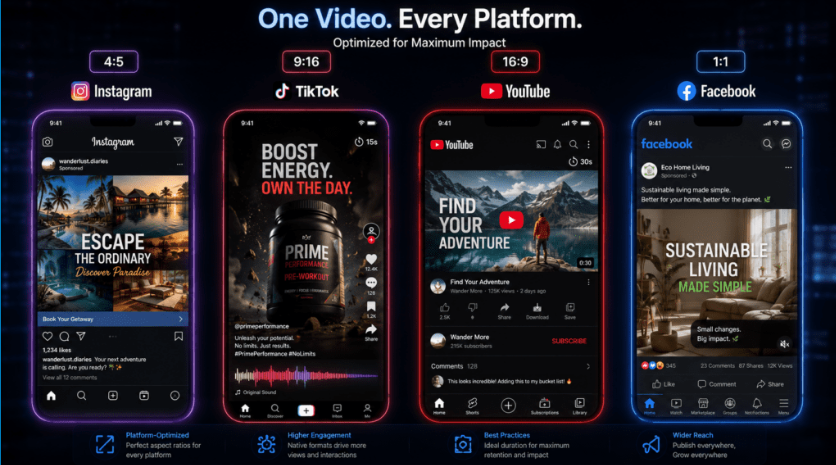
| Platform | Recommended Format | Duration | Resolution | Optimization Tips |
|---|---|---|---|---|
| Instagram Reels | 9:16 Vertical | Up to 90 seconds | 1080×1920 | Use trending audio, strong hooks, and text overlays |
| TikTok | 9:16 Vertical | 15–60 seconds | 1080×1920 | Hook viewers in the first 3 seconds and use captions |
| YouTube Shorts | 9:16 Vertical | Up to 60 seconds | 1080×1920 | Add strong thumbnails and CTAs |
| Facebook Feed Videos | 1:1 Square or 16:9 Landscape | Short-form performs best | 1080×1080 or 1920×1080 | Use captions since many users watch without sound |
Creating Different Types of Videos from Images
Memory Montage Videos
- Arrange photos chronologically
- Use emotional background music
- Add dates or short captions for context
- Keep slower pacing (5–7 seconds per image)
- Use soft transitions like fades
These videos should focus more on storytelling and emotion than heavy editing effects.
Social Media Content Videos
- Show the most eye-catching image first
- Keep scenes short (3–4 seconds)
- Use trending audio and captions
- Focus on one clear topic or message
- End with a call-to-action
Short-form content should prioritize attention and viewer retention.
Business and Marketing Videos
- Consistent product presentation
- Brand colors and fonts
- Clear messaging and value propositions
- Professional background music
- Strong CTAs linking to products or websites
Marketing videos should reinforce brand identity while keeping visuals simple and polished.
Tutorial and Educational Videos
- Numbered steps or sections
- Longer image durations for explanations
- Clear captions and instructions
- Logical sequence of visuals
- Summary or recap sections at the end
For tutorials, readability and understanding are more important than fast-paced editing.
Future Trends in Photo-to-Video Creation
Expanding AI Video Capabilities
- More realistic motion and animation
- Faster AI video generation
- Better prompt understanding
- Lower costs and larger free plans
- AI features integrated into tools like Canva, CapCut, and VidAU AI
Changes Across Social Platforms
- Increased support for longer-form short videos
- Growing use of interactive video elements
- Improved auto-captions and translations
- Continued demand for vertical video formats
Convergence of Editing and AI Tools
- Canva is expanding AI animation features
- CapCut continues adding professional editing tools
- VEED is improving templates and automation
- VidAU AI combines AI avatars, UGC-style videos, and automated ad generation
Create smarter videos
Turn an Image Into a Video With VidAU AI
Create a short animated video from a static image without manually building transitions or motion effects. Upload your image, describe the movement you want and generate a video clip for social media, product marketing or creative projects.
Key takeaway
Creating videos with images is easier than ever
Modern tools like Canva, VEED, CapCut, and VidAU AI make it possible to create professional-looking videos from images without advanced editing skills. Traditional slideshow makers remain the easiest option for beginners, while AI video generators add cinematic animation and automation that expand creative possibilities.
By combining strong photo selection, smooth transitions, readable text, balanced music, and platform-specific formatting, creators can produce engaging videos optimized for Instagram Reels, TikTok, YouTube Shorts, and other social platforms.
FAQ
Here are answers to common questions about creating videos with images, photo duration, aspect ratios, music rights, export quality, image count, free tools, transitions, mobile editing, MP4 exports, readable text, AI image-to-video tools, and project cost.
How long should each photo appear in my video?
For most photo videos, display each image for 5-7 seconds. This duration provides viewers adequate time to absorb the photo without feeling rushed, while maintaining enough pacing to hold attention. Faster social media content can reduce this to 3-4 seconds per image, while emotional or contemplative videos benefit from 7-10 seconds. Match image duration to your background music tempo—faster songs pair with shorter durations, slower music with longer durations. Always preview your video to ensure the pacing feels natural.
What aspect ratio should I use for Instagram Reels?
Instagram Reels require 9:16 aspect ratio (1080×1920 pixels) for optimal display. This vertical format fills mobile screens without black bars on top and bottom. If you create horizontal videos (16:9) for Instagram Reels, the platform will display them with significant letterboxing that wastes screen space and reduces visual impact. Always select 9:16 or “Instagram Reel” preset when starting your project in Canva, VEED, or CapCut to ensure proper formatting.
Can I use my own music in photo videos?
Yes, but only if you own the copyright or have proper licensing. Using copyrighted music without permission violates platform policies and copyright law, potentially resulting in video removal, copyright strikes, or legal action. Instead, use music from your editing tool’s licensed library, royalty-free music sources, or music you personally created. If you must use specific copyrighted music, obtain proper licensing through services that grant usage rights. For social media, using platform-provided music (Instagram’s music library, TikTok sounds) avoids copyright issues entirely.
Why does my exported video look lower quality than in the editor?
Quality degradation occurs for several reasons. First, ensure you’re exporting at the highest quality setting available in your tool. Second, remember that social platforms automatically compress uploaded videos, reducing quality regardless of your export settings. Third, verify your source images are high resolution (minimum 1080p). Fourth, check that you’re exporting at correct aspect ratio—mismatched ratios force rescaling that reduces quality. Starting with highest resolution photos and exporting at maximum quality gives platforms better source material to compress, resulting in better final quality.
How many photos should I include in a 30-second video?
For a 30-second video, include 5-8 photos when displaying each image for 5-7 seconds. This provides comfortable viewing without rushing. Social media content targeting higher engagement can use 8-10 photos at 3-4 seconds each for faster pacing. Adjust based on your specific video purpose—memory montages benefit from fewer images with longer durations, while attention-grabbing social content uses more images with shorter display times. Consider your music selection too, as lyrical or tempo changes often suggest natural points for image transitions.
What free tool is best for creating photo videos?
CapCut offers the most comprehensive free features without watermarks, making it excellent for mobile creation. Canva provides the best desktop experience with extensive templates and easy interface, though the free version has some limitations. VEED works well for browser-based editing but adds watermarks on free exports. Choose based on your primary device—CapCut for mobile-first creators, Canva for desktop users wanting template variety, VEED for quick browser-based projects where watermarks aren’t concerning. All three tools provide genuinely useful free tiers that handle basic to intermediate photo video creation.
How do I add transitions between photos in Canva?
In Canva, click on an image in your timeline at the bottom of the screen. Then click “Animate” in the top toolbar and select “Page animations” from the dropdown menu. Choose your preferred transition style from the available options—Fade works universally, Slide adds directional movement, and Pan & Zoom creates cinematic camera effects. The transition applies automatically between the selected image and the next one. For consistent styling, apply the same transition type throughout your video rather than mixing multiple styles. Preview your video after adding transitions to ensure they match your desired pacing.
Can I create photo videos on my phone?
Yes, mobile photo video creation works excellently, particularly with CapCut and Canva’s mobile app. Mobile creation offers the advantage of immediate access to photos already on your device without needing to transfer files to a computer. CapCut’s mobile app actually offers more features than its desktop version, making phones the preferred platform for many creators. The main limitations are smaller screen size for precise editing and less convenient text entry compared to desktop keyboards. For quick social media content created from recent phone photos, mobile creation often proves faster and more convenient than desktop workflows.
What file format should I export my photo video in?
Export photo videos as MP4 files, which is the standard format accepted by all major social platforms and video players. MP4 provides excellent quality-to-file-size ratio and universal compatibility. Most editing tools default to MP4 export, so you typically won’t need to change format settings. For resolution, export at 1080p (1920×1080 for horizontal, 1080×1920 for vertical) for best results. Higher resolutions like 4K usually aren’t necessary for social media since platforms compress uploads anyway. Avoid legacy formats like AVI or WMV, which create unnecessarily large files with compatibility issues.
How do I make my text readable over photos?
Ensure text readability by creating strong contrast between text and background. Use white text over dark areas of photos, black text over light areas. When text falls over varied backgrounds, add a semi-transparent shape behind the text—in Canva, use Elements to add a rectangle, adjust transparency to 50-70%, and position it behind your text. Alternatively, add text shadows or outlines for improved visibility. Choose bold, sans-serif fonts over thin or decorative fonts. Make text large enough—minimum 60pt for mobile viewing. Preview your video on a phone screen to verify text remains readable at actual viewing size.
Why do my AI-generated videos look strange or unnatural?
AI video generators occasionally produce unusual results because they’re predicting motion based on training data rather than understanding physics. Common issues include warping, unnatural movement, or elements behaving impossibly. Improve results by using high-quality, well-composed source images with clear subjects and good lighting. Write specific prompts describing desired motion rather than leaving it to AI interpretation. Expect some failed generations—even experienced users generate multiple versions before achieving desired results. Current AI tools work best for environmental motion (clouds, water) and simple camera movements rather than complex subject animation. When results look strange, regenerate with adjusted prompts or try different source images.
How much does it cost to create photo videos?
Creating basic photo videos costs nothing if you use free tools like CapCut, Canva’s free tier, or other platforms’ free versions. These tools provide sufficient features for personal projects and casual content creation without requiring payment. Costs only arise if you need premium features like watermark removal (VEED), expanded music libraries (Canva Pro), or commercial usage rights. Paid versions range from approximately $10-25 monthly depending on the platform. For most beginners and personal users, free tools suffice indefinitely. Only upgrade to paid plans when specific premium features become necessary for your projects or when you’re monetizing content that justifies the expense.