VidAU Editorial · AI Search
Free AI Video Generator Tools 2026: Best No‑Watermark Picks (LTX 2.5 vs MiniMax H3)
Looking for the best free AI video generator tools in 2026? See the freshest picks led by LTX 2.5, how it stacks up vs MiniMax H3, motion tools to try, watermark tips, and practical workflows for high‑quality results.
By the VidAU Editorial Team · Reviewed before publishing

Looking for free ai video generator tools 2026 to minimize or avoid watermarks? This clear, current comparison of LTX 2.5 vs MiniMax H3—grounded in August 2026 coverage—shows what to try first and how motion add‑ons can round out a no‑watermark‑minded workflow.
Creators want free options that stay usable after export. In August 2026, LTX 2.5 surged as a surprisingly capable free video generator, while MiniMax H3 rolled out licensing updates worth a close read. Below, you will find practical picks, where each tool fits, and how to verify watermark status before you build a full project.
Quick Summary
• LTX 2.5 is the first free try for most users in 2026, based on recent coverage and early quality signs.
• MiniMax H3 is the strongest alternate when licensing fits your scenario; confirm current terms before publishing.
• A 5–10 second test export, aspect‑ratio checks, and policy review are required steps to confirm no watermark.
• US‑based YouTubers, marketers, students, and educators creating Shorts, social ads, or concept films benefit most.
What Is Free AI Video Generation in 2026?
Free AI video generation in 2026 refers to tools and models that let you create short video clips from text prompts, reference images, or input footage without paying upfront. Availability, licensing, and watermark rules vary and can change quickly. Always check current terms and verify watermark behavior with a short test export before production.
Best Free AI Video Generator Tools 2026: Quick Picks
As highlighted in recent August 2026 coverage, start here and confirm policies in the app at export time:
• LTX 2.5: A strong first stop for free trials in 2026. Good for short concept clips and social formats. Check terms and run a 5–10s test to confirm watermark behavior.
• MiniMax H3: Powerful model with a visible licensing update this summer. Consider it if you can clear usage for your case; verify watermark status on a test export.
• Magnific 3D Motion: Useful for adding stylized motion or evolving details on top of a base clip; good for punchy, short social visuals.
• Seedance 2.5: Motion‑focused option to experiment with dynamic movement and camera feel; test for your scene type.
• Meshy 7: Helpful for spinning up lightweight 3D props from images when your scene needs depth or set dressing.
• Adobe Creative Cloud + ChatGPT (workflow): Use ChatGPT for scripting, then hand off to Adobe Creative Cloud apps (e.g., Premiere Pro or After Effects) for final edits, overlays, and safe audio replacement.
Suggested Visual: Simple grid showing each tool and the main use case (concept clip, motion polish, 3D prop).
Free AI Video Generator Tools 2026: LTX 2.5 vs MiniMax H3
August 2026 brought attention to LTX 2.5 as a free option worth trying, alongside MiniMax H3, which shared licensing updates creators should review. Because access and rules can shift, the best approach is to compare fit and confirm export behavior before committing.
• Tool: LTX 2.5
Where It Fits: First free try
Notes: Quick concepts; check terms & watermark
• Tool: MiniMax H3
Where It Fits: When licensing is cleared
Notes: Powerful; review current licensing update
• Tool: Magnific 3D Motion
Where It Fits: Motion polish
Notes: Stylized movement; test short segments
• Tool: Seedance 2.5
Where It Fits: Dynamic camera feel
Notes: Try for action or dance‑like motion
• Tool: Meshy 7
Where It Fits: 3D prop generation
Notes: Simple assets from images
Decision shortcuts:
• Start with LTX 2.5: Fast to try, currently a standout free pick per recent coverage.
• Choose MiniMax H3 when you have a clear licensing path: Check the latest policy page and run a trial export.
• Always export a 5–10s test: Inspect for watermark, codec, and bitrate before full renders.
• Match aspect ratio to your target: 9:16 for Shorts/Reels, 16:9 for YouTube, square for some paid placements.
Key Takeaways
• Begin with LTX 2.5 for quick, free concepting; MiniMax H3 is the capable alternate if terms work.
• Verify watermark behavior and output specs with a short test export.
• Stack motion tools and 3D props when you need extra visual depth.
Motion Add‑Ons: Magnific 3D Motion, Seedance 2.5, and Meshy 7 Workflows
Motion and 3D layers can make short clips feel premium without a paid pipeline. Use these as modular add‑ons after you generate a base video.
Workflow A: Motion polish on a base LTX/MiniMax clip
1) Input: Base 4–8s clip from LTX 2.5 or MiniMax H3.
2) Tool: Magnific 3D Motion for stylized micro‑movement and evolving details.
3) Output: A richer variant; inspect for artifacts and temporal stability.
4) Check: Confirm watermark status after motion processing.
Workflow B: Dynamic camera feel
1) Input: A still or simple animated shot.
2) Tool: Seedance 2.5 to simulate interesting camera moves or choreography.
3) Output: More kinetic energy; suitable for teaser intros or transitions.
4) Check: Test compression and motion blur; avoid over‑stylization for text‑heavy scenes.
Workflow C: Add simple 3D props for depth
1) Input: Reference images for hero prop(s).
2) Tool: Meshy 7 to generate lightweight 3D assets.
3) Output: Basic props or set pieces to composite in your editor.
4) Check: Scale and lighting; keep props subtle so they do not distract.
Suggested Visual: A mini flowchart showing Base Clip → Motion Polish → 3D Props → Edit & Sound.
No‑Watermark Reality Check: Policies, Prompts, and Export Settings
Because watermark rules can change, build a quick verification ritual into every project.
Fast verification checklist:
• Policy page: Scan current terms for usage rights and attribution.
• Test export: Generate a 5–10s shot with a bright corner; look closely for semi‑transparent overlays.
• Aspect ratio: Confirm 9:16, 1:1, or 16:9 matches your platform.
• Codec/bitrate: Prefer H.264 or HEVC at a bitrate that survives platform compression.
• Audio: If the tool’s music policy is unclear, replace audio in your NLE with licensed tracks.
• Brand use: If using logos or product references, clear rights before publishing.
Prompt templates that help quality:
• Cinematic baseline:
Text prompt: A moody, neon‑lit city street at night; slow parallax; shallow depth of field; gentle camera push‑in; 12‑15 frames per second look; film grain subtle.
• Product focus:
Text prompt: Minimal white backdrop, soft shadow, 3‑second hero rotation of a matte‑black wireless earbud; macro lens feel; crisp reflections; studio lighting; 4K look.
• Kinetic social opener:
Text prompt: High‑energy intro with quick cuts, bold motion typography space, and smooth camera sweep across vibrant abstract shapes; upbeat vibe.
Export settings to sanity‑check:
• Length: Keep tests under 10s; longer clips increase failure risk.
• FPS: 24–30 fps is versatile; avoid odd frame rates unless required.
• Bitrate: Start 12–20 Mbps for 1080p; adjust after platform upload tests.
• Color: If available, keep color space consistent with your editor to avoid shifts.
Suggested Visual: A one‑page checklist graphic for policy + export verifications.
Starter Workflows by Use Case (US‑Focused) Free AI Video Generator Tools 2026
YouTube Shorts (9:16)
• Draft: Use ChatGPT to outline a 15–30s hook, CTA, and beat map.
• Generate: Try LTX 2.5 first; run a 5–10s watermark test.
• Enhance: Add motion via Magnific 3D Motion or Seedance 2.5 on a key clip.
• Finish: Edit in Adobe Premiere Pro; add subtitles and licensed music.
Social ads and product teasers
• Draft: Write a three‑scene script: hook (2–3s), product demo (6–8s), CTA (2–3s).
• Generate: LTX 2.5 or MiniMax H3 depending on your licensing comfort; verify no watermark.
• Props: Use Meshy 7 for a simple stand or backdrop element.
• Finish: Conform to platform specs; maintain brand‑safe color and legibility.
Where VidAU AI can help in this step:
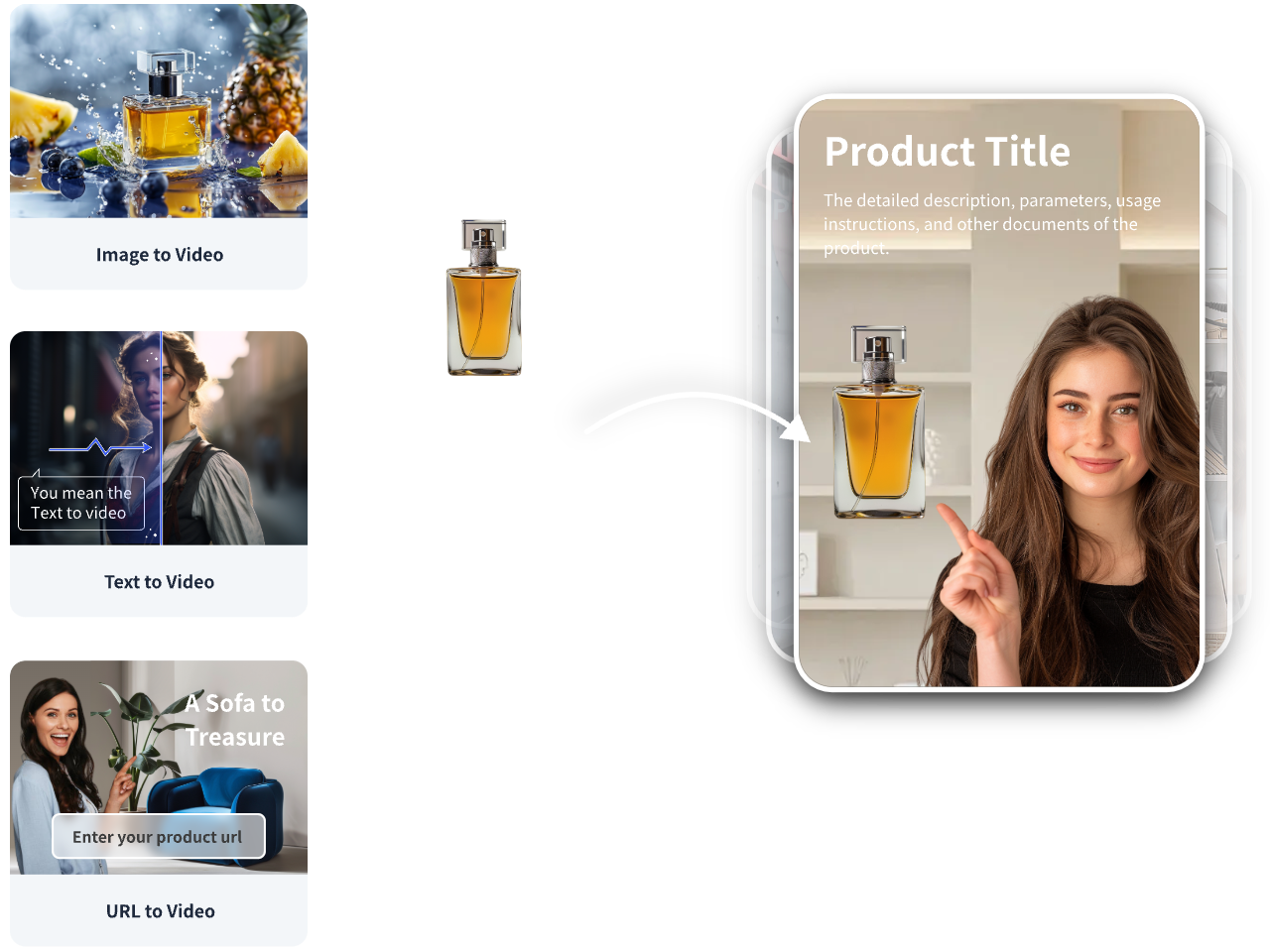
• If you need ad‑ready verticals fast, a practical path is: product URL or images → VidAU AI Video or Product to Video → editable short‑form ad creative for TikTok, Meta, or YouTube. This fits when you have existing product pages and want testable creative variants without starting from scratch.
Indie concept scenes
• Draft: Write a 20–40s visual beat sheet in ChatGPT (no dialogue, clear visual motifs).
• Generate: Mix LTX 2.5 base shots with targeted MiniMax H3 shots if terms allow.
• Motion: Use Seedance 2.5 for one dynamic camera pass to elevate a turning point.
• Finish: Grade in Adobe Creative Cloud tools; replace or score audio cleanly.
Education and student projects
• Draft: Script a simple explainer with 2–3 visuals per idea.
• Generate: LTX 2.5 for first pass; keep shots 3–6s for clarity.
• Enhance: Light Magnific 3D Motion use; avoid aggressive stylization on text slides.
• Finish: Ensure attributions and asset licensing are classroom‑safe.
Troubleshooting: Common 2026 Pitfalls
• Watermark surprises: Some generators apply subtle overlays only in full‑length exports. Solution: Always do a 5–10s bright‑corner test and a second test at target length before you commit.
• Temporal wobble or flicker: Reduce motion intensity, simplify textures, and shorten shot length. Consider adding gentle motion blur in post.
• Soft or smeared text: Generate clean background plates, then add typography in your NLE. AI‑rendered text is still hit‑or‑miss.
• Aspect‑ratio mismatches: Lock your project to 9:16, 1:1, or 16:9 upfront; do not crop later if it cuts important action.
• Audio licensing gaps: Replace in‑tool music with licensed audio in Premiere Pro or another editor.
• Over‑compression on upload: Increase your export bitrate, use platform‑preferred codecs, and avoid repeated encodes.
Create With VidAU
Turn scripts, product URLs, and creative ideas into ad-ready video assets with a structured AI workflow.
Key takeaway
Final Thoughts
For most US creators in 2026, the quick path is: start with LTX 2.5 for free trials, consider MiniMax H3 if its current licensing fits your scenario, then enhance selectively with Magnific 3D Motion, Seedance 2.5, and lightweight Meshy 7 props. Always confirm watermark behavior and export specs with a short test before scaling.
If you are producing commerce‑focused short‑form ads, you can speed up iterations by starting from your product URL or images and letting VidAU AI generate editable, platform‑ready variants. Then drop the best cuts into your editor, replace audio as needed, and publish confidently after a final no‑watermark check.
Frequently asked questions
What are the best free ai video generator tools 2026 picks for no‑watermark use?
LTX 2.5 is a strong first try per August 2026 coverage, with MiniMax H3 as a capable alternate if licensing suits your scenario. For motion polish, test Magnific 3D Motion and Seedance 2.5. Always run a 5–10s test export to confirm watermark status and check current terms before publishing.
How does LTX 2.5 compare with MiniMax H3 in 2026?
LTX 2.5 stands out as a fast, free starting point for short concept clips. MiniMax H3 has strong capability and a recent licensing update creators should review. Pick LTX for quick trials; consider H3 when you can clear licensing. In both cases, confirm watermark behavior with a short export.
Which motion tools should I add to my free 2026 workflow?
Magnific 3D Motion and Seedance 2.5 are timely motion‑focused options. Use Magnific for stylized micro‑movement and Seedance for dynamic camera feel. Keep shots short, test for artifacts, and confirm watermark behavior after the motion pass, as some overlays appear only on final‑length exports.
How can Meshy 7 help with AI video in 2026?
Meshy 7 can convert images into simple 3D props that add depth or set dressing to AI‑generated scenes. Generate lightweight assets, then composite in your editor. Mind scale, lighting, and subtlety so props support the story without stealing attention. Always check asset licensing before use.
What export settings help Shorts and social ads look clean?
For 1080p, start around 12–20 Mbps in H.264 or HEVC, 24–30 fps. Lock your aspect ratio to 9:16 for Shorts/Reels or 16:9 for YouTube. Avoid repeated recompression. Replace uncertain in‑tool audio with licensed tracks in your NLE to keep rights clear and sound quality consistent.
How do I confirm a tool truly exports without a watermark?
Use a bright‑corner 5–10s test shot, then a second test at your target duration. Inspect edges and corners for faint overlays. Review current terms and any usage tiers. Some tools watermark only full‑length or high‑resolution exports, so verify with the settings you plan to publish.
Can I use AI‑generated footage in ads or client work?
Often, but you must check each tool’s license, attribution, and commercial terms. Confirm you have rights to all elements, including music and logos. For paid placements, keep a record of terms at the time of export and consider replacing in‑tool audio with licensed tracks cleared for advertising.
Should I script prompts in ChatGPT before generating video?
Yes. Drafting a beat map, shot list, and tone cues in ChatGPT reduces retries and improves consistency. Include lens style, motion type, lighting, and duration. Then feed concise prompts into LTX 2.5 or MiniMax H3. Finish in Adobe Creative Cloud apps for titles, color, and audio.
What if text or UI elements look soft after generation?
AI tools still struggle with crisp text. Generate a background plate without text, then add titles and UI in Premiere Pro or After Effects. Keep high‑contrast, large fonts for mobile readability. If artifacts persist, shorten the shot and reduce texture complexity in your prompts.
Are there risks with rapid policy changes in 2026?
Yes. Availability, watermark rules, and licensing can shift quickly. Before production, read the current policy page, run two test exports, and archive screenshots of terms if your project is commercial. If anything changes mid‑project, consider regenerating clips to match updated conditions.