Talking Avatar AI · Free AI Spokesperson Videos
How to Create a Talking Avatar AI (Free Tools & Step-by-Step Guide)
Learn how to create a talking avatar AI using Canva, HeyGen, and D-ID for faceless videos, tutorials, ads, presentations, social content, and AI spokesperson videos.
By the VidAU Editorial Team · Talking avatar AI guide · 13 min read
Want to produce engaging videos without stepping in front of a camera? You can build a talking avatar ai using free tools and a short script.
You can create a talking avatar ai for free using Canva, HeyGen, and D-ID, without filming yourself or learning video editing. The fastest route for most beginners is Canva’s HeyGen app, which turns a script into a talking head video in minutes. This guide walks through the exact tools and steps to make an AI spokesperson video.
This is written for content creators, YouTubers running faceless channels, educators, marketers, and total beginners. If you have a script and a free Canva account, you have enough to build your first talking avatar today. We’ll cover both ready-made avatars and custom image animation so you can match the method to your goal.
Quick Summary
- Canva’s HeyGen integration is the easiest free way to make a talking avatar ai from a script, with no editing skills required.
- D-ID inside Canva is the strongest alternative when you want to animate a custom image or photo into a talking presenter.
- Most talking avatar videos export best in 16:9 for YouTube and 9:16 for TikTok, Reels, and Shorts, so choose your format before you render.
- Faceless YouTube creators, educators, and small business owners benefit most because they get on-camera presence without cameras, lighting, or recording.
In This Guide
- What a talking avatar ai is and how it works
- Why talking avatars matter for faceless content and marketing
- Step-by-step workflow using Canva and HeyGen
- How to animate a custom image with D-ID
- Best free talking avatar tools compared by use case
- Platform-specific optimization for YouTube, TikTok, and presentations
- Common mistakes beginners make with talking avatar ai
- Advanced strategies for scaling avatar video
- Final Thoughts
- FAQ
What Is a Talking Avatar AI?
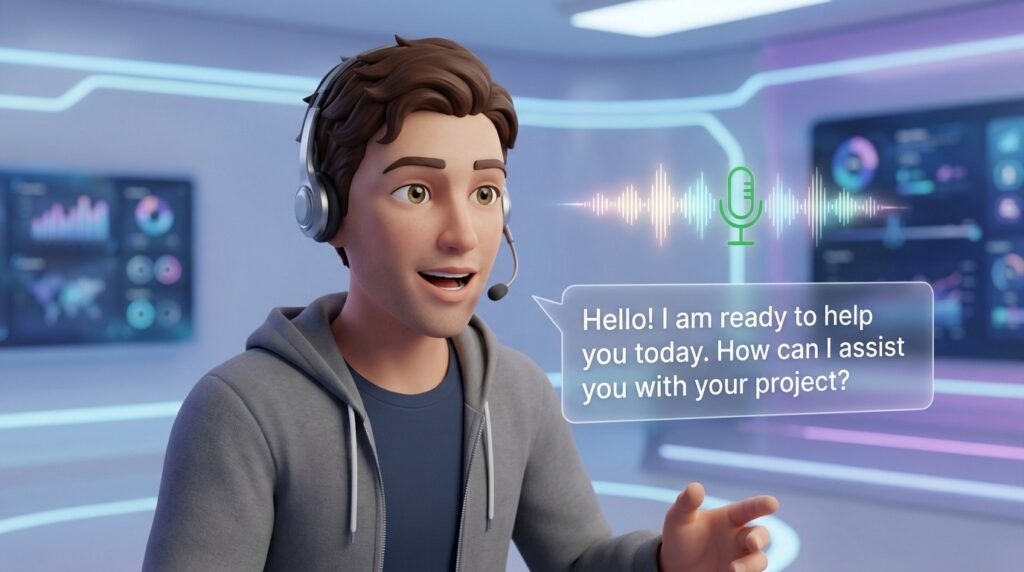
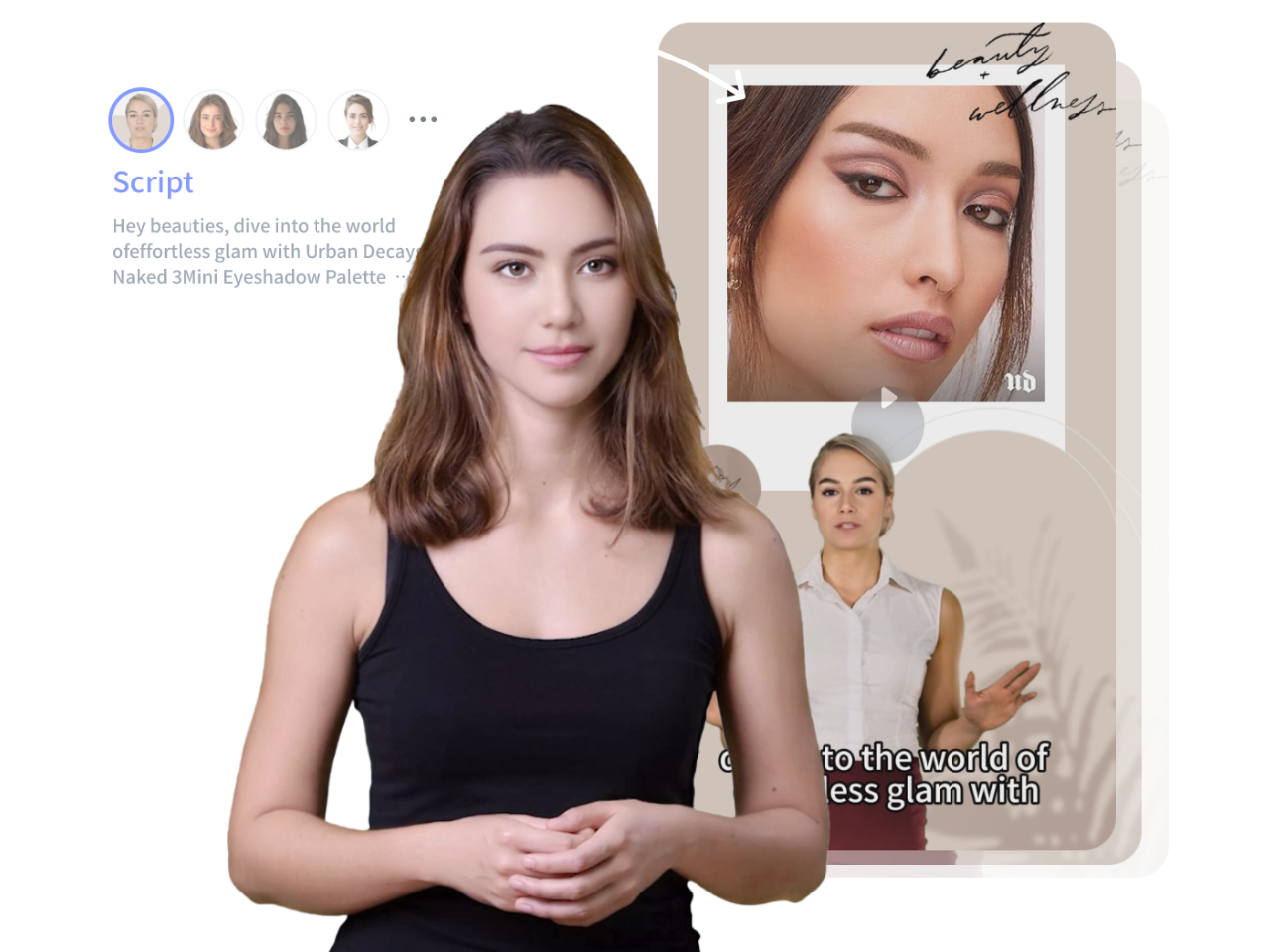
A talking avatar ai is a digital presenter that speaks your script using AI-generated voice and synced facial movement. You type or paste text, choose a voice and avatar, and the tool animates the mouth, head, and expressions to match the audio. The result looks like a person delivering your message on camera.
These tools combine text-to-speech, lip sync, and avatar animation in one workflow. You can use a ready-made AI presenter from a library or upload a photo and turn it into your own digital twin. No filming, no microphone, and no editing timeline required.
Key Takeaways
- Talking avatars convert a written script into a spoken video.
- Two main methods exist: ready-made avatars and custom image animation.
- The core ingredients are an avatar, a voice, and your script.
Why Talking Avatars Matter for Faceless Content and Marketing
Talking avatars matter because they remove the biggest blocker to consistent video: being on camera. Many creators stall on video because filming feels awkward, slow, and expensive. An AI spokesperson lets you publish daily without lighting, retakes, or a studio.
For faceless Youtube channels, avatars add a human presence to otherwise voiceover-only content. For educators, they turn lesson scripts into watchable explainer clips. For marketers and small business owners, a consistent digital presenter keeps branding tight across ads, demos, and social posts.
The 2026 trend in tutorials leans heavily toward free, Canva-based methods because they bundle design and avatar creation in one place. That matters for beginners who don’t want to juggle five tools.
Key Takeaways
- Talking avatars help creators publish without filming themselves.
- Faceless YouTube channels, educators, marketers, and small business owners can add a consistent human presenter.
- Free Canva-based methods matter because design and avatar creation happen in one place.
Step-by-Step Workflow Using Canva and HeyGen
The simplest free method uses Canva’s HeyGen app. Here is the workflow most beginner tutorials follow, kept general so it stays accurate as the interface changes.
Step 1: Create a free Canva account and open a new design in your target size.
Choose a format such as a 16:9 video for YouTube.
Step 2: Open the Apps panel and search for HeyGen.
Add the app to your design.
Step 3: Choose a ready-made avatar from the avatar library.
Pick an avatar that fits your tone and audience.
Step 4: Pick a voice and language.
Paste your script into the text box so the avatar speaks it.
Step 5: Generate the avatar clip.
Wait for the render to finish inside Canva.
Step 6: Drop the talking avatar onto your Canva design.
Add backgrounds, captions, logos, and B-roll.
Step 7: Preview and export your video.
Use the format your platform needs.
Free tiers limit render length and may add a watermark, so keep early scripts short while you test. Once the workflow feels natural, you can plan longer videos in segments.
Tip
Keep early scripts short while you test free render limits. Once the Canva and HeyGen workflow feels natural, plan longer videos in smaller segments.
How to Animate a Custom Image with D-ID
If you want your own face or a custom character to speak, D-ID is the go-to method, and it also runs inside Canva. Instead of choosing a library avatar, you upload an image and the tool animates it to match your script.
- Add the D-ID app in Canva or open D-ID directly.
- Upload a clear, front-facing image with good lighting and a neutral expression.
- Enter your script and select a text-to-speech voice, or upload your own voiceover.
- Generate the animation so the image talks with synced mouth movement.
- Export and combine the clip with your design, captions, and music.
This path suits creators who want a recognizable digital twin or a branded character. Photo quality drives the result, so a sharp, well-lit image matters more than anything else.
Custom avatar note
D-ID is strongest when you want your own face, a branded character, or a recognizable digital twin. The source image should be clear, front-facing, well-lit, and neutral.
Best Free Talking Avatar Tools Compared by Use Case
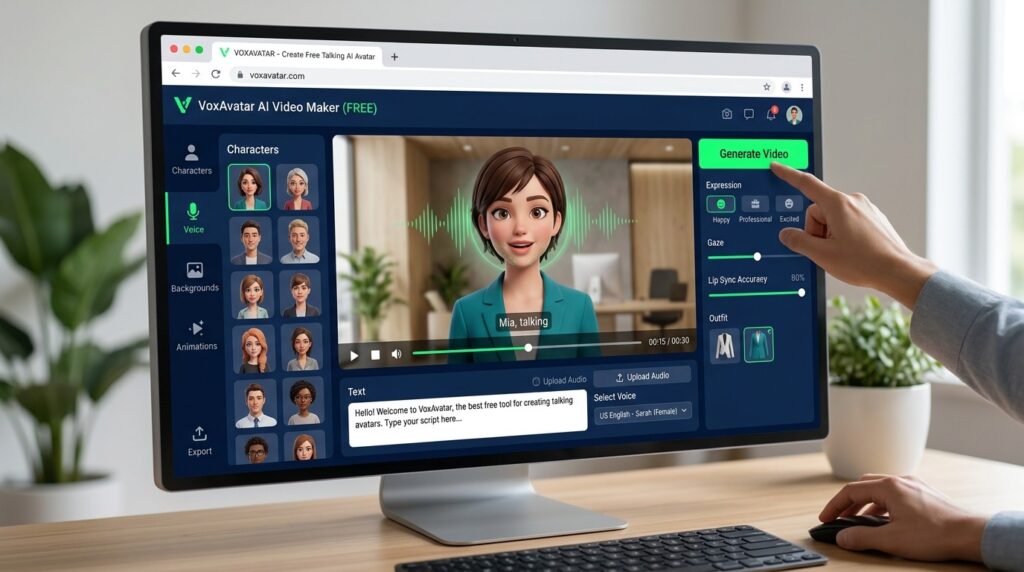
I reviewed and analysed the most-watched 2026 tutorials on this topic, and the same three tools appear again and again. Here is how they break down by job.
| Tool | Best For | Method |
|---|---|---|
| Canva + HeyGen | Beginners and faceless YouTube | Ready-made avatar plus design |
| Canva + D-ID | Custom face or character | Animate an uploaded image |
| HeyGen direct | Branded spokesperson videos | Avatar plus custom branding tools |
Canva’s avatar maker workflows win on convenience because design and avatar live together. HeyGen used directly gives more branding control, which suits marketers building product demos. D-ID is the clear pick for custom image animation.
There are other voice and animation engines floating around in older tutorials, including legacy options, but the modern AI spokesperson workflow centers on these three. For voiceover quality, pairing your script with a dedicated text to speech engine can sharpen the audio before you animate.
If your end goal is a polished video ad rather than a single talking clip, this is a good point to widen the toolset. VidAU is an AI video ad platform that generates video ads from product URLs, images, or scripts in 49 languages. Its AI video and UGC Avatars features cover spokesperson-style ad creatives when a free single-clip tool isn’t enough. The honest trade-off: if you only need one short talking head for a YouTube intro, free Canva methods are simpler and cheaper than an ad platform.
Create Avatars With VidAU
Use VidAU AI Video, UGC Avatars, Text to Speech, URL to Video, Product Sample to Video, and Vid Remix when you need spokesperson-style ads, multilingual avatar videos, product creatives, and scalable brand consistency.
VidAU workflow
Where VidAU fits beside free avatar tools
- Use Canva + HeyGen for simple talking heads: Choose this path when you need a quick, free talking avatar from a short script.
- Use Canva + D-ID for custom images: Choose this path when you want your own face, digital twin, or branded character to speak.
- Use VidAU UGC Avatars for spokesperson-style ads: Choose this path when you need avatar-led product creatives rather than a single intro clip.
- Use Text to Speech for stronger voiceover quality: Pair scripts with dedicated voice generation when pacing, tone, or language matters.
- Use URL to Video, Product Sample to Video, and Vid Remix for scale: Turn product URLs, product samples, or strong clips into repeatable video creatives across platforms.
Platform-Specific Optimization for YouTube, TikTok, and Presentations
The format you choose changes how your talking avatar ai should be framed and exported. Set this before you render to avoid re-doing work.
- YouTube: Use 16:9, keep the avatar slightly off-center, and add captions for sound-off viewers.
- TikTok, Reels, Shorts: Use 9:16, place the avatar in the upper two-thirds, and burn captions in.
- Presentations and courses: Use 16:9, keep backgrounds clean, and let the avatar deliver one idea per slide.
- Ads: Test 1:1 and 9:16, keep the hook in the first three seconds, and end with a clear call to action.
For short-form, write tighter scripts. A talking avatar that rambles loses viewers faster than a real presenter would. Aim for one clear point per clip.
| Platform or Use Case | Recommended Format and Framing |
|---|---|
| YouTube | Use 16:9, keep the avatar slightly off-center, and add captions for sound-off viewers. |
| TikTok, Reels, Shorts | Use 9:16, place the avatar in the upper two-thirds, and burn captions in. |
| Presentations and courses | Use 16:9, keep backgrounds clean, and let the avatar deliver one idea per slide. |
| Ads | Test 1:1 and 9:16, keep the hook in the first three seconds, and end with a clear call to action. |
Tip
Pick your platform format before rendering. Reframing a finished avatar clip later often causes awkward cropping, especially when moving from 16:9 to 9:16.
Common Mistakes Beginners Make with Talking Avatar AI
From reviewing dozens of tutorials and community comments, the same avoidable mistakes show up repeatedly.
- Writing for the page, not the ear. Scripts that read fine on paper sound robotic when spoken. Read yours aloud first.
- Ignoring the format. Rendering a 16:9 avatar for a 9:16 platform forces awkward cropping.
- Skipping captions. Most social video plays muted, so on-screen text is not optional.
- Using a low-quality source photo for D-ID. A blurry image produces a stiff, uncanny animation.
- Making clips too long on free tiers. Render limits and watermarks make short, segmented clips smarter.
The biggest one is voice pacing. A natural script with short sentences fixes most of the robotic feel people complain about.
Watch out
Avoid page-style scripts, wrong aspect ratios, missing captions, low-quality D-ID source photos, and long free-tier clips. Short sentences and natural pacing fix much of the robotic feel.
Advanced Strategies for Scaling Avatar Video
Once one talking avatar works, the next goal is volume without losing consistency. This is where most teams waste time recreating the same setup over and over.
Standardize a template: same avatar, same voice, same caption style, same intro and outro. Then you only swap the script. Batch your scripts in one sitting, generate clips in a single session, and reuse the design frame.
For multilingual reach, translate your script and regenerate the same avatar with a localized voice. If you produce product or ad content at scale, a URL to video or product sample to video workflow can turn source material into avatar-style creatives faster than building each one by hand. To repurpose a strong clip into new formats, a video remix approach keeps your best message working across platforms.
Tip
Scale by standardizing your avatar, voice, caption style, intro, and outro. Then batch scripts and regenerate only the message, not the whole setup.
Key takeaway
Final Thoughts
Creating a talking avatar ai is no longer a technical project. With a free Canva account plus HeyGen or D-ID, you can turn a script into a speaking presenter in minutes, with no camera and no editing skills. Start with a ready-made avatar, keep your first clips short, and pick your format before you render.
When you outgrow single clips and need spokesperson-style ads at scale, explore VidAU’s AI video and UGC Avatars tools to keep your branding consistent across languages and platforms. Pick the simplest tool that solves today’s task, then scale from there.
FAQ
Here are answers to common questions about talking avatar AI, free AI spokesperson videos, Canva HeyGen, D-ID, custom image animation, faceless YouTube channels, microphones, export formats, multilingual videos, and VidAU avatar workflows.
Can I create a talking avatar with AI for free?
Yes. You can create a talking avatar ai for free using Canva’s HeyGen or D-ID integrations. Free tiers usually limit render length and may add a watermark, so keep early clips short while you learn the workflow. This is enough to test the method before paying for any plan.
What is the easiest tool to make a talking avatar?
For beginners, Canva’s HeyGen integration is the easiest because design and avatar creation happen in one place. You add the app, choose a ready-made avatar, paste your script, pick a voice, and generate. No video editing timeline or animation skills are needed to produce a clean talking head video.
How do I make my own face into a talking avatar?
Use D-ID inside Canva or directly. Upload a clear, front-facing photo with good lighting, enter your script, choose a text-to-speech voice, and generate the animation. The tool syncs the mouth to your audio. Image quality matters most, so use a sharp, well-lit photo for a natural result.
Do talking avatar videos need a microphone?
No. Talking avatar tools include text-to-speech, so you type or paste a script and the AI generates the voice. You can record your own voice if you prefer a personal sound, but it is optional. Many faceless creators rely entirely on AI voices to stay fully camera-free and mic-free.
What format should I export a talking avatar video in?
Match the platform. Use 16:9 for YouTube and presentations, and 9:16 for TikTok, Reels, and Shorts. For ads, test 1:1 and 9:16. Choosing the format before you render avoids awkward cropping later. Add captions in every format, since most social video plays without sound.
Are talking avatars good for faceless YouTube channels?
Yes. Talking avatars give faceless channels a human presence without revealing your identity or filming yourself. They work well for explainer content, tutorials, and narration-heavy videos. Pair a consistent avatar with strong scripts and captions, and you can publish regularly without a camera, studio, or editing experience.
Can I create talking avatar videos in other languages?
Yes. Most talking avatar tools support multiple voices and languages, so you can translate your script and regenerate the same avatar with a localized voice. For larger multilingual projects, platforms like VidAU generate video content in many languages, which helps marketers reach audiences without rebuilding each video from scratch.
How long does it take to make a talking avatar video?
A short talking avatar clip usually takes a few minutes once your script is ready. Most of the time goes into writing a tight, natural script rather than rendering. Read your script aloud first to avoid robotic pacing, then generate, add captions, and export for your chosen platform.