How to Make a Boomerang Video for Any Platform
Instagram, TikTok, Snapchat, YouTube Shorts, iPhone, Android, and CapCut — every method covered step by step.
Start Creating AI Videos Free →No credit card required · Free tier available
Learning how to make a boomerang video is one of the quickest ways to boost engagement across any social platform. Boomerang videos — short clips that play forward then reverse in a seamless loop — stop the scroll, drive replays, and work on Instagram, TikTok, Snapchat, YouTube Shorts, and beyond. In this guide, you’ll find step-by-step instructions for every platform and device, plus tips for turning a basic loop into a polished, share-worthy clip using VidAU’s video tools. If you’re also interested in creating AI-powered short-form content, explore VidAU’s image to video tool or the VidRemix feature for repurposing existing clips.
What Is a Boomerang Video and Why Does It Work?
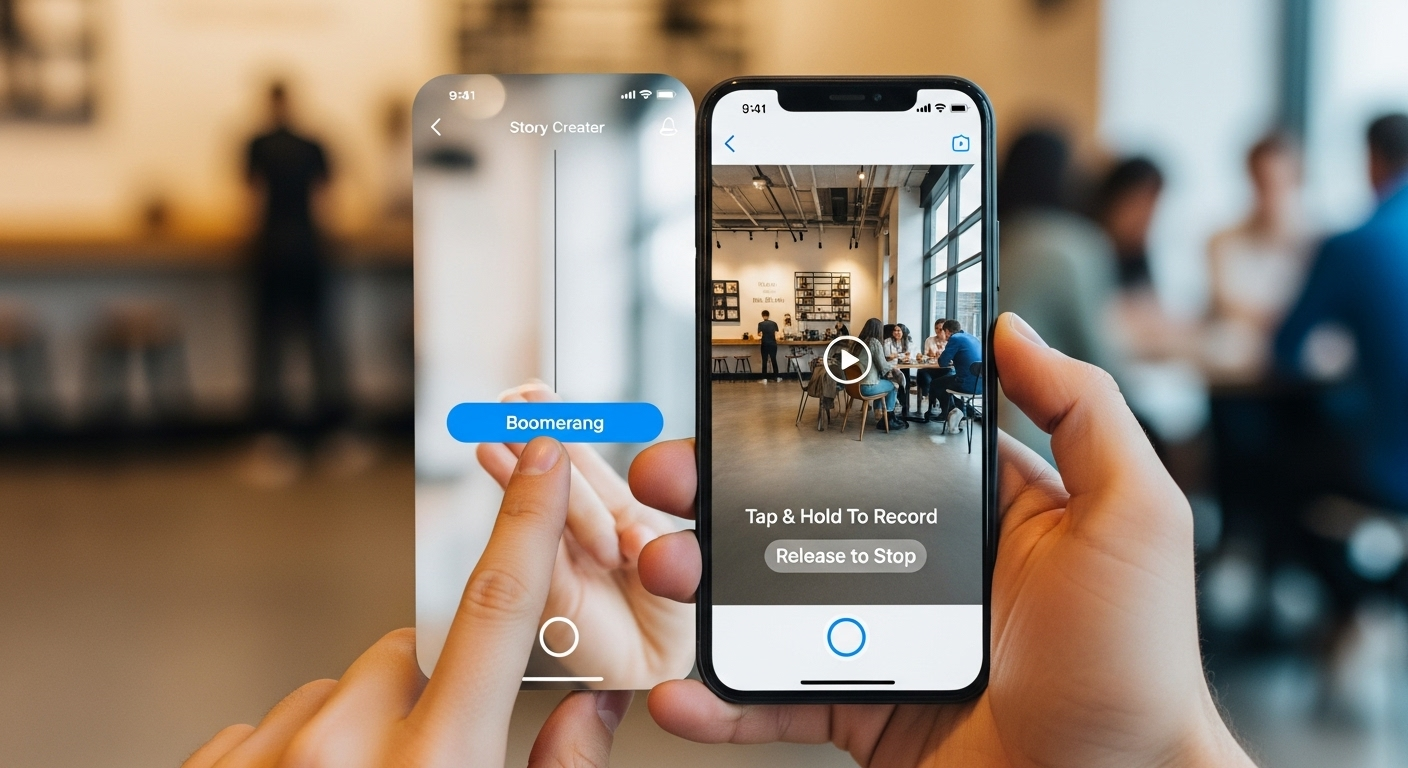
A boomerang video is a short clip — usually 1 to 3 seconds — that plays forward, then immediately reverses, creating a hypnotic back-and-forth loop. The format was originally introduced by Instagram’s standalone Boomerang app in 2015. However, it has since become a native feature across almost every major social platform.
The reason boomerangs perform so well comes down to how social feeds work. Specifically, the looping motion triggers multiple replays, which most platform algorithms count as strong engagement signals. Additionally, the format is short enough to hold attention but dynamic enough to be more watchable than a static image. As a result, boomerangs consistently outperform regular photos and standard short clips in Stories and Reels engagement metrics.
What Moments Work Best for a Boomerang?
Not every moment works equally well. The best subjects for a boomerang have a clear, single movement that looks good both forward and in reverse. For example:
- Jumps and leaps — the up-down motion loops smoothly
- Hair flips and spins — fluid and visually satisfying in reverse
- Product reveals — a hand placing or lifting a product loops with impact
- Pours and splashes — liquid moving backward looks striking
- Reactions and expressions — a smile or laugh looping creates a playful feel
- Dance moves and gestures — especially isolated movements like a hand wave or shoulder drop
In contrast, slow or complex multi-step movements rarely loop well. Furthermore, backgrounds with a lot of distracting motion can make the reverse feel choppy. Keep it simple, keep it centred on one action.
Keep your clip between 1 and 3 seconds. Shorter clips loop faster and feel more energetic. Longer clips can feel slow and lose the punchy quality that makes boomerangs scroll-stopping.
How to Make a Boomerang Video on Instagram
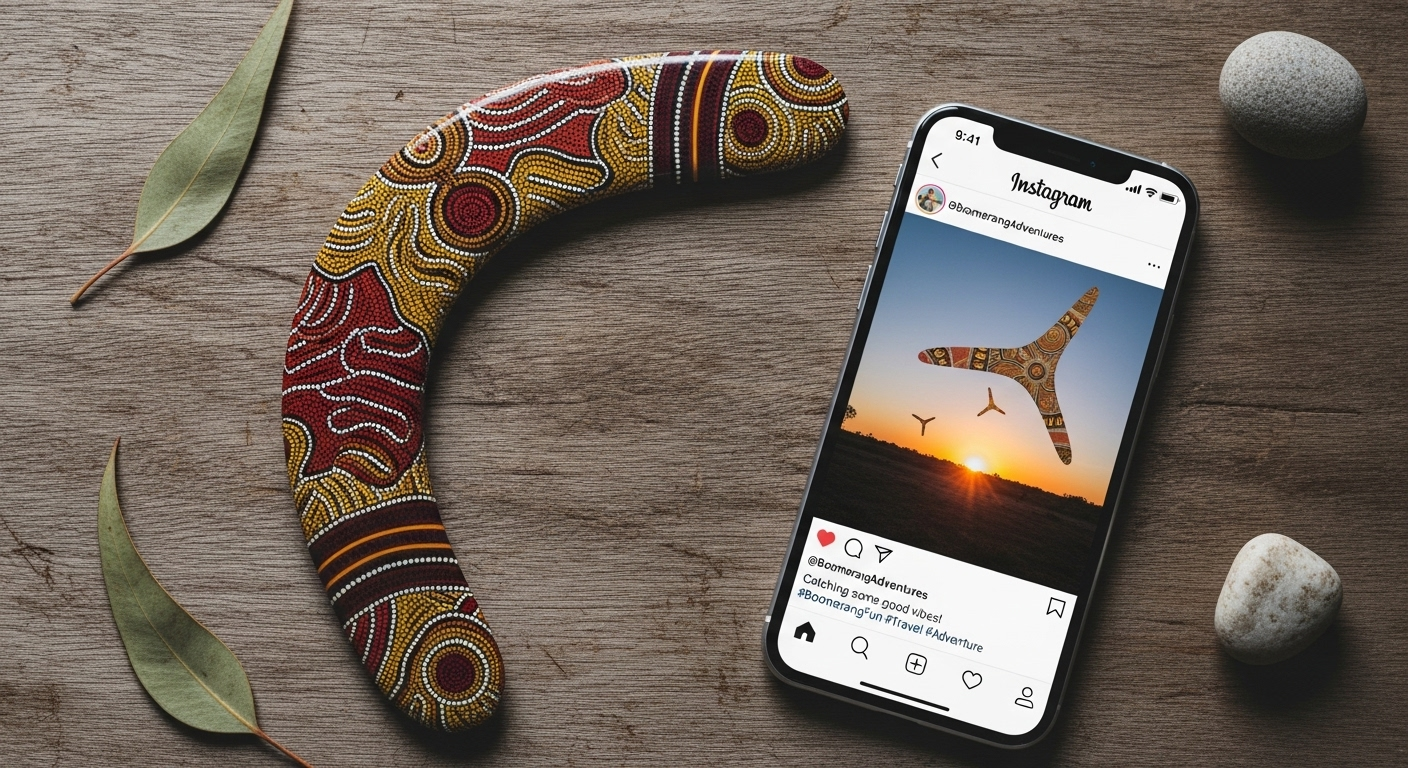
Instagram remains the home of the boomerang format. The feature is built directly into Instagram Stories, so you don’t need any third-party app. Moreover, Instagram offers four boomerang styles that give you creative control over how the loop plays. For a full overview of Instagram Stories features, see Instagram’s official Stories help page.
📱 Instagram — Step by Step
- Open the Instagram app and tap the + icon or swipe right to access the camera
- Select Story at the bottom of the screen
- Tap the infinity symbol (∞) — this is the Boomerang mode
- Press and hold the shutter button to record a short burst (1–3 seconds)
- Preview the loop — Instagram applies the effect automatically
- Tap the lightning bolt icon to switch between boomerang styles: Classic, SlowMo, Echo, or Duo
- Add text, stickers, or music if needed
- Share to Stories, Reels, or download to your camera roll
Instagram Boomerang Styles Explained
Instagram offers four distinct styles, each giving a different feel to your loop. Understanding them helps you choose the right one for your content:
- Classic — the standard forward-reverse loop. Best for most content types.
- SlowMo — plays in slow motion before looping. Good for smooth, cinematic movements like pours or falls.
- Echo — adds a trailing ghost effect behind the motion. Best for gestures and reactions.
- Duo — a fast, glitchy speed burst. Ideal for energetic content like dancing or sport clips.
Additionally, you can convert an existing Live Photo into a boomerang directly in Instagram. Simply upload the Live Photo to your Story, tap the three-dot menu, and select Boomerang. Instagram then converts it automatically.
How to Make a Boomerang Video on iPhone
iPhone users have an advantage: Live Photos can be converted into boomerangs without recording a new clip. This works on iPhone 6s and later. Furthermore, it means any moment you captured as a Live Photo can become a boomerang retroactively.
📱 iPhone — Using Live Photos
- Open your Photos app and go to Albums → Live Photos
- Select the Live Photo you want to convert
- Swipe up on the photo to reveal the loop effects
- Tap Bounce — this creates the boomerang (forward-reverse) effect
- The photo is now saved as a Bounce in your camera roll
- Share directly to Instagram Stories or any other app — the effect is preserved
Make sure Live Photos are turned on before you shoot. Open the Camera app and tap the circle icon at the top of the screen — it should be yellow/active. Every photo you take will then capture a short video clip around the moment.
How to Make a Boomerang Video on Android
Android devices don’t have a native Live Photo equivalent, but creating a boomerang is still straightforward. The most reliable method is to use the Instagram app directly, which works identically to the iPhone version. Alternatively, CapCut (covered below) is an excellent free option for Android users who want more control.
📱 Android — Using Instagram
- Open Instagram and swipe right or tap + to open the Story camera
- Tap the infinity symbol (∞) to switch to Boomerang mode
- Press and hold the shutter to record your clip
- Choose your loop style (Classic, SlowMo, Echo, Duo)
- Save to your camera roll or share directly
Additionally, Google Photos on Android offers a similar effect under Utilities → Create Motion. This works with any short burst of photos taken in quick succession and produces a smooth forward-reverse loop without needing Instagram.
How to Make a Boomerang Video on Snapchat
Snapchat doesn’t call it a boomerang — instead, it uses the name Bounce. The effect is slightly different from Instagram’s version. Specifically, Snapchat’s Bounce loops only a selected section of your video rather than the whole clip, and the reverse plays faster, giving it a punchier feel.
👻 Snapchat — Step by Step
- Open Snapchat and record a video snap as normal
- After recording, look for the infinity icon (∞) on the right side panel
- Tap it — if you don’t see it, swipe through the icons until it appears
- A white selection box will appear on your video timeline
- Drag the slider to select the specific section you want to loop
- Preview the Bounce effect and adjust if needed
- Post to your Story or send to friends
The key difference between Snapchat Bounce and Instagram Boomerang is that Snapchat gives you control over which part of the video loops. This makes it more precise for content where only one specific moment — such as a facial expression or hand gesture — needs the looping treatment.
How to Make a Boomerang Video for TikTok
TikTok doesn’t have a built-in boomerang feature. However, there are two reliable workarounds. The first is to create your boomerang in Instagram, download it, and upload it to TikTok. The second — and more flexible — method is to use TikTok’s editing tools or CapCut to replicate the effect manually. For more TikTok content tips, see VidAU’s TikTok video guides.
🎵 TikTok — Method 1: Import from Instagram
- Create your boomerang in Instagram Stories using the method above
- Before posting, tap Save to download the clip to your camera roll
- Open TikTok and tap the + button to create a new video
- Select Upload and choose your saved boomerang
- Add TikTok sounds, text, or effects as needed
- Post as usual — TikTok will play the loop on repeat automatically
🎵 TikTok — Method 2: Create the Effect Inside TikTok
- Record or import a short 2–3 second clip in TikTok
- Tap Edit then tap your clip on the timeline
- Select Reverse to create a reversed copy of your clip
- Duplicate your original clip and place it after the reversed version
- The sequence now plays: forward → backward → forward — the boomerang effect
- Trim, add audio, and post
How to Make a Boomerang Video in CapCut
CapCut is the most popular third-party option for creating boomerang-style content. It’s free, available on both iOS and Android, and gives you more control than native app tools. Specifically, CapCut lets you duplicate and reverse clips precisely, adjust speed, add freeze frames, and export in 1080p. Visit CapCut’s official website to download the latest version for your device.
✂️ CapCut — Step by Step
- Open CapCut and tap New Project
- Import your video and trim to the most dynamic 1–3 second section
- Tap the clip on the timeline, then tap Copy to duplicate it
- Select the duplicate clip and tap Reverse
- Place the reversed clip immediately after the original — this creates the forward-then-backward loop
- Optional: tap Speed and increase to 1.2x for a smoother, more energetic loop
- Optional: add a soft crossfade transition between the two clips if the join feels abrupt
- Add text, music, or overlays as needed
- Export at 1080 × 1920 for TikTok/Reels or your preferred resolution
Add a single freeze frame at the transition point between the forward and reversed clips. This removes any visual jump between the two halves and makes the loop feel completely seamless. Tap the clip → select Freeze → set to 1–2 frames.
How to Make a Boomerang Video for YouTube Shorts
YouTube Shorts doesn’t have a native boomerang feature either. However, the process is similar to TikTok — create the effect in CapCut or Instagram, then upload the finished clip to Shorts. Because Shorts loops all videos automatically, a boomerang-style clip will repeat continuously, maximising replay value. See VidAU’s YouTube content guides for more tips on optimising short-form video for the platform.
▶️ YouTube Shorts — Step by Step
- Create your boomerang clip in CapCut using the steps above
- Export in 9:16 vertical format (1080 × 1920) for best Shorts quality
- Open the YouTube app and tap + → Create a Short
- Select Upload and choose your boomerang clip
- Add a title, description, and relevant hashtags
- Post — YouTube Shorts will loop the clip automatically for every viewer
How VidAU Turns Boomerang Clips into Full Videos
Native apps like Instagram and Snapchat make it easy to create a quick loop. However, they stop there. VidAU takes the boomerang concept further — transforming a short loop into a complete, publication-ready video with captions, transitions, AI voiceover, and platform-optimised export settings.
This is particularly useful for brands and creators who want to build around a boomerang moment rather than just post the raw loop. For instance, you can upload your boomerang clip to VidAU, extend it into a full product reveal video with text overlays and branded styling, then export it at 4K for multiple platforms simultaneously. Additionally, VidAU’s VidRemix feature lets you repurpose existing boomerang content across different aspect ratios and formats without re-recording. For e-commerce brands, the Product Sample to Video tool pairs perfectly with boomerang clips to create short-form product ads.
What VidAU Adds to a Basic Boomerang
- Loop and reverse playback with full speed control
- Scene transitions and styled text overlays for branded content
- AI voiceover and audio editing — add narration or music in one step
- Platform-specific export — 9:16 for TikTok/Reels, 16:9 for YouTube, square for Instagram feed
- 4K resolution export — no quality loss regardless of platform
- Browser-based — no downloads or installs required
Moreover, VidAU’s video enhancer can upscale lower-quality boomerang clips shot on older devices, improving sharpness and colour before export. As a result, even footage shot on an older phone can look professional when published. You can also check VidAU’s pricing plans to find the right tier for your content volume.
Platform Comparison: Which Boomerang Method Is Right for You?
Each platform and tool has different strengths. The table below summarises the key differences to help you choose the right method for your workflow:
| Platform / Tool | Built-in boomerang | Export to camera roll | Add music | Best for |
|---|---|---|---|---|
| Instagram Stories | Yes | Yes | Yes | Quick Stories and Reels content |
| iPhone (Live Photos) | Yes (Bounce) | Yes | No | Converting existing Live Photos |
| Snapchat (Bounce) | Yes | Yes | Limited | Punchy, section-specific loops |
| TikTok | No | Yes | Yes | Uploading pre-made boomerangs |
| CapCut | Manual (Reverse) | Yes | Yes | Precise control, cross-platform |
| YouTube Shorts | No | Yes | Yes | Upload finished clips |
| VidAU | Yes + Full editing | Yes (4K) | Yes | Full video build from boomerang |
7 Tips for Better Boomerang Videos
Now that you know how to make a boomerang video on every platform, here’s how to make yours stand out. These tips apply regardless of which tool or platform you use:
- Choose one clear movement. The best boomerangs focus on a single, isolated action. Multiple movements in one clip create a confusing loop that doesn’t read clearly on repeat.
- Shoot in good light. Bright, even lighting makes the forward and reverse halves look consistent. Dark or uneven lighting causes flicker that breaks the loop.
- Keep the background still. Moving backgrounds compete with your subject and make the reverse feel chaotic. A clean, neutral background works best.
- Shoot at 60fps if possible. Higher frame rate footage produces smoother slow-motion and reverse effects. Most modern smartphones support 60fps in standard video mode.
- Start and end on the same frame. The most seamless boomerangs have a subject that starts and ends in an identical or near-identical position. This creates a true seamless loop.
- Add music to extend engagement. A boomerang with a well-matched audio track gets significantly more replays than a silent loop. CapCut, Instagram, and VidAU all offer music integration.
- Test before posting. Always preview the full loop at least three times before sharing. What looks smooth in the editor can feel jarring at full speed on a phone screen.
Post your boomerang as the first clip in a Reel or Story sequence. The loop drives replays in the first few seconds, which signals to the algorithm that your content is worth distributing further. This is especially effective on Instagram and TikTok, where early engagement velocity determines reach.
Frequently Asked Questions
What is a boomerang video?
A boomerang video is a short clip — usually 1 to 3 seconds — that plays forward and then immediately reverses, creating a seamless looping effect. The format originated with Instagram’s Boomerang app in 2015 and is now available across most major social platforms.
Can I make a boomerang video without Instagram?
Yes. CapCut, VidAU, and Google Photos all let you create the boomerang effect without using Instagram. In CapCut, simply duplicate your clip and apply Reverse to the second copy. In VidAU, upload your clip and use the loop and reverse playback controls to build the effect.
How do I make a boomerang on TikTok?
TikTok doesn’t have a native boomerang tool. The easiest method is to create your boomerang in Instagram, save it to your camera roll, then upload it to TikTok. Alternatively, use CapCut to manually duplicate and reverse your clip, then import the finished video into TikTok.
How do I turn a Live Photo into a boomerang on iPhone?
Open the Live Photo in your Photos app, swipe up to see the effects panel, and tap Bounce. This applies the boomerang (forward-reverse) effect and saves it to your camera roll. You can then share it directly to Instagram Stories or any other app.
What is the difference between Instagram Boomerang and Snapchat Bounce?
Instagram Boomerang loops the entire clip forward and backward continuously. Snapchat Bounce lets you select a specific section of the video to loop, and the reverse plays slightly faster, creating a punchier effect. Both are excellent for short gestures and reactions, but Snapchat gives you more control over exactly which moment loops.
How long should a boomerang video be?
The ideal length is 1 to 3 seconds. Shorter clips loop faster and feel more energetic — which is why they perform well in Stories and Reels. Clips longer than 3 seconds can start to feel slow on repeat and lose the punchy quality that makes boomerangs effective.
Can I use VidAU to make boomerang videos?
Yes. VidAU supports loop and reverse playback, letting you create the boomerang effect from any uploaded clip. Beyond that, VidAU lets you extend the boomerang into a full video with captions, transitions, AI voiceover, and platform-specific export settings — making it the most complete option for creators who want more than a basic loop.
Conclusion
Knowing how to make a boomerang video is a practical skill for any social media creator in 2026. The format is versatile, fast to produce, and consistently drives higher engagement than static images or standard short clips. Moreover, it works across every major platform — whether you’re posting to Instagram Stories, TikTok, Snapchat, or YouTube Shorts.
For quick, in-the-moment content, use Instagram’s built-in boomerang mode or your iPhone’s Bounce effect. For more precise control, CapCut gives you the best editing flexibility. Furthermore, if you want to go beyond a basic loop and turn your boomerang into a full, branded video, VidAU handles the entire workflow — from reverse playback to 4K export — in one browser-based platform. Additionally, explore VidRemix to repurpose your boomerang content across formats, UGC Avatars to add an AI presenter to your loops, or image to video to animate stills into boomerang-style clips without recording at all.