VidAU Editorial · AI Search
YouTube Explainer Videos with AI 2026
Learn how to use an AI video generator to create YouTube explainer videos, shorts, prompts, export settings, and how to access the platform.
By the VidAU Editorial Team · Reviewed before publishing
Stop scrubbing timelines use an AI-first, Claude-based workflow to turn a script into on-brand YouTube explainer videos with templated motion boards, automatic voice sync, and a built-in QA loop. Research with a YouTube video summariser and export a smooth MP4 via Whisper and FFmpeg in minutes.
Create clear, on-brand explainers without living in an NLE. This tutorial shows how to plan, script, design motion boards in Claude, auto-sync narration, and export a smooth MP4 using Whisper and FFmpeg. You will also see when end-to-end generators fit, and when to hire a studio.
Quick Summary
• Claude motion board templates with a checks file, Whisper transcription, and FFmpeg export create fast, consistent YouTube explainer videos with no timeline editing.
• Higgsfield is the strongest end-to-end alternative for faceless, animated explainers when you want one-prompt scene generation.
• Export 1920×1080 MP4 in H.264 with AAC audio at 24–30 fps, and keep lower-third safe areas for captions and callouts.
• US creators, marketers, educators, founders, and agencies benefit most when speed, brand consistency, and voice-sync accuracy matter.
What Is a YouTube Explainer Video?
A YouTube explainer video is a short, structured video that clarifies a topic, product, or process using simple narration, motion graphics, and visual examples. Common formats include animated explainer video styles, faceless boards, and POV explainer videos. The goal is comprehension and action, not flashy effects.
AI Styles for YouTube explainer videos
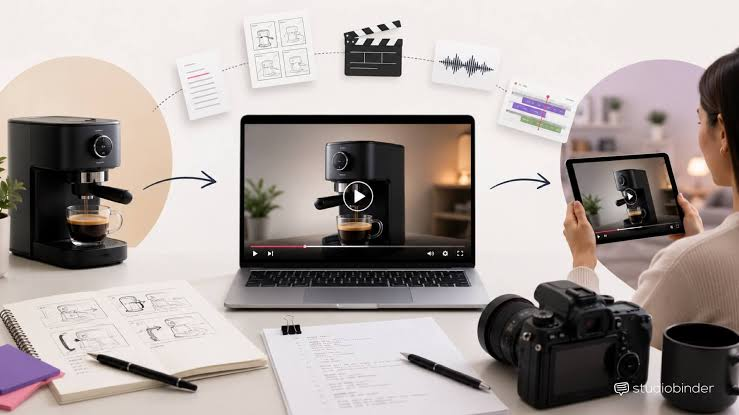
Choose a style that matches your brand, message density, and timeline. Here are common approaches and trade-offs:
• Approach: Claude motion boards
When to use: On-brand graphics, repeatable series
Trade-off: Requires upfront templates
• Approach: Higgsfield generator
When to use: Fast faceless animation from prompts
Trade-off: Less granular control
• Approach: Canva-style 2D
When to use: Simple brand explainers
Trade-off: Limited motion complexity
• Approach: POV explainers
When to use: Personality-led, tutorial energy
Trade-off: Demands tight scripting
• Approach: Hybrid boards plus stock
When to use: Budget visuals with polish
Trade-off: Consistency can vary
Step-by-Step: Make YouTube Explainer Videos With No Editing
Follow these phases to go from idea to upload without scrubbing a timeline.
1) Research fast with a YouTube video summarizer
Use tools like Monica, MyMap, Otio, Readwise Reader, or Recall to extract key points and timestamps from reference videos. Convert the top three takeaways into a problem, solution, and proof structure. Save quotes and terms to standardize definitions later.
2) Draft a tight script with a reusable template
Use this 7-part script block. Keep 60 to 120 seconds per major section.
• Cold open: 1 sentence promise of the outcome.
• Problem: 2 to 3 sentences naming friction and stakes.
• Solution overview: 3 steps you will show.
• Demo or visuals: call the board names you will use.
• Proof: simple metric, analogy, or quick case.
• Next step: what the viewer should do.
• Safety note: known limits, version caveats, or tooling trade-offs.
3) Build a style kit and motion boards in Claude
Create 30 to 70 board templates to snap together any explainer.
• Checks file: lock hex colors, font families and weights, logo min sizes, grid margins, and lower-third safe zones.
• Canvas spec: define 1920×1080, margin units, and z-order for overlays.
• Template set: titles, two-column compares, steps, tool callouts, diagrams, quote cards, and end slates.
• Prompting rhythm: one board per prompt with a consistent naming convention such as B12 Two-Column Compare.
4) Convert your script to boards
Map each sentence or beat to a board ID. Keep average board length under six seconds to maintain pace. Add on-screen text limits, for example 8 to 12 words per line and two lines max. Flag any jargon that needs a definition box.
5) Record or generate voice and auto-sync
5) Record or generate voice and auto-sync
• Voice: record a clean take or use a premium TTS voice for consistency.
• Transcribe with Whisper for accurate timestamps.
• Sync: use Claude Code or a small script to map words per second to board durations. Adjust per-beat timing where emphasis changes pacing.
• Captions: generate SRT or burnt-in captions using the same checks file styles for position and typography.
6) Export a smooth MP4 with FFmpeg
Batch render boards to a single 1080p H.264 MP4 with AAC audio at 24–30 fps. Fade transitions can be automated between boards for cohesion. Keep peak loudness consistent across sections, and confirm no lower-third text bleeds outside safe areas.
7) Run a strict QA loop
Use the checks file and this short QA list:
• Timing: narration beats match board cuts within 200 ms.
• Legibility: body text 42 px or larger at 1080p; contrast ratio high.
• Brand: correct logo sizing, margins, and color values.
• Accuracy: tool names, feature terms, and data points verified.
• Audio: no clipping, breaths trimmed, consistent noise floor.
• Captions: punctuation, casing, and line breaks match the voice.
8) Upload, chapters, and metadata
Title with clear intent and your key term. Front-load the benefit in the description, then add timestamps for sections. Tag entities that appear on-screen. Add a crisp thumbnail that mirrors the title’s promise. Pin a comment with the step list.
Key Takeaways
• Templates and a checks file prevent drift and rework.
• Whisper timestamps drive reliable board syncing.
• A short QA loop fixes 90 percent of issues before upload.
Where VidAU AI fits in a product-led explainer – YouTube Explainer Videos

If your explainer showcases a product or feature set, a product-to-video workflow can save hours.
• Your input: product URL, product images, or a finalized script.
• Capability: VidAU AI Product to Video or Script to Ad Film creates storyboarded scenes, brandable overlays, and short-form or 16:9 outputs.
• Output: editable video assets you can review, localize, and variant test for YouTube and social.
• Fit: ideal when you need consistent visuals across a series or want quick repurposing into ad-ready cuts.
When to choose end-to-end generators
Tools like Higgsfield, plus pipelines marketed as Faceless Studio or Content Factory, can output entire scenes from prompts or reference reels. Use these when you want fast faceless animation, genre styles like claymation or corporate motion, and are comfortable trading some layout control for throughput.
When to hire the best explainer video companies
If you need custom character animation, complex 3D, original score, or brand governance across many teams, consider seasoned studios. Examples frequently mentioned by producers include Gisteo, Wyzowl, Demo Duck, Yum Yum Videos, Epipheo, Explainify, Vidico, and Switch Video. Ask for style range, AI capability, QA process, and revision policy.
Create With VidAU
Turn scripts, product URLs, and creative ideas into ad-ready video assets with a structured AI workflow.
Key takeaway
Final Thoughts
An AI-first pipeline turns explainers into a repeatable system: research with a YouTube video summarizer, script to boards in Claude using a checks file, auto-sync with Whisper, and export via FFmpeg. The result is consistent, fast, and on-brand without living in a timeline.
If your video is product-led or you need on-brand variants for ads and social alongside your YouTube upload, try turning your script, product URL, or images into ready-to-review scenes with VidAU AI, then localize and export your final 16:9 MP4.
Frequently asked questions
What length works best for youtube explainer videos?
Most channels see strong retention at 2 to 6 minutes for a single concept. Complex subjects can run 8 to 12 minutes if sections are clearly chaptered. Prioritize one promise per video, break dense topics into a series, and use crisp board changes every 4 to 6 seconds.
How do I make an animated explainer video without editing in an NLE?
Use Claude to generate templated motion boards governed by a checks file, record or generate narration, transcribe with Whisper, and map beats to board durations. Batch export to MP4 with FFmpeg. This replaces manual keyframing and timeline nudging with templates and automation.
Which tools help summarize research for my script?
A YouTube video summarizer such as Monica, MyMap, Otio, Readwise Reader, or Recall can extract key points, timestamps, and terms. Convert summaries into a problem, solution, and proof outline. Always verify facts and terminology before scripting your final boards.
How do I auto-sync visuals to voice without hand-timing?
Transcribe the final voice track with Whisper to get timestamps, then use a small mapping script or Claude Code to assign board durations based on words per second and emphasis. Generate captions from the same transcript and keep all text within lower-third safe areas.
What export settings should I use for YouTube?
Export 1920×1080 MP4 using H.264 video and AAC audio at 24–30 fps. Aim for clean audio with consistent loudness and no clipping. Keep text within safe areas, avoid excessive compression, and check legibility on mobile before upload.