VidAU Editorial · AI Search
Dreamina 2.0: Create AI Storyboards and Turn Ideas Into Videos
Learn how to create AI storyboards and turn ideas into videos.
By the VidAU Editorial Team · Reviewed before publishing
AI video creation continues to change how filmmakers, marketers, animators, and content creators develop visual stories. Instead of manually sketching every scene or switching between several creative applications, AI-powered creative workspaces help users plan, generate, edit, and organize visual content.
Dreamina 2.0 is a name associated with the evolving Dreamina creative workflow, where AI tools support image generation, video production, story development, and editing. Dreamina’s AI Canvas provides a connected workspace for building creative projects using prompts, images, videos, audio, and other references. Its video workflow also features AI storyboarding and scene creation.
For creators who want to turn scripts into visual sequences, Dreamina’s canvas-based approach offers a practical way to organize ideas before generating video clips. From story development to scene refinement, this guide explains how to use Dreamina for storyboard creation and AI video production.
Quick Summary
• Dreamina 2.0 represents an AI-assisted creative workflow for developing visual concepts, storyboards, and video content, while Dreamina AI Canvas provides a connected workspace for creative production.
• storyboard to video ai workflows help you convert scripts and visual references into animated scenes and complete videos.
• A free ai storyboard generator helps creators visualize scenes, develop characters, organize shots, and prepare video concepts without drawing frames manually.
• A storyboard ai generator supports scene planning, image generation, reference control, and video development, making the production process easier to organize.
• Dreamina AI Canvas combines creative assets, prompts, references, and supported AI models in one workspace, helping creators plan, generate, refine, and organize projects.
Storyboard to video AI: How Dreamina Turns Ideas Into Videos
A storyboard gives your video a visual structure before production begins. It breaks a story into individual scenes, showing what happens, where the characters appear, how the camera moves, and how each shot connects to the next.
Dreamina’s AI Canvas supports a connected workflow for developing ideas, generating visual assets, and building video scenes. Its canvas allows users to connect prompts, images, videos, audio, and creative references in one workspace.
What Is Storyboard to Video AI?
Storyboard to video AI describes tools that turn written story ideas or storyboard frames into video sequences. Rather than starting with a finished video, you begin with a script, a scene description, or a collection of images.
An AI storyboard workflow typically involves:
- Story development: Write a script or describe the story.
- Scene breakdown: Divide the script into individual shots.
- Visual generation: Create images for each scene.
- Video generation: Animate the storyboard images or generate clips from scene prompts.
- Scene refinement: Adjust camera movement, character actions, lighting, and visual details.
- Final editing: Arrange the clips, add sound, and prepare the video for publishing.
Dreamina’s canvas-based workflow helps connect these creative stages, reducing the need to move between separate tools for every task.
How Dreamina AI Canvas Supports Storyboarding
Dreamina AI Canvas works as a node-based creative workspace. You can add prompts, images, video, audio, and other references, then connect them to build a visual workflow.
The canvas supports three useful stages of storyboard development.
1. Plan Your Story
Start with a story concept, script, or scene description. You might write a short product advertisement, an animated story, a music video concept, or a cinematic sequence.
Break the idea into scenes before generating visuals. Each scene should have a clear action and purpose.
2. Generate Your Visual Scenes
Use AI image generation to develop the appearance of each scene. Provide details about characters, locations, camera angles, lighting, and composition.
For example, a scene showing a young woman walking through a rainy city might include:
- A wide shot of the street.
- A medium shot of the character walking.
- A close-up of her face.
- A final shot showing her entering a café.
These images help establish the visual direction of your story.
3. Animate and Refine Your Scenes
Once you have your visual references, use an available video generation model to animate the scenes. Dreamina’s video workflow supports reference-guided generation and video creation, while AI Canvas helps keep creative inputs and outputs connected.
You can refine the prompts, generate additional scenes, and develop your project further before exporting or continuing with editing.
How to Create a Storyboard and Video With Dreamina
A practical workflow for short films, product videos, advertisements, and social media content.
Step 1: Write Your Story
Create a short script. Describe the main characters, location, action, and ending. Keep each scene focused on one main action.
Step 2: Break the Script Into Shots
Divide your script into a sequence of scenes. Specify shot types, camera movements, and visual details.
Step 3: Generate the Storyboard Images
Use AI image generation to create frames for each scene. Keep character references and visual styling consistent across the storyboard.
Step 4: Animate the Storyboard
Use an available Dreamina video generation model to turn your storyboard images or scene descriptions into clips.
Step 5: Review and Edit
Review the generated scenes. Adjust motion, camera direction, transitions, and visual details. Add sound, music, and captions during editing.
Step 6: Export Your Video
Arrange your scenes into a complete video. Select an aspect ratio and resolution that suit your target platform.
Example Prompt for Creating an AI Storyboard
Use the prompt below to develop a storyboard for a short cinematic advertisement.
Create a six-scene cinematic storyboard for a luxury sneaker advertisement.
Scene 1: A close-up of a sneaker resting on a dark reflective surface. Soft studio lighting reveals the texture and design.
Scene 2: A young athlete ties the sneaker’s laces in a dimly lit urban gym.
Scene 3: The athlete steps outside into a city street at sunrise.
Scene 4: A dynamic side shot shows the athlete running past buildings.
Scene 5: A slow-motion close-up captures the sneaker touching the ground during a sprint.
Scene 6: A final hero shot shows the sneaker on a clean studio background with dramatic lighting.
Style: Photorealistic commercial cinematography, consistent sneaker design, realistic motion, cinematic lighting, smooth visual continuity.
For each scene, generate a storyboard frame with a clear composition, camera angle, and visual action.
This prompt gives the AI a clear sequence to follow. You can generate individual frames first, then use video generation tools to animate them.
Free AI Storyboard Generator: Can You Create Storyboards for Free With Dreamina?
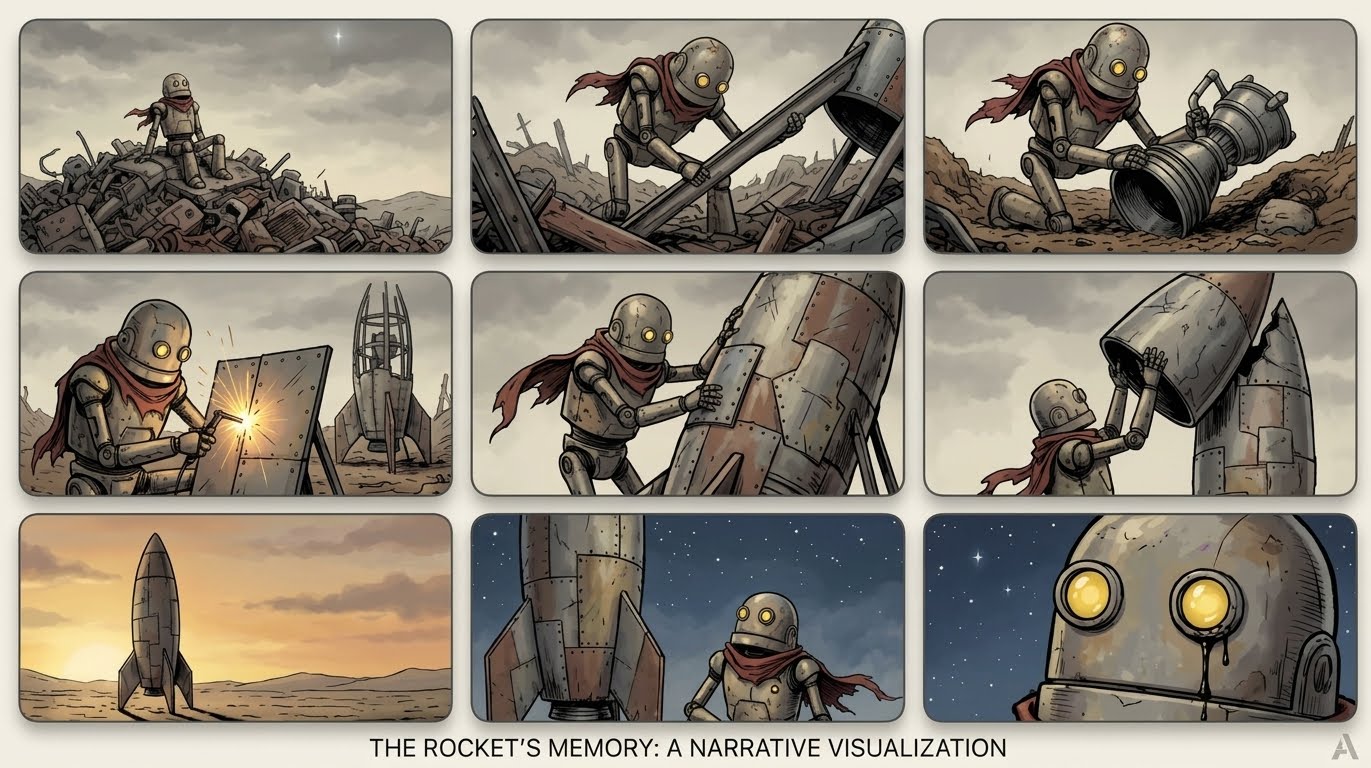
A free AI storyboard generator helps you develop visual scenes without drawing every frame manually. AI tools generate storyboard images from text prompts, making visual planning easier for beginners, filmmakers, marketers, and content creators.
Dreamina provides AI image and video creation tools through its creative platform. Its AI Canvas page advertises free access to the canvas workflow, although available credits, generation limits, and specific model access depend on the current account and plan.
What Can a Free AI Storyboard Generator Do?
A free AI storyboard generator helps you create visual representations of a script or concept. Instead of drawing each frame by hand, you describe the scene and let AI generate the visual reference.
Common features include:
- Text-to-storyboard: Generate scene illustrations from written prompts.
- Scene planning: Organize scenes according to the script.
- Character visualization: Develop character appearances before production.
- Camera direction: Describe camera angles, framing, and movement.
- Visual consistency: Reuse references to maintain a similar appearance across scenes.
- Image-to-video: Animate selected storyboard frames through an available video model.
How to Use Dreamina as a Free AI Storyboard Generator
Follow this workflow to develop a storyboard without starting with traditional drawing.
Step 1: Open Dreamina AI Canvas
Visit Dreamina AI Canvas and sign in to access the creative workspace. Check the current free access and credit limits.
Step 2: Describe Your Story
Write a short script or prompt explaining the video concept. Include the characters, location, action, mood, and intended visual style.
Step 3: Generate Your Storyboard Frames
Generate images for each scene. Use separate prompts for individual shots or an appropriate storyboard layout if your available image model supports multi-panel generation.
Step 4: Refine Your Frames
Adjust scene composition, lighting, characters, and backgrounds. Keep reference images connected to your scenes where possible.
Step 5: Turn Selected Frames Into Video
Use the available AI video model to animate your selected images. Describe the movement, camera action, and atmosphere.
Step 6: Assemble the Final Video
Arrange the generated clips, add voiceovers, captions, music, and transitions. Review the complete video before publishing.
Who Benefits From Free AI Storyboard Generators?
Filmmakers and video producers
Develop shot concepts and visual references before filming. Storyboards help communicate camera direction, composition, and scene progression.
Content creators
Plan TikTok videos, YouTube Shorts, Instagram Reels, and other short-form content before generating the final video.
Marketing teams
Visualize advertisement concepts, product demonstrations, and promotional scenes before committing to a production workflow.
Animation creators
Develop characters, backgrounds, and scene layouts before animating a story.
Students and beginners
Explore visual storytelling without learning traditional drawing techniques first.
Limitations of Free AI Storyboard Tools
Free access often comes with restrictions. Before using a tool for a project, check:
- Daily or monthly generation credits.
- Available image and video models.
- Output resolution.
- Watermarks.
- Video duration.
- Commercial usage rights.
- Export options.
Free access does not always mean unrestricted commercial use. Review the platform’s current terms before using generated content for paid campaigns.
Storyboard AI Generator: Features, Workflow, and Creative Applications

A storyboard AI generator uses artificial intelligence to turn scripts, prompts, and visual references into storyboard frames. These frames help creators understand how a story will look before they produce the final video.
Dreamina AI Canvas supports a connected creative workflow that lets you organize prompts, reference images, video, audio, and other creative inputs on one canvas. This makes the workspace useful for planning scenes, developing visual concepts, and refining creative projects.
Key Features of a Storyboard AI Generator
Script-to-Scene Planning
A storyboard generator helps break a script into individual scenes. You can identify the main action, visual composition, camera angle, and important details for every shot.
This structure helps you organize a story before generating video.
AI Image Generation
AI-generated images help visualize scenes without requiring hand-drawn illustrations. You describe what you want, and the model creates a frame to represent the scene.
You can generate multiple frames for different shots, expressions, or camera angles.
Character and Visual Reference Control
Reference images help maintain character appearances, clothing, environments, and other visual details across a storyboard.
Dreamina AI Canvas supports connected creative references, which help organize and reuse visual assets within a project.
Video Generation From Storyboard Concepts
A storyboard can serve as a starting point for video generation. You use individual frames, prompts, and other references to create moving scenes.
Dreamina’s AI video tools support image-to-video and text-to-video workflows, while AI Canvas provides a workspace for organizing creative inputs and outputs.
Scene Editing and Creative Refinement
A storyboard is rarely perfect on the first attempt. AI tools help you regenerate frames, adjust prompts, modify visual details, and develop alternative scenes.
With Dreamina AI Canvas, you can organize and connect different creative assets, making the refinement process easier to manage.
How to Create a Storyboard With an AI Storyboard Generator – Dreamina 2.0
Step 1: Develop the Concept
Write down the story, video purpose, audience, and intended style.
Step 2: Create a Script
Develop a short script with clear scenes. Avoid overcrowding each scene with too many actions.
Step 3: Generate Storyboard Frames
Use a storyboard generator to create images for the individual shots.
Step 4: Organize the Scenes
Arrange the frames in the correct sequence. Add notes about camera movements, dialogue, sound, and transitions.
Step 5: Generate Video Clips
Use your storyboard images or scene descriptions as references for AI video generation.
Step 6: Edit and Finalize
Combine your clips, refine the transitions, add sound, and export the video.
Creative Use Cases for a Storyboard AI Generator
- Film production: Visualize scenes before filming and communicate ideas to the production team.
- Product advertising: Plan product shots, camera movements, and visual transitions.
- Music videos: Develop scenes, character movements, and visual sequences around a song.
- Social media videos: Plan short-form content before generating clips.
- Animation: Develop character designs, environments, and scene layouts.
- Educational videos: Organize lessons into visual scenes that support the narration.
Why Use Dreamina AI Canvas for Storyboard Creation?
Dreamina AI Canvas offers several practical features for creative projects:
- Connected workflow: Organize prompts, images, video, audio, and references in one workspace.
- Visual organization: Connect creative inputs and outputs to structure your project.
- Creative refinement: Develop new versions of assets without losing track of related references.
- Multiple AI models: Work with supported image, video, and audio generation models within the canvas workflow.
- Project continuity: Organize and reuse references, prompts, and creative assets.
Dreamina
For creators developing advertisements, short films, and visual campaigns, the connected workspace offers a way to move from planning to generation and refinement without managing every creative asset in separate applications.
Create With VidAU
Turn scripts, product URLs, and creative ideas into ad-ready video assets with a structured AI workflow.
Key takeaway
Final Thoughts
Dreamina offers a practical approach to AI-assisted storyboarding and video creation. Its AI Canvas workspace helps creators organize prompts, images, video, audio, and references while developing visual projects.
Whether you are planning an advertisement, short film, animation, or social media video, a storyboard-first workflow helps you structure scenes before generating the final content. Start with a clear script, generate your frames, animate the scenes, and refine your video before publishing.
Explore Dreamina AI Canvas to start developing your visual concepts and AI-generated videos.
Frequently asked questions
What is Dreamina 2.0?
Dreamina 2.0 refers to Dreamina’s AI creative and video-generation ecosystem associated with Seedance 2.0 and AI-assisted visual production. Dreamina offers tools for image generation, video creation, editing, and creative workflows through its platform.
Can Dreamina turn a storyboard into a video?
Yes. You can use storyboard images, prompts, and visual references with available Dreamina AI video tools to animate scenes. You can then refine and assemble the generated clips into a complete video.
Is Dreamina a free ai storyboard generator?
Dreamina offers free access options for AI creative tools, although credits, model access, generation limits, and export features depend on your account and the current plan.
How does a storyboard ai generator work?
A storyboard AI generator uses scripts, prompts, and visual references to generate images representing individual scenes. You arrange the frames in sequence, refine the visuals, and use them as references for video generation or production planning.
Who should use Dreamina for AI storyboarding?
Filmmakers, marketers, social media creators, animators, students, and video producers benefit from AI storyboarding. The workflow helps them visualize scenes, organize shots, and develop video concepts before completing production.