Video Sharing · URL Link Guide
How to Convert a Video to a URL Link (Step-by-Step Guide)
Learn how to convert a video to a URL link using Google Drive, YouTube, and Dropbox. Free step-by-step methods to upload, share, and embed your videos fast.
By the Sarah Iruoje · Video URL guide · Free hosting and sharing workflow
Turning a video file into a shareable URL link is mostly about uploading it to a host and setting the sharing permissions correctly. The fastest free path is Google Drive: upload your MP4, set sharing to anyone with the link, and copy the link. While the keyword here is url to video, the real task most people want is the reverse, converting a video to a URL link they can paste anywhere.
This guide is for general users, students, content creators, and small business owners who need to share large video files without email attachment limits. We cover three free methods, file size limits per platform, and how to embed a link on a website. No technical skills required.
Featured image placeholder for converting a video file to a URL link, Google Drive sharing, YouTube unlisted uploads, Dropbox video links, OneDrive, iCloud, website embeds, URL to Video, AI Video, UGC Avatars, Text to Speech, and Text to Video workflows.
Quick Summary
- Google Drive is the fastest free method to convert a video to a URL link: upload your MP4, set sharing to anyone with the link, then copy the link.
- YouTube is the best alternative for public or unlisted videos you want streamed and embedded, with no practical file size cap for most uploads.
- Dropbox suits secure team sharing, and OneDrive or iCloud work well if you already use those cloud storage accounts.
- Marketers, eCommerce sellers, and creators who need ad-ready clips can also generate video directly from a product URL using AI video tools.
What Does Converting a Video to a URL Link Mean?
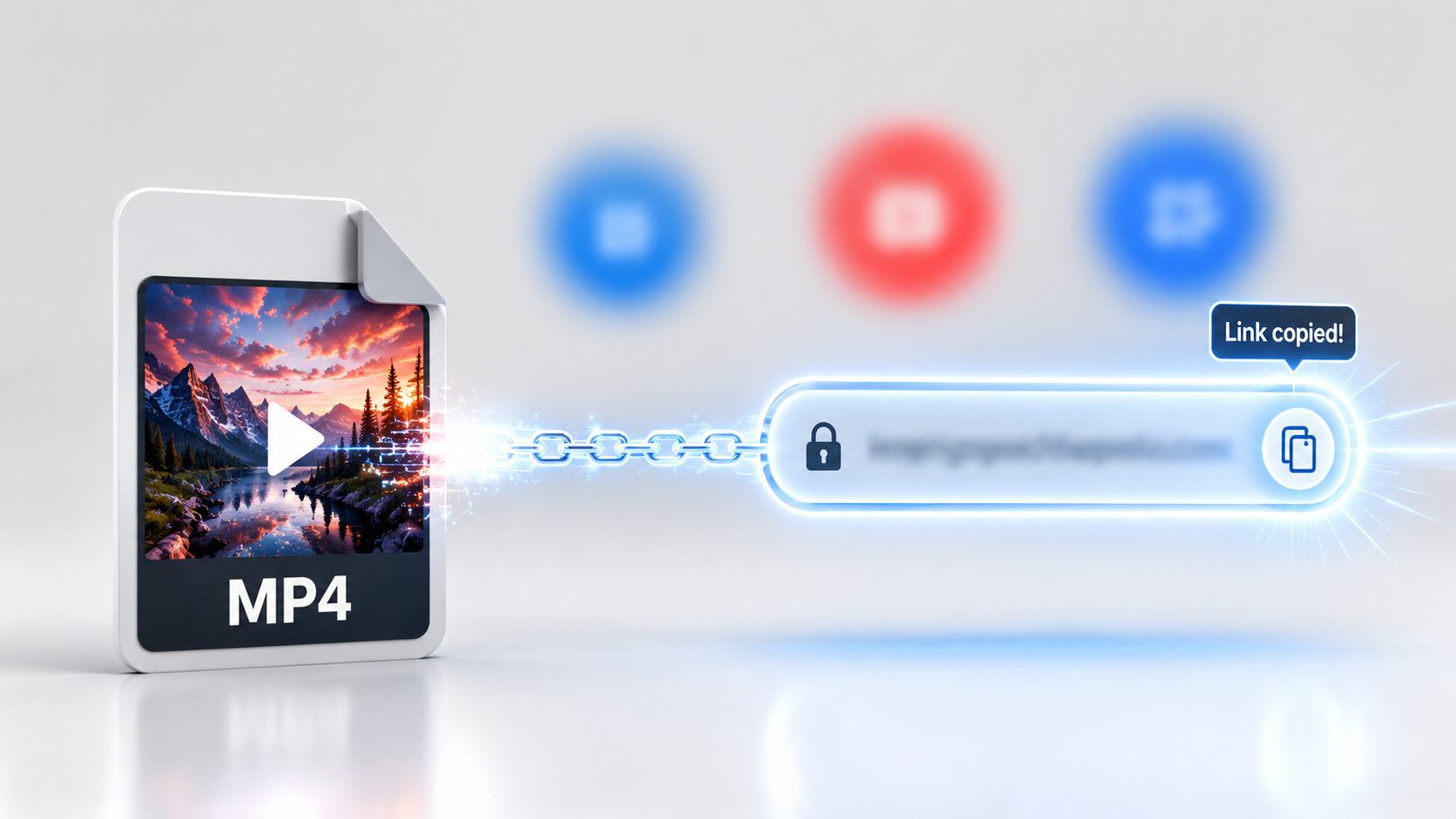
Converting a video to a URL link means uploading a video file to a hosting platform, then generating a web address that points to that video. The link lets anyone open, stream, or download the video without you sending the original file. It also enables embedding on websites using an iframe or embed code.
The video file itself never becomes a URL. Instead, a video hosting platform like Google Drive, YouTube, Dropbox, OneDrive, or iCloud stores the file and serves a shareable link. Your job is to upload correctly and set the right privacy settings.
Definition
The video file itself never becomes a URL. A hosting platform stores the file and creates a shareable web address that points to it.
Why Use a Shareable Link Instead of Sending Files?
A shareable URL solves the biggest pain point with video: file size. Most email services cap attachments around 25MB, and a single phone clip can easily exceed that. A link sidesteps that limit entirely.
Links also give you control. You can update or remove the video later, set sharing permissions, and track views on some platforms. For teams and clients, a clean URL is easier to manage than passing heavy MP4 files back and forth.
Key Takeaways
- A URL link avoids email attachment size limits.
- Sharing permissions decide who can view your video.
- Most platforms let you swap or remove the file after sharing.
How to Convert a Video to a URL Link With Google Drive
Google Drive is the most popular free method, and a recent November 2025 tutorial with over 29,000 views shows this is what most users reach for first. Every Google account includes 15GB of free storage shared across Drive, Gmail, and Photos.
Follow these steps
Step 1: Open Google Drive
Open drive.google.com and sign in with your Google account.
Step 2: Upload your video file
Click New, then File upload, and select your video file.
Step 3: Wait for the upload
Wait for the upload to finish. Larger files take longer on slow connections.
Step 4: Open sharing settings
Right-click the uploaded video and choose Share.
Step 5: Change access
Under General access, change Restricted to Anyone with the link.
Step 6: Set the role
Set the role to Viewer so people cannot edit anything.
Step 7: Copy the link
Click Copy link, then paste the URL wherever you need it.
If you skip step 5, the link will only work for people you add individually. That is the single most common reason a shared video link fails to open.
Permission warning
If you skip changing General access from Restricted to Anyone with the link, the link will only work for people you add individually.
How to Turn a Video Into a URL Link on YouTube
YouTube is the strongest alternative when you want the video streamed smoothly and embedded on a site. Upload your file, set the visibility, and YouTube generates a clean URL automatically.
Step 1: Start a YouTube upload
Go to youtube.com and sign in, then click Create and Upload videos.
Step 2: Add your file
Drag your video file into the upload window.
Step 3: Add basic details
Add a title and description, then click Next through the setup screens.
Step 4: Choose visibility
On the Visibility screen, choose Public, Unlisted, or Private.
Step 5: Use Unlisted for link-only sharing
Pick Unlisted if you want a link only people with the URL can open.
Step 6: Save and copy the URL
Click Save, then copy the share URL from the video page.
Unlisted is the practical choice for client work or internal sharing. The video stays off your public channel and search results, but anyone with the link can watch it.
For embedding, click Share, then Embed, and copy the iframe code into your website HTML. This is the cleanest way to show video on a page without slowing it down.
YouTube tip
Use Unlisted for client work or internal sharing when you want anyone with the link to watch, without making the video public on your channel.
How to Share a Video URL With Dropbox
Dropbox works well for secure link sharing, especially for teams already using it. Free accounts start with 2GB of storage, so it suits shorter clips rather than long files.
Step 1: Open Dropbox
Sign in at dropbox.com or open the desktop app.
Step 2: Upload the video
Click Upload, then Files, and select your video.
Step 3: Open sharing
Hover over the file and click the Share icon.
Step 4: Create and copy the link
Choose Create link, then Copy link.
Step 5: Share the URL
Paste the URL to share it.
Dropbox links open a preview page where viewers can watch or download the file. If you need to control downloads or set link expiration, those options usually require a paid plan, so confirm what your account includes before relying on them.
Dropbox note
If you need to control downloads or set link expiration, confirm what your Dropbox account includes before relying on those options.
Platform Comparison: File Size and Best Use
Different hosts fit different needs. Pick based on file size, privacy, and whether you want streaming or simple file sharing.
| Platform | Free Storage | Best For |
|---|---|---|
| Google Drive | 15GB shared | Quick sharing of large files |
| YouTube | No practical cap | Streaming and website embeds |
| Dropbox | 2GB | Secure team link sharing |
| OneDrive | 5GB | Microsoft and Office users |
| iCloud | 5GB | Apple device users |
Google Drive and YouTube cover most needs for free. OneDrive and iCloud are convenient if you already live in those ecosystems, since the upload and sharing steps follow the same logic.
Platform rule
Choose Google Drive for quick file sharing, YouTube for streaming and embeds, Dropbox for secure team sharing, and OneDrive or iCloud if you already use those ecosystems.
Common Mistakes When Creating a Video URL
Most broken video links come from a few avoidable errors. Our team reviewed how creators describe sharing problems, and the same issues repeat.
- Leaving sharing set to Restricted, so only you can open the link.
- Uploading a file larger than the platform allows on a free plan.
- Using a private YouTube setting when you meant Unlisted.
- Forgetting that a Drive link can be revoked, breaking it for everyone later.
- Sharing a Dropbox preview link when the viewer needed a direct download.
The fix is simple: after copying any link, open it in a private or incognito browser window. If it plays without asking you to sign in, the permissions are correct.
Sharing tip
After copying any link, open it in a private or incognito browser window. If it plays without asking you to sign in, the permissions are correct.
Advanced Tip: Generate a Video From a URL

There is a related workflow worth knowing if you create marketing content. Instead of converting a video to a URL, some AI tools do the opposite, turning a URL into a video. Paste a product page link and the tool builds a video from the page content.
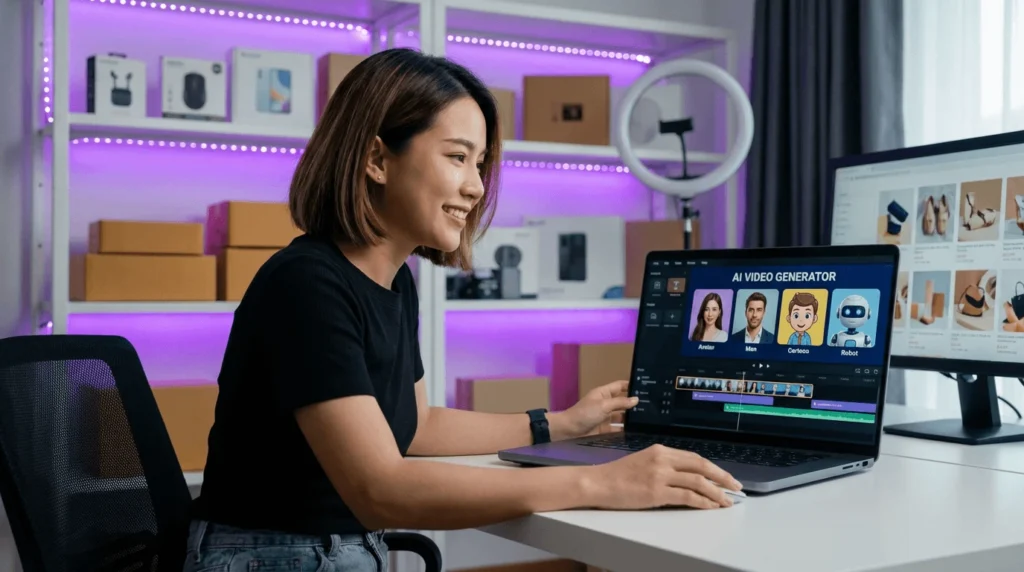
VidAU is an AI video ad platform that generates video ads from product URLs, images, or scripts in 49 languages. With its URL to Video feature, eCommerce sellers can turn an Amazon URL or store page into an ad-ready clip, then export it and host it on any platform above.
This matters for sellers who want a finished promotional video, not just a host for a file they already shot. From our internal analysis, this link-to-video approach is becoming a standard way short-form creators repurpose content quickly. If you only need to share an existing recording, stick with Google Drive or YouTube; if you need new ad content, an AI video workflow or UGC Avatars may save more time. You can also pair it with Text to Speech for voiceover or Text to Video for script-based clips.
Honest distinction
If you only need to share an existing recording, stick with Google Drive or YouTube. If you need new ad content, a URL-to-video or AI video workflow may save more time.
Create Videos From URLs With VidAU
Use VidAU URL to Video, AI Video, UGC Avatars, Text to Speech, and Text to Video when you need new promotional clips from product pages, scripts, or store URLs, not just a shareable link for an existing file.
VidAU workflow
Where VidAU fits beside video URL sharing
- Use Google Drive for fast file sharing: Upload an existing MP4, set sharing to anyone with the link, and copy the URL.
- Use YouTube for streaming and embeds: Upload public or unlisted videos when you want smooth playback and website embed code.
- Use Dropbox for secure team sharing: Share shorter clips with teams that already use Dropbox, while checking download and expiration controls.
- Use VidAU URL to Video for new ad content: Paste a product page or Amazon URL and generate an ad-ready clip from the page content.
- Use AI Video, UGC Avatars, Text to Speech, and Text to Video for promotion: Build new marketing videos from URLs, scripts, voiceovers, or avatar-led clips, then host and share the final video anywhere.
Key takeaway
Final Thoughts
To convert a video to a URL link, upload the file to a free host like Google Drive, YouTube, or Dropbox, set sharing to anyone with the link, and copy the URL. Google Drive is the fastest for big files, YouTube is best for streaming and embeds, and Dropbox fits secure team sharing. Always test the link in a private browser window first.
If your goal is creating new promotional video rather than hosting an existing file, try generating one directly from a product page with VidAU’s URL to Video tool, then host and share the result anywhere.
FAQ
Here are answers to common questions about converting a video file to a URL link, choosing a video hosting platform, fixing permission errors, creating video links on mobile, MP4 format, website embeds, file size limits, and turning a product URL into a video.
How do I convert a video file to a URL link for free?
Upload the video to a free host like Google Drive, YouTube, or Dropbox. Then open the share settings, set access to anyone with the link, and copy the generated URL. The link works for viewing, downloading, or embedding, depending on the platform and your chosen permissions.
What is the best platform to turn a video into a URL?
Google Drive is best for quickly sharing large files because of its 15GB free storage, while YouTube is best for streaming and website embeds. Dropbox suits secure team sharing. Choose based on file size, privacy needs, and whether you want viewers to stream or download the file.
Why does my video link say I need permission?
The link is still set to Restricted, so only people you added directly can open it. In Google Drive, open Share, change General access to Anyone with the link, and set the role to Viewer. Then copy the link again and test it in a private browser window.
Can I create a URL link for a video on my phone?
Yes. Install the Google Drive, YouTube, or Dropbox app, sign in, and upload the video from your camera roll. After the upload finishes, open the file, tap the share or link option, set it to anyone with the link, and copy the URL to send.
What file format works best for a shareable video URL?
MP4 is the safest and most widely supported video file format across Google Drive, YouTube, Dropbox, OneDrive, and iCloud. It plays on nearly every device and browser. If you upload an unusual format, some viewers may see playback errors, so convert to MP4 before uploading when possible.
How do I embed a video URL on a website?
Use YouTube for the cleanest result. Open your video, click Share, then Embed, and copy the iframe code into your website HTML. The video then streams directly on your page. Google Drive can embed too, but YouTube handles streaming and compression more reliably for site visitors.
Is there a file size limit when converting a video to a URL?
Limits depend on the platform and your free storage. Google Drive shares 15GB across your account, Dropbox starts at 2GB, and OneDrive and iCloud offer 5GB. YouTube has no practical cap for most uploads. Check available space before uploading large or long video files.
Can I turn a product URL into a video instead?
Yes. Some AI tools reverse the process and create a video from a link. VidAU’s URL to Video feature lets you paste a product page or Amazon URL and generate an ad-ready clip in multiple languages. You can then host the finished video on any platform and share its link.