SaaS Product Demo Video Maker · Onboarding & Software Ads
How to Make SaaS Product Demo Videos: Tools and Best Practices
Explore SaaS product demo video maker tools for onboarding videos, employee onboarding videos, Apps & Software Ads, and educational video content.
By the VidAU Editorial Team · SaaS video guide · 14 min read
A good saas product demo video maker solves this. Modern platforms let product managers, customer success teams, and marketers record, edit, and publish professional-looking videos without touching a timeline in Premiere Pro. The gap between “rough screen recording” and “polished onboarding video” has never been smaller.
Most SaaS teams understand that a well-made demo video converts better than any written walkthrough. The problem is that most teams do not have a video production background, and hiring an agency for every new feature release or onboarding update is not realistic.
This guide walks you through the full workflow from planning your script to exporting a video your users will actually watch.
Quick Summary
- A saas product demo video maker helps non-technical teams produce professional software walkthroughs, onboarding videos, and training content quickly.
- Planning your script and defining a single goal per video is the most important step before you hit record.
- Tools like Riverside, VEED, DemoCreator, and VidAU AI cover different parts of the production workflow depending on your format.
- Keep individual videos short and focused — 2 to 5 minutes works best for onboarding and feature demo content.
In This Guide
- What a SaaS product demo video maker is and when to use one
- Why demo and onboarding videos matter for SaaS growth
- Step-by-step production workflow from planning to publishing
- Best tools for each stage of the process
- Platform-specific optimization tips
- Common mistakes to avoid
- Advanced strategies to scale your video output
- FAQ
- Final Thoughts
What Is a SaaS Product Demo Video Maker?
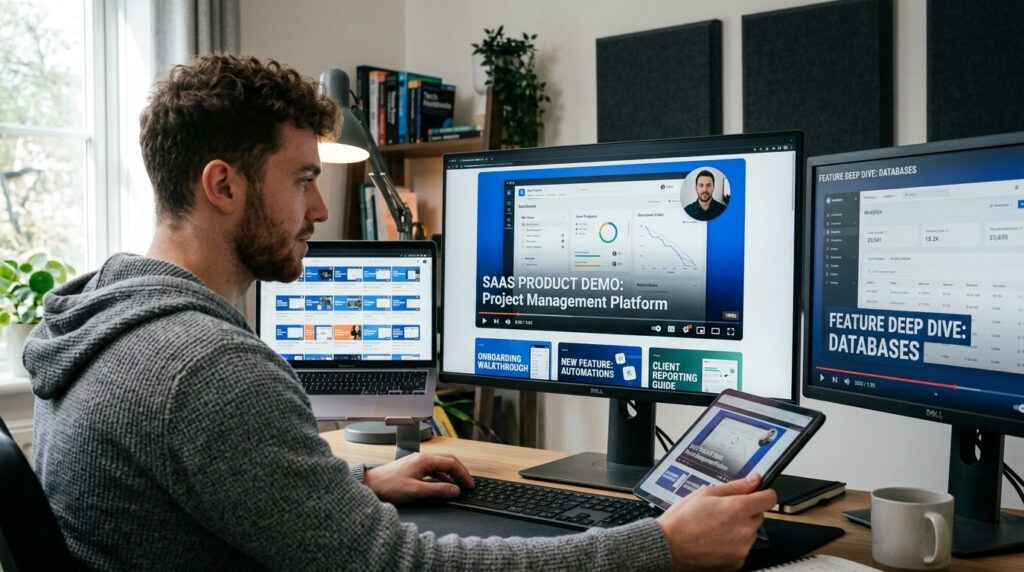
A saas product demo video maker is a software tool or platform that helps teams record, edit, and publish video walkthroughs of software products. These tools typically combine screen recording, editing, voiceover, and export into one workflow — making it possible to produce customer onboarding videos, feature tutorials, and employee onboarding videos without specialist production skills.
They differ from general video editors because they are optimized for screen capture, annotation, and fast turnaround. The output is usually a short educational video designed to teach users how to navigate or get value from a software product.
Key definition
A SaaS product demo video maker is optimized for screen capture, annotation, fast editing, voiceover, export, and short educational video production for software walkthroughs, customer onboarding, training, and internal enablement.
Why SaaS Product Demo Videos Matter
SaaS products are abstract. A user reading a help article still has to translate text into action inside your interface. A well-made demo video shows them exactly where to click, what to expect, and how to succeed. That reduces support tickets, shortens time-to-value, and improves retention.
For employee onboarding videos specifically, the benefit is consistency. Every new hire watches the same tech setup video, the same company policies walkthrough, and the same skills training content — regardless of who is running orientation that week. That kind of knowledge transfer at scale is only possible with video.
Apps and software ads also benefit. Short demo clips used in paid social campaigns give potential users a real look at the product before they sign up, which tends to improve conversion quality.
Key Takeaways
- Demo videos reduce support load by showing users exactly what to do.
- Onboarding videos create a consistent experience across every new hire or new user.
- Short product clips used in software ads improve sign-up quality by setting accurate expectations.
Step-by-Step Process for Creating SaaS Product Demo Videos
This is the workflow most teams get wrong. They open a screen recorder, start talking, and edit later. That approach produces messy, unfocused videos. Here is a tighter process.
Step 1: Define One Goal Per Video
Before scripting anything, define what the viewer should be able to do after watching. Not “understand the platform” — that is too vague. Something like “complete their first campaign setup” or “connect their CRM integration.” One goal per video keeps it short and useful.
Step 2: Script and Storyboard
Write a full script, not just bullet points. A script forces you to sequence steps logically and catch missing explanations before you record. Keep your language plain. Read it out loud once before recording — anything that sounds awkward on paper sounds worse on video.
For employee onboarding videos, group content into logical clusters: welcome and culture, tech setup, role-specific tools, policies and compliance. Each cluster becomes its own short video rather than one long file nobody finishes.
Step 3: Record Your Screen and Audio
Use a screen recorder that captures in high resolution. Record your mouse movements slowly and deliberately — viewers need to track where you are clicking. Record audio separately if your microphone quality is low; most editing tools let you sync audio later.
If your onboarding content needs a human face on screen, tools like Riverside let you record video and audio together in high quality, even remotely. This works well for welcome videos and culture introductions where a real person adds credibility.
Step 4: Edit for Clarity
Trim silence, remove hesitations, and cut any section where you repeated yourself. Add text annotations or callouts to highlight key UI elements. If the video is longer than five minutes, consider breaking it into chapters or splitting it into separate shorter videos.
For quick editing without a steep learning curve, VEED handles trimming, captions, and basic overlays through a browser-based interface. DemoCreator is built specifically for software tutorial videos and includes presentation-to-video conversion, which is useful if you already have slide decks explaining your product.
Step 5: Add Voiceover or Captions
Not every viewer watches with sound. Always add captions to onboarding and training videos. If your original audio is poor, re-record a clean voiceover using a text to speech (https://www.vidau.ai/vidau-text-to-speech/) tool to replace or supplement the narration.
Step 6: Export and Host
Export in 1080p as a minimum. Host on a platform your team actually uses — Loom, Wistia, or a dedicated LMS if you are building a formal training library. Embed directly into your product, help center, or onboarding email sequence where relevant.
Tip
Do not start by recording. Start by defining one goal, writing a script, and deciding where the video will live. That makes every production decision clearer.
Best Tools for SaaS Product Demo Video Production
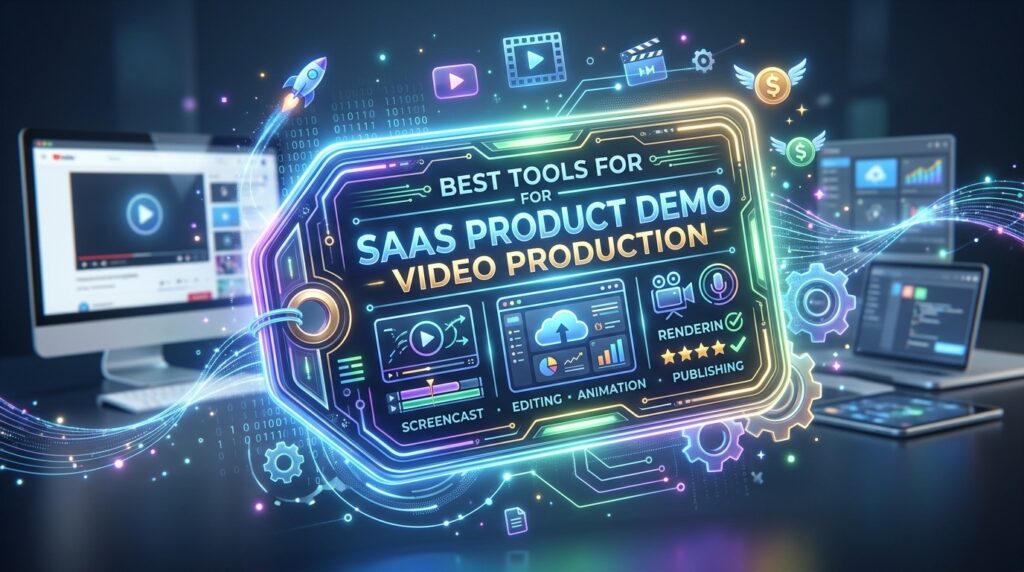
Different tools serve different parts of the workflow. Here is a straightforward comparison:
| Stage | Recommended Tools | Why |
|---|---|---|
| Scripting and planning | ChatGPT, Claude, Notion | Fast script drafts and outline structure |
| Screen recording | DemoCreator, Loom, Riverside | Built for software capture and remote recording |
| Quick editing and captions | VEED, CapCut | Browser-based, low learning curve |
| AI video and text-to-video | VidAU AI, Synthesia | Useful for scripted product walkthroughs and UGC-style ads |
| Voiceover and narration | VidAU Text to Speech | Clean AI voice for narration without re-recording |
For teams creating Apps & Software Ads alongside their demo content, VidAU AI Video is worth exploring. It lets marketing teams turn scripts and product visuals into ad-ready video content without a production setup. That is particularly useful when you need a short promotional clip alongside your longer educational video.
If you are starting from a product URL or landing page, URL to Video can pull content directly from a page and generate a video draft, a quick way to build promotional content without starting from scratch.
For teams that want to create UGC-style spokesperson content for software ads or customer onboarding, UGC Avatars offer a way to produce presenter-led videos at scale without camera time.
Create SaaS Product Demo Videos With VidAU
Use VidAU AI for scripted SaaS walkthroughs, Apps & Software Ads, product visuals, AI voiceover, UGC-style presenters, and short promotional clips alongside your onboarding video library.
VidAU workflow
How VidAU fits into SaaS demo and software ad production
- Start with the script or product page: Use a written walkthrough, feature announcement, landing page, or product URL as the source for your video.
- Create scripted video assets: Use VidAU AI Video or Text to Video when the format does not require live screen recording.
- Add voiceover and narration: Use Text to Speech to create clean narration when original audio is poor or when you need multilingual variants.
- Produce Apps & Software Ads: Turn product visuals, scripts, and landing page content into short promotional clips for paid social campaigns.
- Repurpose existing content: Use VidAU Vid Remix or Video Enhancer to turn webinars, sales calls, live demos, and older recordings into better short-form assets.
Platform-Specific Optimization
Where your video lives changes how you should format it.
Help Center and In-App: Keep videos under three minutes. No long introductions — get to the action in the first fifteen seconds. Add chapter markers if the platform supports them.
Employee Onboarding LMS: Break content into modules. A new hire will not sit through a 45-minute orientation in one session. Ten videos at three to five minutes each get higher completion rates than one long video.
Paid Social and Software Ads: The first three seconds matter most. Lead with the problem the software solves, not the product name. Use captions. Export in vertical or square format for mobile placements. Text to Video (https://www.vidau.ai/text-to-video/) tools can help create short-form scripted versions of your demo for ad use.
Email Sequences: Embed a thumbnail with a play button that links to a hosted video. Actual video in email is unreliable across clients. A clean thumbnail with a clear subject line performs well.
| Placement | Optimization approach |
|---|---|
| Help Center and In-App | Keep videos under three minutes, skip long introductions, get to the action in the first fifteen seconds, and add chapter markers if supported. |
| Employee Onboarding LMS | Break content into modules. Ten videos at three to five minutes each get higher completion rates than one long video. |
| Paid Social and Software Ads | Lead with the problem in the first three seconds, use captions, and export in vertical or square format for mobile placements. |
| Email Sequences | Use a thumbnail with a play button that links to a hosted video instead of embedding actual video inside the email. |
Tip
Choose the format based on where the video lives. Help center videos, employee onboarding modules, software ads, and email thumbnails all need different structures.
Common Mistakes to Avoid
Trying to cover everything in one video. A ten-minute walkthrough of your entire platform is not a demo — it is a webinar. Break it up.
Poor audio quality. Viewers tolerate average visuals. They will not tolerate audio that is hard to hear. A USB microphone or a quiet room makes a bigger difference than any editing tool.
No clear call to action. Every demo video should end with one next step. Log in and try it. Book a call. Complete your setup. Do not leave the viewer wondering what to do.
Forgetting to update videos after product changes. Outdated onboarding videos cause confusion and erode trust. Build a short review schedule into your content calendar.
Skipping captions. This affects accessibility and watch-through rates in sound-off environments. Both are worth caring about.
Watch out
Most SaaS demo video problems come from trying to cover too much, recording weak audio, skipping captions, ending without a next step, or letting old videos stay live after product changes.
Advanced Strategies for Scaling Demo Video Production
Once your core video library is in place, the next step is producing more content faster without sacrificing quality.
Modular scripting: Write scripts in reusable blocks. An intro module, a feature walkthrough module, and a closing CTA module can be mixed and matched across videos. This cuts scripting time significantly for teams managing large product suites.
Templatized editing: Build a branded video template with your colors, fonts, and intro/outro in your editing tool of choice. Every new video starts from that template rather than a blank canvas.
AI-assisted production: Tools that convert scripts directly into video — like VidAU AI Video (https://www.vidau.ai/vidau-ai-video/) or Text to Video (https://www.vidau.ai/text-to-video/) — work well for scripted promotional content and narrated feature announcements where screen recording is not essential.
Repurposing existing content: If you have recorded webinars, sales calls, or live demos, tools like VidAU Vid Remix (https://www.vidau.ai/vid-remix/) can help repurpose that footage into shorter, shareable clips without starting a full edit from scratch.
Video enhancer for older recordings: If your existing demo library has outdated or low-quality recordings, a Video Enhancer (https://www.vidau.ai/vidau-video-enhancer/) tool can improve visual quality before you decide whether a full re-record is necessary.

Tip
Scale SaaS video production with reusable scripts, branded editing templates, AI-assisted promotional videos, repurposed webinar clips, and quality improvements for older recordings.
FAQ
Here are answers to common questions about SaaS product demo video makers, onboarding videos, employee onboarding videos, Apps & Software Ads, educational video content, screen recording, AI video tools, captions, and SaaS training workflows.
What is a saas product demo video maker?
A saas product demo video maker is a tool that lets teams record, edit, and publish software walkthrough videos for customer onboarding, training, or marketing without advanced production skills.
How long should a SaaS demo video be?
Most effective product demo and onboarding videos run between two and five minutes; longer training content works better when split into short modules of three to five minutes each.
What types of employee onboarding videos should SaaS companies create?
The most useful types include welcome videos, tech setup guides, company policies overviews, role-specific tools walkthroughs, and knowledge transfer videos for key workflows.
Do I need screen recording software to make a SaaS demo video?
Not always — AI video tools can produce scripted narrated demos without screen recording, but for UI walkthroughs, a screen recorder gives viewers the most accurate product view.
How can I make my onboarding videos look professional without a production team?
Use a structured script, record clean audio, add captions, and apply a consistent branded template in your editing tool — these four steps account for most of the quality difference.
Can I use AI tools to create educational video content for SaaS onboarding?
Yes — AI tools can generate narrated educational video from a script, convert presentations to video, or produce avatar-led walkthroughs, making it practical for small teams to build a full onboarding video library.
Key takeaway
Final Thoughts
Building a library of clear, focused SaaS product demo videos is one of the highest-leverage things a product or marketing team can do. It reduces support load, accelerates onboarding, and gives potential users a real look at your software before they commit. The tools available now make this achievable for teams without any video background.
Start with your highest-friction onboarding moment — the step where users most often drop off or ask for help — and build a short, specific video for that one problem. Use a saas product demo video maker that fits your workflow, whether that is a screen recorder like DemoCreator, a browser-based editor like VEED, or an AI video platform like VidAU AI Video (https://www.vidau.ai/vidau-ai-video/) for scripted and ad-ready content. Get one video right, then build from there.