VidAU Editorial · AI Search
veo 3 api: Access via Google Opal and Automate AI Video Generation with Make.com
Learn how to access the Veo 3 API via Google Opal, build simple apps, and automate AI video generation with Make.com. Step-by-step workflows, prompts, and pro tips.
By the VidAU Editorial Team · Reviewed before publishing

If you’re looking for a working way to use the Veo 3 API right now, this guide shows the Google Opal path the newest tutorials rely on. We’ll build a minimal Opal app that calls the Veo-3 model and wire it to Make for 1080p videos with audio and hands-free publishing.
Creators keep asking where the official veo 3 api endpoint is. While official endpoints and pricing are not the focus of current tutorials, a reproducible path exists today: use Google Opal to call the Veo-3 model, then automate generation and publishing with Make. This guide shows the exact, practical setup.
Quick Summary
• Google Opal with a minimal app that calls the Veo-3 model is the most practical way to use the veo 3 api path for 1080p video with audio today.
• Make plus Airtable and HTTP Webhooks offers the strongest automation stack for batching jobs and autopublishing Shorts, TikTok, and Reels.
• Short-form specs work best as 9:16 MP4, 1080p, 6–30 seconds, clear on-screen text, and platform-safe audio.
• US-based creators, growth marketers, and automation builders benefit most, especially teams scaling short-form outputs from prompts or image-to-motion.
What Is Veo 3 API?
The veo 3 api, as used in current tutorials, refers to accessing Google’s Veo-3 model through Google Opal rather than a public, standalone endpoint. In this workflow, you create a simple Opal app that sends prompts or images to Veo-3 and returns a 1080p video with audio. Availability and terms may vary, so treat this as a tutorial-based path.
Accessing Veo-3 Through Google Opal (Opal Veo 3)
This section mirrors the latest google veo 3 api tutorials: you will create two simple Opal apps that call the Veo-3 model.
App A: Text-to-Video (1080p + audio)
1) Create a new Opal app.
2) In the builder prompt, specify a minimal vertical UI with fields: Prompt, Duration (6–12s), Style/Mood, and a Generate button.
3) In the action logic, instruct Opal to send the Prompt and options to the Veo-3 model and return an MP4 with audio at 1080p.
4) Add an Output area with a video player and a Download button.
Example Opal builder prompt snippet:
• Build a vertical UI with a large textarea labeled Prompt.
• Add dropdowns: Duration (6, 8, 10, 12s) and Style/Mood (cinematic, vlog, documentary, product demo).
• On Generate, send these inputs to Veo-3 and return a 1080p MP4 with audio.
Text-to-video prompt template for Veo-3:
• Subject: A cozy coffee shop at golden hour.
• Shot: Slow push-in on latte art, shallow depth of field, 9:16.
• Duration: 8 seconds, smooth camera motion.
• Style/Mood: Warm cinematic grade, gentle acoustic background.
• On-screen text: Latte art secrets, 3 words max, top center.
App B: Image-to-Motion (Animate Still Images)
1) Create a second Opal app focused on image upload + animation instructions.
2) UI: File upload (JPG/PNG), large textarea for Animation Instructions, and Animate button.
3) Action: Send the uploaded image and instructions to the Veo-3 model to generate a short MP4 with audio at 1080p.
Image-to-motion prompt template for Veo-3:
• Source: Uploaded portrait photo.
• Motion: Subtle eye blink, soft hair movement, gentle parallax.
• Composition: 9:16 vertical frame, center subject.
• Duration: 6–8 seconds.
• Audio: Soft ambient track, low volume.
Tips to improve outputs:
• Keep duration short (6–12s) for stronger detail and social relevance.
• Use specific camera verbs: slow pan, dolly-in, rack focus.
• Limit on-screen text to 3–6 words for readability on mobile.
Suggested Visual: Screenshot of both Opal mini-app UIs with callouts for key fields.
Key Takeaways
• Two small Opal apps cover text-to-video and image-to-motion.
• Keep prompts crisp, specify 9:16, 1080p, and audio.
• Short durations help Veo-3 focus detail and motion quality.
Automate Generation & Publishing with Make

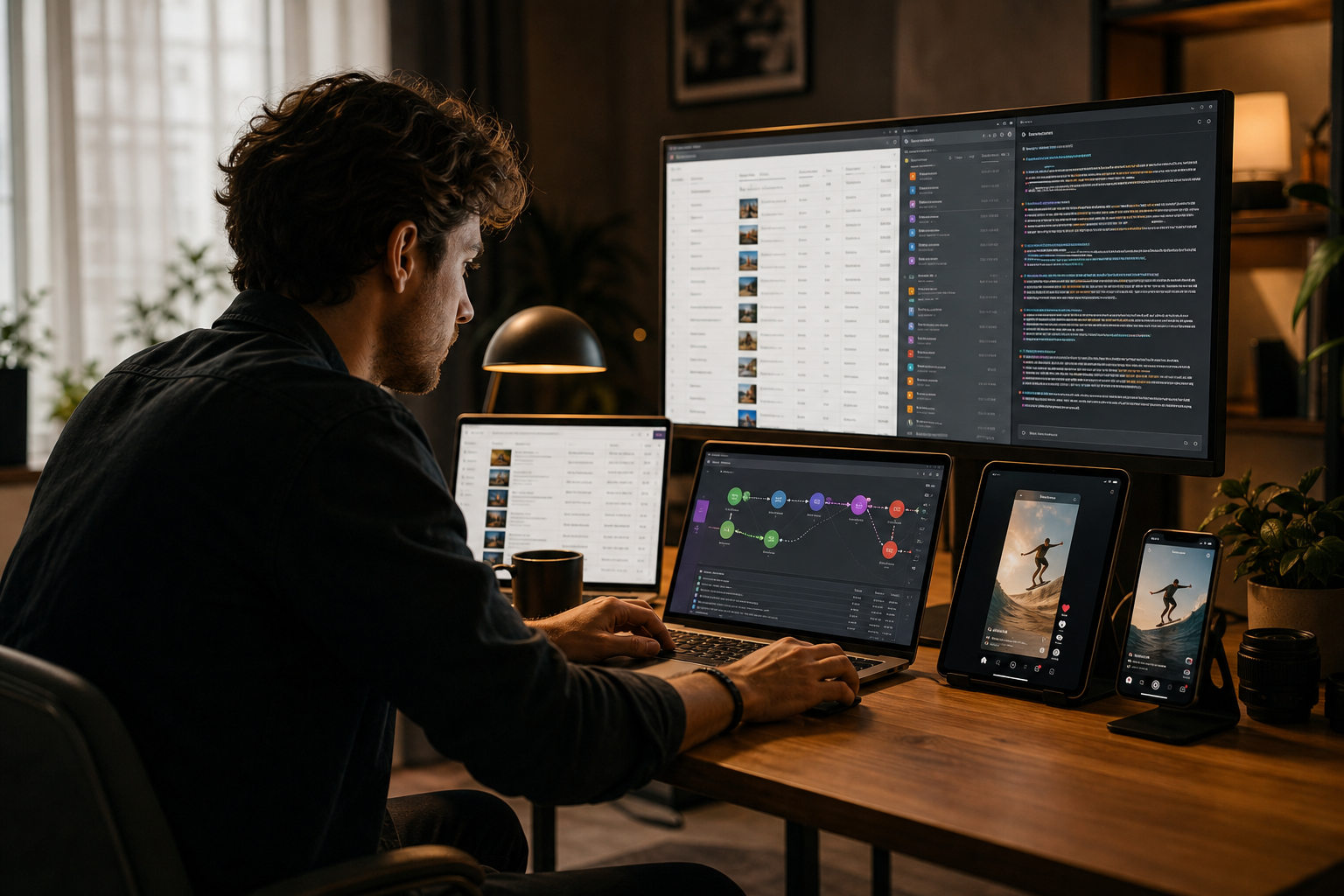
You can reproduce the Make automation seen in the latest videos using Airtable for prompts, HTTP Webhooks for triggers, and platform modules for upload. Here is a proven scenario layout.
Core scenario structure:
• Trigger: Webhooks or Scheduler to start a run.
• Queue: Airtable with fields like Prompt, Duration, Style, Source Image URL, Status, Filename, and Platform Copy.
• Generation: HTTP module to call your Opal app action (if your app exposes an invocable endpoint), or use a human-in-the-loop step where Opal saves outputs to a watched folder/cloud and Make picks them up.
• Polling & retries: Use Make Sleep and Repeater patterns, plus Error Handlers.
• Packaging: Optional caption/overlay step, then write back final metadata to Airtable.
• Publishing: Upload to YouTube Shorts, TikTok, and Instagram Reels modules with captions, tags, cover frame, and schedule.
Checklist for Make reliability:
• Use an Airtable Status field: pending, generating, ready, posted, error.
• Add a concurrency cap to avoid overloading generation.
• Implement a max retries count (e.g., 3) with exponential backoff.
• Store temporary files in cloud storage; clean up after success.
• Set platform-specific titles, 1–3 hashtags, and a 1080×1920 cover.
Concurrency & batching tips:
• Group jobs in small batches (e.g., 5–10) for steadier throughput.
• Randomize start times to avoid platform rate spikes.
• Write back all file URLs and post IDs for auditability.
Suggested Visual: Simple flow diagram of Airtable → Make → Opal generation → Storage → Platform uploads.
Small, practical table (stages and tools)
• Stage: Ideas & prompts
Recommended Tools: Airtable, ChatGPT
Why: Centralize and refine prompts
• Stage: Generation
Recommended Tools: Google Opal (Veo-3)
Why: 1080p video with audio
• Stage: QC overlays
Recommended Tools: Canva
Why: Captions, brand kit, covers
• Stage: Video creation (ads)
Recommended Tools: VidAU AI Video
Why: Product-to-video variants
• Stage: Automation
Recommended Tools: Make
Why: Webhooks, batching, uploads
• Stage: Tracking
Recommended Tools: Airtable
Why: Status, asset links, IDs
Where VidAU AI fits
If you need ad-ready variants for TikTok, Meta, or YouTube, pair your Opal workflow with VidAU AI. Example: feed a product URL or images into VidAU AI Video to draft UGC-style or product demo variants, export results, then hand them to Make for testing across Shorts, TikTok, and Reels. This is useful when you need consistent brand-forward creative alongside your Veo-3 clips.
Light Edits and Packaging in Canva (Canva Veo 3)
Keep edits minimal for scale, but consistent:
• Brand kit: Colors, fonts, logos for quick overlays.
• Captions: Burn-in large, high-contrast text; 3–6 words per scene.
• Cover frames: 1080×1920 static with title, logo, and bold focal point.
• File naming: platform-keyword-topic-date (e.g., shorts-coffee-latte-2026-09). Match titles to filenames for discoverability.
Suggested Visual: Canva layout with brand kit, caption style, and cover template.
Key Takeaways
• Use Canva for fast, consistent branding at scale.
• Keep on-screen text big and sparse for mobile.
• Standardize filenames and titles to aid search and tracking.
Create With VidAU
Turn scripts, product URLs, and creative ideas into ad-ready video assets with a structured AI workflow.
Key takeaway
Final Thoughts
The most reliable path creators are using today is Opal-based access to the Veo-3 model, then Make for batching, retries, and hands-free publishing. Start with two minimal Opal apps (text-to-video and image-to-motion), wire them to Airtable and Make, and wrap with light Canva packaging.
If you also produce product-led or ad-focused content, draft variants with VidAU AI Video and route those files through the same Make pipelines for fast creative testing across Shorts, TikTok, and Reels.
Frequently asked questions
Is there an official veo 3 api I can call directly?
Current tutorials demonstrate accessing Veo-3 through Google Opal rather than a public, standalone endpoint. You create a simple Opal app that calls the model, returns a 1080p MP4 with audio, and then automate around it. Availability and terms can change, so treat this as a tutorial-based path.
How do I access Veo-3 through Google Opal?
Build a minimal Opal app with fields for prompts or image upload, then wire its action to call the Veo-3 model. The app returns an MP4 you can preview and download. Many recent tutorials show this Opal Veo 3 approach as the practical entry point while official endpoints are not the focus.
Can Veo-3 produce 1080p with audio for short-form videos?
Tutorials show Opal calling Veo-3 for 1080p MP4 output with audio. For short-form, specify 9:16, 6–12 seconds, and a clear style or mood. Keep text overlays short and high-contrast to improve retention in YouTube Shorts, TikTok, and Instagram Reels.
What is a good text-to-video prompt template?
Try: Subject, camera motion (slow push-in), framing (9:16), duration (8–12s), style (cinematic, vlog), and short on-screen text (3–6 words). Example: Cozy coffee shop, shallow DOF, slow dolly-in, 9:16, 8s, warm cinematic grade, gentle acoustic background, text: Latte art secrets.
How do I automate with Make if my Opal app does not expose a direct endpoint?
Use a hybrid flow. Generate in Opal, save outputs to a watched folder or cloud storage, and have Make watch for new files. Then handle metadata, Canva overlays, and platform uploads. Track record status in Airtable and use retries plus error handling for reliability.
What should my Airtable schema include for batching?
Include: Prompt, Style, Duration, Image URL (optional), Platform Copy, Hashtags, Status, Output URL, Filename, Post IDs, and Timestamps. This supports queueing, auditing, and recovery. Add a Run ID or Batch tag to group uploads and limit concurrency.
Can I auto-upload to YouTube Shorts, TikTok, and Instagram Reels?
Yes. Use Make’s modules and APIs for each platform. Provide title, description, tags, cover frame, and schedule time. Respect platform rules on aspect ratio, audio, and community guidelines. Log returned post IDs back to Airtable for tracking.
Where does Canva fit in this pipeline?
Use Canva to apply your brand kit, add large captions, and export a consistent cover frame. You can keep this step manual for quality control or partially automate template population. Short, readable overlays and standardized covers improve clarity and click-through.
When should I add VidAU AI to this stack?
If you need product-led or ad variants at scale, use VidAU AI Video to turn product URLs or images into ready-to-test creative. Then run those files through the same Make pipeline for scheduling and publishing alongside your Veo-3 clips.
Any tips for retries and concurrency in Make?
Set a modest concurrency limit per scenario, add exponential backoff on HTTP or file operations, and store interim results. Use a Status field in Airtable, cap total retries (e.g., 3), and alert on errors to avoid silent failures while running batches.