VidAU Editorial · AI Search
Craiyon: How to Generate AI Clip Art and Photos with Better Prompts
Learn how to use Craiyon to create AI clip art and photos. Get prompt formulas, style tips, and troubleshooting advice to produce clean, useful images fast.
By the VidAU Editorial Team · Reviewed before publishing

Craiyon can produce clean AI clip art and simple photo-style images when you give the Craiyon AI photo generator precise, structured prompts. Use these copy ready formulas to control vector style, background, lighting, and composition and iterate fast with small edits in Craiyon AI.
Craiyon can produce clean AI clip art and simple photo-style images when you give the Craiyon AI photo generator precise, structured prompts. Use the frameworks below to control vector style, background, lighting, and composition and iterate quickly with small edits.
Quick Summary
• Craiyon clip art prompts work best with a flat vector style, white background, and 2–3 colors for fast, clean icons.
• Alternate workflow: switch to photo-style by adding camera, lighting, and composition terms for more natural outputs.
• Required spec: include background control (white or solid), clear composition (centered or rule of thirds), and a short color palette.
• Best fit: US beginners, teachers, students, and small businesses needing quick AI clip art or simple photos.
What Is Craiyon?
Craiyon is an AI image generator that turns a short text prompt into images. With clear instructions for style, background, lighting, and composition, Craiyon AI can quickly produce usable AI clip art and photo-style images. Results improve through iteration: small edits, reruns, and specificity create more consistent outputs over time.
Craiyon Prompt Frameworks for Clean AI Clip Art
For crisp, copy-ready icons and classroom visuals, keep your text prompt short and style-locked.
Clip art prompt structure:
• Subject + ‘flat vector, clip art’
• Background: white (or solid color)
• Color palette: 2–3 bold colors
• Outline: none (or thin outline if needed)
• Composition: centered, minimal background
Example prompts to paste:
• ‘Apple icon, flat vector, clip art, white background, 2 bold colors, no outline, centered’
• ‘Golden retriever head, flat vector, clip art, white background, orange and navy palette, minimal details’
• ‘Backpack icon for classroom handout, flat vector, clip art, white background, teal and yellow, no shadow, centered’
• ‘Soccer ball, flat vector, clip art, white background, black and white only, clean edges’
• ‘Coffee cup icon, flat vector, clip art, white background, brown and cream palette, no text’
• ‘Recycling symbol, flat vector, clip art, white background, green palette, no watermark’
Tips:
• Use a tight color palette to avoid muddy gradients.
• Add ‘no text, no watermark’ to reduce unwanted markings.
• If edges look fuzzy, reinforce ‘flat vector, clean edges’ and rerun.
Suggested Visual: Side-by-side grid showing messy vs. clean clip art prompts and outputs.
Craiyon Photo-Style Prompts That Look Natural
To shift the Craiyon AI photo generator into photo mode, describe camera, lighting, composition, and background plainly.
Photo-style prompt structure:
• Subject + camera type or lens (DSLR, 50mm, macro)
• Lighting: soft daylight, studio softbox, golden hour
• Composition: rule of thirds, centered portrait, top-down
• Background: simple studio, white sweep, outdoor park
• Extras: shallow depth of field, natural skin tones, minimal props
Example prompts to paste:
• ‘Blue running shoes product photo, DSLR 50mm, soft studio lighting, white sweep background, centered, shallow depth of field’
• ‘Portrait of an older teacher smiling, soft daylight, rule of thirds, school hallway background, natural skin tones, minimal background’
• ‘Tabby cat on a windowsill, soft backlight, shallow depth of field, cozy indoor background, natural colors’
• ‘Burrito on a plate, top-down food photography, soft daylight, clean white table, minimal props’
• ‘Small succulent in a ceramic pot, macro lens, soft studio lighting, white background, centered composition’
• ‘Hiking backpack outdoors, golden hour lighting, rule of thirds, blurred mountain background, natural texture’
Suggested Visual: A prompt overlay on a photo-style output highlighting camera, lighting, and composition terms.
Clip Art vs. Photo-Style: Quick Prompt Anchors
• Goal: Clean icon
Prompt Anchors: Flat vector, clip art, white background
Why: Sharp, simple shapes
• Goal: Classroom graphic
Prompt Anchors: 2 or 3 colors, no text, centered
Why: Fast, printable assets
• Goal: Catalog product
Prompt Anchors: DSLR/50mm, soft studio, white sweep
Why: Consistent ecommerce look
• Goal: Lifestyle photo
Prompt Anchors: Rule of thirds, golden hour
Why: Natural, engaging mood
• Goal: Food shot
Prompt Anchors: Top-down, soft daylight
Why: Clear, appetizing detail
Control Background, Lighting, and Composition in Craiyon

• For AI clip art: use ‘white background’ or a solid color like ‘solid navy background’ to avoid clutter.
• For photos: prefer ‘white sweep background’ for products or ‘simple outdoor park background’ for lifestyle shots.
Lighting:
• Use ‘soft daylight’ for natural scenes, ‘studio softbox’ for products, and ‘golden hour’ for warmth.
Composition:
• ‘Centered’ for icons and products; ‘rule of thirds’ for portraits or scenes.
• Add ‘shallow depth of field’ to separate subject from background in photo-style images.
Troubleshooting Craiyon Outputs: Cleaner Faces, Edges, and Text
Common issues and quick fixes:
• Messy clip art edges: reinforce ‘flat vector, clean edges, clip art, white background’; limit to 2–3 colors.
• Cluttered background: add ‘minimal background’ or specify ‘white background’ explicitly.
• Unwanted text or marks: include ‘no text, no watermark’; rerun if artifacts persist.
• Weird hands/faces in photo-style: simplify the pose, move to ‘shoulder-up portrait’ or ‘hands off-frame’, or pick objects/pets/products instead.
• Overly dark images: switch to ‘soft daylight’ or ‘bright studio lighting’ and remove moodier terms.
• Inconsistent style across a set: reuse the same core style anchors and color palette in every prompt.
• Change one variable per rerun (subject, lighting, composition, palette) to see what actually improves.
• Save strong prompts as templates and clone them for new subjects.
Key Takeaways
• Style locks like ‘flat vector’ or ‘DSLR 50mm’ reduce randomness.
• Background, lighting, and composition anchors improve clarity fast.
• Iteration works best when you tweak one element at a time.
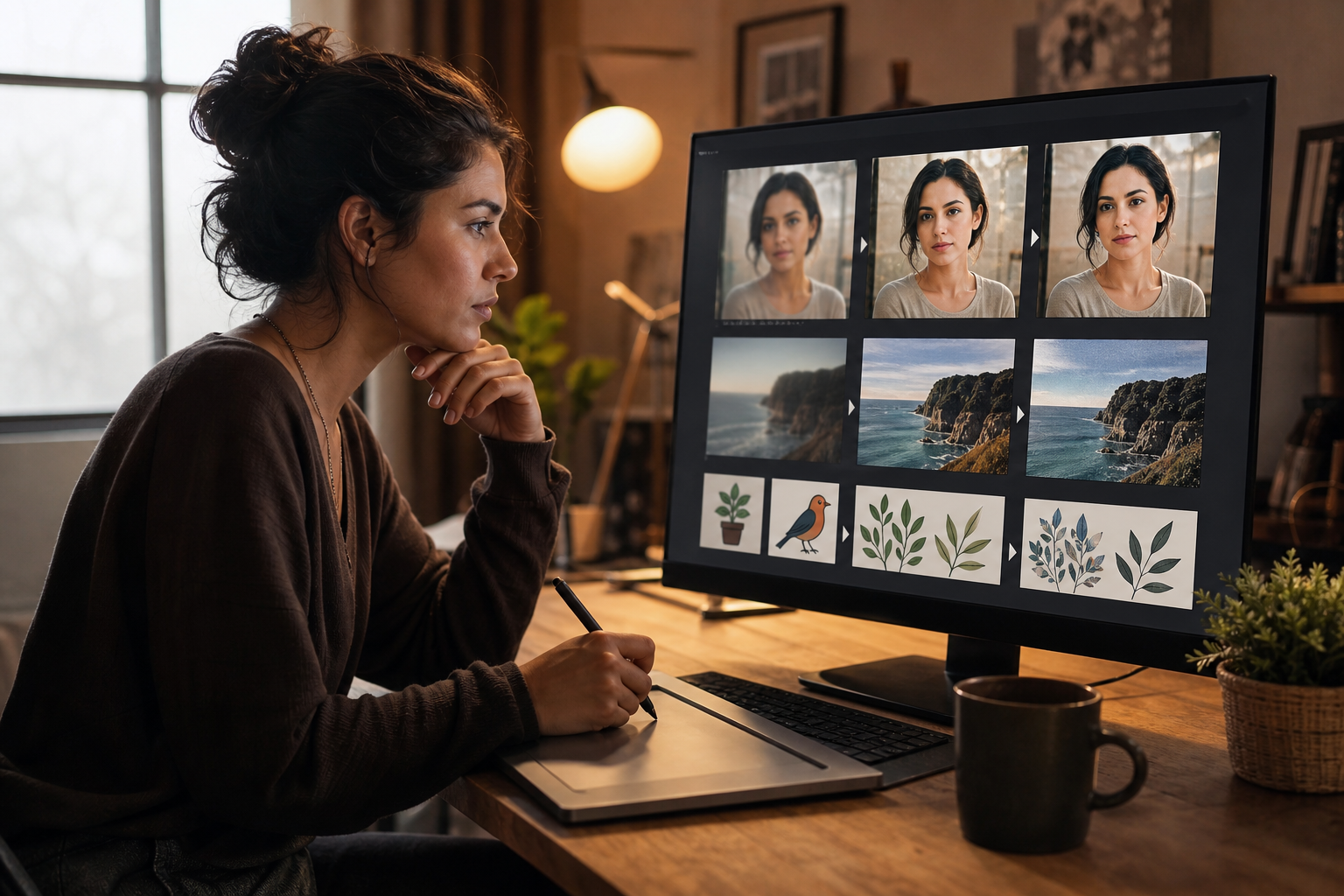
Suggested Visual: A flow showing initial prompt, one-variable edits, and improving outputs.
Practical Use Cases with Craiyon in the US
• Classrooms: quick AI clip art for worksheets, posters, and labels; keep icons bold and high-contrast for printing.
• Social posts: photo-style product shots or simple lifestyle scenes; add rule-of-thirds and soft daylight for natural appeal.
• Small business flyers: mix clean icons with one product photo; keep backgrounds simple for easy layout.
Always check Craiyon’s official terms for usage rights and attribution requirements.
Create With VidAU
Turn scripts, product URLs, and creative ideas into ad-ready video assets with a structured AI workflow.
Key takeaway
Final Thoughts
With a few precise anchors style, background, lighting, and composition Craiyon can deliver clean AI clip art and simple photo-style images quickly. Start with the clip art or photo frameworks, iterate by changing one variable, and save your best performing prompts.
If you later want to turn your Craiyon images into short social video ads or simple animated slides, VidAU AI Video can assemble images and scripts into ad-ready creative for TikTok, Meta, and YouTube.
Frequently asked questions
What is Craiyon and how does it work?
Craiyon is an AI image generator that converts a short text prompt into images. You describe the subject and style, such as flat vector clip art or photo-style with camera and lighting. Clear instructions for background, composition, and color palette help Craiyon produce cleaner, more consistent results.
How do I make clean AI clip art in Craiyon?
Use a tight prompt: subject + ‘flat vector, clip art’, white background, 2–3 bold colors, no outline (or thin outline), and centered composition. Add ‘no text, no watermark’ for cleaner icons. If edges look fuzzy, rerun with ‘clean edges’ and keep the color palette minimal.
How can I get realistic photos with the Craiyon AI photo generator?
Switch to photo anchors: camera or lens (DSLR, 50mm), lighting (soft daylight, studio softbox), composition (rule of thirds, centered portrait), and a simple background (white sweep or outdoor). Add ‘shallow depth of field’ for subject separation and keep props minimal for clarity.
Why are my Craiyon results messy or inconsistent?
Prompts that lack style and background anchors tend to be noisy. Add explicit style terms (flat vector or DSLR), control background (white or solid), choose a simple composition, and restrict colors. Iterate by changing one variable per rerun to see what actually improves output quality.
Can Craiyon generate sets of matching icons?
Yes, but consistency depends on repeating the same style anchors and palette. Use identical phrases like ‘flat vector, clip art, white background, 2–3 bold colors, no outline’ in every prompt. Keep subjects similarly framed with ‘centered, minimal background’ to align scale and spacing.
How do I avoid unwanted text or watermarks in Craiyon images?
Add ‘no text, no watermark’ to your prompt and prefer minimal backgrounds. If artifacts persist, rerun with the same prompt or slightly vary the subject wording. Keeping the style simple and backgrounds clean also reduces space for stray marks to appear.