Figma AI: Everything about Figma Weave, Figma Schema, and Figma Make
If you’ve heard people throwing around “Figma AI” and aren’t sure what it actually *does* for your workflow, you’re in the right place. Today it’s really an AI toolkit: Figma Weave for node-based AI media pipelines, Figma Make for turning prompts and designs into working apps, and Figma Schema as the place Figma shares how design systems and AI should work together. This guide breaks down what each piece does, how Weave grew out of Weavy, when to pick Make over something like Google Stitch, and how to plug all of it into your everyday design and dev flow.
What Is “Figma AI” Right Now?
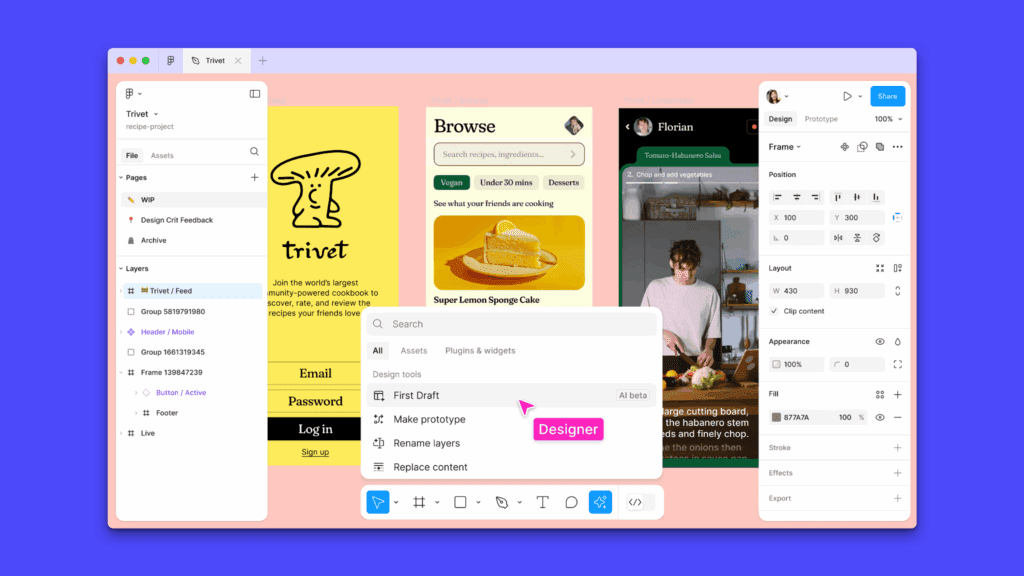
Figma AI is a collection of AI-powered tools inside the Figma ecosystem that help users generate designs, edit images, write and translate copy, rename layers, build prototypes, and turn prompts into functional app ideas. It includes in-file Figma AI features, Figma Make for prompt-to-prototype workflows, Figma Weave for AI media pipelines, and Schema guidance for AI-ready design systems.
Figma AI is a stack of features and apps that speed up design and shipping. It includes generative tools inside Figma, a prompt-to-app builder called Figma Make, and a new node-based AI creation app called Figma Weave. Core AI features handle text generation, image edits like background removal, and quick content translation inside design files.
| Figma AI feature | What it helps with | Best use case |
|---|---|---|
| Figma Make | Turns prompts and designs into functional prototypes | Testing app ideas, internal tools, MVP concepts |
| Image generation and editing | Creates or refines visuals inside the design workflow | Mockups, campaign visuals, creative drafts |
| Background removal | Removes image backgrounds quickly | Product cards, hero images, ad creatives |
| AI text generation | Adds realistic copy to mockups | Landing pages, app screens, product flows |
| Rewrite and translate | Adjusts copy tone, length, or language | Localization and content variation |
| Auto layer renaming | Organizes messy design files | Handoff, team collaboration, design cleanup |
| FigJam AI | Summarizes, sorts, and diagrams ideas | Workshops, brainstorming, planning |
| Figma MCP | Connects Figma context to coding tools | Design-to-code and agent-assisted development |
| Tool | Main purpose | Use it when |
|---|---|---|
| Figma AI | Speeding up design tasks inside Figma | You need copy, translation, image edits, layer cleanup, or brainstorming help |
| Figma Make | Turning prompts or designs into functional prototypes | You want to test an app, landing page, dashboard, or interactive product idea |
| Figma Weave | Building AI media workflows with multiple models and editing tools | You need scalable image or video production with repeatable creative control |
| Figma Schema | Learning how design systems should evolve for AI workflows | You manage tokens, components, governance, or design-to-code standards |
| VidAU | Turning design assets and product ideas into AI video content | You want to convert Figma concepts into ads, tutorials, explainers, or localized videos |
How Does Figma Weave Work And Why Does It Matter?
Figma Weave is a node-based canvas for AI media generation and editing. You chain nodes for models, prompts, masks, relighting, and compositing, then tweak outputs with pro editing tools. This approach keeps every step editable, so teams repeat successful flows and standardize content at scale. Figma created Weave by acquiring Weavy, then folding the product into its lineup under the Weave name.
What You Get In Practice:
- A visual pipeline that blends multiple AI models in one graph
- Fine controls for matte, color, lighting, and layering
- Reusable workflows that turn into shareable “apps” for non-experts
- Real-time collaboration on the same canvas
Independent coverage and the Figma blog describe Weave as a creator-grade system for combining models with traditional editing on a single canvas.
What Is Weavy And How Does It Relate To Weave?
Weavy started as a creative platform for AI media creation. Figma acquired Weavy in October 2025 and reintroduced it as Figma Weave. If you see “Weavy” in older posts or docs, read it as the technology that now ships inside Weave.
How to Use Figma Make in 5 Steps
- Start with a design frame or product idea. Use an existing Figma screen, wireframe, or written product concept.
- Write a clear prompt. Describe the app, user flow, visual style, and interaction you want.
- Add design-system context. Use your Figma library, components, typography, colors, and spacing rules to guide the output.
- Review and refine the prototype. Edit copy, layout, images, padding, margins, and interactions directly.
- Use the output for testing or handoff. Share the prototype with stakeholders, continue editing in Figma, or move the concept toward development.
Example prompt to include:
Create a mobile onboarding flow for a fitness app. Use a clean dark theme, large rounded cards, bold progress indicators, and a three-step sign-up process. Include screens for welcome, goal selection, activity level, and plan confirmation.
What Is Figma Make And Who Is It For?
Figma Make turns natural-language prompts and reference designs into working apps and prototypes. It outputs a live app surface and code that teams refine through prompts or direct edits. Recent updates opened access to more users and gave AI agents deeper code-level context through Figma’s Model Context Protocol, which improves agent-driven edits and inspection.
Key Strengths:
- Prompt to app with design references for visual control
- Direct editing of generated UI and copy inside the canvas
- App code exposed through MCP for agents and IDEs like VS Code
- Connectors like Supabase to ship simple auth and data storage without wiring everything by hand.
Figma’s product page and third-party guides outline these flows and the Supabase path for “from idea to app.”
AI-Ready Design System Checklist
Use this checklist before connecting Figma AI, Figma Make, or coding agents to your product workflow:
| Checklist item | Why it matters |
|---|---|
| Name components clearly | AI tools need predictable labels to understand design intent |
| Connect variables and tokens | Tokens help AI preserve spacing, color, type, and theme rules |
| Document component usage rules | Prevents AI from generating off-brand or inaccessible layouts |
| Add prompt examples to key components | Helps teams reuse approved patterns instead of starting from scratch |
| Link design components to code | Improves design-to-code accuracy |
| Review AI outputs against your system | Keeps generated work aligned with quality, accessibility, and brand standards |
What Is Figma Schema And Why Does It Matter?
Schema is Figma’s design-systems conference and content hub. The 2025 focus ties design systems to AI. Talks and posts cover adaptive tokens, system governance, cross-tool automation, and new Figma updates that make systems work across design and development with AI assistance. Schema signals where Figma aims its platform next and helps teams align their systems with AI workflows.
Use Schema Takeaways To:
- Treat tokens, components, and patterns as “AI-addressable parts”
- Document prompts alongside components to encode intent
- Add usage rules that guide assistants and agents
- Measure system health with AI generated audits and diffs
How Does Figma AI Compare To Google Stitch?
Google Stitch generates UI screens for web and mobile from prompts and references. It targets fast ideation for product teams and developers, with direct Gemini integration and a web workflow.
Comparison
| Category | Figma Make | Google Stitch | Figma Weave | VidAU |
|---|---|---|---|---|
| Best for | Prompt-to-prototype and app exploration | Fast UI screen generation | AI media workflows | AI video ads, tutorials, and explainers |
| Main output | Functional prototype or app concept | UI screens and layouts | Editable media workflow | Video content |
| Best user | Product teams, designers, developers | Product ideators and developers | Creative teams and brand teams | Marketers, e-commerce teams, creators |
| Design-system fit | Strong when connected to Figma libraries and context | Useful for fast ideation | Useful for brand-controlled media pipelines | Useful after design assets are ready |
| Content production | Limited | Limited | Strong for image/media workflows | Strong for video localization and ad production |
| Best next step | Test product ideas | Generate quick UI directions | Build repeatable visual workflows | Turn Figma concepts into videos |
Bottom line: choose Stitch for rapid, prompt-driven UI drafts tied to Google’s stack. Choose Figma Make for a full design-to-app loop inside Figma, and Figma Weave when you need AI media pipelines and creative control.
When Should You Use Weave Vs Make Vs Stitch?
Pick based on the job, team, and handoff needs.
Use Figma Weave when:
- You build image or video content at volume
- there is a need for repeatable pipelines with editability
- You want multiple AI models in one graph with pro-grade controls
- Your brand team requires consistent lighting, color, and compositing rules
Use Figma Make when
- You want a prompt-to-app baseline that design and dev iterate together
- there is need agent-driven edits in IDEs through MCP
- You plan to ship quick internal tools or prototypes with Supabase auth and data
Use Google Stitch when:
- You want fast UI generation inside Google’s ecosystem
- You prototype flows for Android, web, or PWAs and prefer Gemini as your model backend
How Do Figma Weave And Weavy Strengthen Content Pipelines?
Weave turns creative production into a graph you control, so brand and content teams avoid one-off prompts that drift from guidelines. You enforce masks, layers, relighting, and composition rules inside the graph, then convert complex graphs into lighter “apps” for non-design partners. That structure keeps outputs on brand while staying flexible. Coverage confirms these “app mode” flows and multi-model pipelines.
Practical Playbook:
- Start with a reference board of brand examples
- Build a base graph with nodes for prompt, model, style, mask, relight, and grade
- Expose limited sliders and fields for marketing partners
- Save versions that match campaign variants and reuse them next cycle
How Do Schema Practices Level Up Your AI Design System?
Use Schema guidance to make your system AI-ready:
- Expand tokens to cover content tone, motion rhythms, and spacing ranges
- Document prompts that map to each component and variant
- Add guardrails for accessibility and performance that agents respect
- Track diffs where AI proposed edits drift from the system baseline
What Are The Trade-Offs To Watch?
No tool fits every stage. Keep these in view.
- Figma Weave
- Strength: multi-model, pro-grade editing in one graph
- Watch: learning curve for node graphs and governance across teams
- Fit: brand content, campaign pipelines, creative ops at scale
- Figma Make
- Strength: prompt-to-app with editable UI and code context for agents
- Watch: prompt quality and system constraints matter for maintainability
- Fit: rapid internal tools, MVPs, UX experiments tied to a design surface
- Google Stitch
- Strength: fast screen generation, strong Gemini tie-in
- Watch: early ideation focus, different depth than Make’s design+code loop
- Fit: quick UI drafts, Google-centric developer workflows
How Do You Evaluate Figma AI Vs Google Stitch For Your Team?
Run a short bake-off with clear acceptance criteria.
Score on:
- Fidelity: does the output match your design system on spacing, type, and tokens
- Edit path: how fast designers fix rough spots without re-prompting
- Code reality: does the generated app or code support your stack
- Governance: does the tool respect roles, review steps, and source of truth
- Scale: do workflows repeat cleanly across many pages or assets
Pair this with the Figma Gallery to see public Make projects and patterns before you commit.
How to Turn Figma AI Outputs Into VidAU Videos
Figma AI can help you design, prototype, and structure ideas. VidAU helps turn those ideas into video content for ads, tutorials, product explainers, and localized campaigns.
| Step | Workflow |
|---|---|
| 1. Create or refine your design in Figma | Use Figma AI, Figma Make, or Figma Weave to generate layouts, assets, or prototype ideas |
| 2. Export the key screens or product visuals | Choose the frames, flows, or visuals that explain the product best |
| 3. Write a short video script | Turn each screen into a message: problem, feature, benefit, proof, call to action |
| 4. Use VidAU to create the video | Add avatar narration, product shots, subtitles, voiceover, or localized versions |
| 5. Publish across channels | Reuse the video for TikTok, YouTube Shorts, landing pages, ads, onboarding, or sales enablement |
Conclusion
Figma AI spans in-product assistants, Figma Make for prompt-to-app, and Figma Weave for node-based AI media pipelines. Schema gives the playbook for aligning these tools with robust design systems. Google Stitch competes on rapid UI generation tied to Gemini. Use Weave for content pipelines, Make for design-to-app loops, and Stitch for quick screen ideation.
Frequently Asked Questions
1. Does Figma AI replace traditional design work?
No. It accelerates tedious steps, proposes drafts, and keeps context in your system. Teams still decide layout, hierarchy, and quality bars. Figma’s own AI page frames these features as accelerators inside design workflows.
2. How do developers engage with Figma Make output?
Through the app surface and through MCP. Agents and IDEs inspect and modify code with full context, which tightens the loop between design and development.
3. Where does Weavy fit now?
Weavy is the foundation of Figma Weave after the acquisition. Assume feature updates land under the Weave name going forward.
4. Do Schema resources help smaller teams?
Yes. Schema content covers practical patterns for tokens, component strategy, and AI-assisted workflows that suit any team size.
5. What is Figma AI right now?
A toolkit: Weave for AI media pipelines, Make for prompt-to-app, plus in-file generative features and Schema guidance.
6. How does Figma Weave work?
A node-based canvas where you chain models, prompts, masks, relighting, and comps—with pro controls and full editability.
7. Why does Figma Weave matter for teams?
It turns repeatable creative steps into reusable, shareable workflows (“apps”) that keep brand outputs consistent at scale.
8. What’s the difference between Weave and Weavy?
Weavy was the original product; Figma acquired it and reintroduced it as Figma Weave.
9. What is Figma Make used for?
Turning natural-language prompts and design refs into working apps/prototypes with editable UI and code.
10. How do developers work with Figma Make output?
Through the generated app surface and via MCP (Model Context Protocol) for agent/IDE edits with full context.
11. What is the difference between Figma AI and Figma Make?
Figma AI refers to the broader set of AI features across the Figma ecosystem. Figma Make is one part of that ecosystem focused on turning prompts, designs, and product ideas into functional prototypes.
12. Is Figma Weave part of Figma AI?
Yes. Figma Weave is part of Figma’s broader AI direction, but it focuses specifically on node-based AI media generation, editing, and reusable creative workflows.
13. Can Figma AI create videos?
Figma AI and Figma Weave can support visual and media workflows, but VidAU is better suited when the final output needs to be an ad, tutorial, product explainer, avatar video, or localized marketing video.
14. Is Figma Make better than Google Stitch?
Figma Make is stronger when your workflow already lives inside Figma and you want design-system context, editable prototypes, and a design-to-development loop. Google Stitch is useful for fast UI ideation, especially for teams working inside Google’s ecosystem.
15. How can marketers use Figma AI?
Marketers can use Figma AI to generate campaign visuals, landing page concepts, product mockups, ad layouts, and translated design copy. They can then use VidAU to turn those assets into short-form videos, product explainers, or localized ads.