How to Make an Animated Cartoon with AI: From Photo to Consistent Characters and Scenes
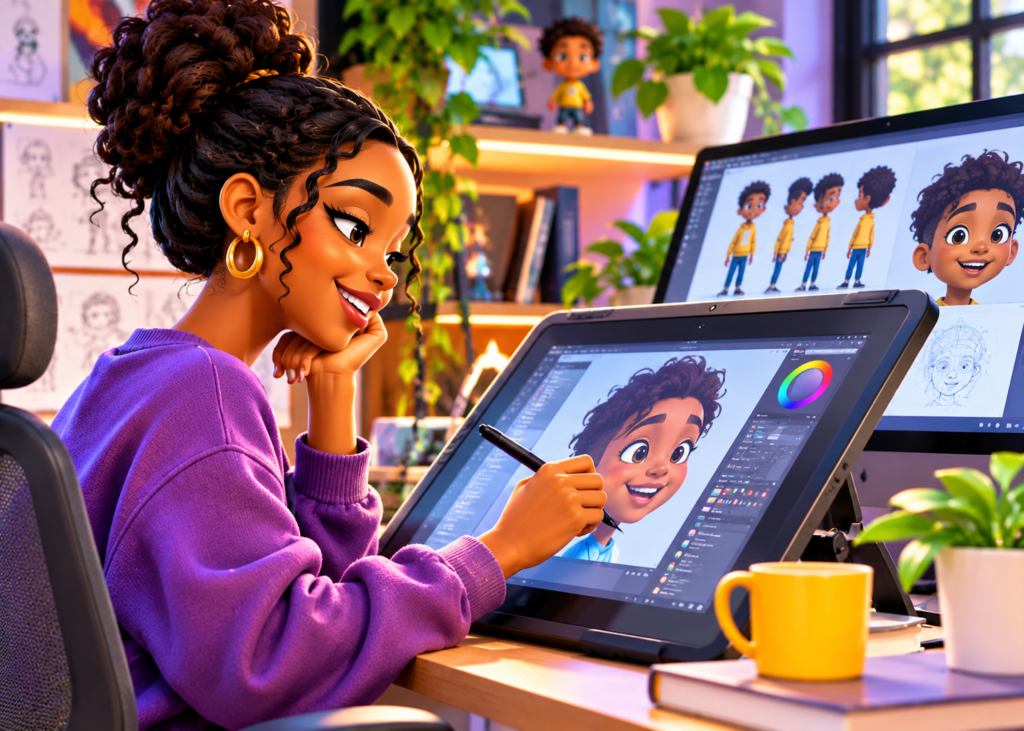
Turn a single photo into an animated cartoon with image to cartoon AI, keep characters on‑model across scenes, and get clean lip sync using OpenArt, GPT Image 2.6, and Seedance 2.6. This step-by-step workflow gives you practical prompts, style control, and continuity tricks then finishes the cut in CapCut.
Create an animated cartoon from a single photo without drawing. This workflow locks a visual style, keeps characters consistent across scenes, and delivers reliable lip sync using OpenArt, GPT Image 2.6, and Seedance 2.6, then assembles the short in CapCut. It is fast, repeatable, and beginner-friendly.
Quick Summary
• OpenArt + GPT Image 2.6 + Seedance 2.6 is the most reliable pipeline for a one-photo-to-cartoon workflow with consistent characters and lip sync in 2026.
• Higgsfield or Seedance 2.5 are strong alternates; Nano Banana Pro helps lock a stylized look without drifting.
• A stable project keeps a character sheet, reuses seeds, and outputs 1080×1920 vertical at 24–30 fps.
• Creators, solo YouTubers, educators, and marketers benefit most when they need fast, consistent AI animation without traditional skills.
What Is Animated Cartoon?
An animated cartoon is a short, stylized video featuring illustrated or CGI characters and scenes. With modern AI, you can generate animated cartoon characters from a photo, keep their look consistent using character sheets and style control, and animate multi-scene stories with dialogue and lip sync. The process combines image-to-cartoon models, voice generation, and lightweight editing.
• Stage: Story & voices
Recommended Tools: Eleven v4, Chat tools
Why: Clear beats and strong delivery
• Stage: Character design
Recommended Tools: OpenArt, GPT Image 2.6
Why: Consistent character sheets
• Stage: Style lock
Recommended Tools: Nano Banana Pro, GPT refs
Why: Prevents style drift
• Stage: Animation
Recommended Tools: Seedance 2.6 or 2.5
Why: Dialogue, lip sync, continuity
• Stage: Final edit
Recommended Tools: CapCut
Why: Fast assembly and export
Plan Your Animated Cartoon: Story Beats and Voices
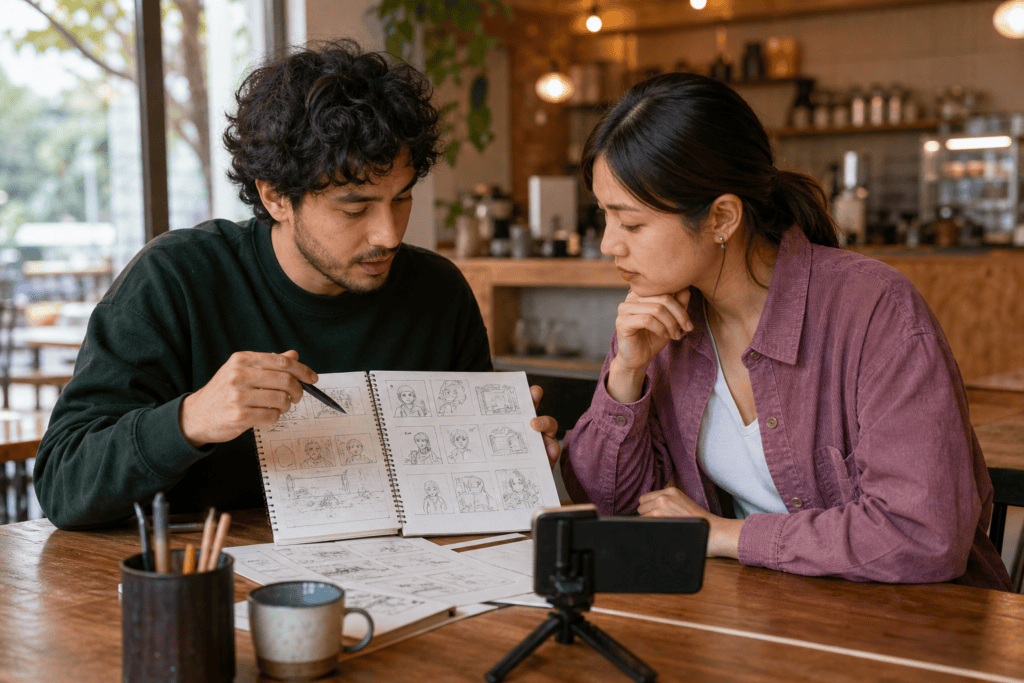
Keep it simple: write a 3‑scene beat sheet (setup, complication, payoff). Target 20–40 seconds for a first short.
• Scene 1 setup: introduce the character and goal.
• Scene 2 turn: add a conflict or reveal.
• Scene 3 payoff: resolve with a twist or joke.
Record or generate voices. Eleven v4 produces expressive lines; export clean WAV files with consistent naming, like charA_s1_l1.wav.
Next step: Finalize 3–6 voice lines and save a one-paragraph script.
Turn One Photo into a Consistent Character Sheet (OpenArt + GPT Image 2.6)
Import a single reference photo into OpenArt. Generate a character sheet with front, three‑quarter, and side poses. Use GPT Image 2.6 prompts to control style and features. Build a small style board with Nano Banana Pro for coherent lighting and line weight.
Prompt examples:
• Style prompt: Soft 2.5D toon, warm rim light, bold outlines, Nano Banana Pro style, cohesive palette of teal and coral.
• Character prompt: Youthful detective, tan jacket, navy hoodie, messy dark hair, green eyes, round face; keep nose and jawline from reference; consistent freckles.
• Location prompt: Rainy downtown street, neon reflections on wet asphalt, moody blue‑green lighting, shallow depth of field, same style rules.
Save the outcome as an OpenArt character and keep at least three on‑model angles to anchor future shots.
Suggested Visual: Side‑by‑side of the original photo and a 3‑pose character sheet.
Next step: Export the character sheet and note the best seed/style tags for reuse.
Design Locations and Props in Matching Cartoon Styles
Create 2–3 key locations and any props your character will touch. Reuse the same style descriptors, color palette, and seed if available. Keep horizon height and lens feel similar to your character sheet renders.
Helpful negatives: over-detailed pores, photoreal skin, inconsistent line weight, changing eye color, unwanted grain.
Next step: Save locations and prop renders in a folder named with the same style version for fast recall.
Animate Your Animated Cartoon in Seedance 2.6 (Dialogue, Lip Sync, Continuity)
Seedance 2.6 handles dialogue and lip sync with reference images and audio.
• Character: Load your OpenArt character sheet as the identity reference. If 2.6 is unavailable, Seedance 2.5 works similarly.
• Voice: Import Eleven v4 lines and select the AI cartoon avatar (Seedance 2) option to drive mouth shapes and facial motion.
• Shot setup: Pick the location frame as a background reference. Set duration to match your audio, then add subtle camera moves for life.
• Continuation: For multi‑scene continuity, use the last frame of the previous shot as a reference for the next one to preserve pose, outfit, and lighting.
Direction tips:
• Keep head angles close to those in your character sheet for stability.
• Limit extreme expressions on early passes; add intensity gradually.
Next step: Render short clips per line (4–8 seconds each) and label them s1_l1, s1_l2, etc.
Fix Off‑Model Faces, Lip Sync Mismatch, and Style Drift
• Off‑model faces: Reuse the best seed; increase character reference strength; include character sheet crop as a secondary anchor; add negative prompts for nose/eye drift.
• Lip sync mismatch: Ensure sample rate consistency; re‑import the clean WAV; slightly shorten or extend the clip to realign; increase lip sync strength in small steps.
• Style drift: Paste your style block verbatim each time; keep palette words stable; avoid switching models mid‑scene; maintain similar camera distance.
Next step: Re‑render problem shots in short segments and replace only the faulty section in the edit.
Assemble the Finished Short in CapCut (Sound, Timing, Export)
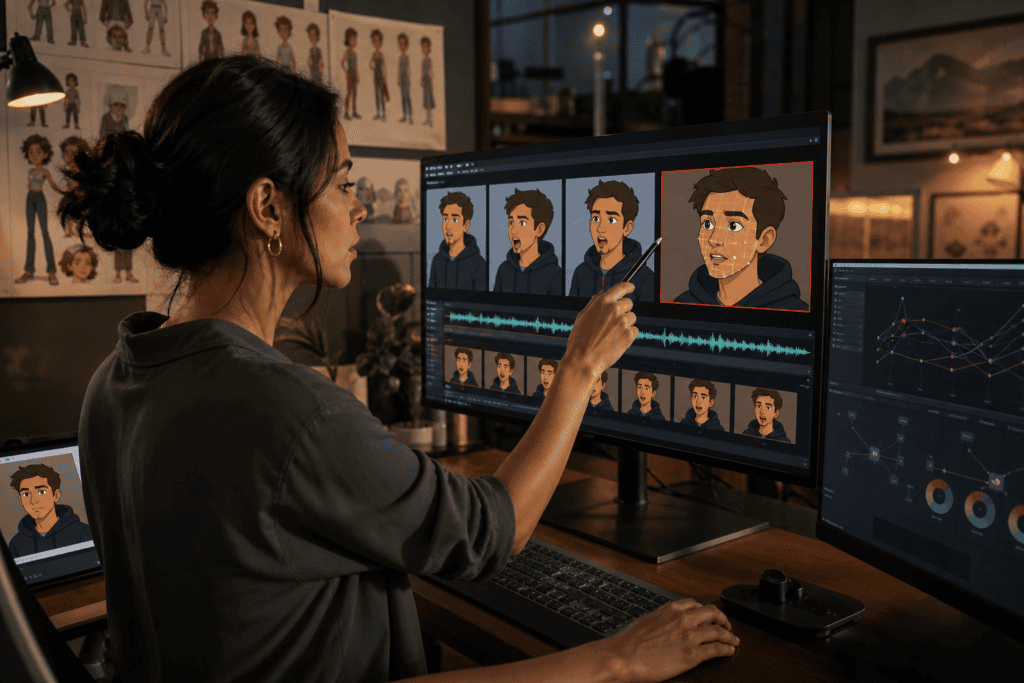
Import all clips into CapCut. Stack the best takes, trim to breath sounds, and add subtle SFX (room tone, footsteps, cloth rustle). Drop one music bed at low volume. Add captions sparingly.
Export: 1080×1920 vertical, 24–30 fps, H.264, high bitrate. Keep file names by scene for easy re‑edits.
Where video variants help: If you need creator‑style hooks or ad‑ready cutdowns around your cartoon, use VidAU AI Video or AI Avatar to generate short UGC‑style bumpers from a script; then place them as cold opens before your animated scene.
Next step: Export the master, then make a 5–8 second hook variant for Shorts.
Final Thoughts
You can build an animated cartoon from one photo by locking style early, anchoring a character sheet, and using Seedance 2.6 for dialogue, lip sync, and continuity. Keep scenes short, reuse seeds, and fix drift with strong references and consistent prompts.
Best next step: produce a 20–40 second three‑scene short using the prompts above. If you want quick hook variants or UGC‑style intros for social, generate them with VidAU AI Video or AI Avatar and add them in your CapCut timeline.
FAQ
How do I make an animated cartoon from a single photo?
Use OpenArt to convert the photo with a consistent style, then create a character sheet showing multiple angles. Lock the look using GPT Image 2.6 prompts and a small style board. Animate dialogue and shots in Seedance 2.6 with Eleven v4 voice lines, and assemble in CapCut.
How do I keep animated cartoon characters consistent across scenes?
Save a character sheet and reuse it as a reference for every shot. Copy the exact style block and seed, maintain similar camera distance and lighting terms, and use continuation frames between scenes. If faces drift, increase reference strength and add targeted negative prompts.
Which cartoon styles for AI are most stable?
Soft 2.5D toon with bold outlines, limited palettes, and controlled lighting tends to hold. Nano Banana Pro and GPT Image 2.6 style control help stabilize line weight and shading. Avoid hyper‑real textures or complex gradients, and keep your palette and lens descriptors identical shot to shot.
How do I get clean lip sync in Seedance 2.6?
Import clean, normalized WAV files from Eleven v4, match clip duration to audio length, and enable AI cartoon avatar (Seedance 2) for mouth shapes. If timing drifts, re‑import the audio, nudge clip duration slightly, and increase lip sync strength in small increments.
What is the AI cartoon avatar in Seedance 2?
It is a Seedance 2 feature that maps voice lines to a character’s mouth shapes and facial motion. When combined with a strong character reference and consistent style prompts, it produces talking performances suitable for short scenes without manual keyframing.
Can I use Higgsfield or Seedance 2.5 instead of 2.6?
Yes. Higgsfield can help with coherent style and character identity, and Seedance 2.5 supports dialogue and multi‑scene workflows. For best results, keep the same character sheet, reuse seeds, and apply identical style prompts across tools to minimize drift.