

Runway AI Text to Video · Gen 3 and Gen 4 Guide
How to Use Runway AI Text to Video: Complete Guide to Gen 3 and Gen 4
Learn how Runway AI text to video works, when to use Gen 3 versus Gen 4 and Gen 4.5, and how to write cinematic prompts with camera movement, scene detail, and single-shot control.
By the Sarah Iruoje · Runway text-to-video guide · 13 min read
Runway AI text to video lets you type a prompt and get a short cinematic clip back, with Gen 3 doing the heavy lifting for true text-to-video work.
Runway AI text to video turns a written prompt into a short cinematic clip, and Gen 3 is the model that handles this best. To use it, you sign in to Runway, choose the text-to-video mode, write a structured prompt under 400 characters, then generate a single-shot clip. Gen 4 and Gen 4.5 focus more on image-to-video and physics, so Gen 3 stays your main text-to-video tool.
This guide is for content creators, filmmakers, marketers, and AI enthusiasts who want repeatable results, not random clips. You will learn the exact prompt format, camera movement examples, and the model differences that decide which mode to pick for each shot.
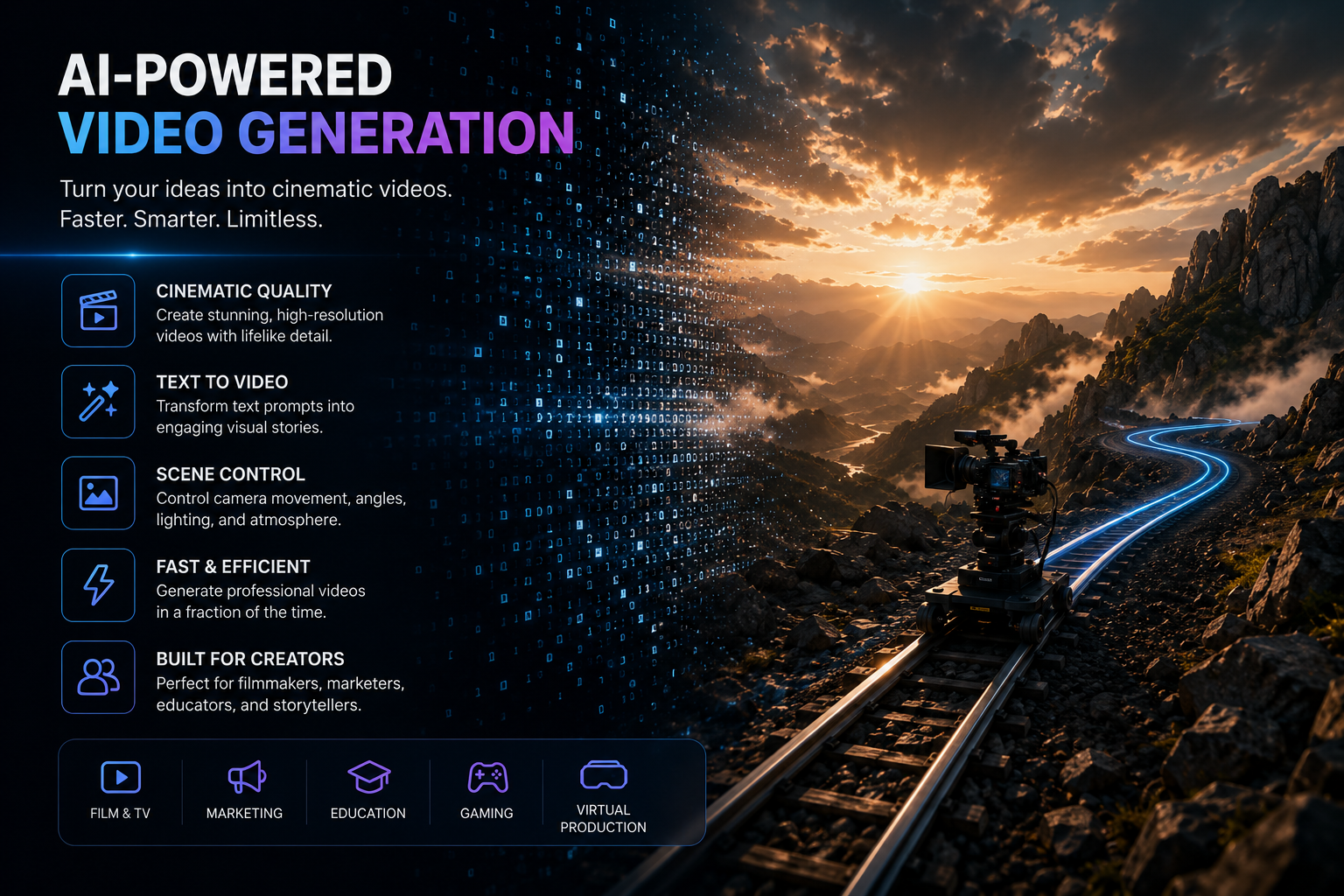
Featured image placeholder for Runway AI text to video, Gen 3 cinematic prompts, Gen 4 and Gen 4.5 image-to-video, camera movement, aspect ratio setup, single-shot generation, and VidAU AI Video workflows.
Quick Summary
- Runway Gen 3 is the primary model for runway ai text to video, generating single-shot clips from a structured text prompt under 400 characters.
- Gen 4 and Gen 4.5 lean toward image-to-video with stronger physics and consistency, so use them when you start from a reference image instead of pure text.
- The reliable prompt structure is [camera movement]: [establishing scene]. [additional details], kept to one shot with no cuts.
- Marketers, filmmakers, and AI creators who want cinematic camera control and consistent output benefit most from this workflow.
What Is Runway AI Text to Video?
Runway AI text to video is a feature that converts a written prompt into a short animated video clip using Runway’s generative models. You describe a scene and a camera movement, and the model renders motion, lighting, and atmosphere without any footage, stock assets, or editing timeline.
The core text-to-video engine is Runway Gen 3. It reads your prompt, interprets the camera direction, and produces a single continuous shot. Gen 3 works best on clear, specific descriptions rather than long story scripts, since each generation is one clip, not a full scene.
Key Takeaways
- Text to video means prompt in, short clip out, with no source footage.
- Gen 3 is tuned for cinematic single-shot generations.
- Specific scenes beat vague or overstuffed prompts.
Why Gen 3 Is the Main Text-to-Video Model vs Gen 4 and Gen 4.5
Gen 3 remains the practical choice for runway ai text to video because it was built to read camera and scene prompts and turn them into motion directly from words. When I reviewed the available tutorials and the official prompting guidance, the strongest text-to-video results consistently came from Gen 3 prompts, not from the newer models alone.
Runway Gen 4 and Gen 4.5 push forward on different goals. Gen 4.5 launched with better physics, realism, and character consistency, but those gains center on image-to-video, where you animate a starting frame. Several creator reviews even noted Gen 4.5’s focus sits on image-to-video rather than pure text prompts.
So the simple rule is this. Start with text and no reference image, use Gen 3. Start from a generated or uploaded still you want to move, reach for Gen 4 or Gen 4.5.
| Model | Best For | Key Trait |
|---|---|---|
| Gen 3 | Text-to-video clips | Reads camera and scene prompts |
| Gen 4 | Image-to-video motion | Better consistency from a frame |
| Gen 4.5 | Image-to-video realism | Improved physics and detail |
If your end goal is a product ad rather than a film shot, a dedicated ad platform like VidAU AI Video can be faster, since it builds ad-ready video from a script, image, or URL. Runway is the better fit when you want raw cinematic shots to assemble yourself.
Model choice
Use Gen 3 when you start from text and no reference image. Use Gen 4 or Gen 4.5 when you start from a generated or uploaded still that you want to animate.
Who This Is For
This workflow suits creators who want shot-level control. If you are storyboarding a short film, building b-roll, or making cinematic social clips, Gen 3 text to video gives you flexible camera direction. If you mainly need spokesperson or UGC-style ads, tools like UGC Avatars or Text to Video may match your output goal more directly.
How to Access and Generate Your First Clip
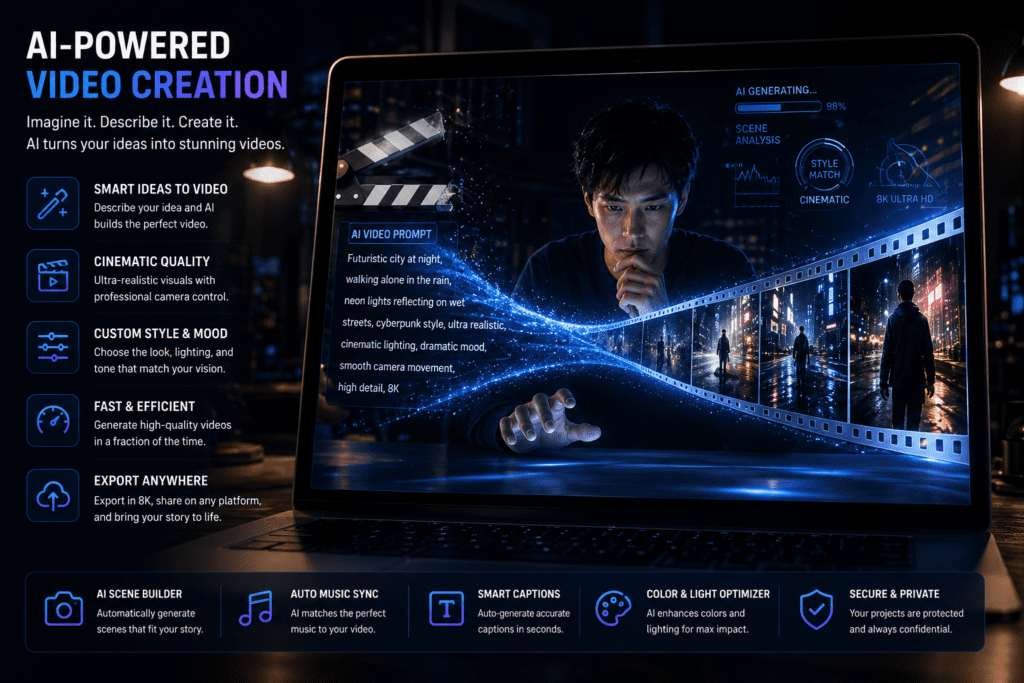
Getting started takes a few sequential steps. Follow them in order for a clean first result.
Step 1: Sign in to Runway.
Go to the Runway app and log into your account on the web dashboard.
Step 2: Open the video generation tool.
Choose the generative video option and select the text-to-video mode.
Step 3: Pick Gen 3 as your model.
This keeps you on the model built for prompt-driven, no-image generation.
Step 4: Set your aspect ratio.
Choose the frame that fits your platform, such as 16:9 for YouTube or 9:16 for vertical clips.
Step 5: Write your prompt.
Use the structured format below and stay under 400 characters.
Step 6: Generate and review.
Run the clip, watch the motion, then refine the prompt and regenerate.
Pricing tiers and credit costs can change, so check Runway’s current plans before committing to a workflow. Treat early generations as drafts, since you will usually iterate two or three times.
Suggested Visual: annotated screenshot of the Runway text-to-video panel with model and aspect ratio settings labeled. Filename: runway-text-to-video-setup.png
Create Video Ads Faster With VidAU
Use VidAU AI Video, URL to Video, Text to Video, UGC Avatars, Video Enhancer, Video to Audio, and Vid Remix when your goal is ad-ready output, product videos, spokesperson clips, or repurposed campaign assets.
VidAU workflow
Where VidAU fits beside Runway
- Use Runway for cinematic source shots: Generate raw single-shot clips when you want camera control, mood, lighting, and cinematic movement from Gen 3 prompts.
- Also use VidAU for ad-ready output: Use VidAU AI Video when you want finished video ads from a script, image, or product URL instead of raw clips to assemble manually.
- Use UGC Avatars for spokesperson formats: Choose UGC Avatars when the project needs presenter-led, native-feeling, or UGC-style ad content.
- Use Text to Video for direct ad drafts: Use Text to Video when a written idea needs to become a draft ad or short-form video without building a shot library first.
- Finish and repurpose clips: Use Video Enhancer to clean up generated clips, Video to Audio when you only need visuals, and Vid Remix to repurpose clean single shots into ads later.
How to Write Prompts With the Camera Movement Format
The most reliable prompt structure for runway ai text to video is: [camera movement]: [establishing scene]. [additional details]. You name the camera move first, describe the main scene, then add angle, lighting, and atmosphere. Keep the whole prompt to one shot with no cuts and under 400 characters.
A practical example looks like this:
Dolly in: a lone hiker on a snowy ridge at dawn. Cold blue light, soft mist, slow steady push toward the figure, cinematic wide angle.
That single line tells the model the motion, the subject, the time of day, the color palette, and the mood. Avoid stacking multiple actions or scene changes into one prompt, since each generation is meant to be a single continuous shot.
If you want help building prompts, you can ask a chat model to follow that exact structure and cap the output at 400 characters. The key is one clear shot per generation.
Key Takeaways
- Lead with the camera movement, then the scene, then details.
- Stay under 400 characters and keep it single-shot.
- Specify lighting, angle, and atmosphere for cinematic results.
Camera Movement Examples for Cinematic Shots
Camera movement is where most of the cinematic feel comes from. Here are practical prompt openers for common techniques.
- Dolly shot: Dolly out: a chef plating a dish in a warm kitchen. Use to reveal context or build emotion.
- Pan shot: Slow pan right: a city skyline at golden hour. Use for natural left-to-right progression.
- Tilt shot: Tilt up: a towering redwood in a quiet forest. Use to emphasize height or scale.
- Crane shot: Crane up: a couple walking through a crowded market. Use for sweeping reveals.
- Tracking shot: Tracking shot: a runner sprinting along a beach at sunrise. Use to move with your subject.
- Aerial shot: Aerial drone shot: a winding river through green hills. Use for grand overviews.
- POV shot: POV shot: hands opening an old wooden door into sunlight. Use to put viewers inside the moment.
Start with static or simple moves while you learn how the model interprets your wording, then layer in more dynamic shots like crane and aerial once your prompts read cleanly.
Suggested Visual: side-by-side frames showing dolly, pan, and crane prompt outputs. Filename: runway-camera-movements.png
Tip
Start with simple static or dolly-style movements while learning the model, then add crane, tracking, aerial, and POV shots once your prompt structure is clean.
Platform Tips: Aspect Ratio, Single Shots, and Speed Control
A few platform settings make a real difference in output quality. First, set your aspect ratio before generating, since reframing later loses detail. Use 16:9 for landscape, 9:16 for shorts and reels, and 1:1 when needed.
Second, keep each generation to a single shot without cuts. The models hold consistency better across one continuous move than across an implied edit. Build multi-shot sequences by generating clips separately and assembling them in an editor.
Third, use keyframes and speed control where available to refine pacing after generation. Slowing a clip can smooth motion, while subtle speed-ups add energy. For finishing, you can clean up a clip with tools like a Video Enhancer or strip the audio track using Video to Audio when you only need the visuals.
If you plan to repurpose these clips into ads later, exporting clean single shots gives you flexible source material for a workflow like VidAU Vid Remix .
| Setting or workflow choice | Recommended approach |
|---|---|
| Aspect ratio | Set before generating. Use 16:9 for landscape, 9:16 for shorts and reels, and 1:1 when needed. |
| Shot structure | Keep each generation to one continuous shot with no cuts. |
| Multi-shot sequences | Generate clips separately, then assemble them in an editor. |
| Speed and pacing | Use keyframes and speed control where available. Slow clips to smooth motion or use subtle speed-ups for energy. |
| Finishing and repurposing | Clean clips with Video Enhancer, strip audio with Video to Audio when only visuals are needed, and repurpose clean single shots with Vid Remix. |
Tip
Set aspect ratio before generating and build multi-shot scenes from separate single-shot generations. This keeps clips cleaner and gives you more flexible source material for editing or ad repurposing.
Common Mistakes Creators Make With Runway AI Text to Video
The biggest mistake is writing prompts that pack multiple scenes or cuts into one generation. Gen 3 renders a single shot, so a prompt describing three locations produces muddy, morphing results. Keep one scene and one camera move per prompt.
Other frequent issues include skipping the camera movement entirely, exceeding the 400-character limit, and being vague about lighting and mood. From reviewing common tutorial advice, the clips that fail most often are over-described action sequences, which the models tend to distort.
Finally, do not expect Gen 4.5 to behave like a text-to-video tool. If you feed it pure text expecting image-to-video physics, you will be disappointed. Match the model to the input, and iterate two or three times rather than chasing perfection in one try.
Watch out
Runway AI text-to-video prompts fail when they pack multiple scenes into one generation, skip camera movement, exceed 400 characters, stay vague about lighting and mood, or use Gen 4.5 as if it were the primary text-to-video model.
Key takeaway
Final Thoughts
Runway AI text to video is at its best when you treat Gen 3 as a cinematographer that takes one clear instruction at a time. Lead with the camera movement, describe a single scene, stay under 400 characters, and generate one shot per prompt. Save Gen 4 and Gen 4.5 for image-to-video work where consistency and physics matter most.
Master the prompt structure first, then build a shot library you can edit into something bigger. If your real goal is finished video ads from a product URL, image, or script, VidAU is an AI video ad platform that generates video ads from product URLs, images, or scripts in 49 languages, and you can start with URL to Video when you want ad output rather than raw cinematic clips.
FAQ
Here are answers to common questions about Runway AI text to video, Gen 3, Gen 4, Gen 4.5, prompt structure, camera movement, aspect ratio, distorted clips, cinematic shots, and dedicated ad video tools.
Which Runway model is best for text to video?
Runway Gen 3 is the best model for text-to-video work because it was built to read camera and scene prompts and turn them into motion directly from words. Gen 4 and Gen 4.5 focus more on image-to-video, where you animate a starting frame, so they are not the first choice for pure text prompts.
What is the prompt format for Runway Gen 3?
The reliable format is [camera movement]: [establishing scene]. [additional details]. You name the camera move first, describe the main scene, then add angle, lighting, and atmosphere. Keep each prompt to a single shot with no cuts and stay under the 400-character limit for the cleanest results.
Is there a character limit for Runway prompts?
Yes, keeping prompts under 400 characters is a widely recommended practice for Runway text to video. Shorter, focused prompts that describe one camera movement and one scene tend to generate cleaner motion than long prompts that try to pack multiple actions or scene changes into a single clip.
Can Runway Gen 4.5 do text to video?
Gen 4.5 launched with stronger physics and realism, but its strengths center on image-to-video, where you start from a reference frame. For prompt-only generation with no source image, Gen 3 remains the more dependable text-to-video model, so match the model to whether you begin with text or an image.
Why do my Runway clips look distorted?
Distortion usually happens when a prompt describes multiple scenes, cuts, or complex action in one generation. Each clip is meant to be a single continuous shot, so split big ideas into separate prompts. Adding clear lighting, angle, and camera-movement details also reduces morphing and improves consistency.
How do I get cinematic camera movements in Runway?
Start your prompt with a named camera move such as dolly in, slow pan, tilt up, crane up, tracking shot, or aerial drone shot. Then describe the scene and mood. Begin with simple static or dolly moves while you learn the model, then add dynamic shots like crane and aerial as your prompts get sharper.
What aspect ratio should I use in Runway?
Set your aspect ratio before generating, since reframing later loses detail. Use 16:9 for landscape platforms like YouTube, 9:16 for vertical shorts and reels, and 1:1 for square posts. Choosing the right frame upfront keeps your final clip sharp and avoids awkward cropping after generation.
Is Runway better than dedicated ad video tools?
Runway is strong for cinematic, shot-level text-to-video work where you want creative control. If your goal is finished video ads, a dedicated platform that builds video from a product URL, image, or script may be faster. Runway gives raw clips you assemble, while ad tools deliver ad-ready output directly.


