ChatGPT Images · Prompt Formulas, Image-to-Image Edits & Export Tips
ChatGPT Images: How to Generate and Edit AI Images (Step-by-Step Prompts)
Learn prompt structures, image-to-image tricks, in-chat editing steps, aspect ratios, export settings, and project templates for clearer text, stronger edits, and consistent visuals.
By the VidAU Editorial Team · ChatGPT Images guide · Text-to-image, image-to-image, inpainting, outpainting, background removal, thumbnails, product shots, infographics, and VidAU video workflows
ChatGPT Images now delivers faster generations, sharper on-image text, and stronger image-to-image edits so you can go from a clean prompt to a polished graphic in minutes. In this guide, I show you the exact prompt structures and conversational edits I use to keep text readable and characters consistent in ChatGPT.
From recent OpenAI videos and 2026 tutorials, I reviewed examples showing 2K output options, improved text rendering, multi-edit prompts, and better character consistency. This playbook is for creators, marketers, and everyday users who want pro-looking images without advanced design skills.
ChatGPT Images can now generate and refine visuals quickly with clearer text and stronger edits. In this tutorial, I share prompt formulas, image‑to‑image tricks, and in‑chat editing steps that have worked well across recent 2026 demos and OpenAI examples.
Quick Summary
- ChatGPT Images with GPT Image 2 is my top pick for fast text-to-image and conversational editing in 2026.
- Image-to-image plus inpainting and outpainting are the strongest alternate workflows for precise fixes and layout changes.
- The Images tab supports 2K output, style presets, and aspect ratio controls; use negative prompts to avoid artifacts.
- • US creators, marketers, and solo entrepreneurs get the most value for logos, YouTube thumbnails, product shots, infographics, and campaign banners.
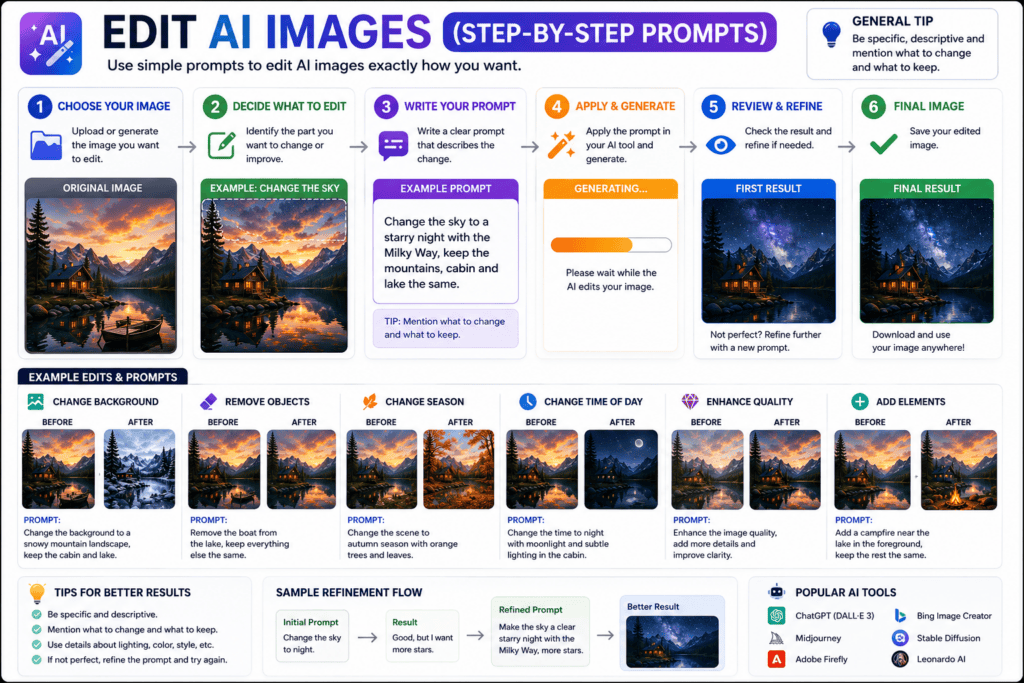
What Are ChatGPT Images?
ChatGPT Images is OpenAI’s built-in image generation and editing experience that lives in the Images tab, powered by the latest GPT Image models (e.g., GPT Image 2 and the API label GPT Image 1.5). It supports text-to-image, image-to-image, conversational editing, inpainting, outpainting, background removal, and on-image text.
Definition
ChatGPT Images is OpenAI’s built-in image generation and editing experience inside the Images tab, supporting text-to-image, image-to-image, conversational editing, inpainting, outpainting, background removal, and on-image text.
Who Is This For?
Use ChatGPT Images if you need fast, professional visuals without heavy design work: small‑business owners making product photography, YouTube creators designing thumbnails, marketers building campaign banners, podcasters shaping studio looks, and designers mocking up infographics or UI mockups.
Best fit
ChatGPT Images is especially useful for small-business product visuals, YouTube thumbnails, campaign banners, podcast studio looks, infographics, UI mockups, logos, avatars, product shots, and social graphics.
How Do I Generate ChatGPT Images Step by Step?
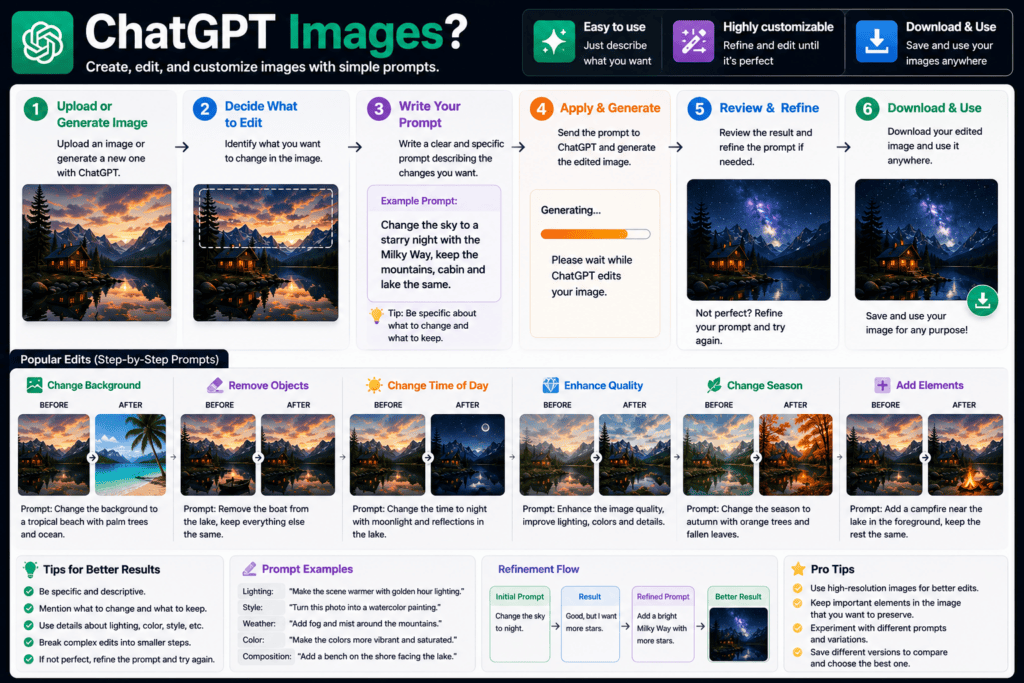
The simplest path is prompt → preview → conversational edits.
Step 1: Open the Images tab
- In ChatGPT, switch to the Images tab to start a new image.
Step 2: Use a base prompt formula
- Copy-ready structure: [subject] + [style preset] + [lens/lighting] + [actions] + [aspect ratio] + [on-image text] + [negative prompts].
Step 3: Add production details
- Include camera terms (35mm, f/1.8), lighting (softbox, golden hour), materials (matte, chrome), and composition (centered, rule of thirds).
Step 4: Specify text exactly
- Quote exact words to render on signage or titles and mention font vibe (bold condensed sans, serif display). GPT Image 2 handles text more reliably than past models.
Step 5: Generate at higher quality
- When available, choose 2K resolution and set the aspect ratio early to avoid cropping later.
Step 6: Iterate with conversational edits
- Ask for small, targeted changes: move objects, adjust colors, fix spacing, refine text kerning, or try a different background.
Step 7: Use negative prompts
- Add: no watermarks, no extra limbs, no distortions, no blur, no text typos.
Mini-Prompts You Can Paste
- Modern tech logo: Minimal monogram logo for [Brand], flat vector, bold geometric sans, high contrast, 1:1, text ‘[BRAND]’.
- YouTube thumbnail: Bold 3-color palette, high-key lighting, 16:9, text ‘ChatGPT Images in 7 Steps’, face right side, big title left.
- Product shot: Matte white cyclorama, softbox lighting, 3-quarter angle, 4:5, subtle shadow, no reflections, label text ‘[Flavor: Vanilla]’.
- Infographic: Clean grid layout, icon set, numbered steps 1-5, 1080×1920, headline ‘How It Works’, subheads, clear hierarchy.
Key Takeaways
- Start with a structured prompt and exact on-image text.
- Use aspect ratio and 2K output upfront.
- Iterate with small, conversational edits for layout and text polish.
How Do I Edit Images with Image-to-Image and Conversational Tools?
Upload a reference or previous render, then direct ChatGPT to modify only what matters.
- Image-to-image: Upload your photo or prior output and say, ‘Match this style; keep logo proportions; swap background to soft gradient.’
- Inpainting: Brush the area to change and specify: ‘Replace the label with: Cold Brew 12oz; match brand blue; tighten kerning.’
- Outpainting: Extend canvas for banners: ‘Add 30% width on the right; continue the gradient; leave space for headline.’
- Background removal: ‘Remove background; place subject on clean white; add soft shadow at 15% opacity.’
- Consistency: Reuse the same character or product by referencing a prior image and, when seed controls are exposed, reuse the seed; otherwise, keep descriptors identical and attach the reference.
I reviewed multiple 2026 tutorials showing that GPT Image 2 handles multi-edit prompts gracefully, keeping fine details intact while making precise changes.
Editing tip
Use targeted edits instead of changing everything at once. Image-to-image, inpainting, outpainting, and background removal work best when each pass has one or two precise instructions.
What Are Proven Prompt Templates for Real Projects?
Use these compact recipes to move fast:
| Use Case | Prompt Skeleton | Why |
|---|---|---|
| Logo | Minimal [Brand] monogram, vector, 1:1, text ‘[BRAND]’ | Crisp, scalable mark |
| Thumbnail | Bold 16:9, high-contrast, text ‘[Title]’, face right | Clear read at small sizes |
| Product | Softbox, matte white, 4:5, text ‘[Flavor]’ | Ecommerce standard look |
| Banner | 1200×628, brand colors, CTA button | Paid social format |
| Infographic | 1080×1920, 5 steps, icons, headline ‘[Hook]’ | Vertical education |
Note: In OpenAI’s API, the model label often appears as GPT Image 1.5; some community guides shorthand it as gpt-image-1 ap. Check OpenAI docs for current naming.
Template tip
Match the prompt skeleton to the final placement. Logos need 1:1 and vector clarity, thumbnails need 16:9 readability, product shots need 4:5 polish, banners need CTA space, and infographics need vertical hierarchy.
What Aspect Ratios and Export Settings Should I Use?
Pick the ratio first to reduce rework.
- 1:1 logos and avatars; 4:5 product photography; 16:9 YouTube thumbnails; 9:16 Reels/Shorts; 1200×628 link ads and campaign banners.
- When offered, export at 2K for cleaner text and edges.
- If you plan to animate or turn images into video, keep layered edits minimal and backgrounds clean for easier motion later.
Mid-workflow tip: If you need to turn stills into video ads or talking creatives, try these VidAU tools:
- Build short ads from scripts or URLs: VidAU AI Video and URL to Video
- Generate campaign visuals alongside ChatGPT: VidAU AI Image
- Convert product shots into video: Product Sample to Video
Export tip
Set aspect ratio before generating. Use 2K when available for clearer text and edges, and keep backgrounds clean when still images will later become videos or talking creatives.
Turn ChatGPT Images Into Video Ads and Talking Creatives
Create graphics in ChatGPT Images, then use VidAU AI Video, URL to Video, VidAU AI Image, Product Sample to Video, Object Remover, Video Enhancer, Text to Video, and UGC Avatars to build polished ads, talking creatives, product clips, and campaign variants.
VidAU workflow
Where VidAU Fits After ChatGPT Images
- Use ChatGPT Images for still visual creation: Generate logos, thumbnails, product shots, infographics, banners, avatars, and campaign graphics with structured prompts and exact on-image text.
- Use image-to-image edits before motion: Refine references, inpaint labels, outpaint banners, remove backgrounds, and clean compositions before turning stills into video assets.
- Use VidAU AI Video and URL to Video for ads: Build short ads from scripts, product URLs, campaign concepts, or product pages once the visuals are ready.
- Use VidAU AI Image and Product Sample to Video for product workflows: Create matching campaign visuals and convert product shots into video when still graphics need motion.
- Use Object Remover, Video Enhancer, Text to Video, and UGC Avatars for polish and repurposing: Clean frames, improve video clarity, create prompt-first clips, or turn visuals into talking creatives.
What Common Mistakes Should I Avoid with ChatGPT Images?
Avoid vague prompts and over-editing in one shot.
- Missing specs: Always set aspect ratio and resolution early.
- Fuzzy text: Provide exact words, font vibe, and spacing notes; re-prompt to correct typos.
- Inconsistent characters: Reuse references, keep descriptors identical, and ask to ‘keep character identity consistent across frames.’
- Messy backgrounds: Use background removal or specify ‘clean white’ or ‘soft gradient.’
- Artifacts: Add negative prompts like ‘no watermarks, no extra fingers, no distortions.’
If you later bring images into video, tools like Object Remover and Video Enhancer can help clean frames before motion design. In contrast, Text to Video or UGC Avatars can repurpose your visuals into ads.
Mistake to avoid
Do not overload one edit request with too many changes. Fix text, layout, background, character consistency, and artifacts in small conversational passes for cleaner results.
Key takeaway
Final Thoughts
ChatGPT Images is now a practical, fast way to go from prompt to production-ready graphics, with stronger text, better edits, and reliable image-to-image flows. Start with the prompt skeletons above, iterate with small conversational edits, and lock consistency with references.
When you need to turn those visuals into high-performing video ads or creatives, spin them up with VidAU AI Video or build from a product URL.
FAQ
Here are answers to common questions about ChatGPT Images, how they work, text readability, consistent characters, aspect ratios, inpainting, outpainting, resolution, image model names, and turning generated stills into video ads or talking creatives.
What are ChatGPT Images and how do they work?
ChatGPT Images is OpenAI’s image generator and editor inside the Images tab. It supports text-to-image and image-to-image creation with conversational editing, including inpainting, outpainting, background removal, and on-image text. Recent updates highlighted in 2026 tutorials show faster outputs, improved text rendering, and better consistency for characters and layouts.
How do I keep text readable on thumbnails and banners?
Provide exact words in quotes, set the aspect ratio first, and mention a font vibe like bold condensed sans. Ask for specific kerning and line spacing. If letters look off, re-prompt: ‘Correct text to: [exact phrase]; tighten kerning; increase contrast.’ Export at 2K when available for sharper edges.
How can I maintain consistent characters across multiple images?
Reuse a reference image and keep descriptors identical: age, hairstyle, outfit, pose, lighting, and camera angle. Ask to ‘keep character identity consistent across frames.’ When seed controls are available, reuse the same seed. Save approved outputs and feed them back for new scenes.
What are the best aspect ratios for common projects?
Use 1:1 for logos and avatars, 4:5 for product photography, 16:9 for YouTube thumbnails, 9:16 for Reels and Shorts, and 1200×628 for link ads and social banners. Set the ratio before generating to reduce cropping and layout fixes later.
Can I edit parts of an image without affecting everything else?
Yes. Use inpainting to change targeted areas like labels, faces, or objects. Use outpainting to extend the canvas for new background space or copy space. For cleaner results, give one or two precise edit instructions per pass rather than piling many changes into one prompt.
Do ChatGPT Images support higher resolution outputs?
Many recent examples show 2K resolution options, which help with clearer text and fine details. If your interface offers quality or size controls, set them up front. If you plan to animate the image later, keep backgrounds clean and export the highest size allowed for flexibility.
What model name should I use in the API for image generation?
OpenAI’s API references often show GPT Image 1.5 for the current image model. Some community guides use shorthand like gpt-image-1 ap. Because names can change, always check OpenAI’s latest documentation for supported model labels and any feature differences.