VidAU Editorial · AI Search
Seedream AI Image Generator: How to Use Seedream 5.0 Free (Step-by-Step)
Learn how to use the Seedream AI image generator Seedream 5.0 free. Step-by-step setup, prompts that work, 4K output, reference images, and what’s new vs 4.0 and 3.0.
By the VidAU Editorial Team · Reviewed before publishing

Looking for the fastest free way into the Seedream AI image generator? This walkthrough shows how US users are accessing Seedream 5.0 via doubao.com, generating crisp 4K images, and dialing in results with reference images and prompt techniques that creators recently demoed.
If you want fast, high quality images without paying, recent creator demos show Seedream 5.0 can be accessed free via doubao.com in many regions, including the US. Below is a practical setup and generation workflow, with 4K tips, reference images, and a brief 5.0 vs 4.0 vs 3.0 comparison.
Quick Summary
• Seedream 5.0 on doubao.com is the quickest free path creators use to generate high-quality images, including 4K when available.
• Artlist hosting of Seedream 5.0 Pro via Claude MCP is a strong alternative for structured tests; access and pricing vary by account.
• Use 4K (3840×2160 or 4096×4096) when available, else generate 2K and upscale; export PNG for maximum detail and note region or account constraints.
• US creators, marketers, designers, and AI hobbyists who need rapid, controllable outputs with reference images and short readable text benefit most.
What Is Seedream AI Image Generator?
Seedream AI image generator is a ByteDance family model series that creates images from text prompts and, in many demos, from reference images. Seedream 5.0 focuses on speed, image quality, and practical controls like aspect ratios and upscaling. Creators report strong results across photoreal, anime, and cinematic styles, with improved rendering quality over Seedream 4.0 and Seedream 3.0 in many cases.
How to Access Seedream AI Image Generator 5.0 Free (US)
Creators commonly show this path; steps and availability can change by country, account type, or app updates.
1) Go to doubao.com (ByteDance AI portal)
• Sign up or sign in. Some users report SMS or email verification. If you do not see English UI, switch language in settings.
• Access can vary regionally. If 5.0 is missing, try again later or check Image models inside the product catalog.
2) Find the Image Generation workspace
• Look for an Images or Creative tab where models are listed.
• Choose Seedream 5.0. If only Seedream 4.0 appears, use that model or check again later; UI names can shift.
3) Confirm free credits or quota
• Many users report some free generation quota. The amount and reset policy may change. If credits are limited, start with 2K tests before committing to 4K.
4) Optional: Explore Seedream 5.0 Pro on Artlist
• Recent videos show Seedream 5.0 Pro hosted on Artlist with Claude MCP for prompt routing. Access, features, and costs depend on Artlist and account plans.
Note: Some creators also search for seedream ai dreamina as a variant name; model availability still depends on host platform updates.
Suggested Visual: Screenshot flow highlighting doubao.com sign-in, the Images tab, and the Seedream 5.0 model card.
Step-by-Step: Generate Your First Image in Seedream 5.0
Follow these steps once you can open the Seedream 5.0 interface. UI labels can change, but the workflow stays similar across demos.
1) Pick a style and aspect ratio
• Start with photoreal, anime, or cinematic, then set 1:1 for square or 16:9 for widescreen. Use 4:5 or 3:4 for portrait posters.
2) Write a tight, structured prompt
• Use a noun-first approach and stack visual cues: subject, setting, camera/lens, lighting, composition, mood, detail level.
• Example structure: Product on surface, studio lighting, soft shadow, 85mm, f2.8 bokeh, reflective highlights, minimal background, high detail, no watermark, clean label text.
3) Add a negative prompt (if available)
• Remove unwanted traits: low-res, extra fingers, messy background, watermark, heavy grain, over-sharpening.
4) Choose resolution
• If your free quota permits, try 4K directly. If not, pick 2K for speed and cost-efficiency, then plan to upscale.
• Inspect lighting, edges, hands/faces, and any embedded text. If artifacts appear, regenerate or adjust negative prompts and lighting cues.
6) Iterate with variations
• Use Variation or Reroll to refine style. Lock helpful attributes such as camera terms and lighting; change only one or two details per iteration.
Prompt tips that creators report work well
• Use camera terms: 35mm wide, 85mm portrait, macro, tilt-shift.
• Specify light: three-point lighting, rim light, volumetric light, golden hour.
• Control composition: centered, rule of thirds, symmetrical, top-down flat lay.
• Keep embedded text short (2–12 characters), uppercase, high-contrast background.
• For clean product shots: seamless background, soft gradient, studio softbox.
4K Workflow: Generate At 4K Or Upscale?
Creators show two reliable paths to high-resolution results:
Path A: Native 4K when available
• Pros: Best detail and edge fidelity. Fewer upscale artifacts.
• Cons: Heavier on quota. Slightly slower than 2K.
Path B: 2K then Upscale
• Pros: Faster batch iterations and lower credit use.
• Cons: May soften micro-details. Check logos and small text post-upscale.
Recommended aspect ratios and export formats
• 1:1 square at 4096×4096 or 2048×2048; 16:9 at 3840×2160.
• Export PNG for lossless detail; use high-quality JPG only when file size matters.
• For thumbnails, export 1280×720 or 1920×1080; upscale if starting from 2K square crops.
Speed notes
• A Seedream 4.0 video demo showed 2K images in under 2 seconds; 5.0 feels fast in creator tests, but speeds vary by host, server load, and quota.
Text rendering guidance
• Short, blocky words render more reliably than long phrases.
• Put text intent near the end of the prompt: clean sans-serif label, centered, high contrast.
• If letters distort, regenerate or simplify the word; avoid complex fonts.
Turn outputs into short ads (optional)
• If you need ad-ready video variants from your Seedream images, you can import them into VidAU AI Video to generate short-form creative for TikTok, Meta, or YouTube. Typical flow: upload images or a product URL, select a UGC or product-to-video template, and render variants for testing.
Suggested Visual: Side-by-side crops showing native 4K vs 2K-upscaled edges and text fidelity.
Reference Images: Consistency, Identity, and Style Control
Attaching reference images helps lock product identity, character likeness, or brand style.
How to attach and balance references
• Add one identity reference (e.g., product angle or face) and one style reference (e.g., lighting/mood).
• If the UI offers image weight or style strength, start balanced; raise identity weight if features drift.
• Use 2–3 references first; add more only if needed.
Consistency techniques
• Keep camera and lighting terms stable across runs.
• Name the core attributes in each prompt: colorway, material, logo placement, surface type.
• Generate variations from your best output to refine without losing identity.
What creators report
• Seedream 4.0 AI demos showed up to six reference images; 5.0 and host UIs may differ. If reference slots appear limited, rotate refs across iterations to converge on style and identity.
Troubleshooting reference issues
• If faces drift, add face descriptors (age, hair, expression) and increase identity weight.
• If the style dominates identity, lower style strength or drop the style ref and rely more on text cues.
• For logos, prioritize a clean product ref, short label text, and controlled lighting.
Suggested Visual: A grid of outputs showing how identity vs style weights shift the final image.
Editing, Variations, and Text Rendering Tips
• In many creator demos, Seedream offers built-in image editing and variation tools; labels vary by host. Look for edit, region, or variation options to correct small artifacts without full re-renders.
• Use seeds or styling presets (if available) to maintain look consistency across a batch.
• For product labels, keep text minimal, uppercase, and placed against uniform backgrounds.
• When text must be exact, consider compositing the final letters in a design tool after generation.
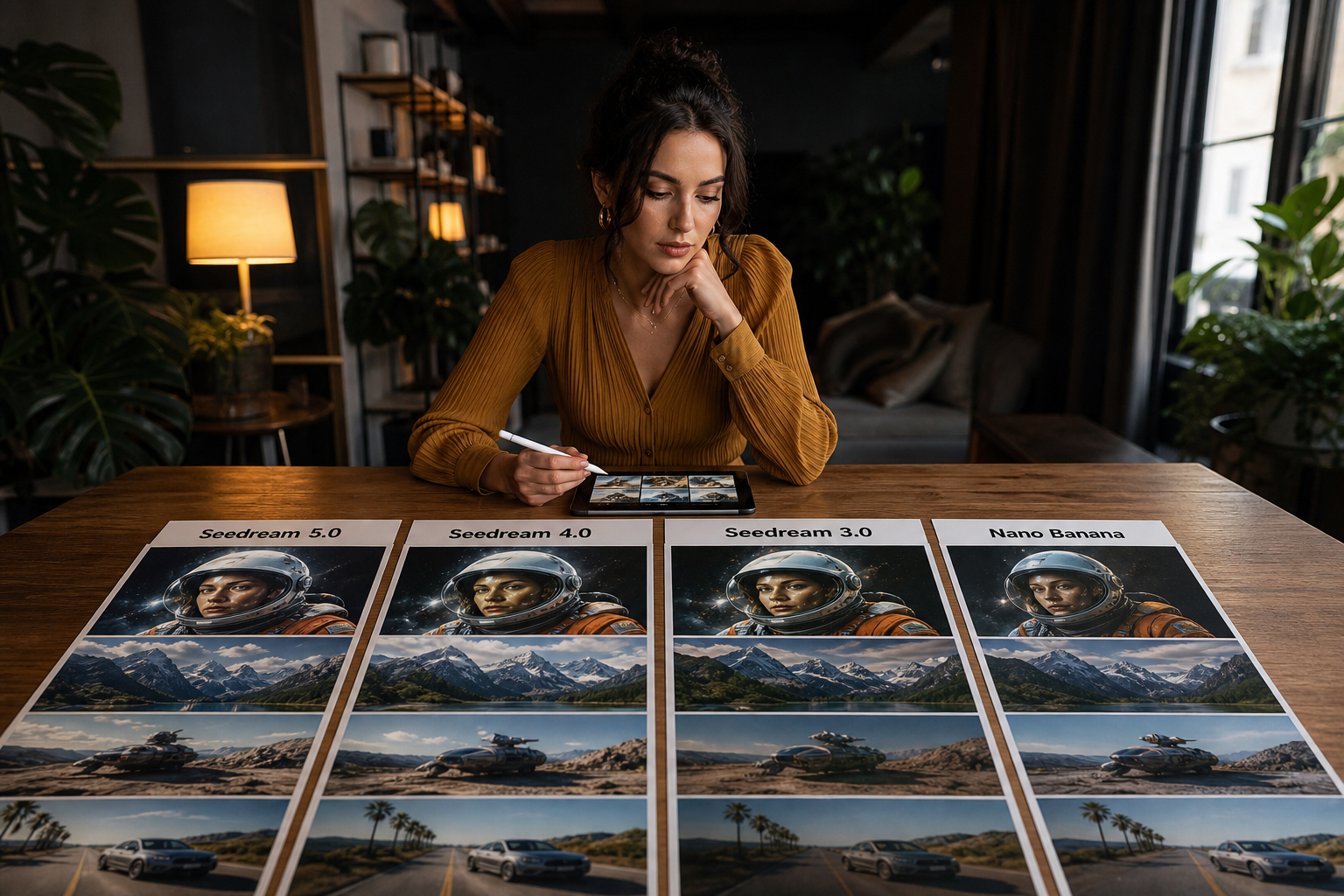
Seedream AI Image Generator 5.0 vs 4.0 vs 3.0 vs Nano Banana
Below is a concise, creator-reported snapshot. Details vary by host, updates, and account tier.
• Model: Seedream 5.0
Best For: Balanced quality and speed
Notable Notes: Strong light, better text handling
• Model: Seedream 4.0
Best For: Ultra-fast iterations
Notable Notes: Demos show up to six refs
• Model: Seedream 3.0
Best For: Stylized, earlier baselines
Notable Notes: Fewer controls, older look
• Model: Nano Banana
Best For: Competitive photoreal results
Notable Notes: Popular comparison benchmark
Notes and context
• ByteDance models continue to surface on doubao.com; names may differ by locale.
• Some creators test Seedream 5.0 Pro on Artlist using Claude MCP for systematic prompts and comparisons.
• If your workflow demands strict text rendering or facial identity, compare outputs from 5.0, 4.0, and Nano Banana on your own prompts.
Troubleshooting: Region Locks, Censorship, and Account Issues
• Region or account availability: If Seedream 5.0 does not appear on doubao.com, try signing out/in, switching language, or checking again later. Access can change based on country, app versions, and update cycles.
• Safety filters: Creators note that certain topics or terms may be restricted or altered. Reframe prompts with neutral wording and avoid sensitive terms.
• Faces and hands: If hands or facial features fail, specify pose and mood more clearly and add a strong identity reference.
• Text failures: Limit to a short word, uppercase, and high-contrast background; regenerate until legible.
• Export issues: If PNG is too large, export JPG at high quality, but confirm that fine textures remain intact.
Create With VidAU
Turn scripts, product URLs, and creative ideas into ad-ready video assets with a structured AI workflow.
Key takeaway
Final Thoughts
For US users, doubao.com is the most direct free route many creators use to try Seedream 5.0. Start with tight prompts, lock lighting and camera terms, and use 2–3 reference images to fix identity. Go native 4K when quota allows; otherwise iterate at 2K and upscale thoughtfully.
If your next step is campaign creative, you can bring your Seedream images into VidAU AI to turn product URLs or images into short-form video ads for TikTok, Meta, or YouTube. Generate a few variants, review, and test what converts.
Frequently asked questions
How do I use the Seedream AI image generator free in the US?
Many creators access Seedream 5.0 free through doubao.com with basic account verification. After signing in, open the Images or Creative area, select Seedream 5.0, and use any available free credits. Availability, quotas, and UI labels can change by region and updates.
How can I get 4K images out of Seedream 5.0?
If the interface offers 4K directly, choose 3840×2160 for 16:9 or 4096×4096 for 1:1. If 4K is not available or expensive, generate at 2K for speed, review quality, then upscale in-app or externally. Export PNG to preserve micro-details and edge fidelity.
Can I use reference images in Seedream 5.0, and how many are allowed?
Yes, but the exact number depends on the host. Creator demos for Seedream 4.0 AI showed up to six references. For Seedream 5.0 or Seedream 5.0 Pro on other platforms, reference slots and weights can vary. Start with two to three references and adjust weights for balance.
What prompt format works best for Seedream 5.0?
Use a structured, visual-first prompt: subject, setting, camera or lens, lighting, composition, mood, and detail. Add a negative prompt to remove artifacts. Keep embedded text short and uppercase. Iterate with small changes, keeping camera and lighting stable across versions.
What is the difference between Seedream 5.0, Seedream 4.0 AI, and Seedream 3.0 AI?
Creator tests suggest 5.0 improves image quality and handling of light and short text versus 4.0, which is known for speed and reference flexibility. Seedream 3.0 AI is an earlier baseline with fewer controls and a more stylized look. Actual results vary by host and updates.
Is Seedream 5.0 Pro available, and where do creators test it?
Recent videos show Seedream 5.0 Pro hosted on Artlist with Claude MCP for structured comparisons. Access, features, and pricing depend on Artlist’s setup and your account plan. If you need pro controls or integrations, that route is worth exploring.
Why are parts of my prompt blocked or altered in Seedream?
Hosts may apply safety filters or region-specific policies. If your prompt is blocked, rewrite it with neutral terms, avoid restricted topics, and reduce sensitive details. Some content categories are not allowed, and wording adjustments are often required to render successfully.
How fast is Seedream for image generation?
Speed depends on the model version, host platform, and server load. One Seedream 4.0 demo showed 2K images in under two seconds. Seedream 5.0 also feels fast in creator tests, but your results will vary with quota, resolution, and current traffic.
What does Seedream AI Dreamina refer to?
Seedream AI Dreamina is a search variant or naming seen in discussions and content around Seedream models. Model naming and availability can differ by host platform or locale, so rely on the interface you are using to confirm the exact version and features.
What are the best export formats and aspect ratios for social content?
Export PNG for highest fidelity; use high-quality JPG only when file size is a concern. For YouTube and widescreen ads, use 16:9 at 3840×2160. For Instagram squares, use 1:1 at 2048×2048 or 4096×4096. For portrait posters, try 4:5 or 3:4 with adequate resolution.