VidAU Editorial · AI Search
Transparent Image Generator: How to Make AI Images with a Transparent Background in ChatGPT
Learn how to use a transparent image generator in ChatGPT to create clean transparent PNGs. Step-by-step prompts, background removal, export tips, and fixes.
By the VidAU Editorial Team · Reviewed before publishing

Your transparent image generator is already in ChatGPT. Use prompt-first creation with the in-chat background remover to export true PNG or WebP files with an alpha channel. This playbook definitely shows the exact prompts, checks, and fixes so you stop getting fake white backgrounds and start shipping clean product photos, logos, and overlays.
Skip guesswork and errors. Follow this prompt-first ChatGPT workflow to generate clean AI images with real transparency for product photos, logos, and overlays.
Quick Summary
• ChatGPT plus DALL·E and the in-chat background remover is the fastest way to create transparent PNG or WebP assets in 2026.
• Dedicated background removers or Photoshop are solid alternates when edges are complex or you need pixel-level control.
• True transparency requires PNG or WebP with an alpha channel; JPEG cannot store transparency.
• Ecommerce sellers, marketers, and creators needing fast overlays, product cutouts, and logo assets benefit most.
What Is a Transparent Image Generator?
A transparent image generator is a tool or workflow that creates images with an invisible background, saved in formats that support an alpha channel such as PNG or WebP. In practice, modern AI tools like ChatGPT with DALL·E generate an isolated subject, then remove the background in chat and export a file that composites cleanly over any color or scene.
ChatGPT Transparent Image Generator Workflow: Step by Step
Step 1: Prompt DALL·E for an isolated subject
Start by generating a subject on a clean, uniform background so the remover has crisp edges.
Copy-paste prompt ideas:
• Product: Generate a high-resolution isolated photo of a red running shoe on a blank light-gray background, studio lighting, minimal shadow, ecommerce ready
• Logo mark: Create a flat, vector-style hummingbird logo, simple shapes, solid teal and navy, centered, high contrast edges, no background clutter
• Overlay asset: Design glitter particles clustered at the top and edges, soft bokeh look, leave central area empty, clean edges for background removal
Tips
• Use phrases like isolated subject, minimal shadow, uniform background, high contrast edges.
• Avoid busy floors, reflections, or motion blur that make removals harder.
Step 2: Remove the background in chat
Ask ChatGPT to remove the background from the generated image. If you uploaded your own photo, use the same step.
Try this instruction
• Remove the background and return a transparent PNG with the alpha channel preserved.
Notes
• If a tool toggle or option appears, choose background remover or similar wording.
• For thin details like hair or fur, request a refine pass or edge-aware matting.
Step 3: Export as PNG or WebP with transparency
Be explicit about the format and size.
Use one of these requests
• Export as PNG with transparency at 2048 px on the long side
• Export as WebP with transparency, lossless if available, 2048 px
Important
• JPEG cannot preserve transparency. If you receive JPEG, ask to re-export as PNG or WebP with the alpha channel.
• For ecommerce, PNG is the safest default. For web speed, WebP is smaller with similar quality.
Step 4: Verify true transparency
Do not trust a white background preview alone. Verify the alpha channel.
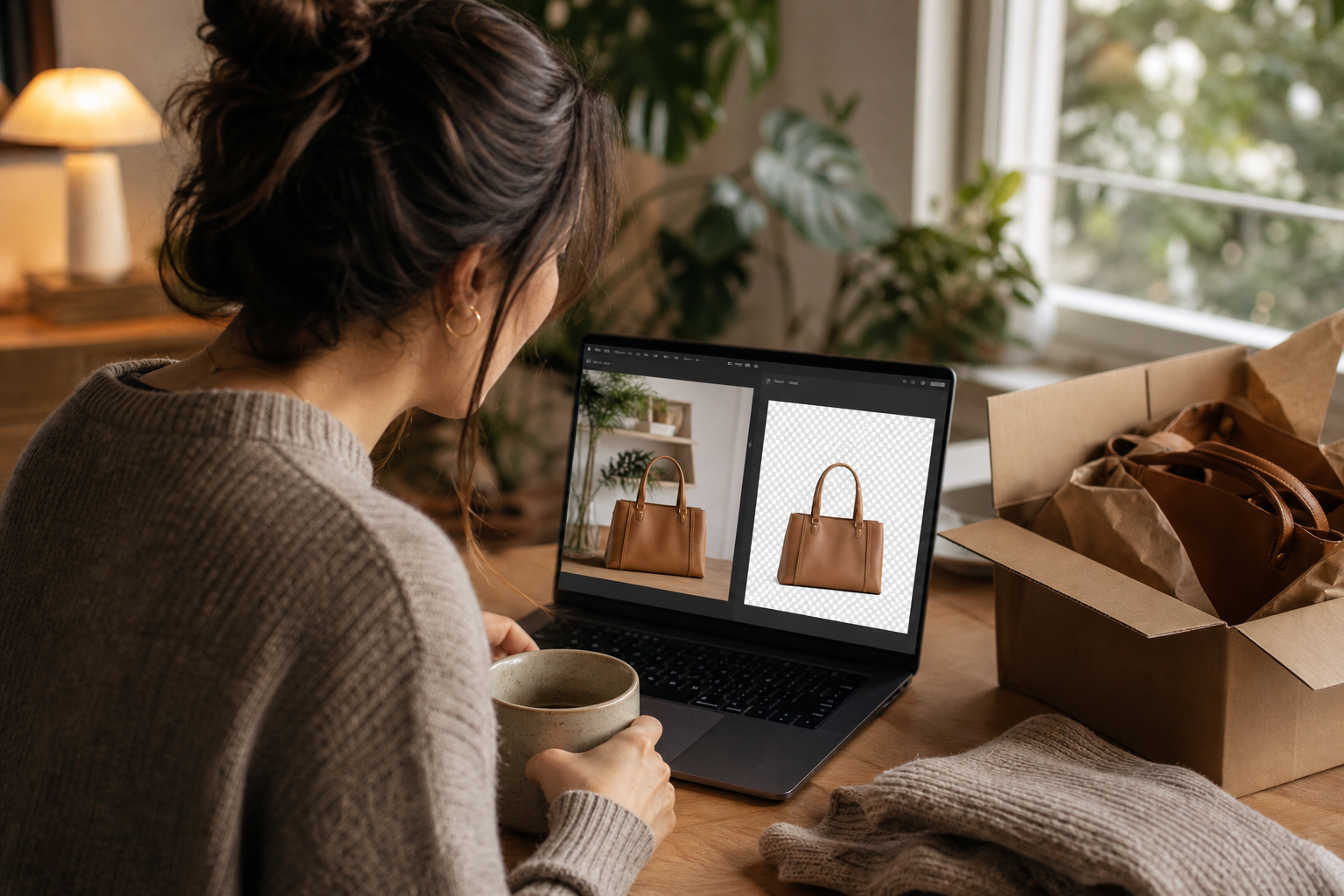
• Checkerboard preview: Look for a gray-and-white checkerboard behind the subject.
• Color stack test: Place the image over a solid color layer (black, white, brand color). If the background blocks the color, it is not transparent.
• Edge zoom: Inspect 200 to 400 percent for halos or jagged edges.
Suggested Visual: A three-panel image showing the original, background-removed checkerboard preview, and the color stack test.
Can AI generate transparent images in ChatGPT?
Yes. AI can generate transparent images in ChatGPT by combining DALL·E for creation with the in-chat background remover, then exporting as PNG or WebP containing an alpha channel. If you only save as JPEG, the background will appear opaque even if the chat preview looked transparent. Request a transparent export explicitly.
Cleanup Halos, Fringes, and Flyaway Hair
Even good removals can leave faint outlines. Try these quick fixes in chat:
• Re-prompt for a cleaner base: isolated subject, minimal shadow, uniform background, crisp lighting.
• Ask for an edge refine: soften fringe, remove white halo, preserve fine hair.
• Slight background color match: if placing on dark pages, request edge decontamination toward the target color.
• Re-export as PNG or lossless WebP to avoid recompression halos.
When to rerun removal
• Glass, smoke, or motion blur often need an extra pass.
• Hair and fur benefit from edge-aware or refine options if available.
Key Takeaways
• Clean prompts reduce halos before removal.
• Always request a refine pass for difficult edges.
• Re-export in a transparency-friendly format to keep fixes intact.
Transparent Image Generator Methods Compared
• Method: ChatGPT + remover
Best for: Fast product cutouts
Why: One-stop prompt to export
• Method: Dedicated remover
Best for: Hair, fur, glass
Why: Strong edge models
• Method: Photoshop workflow
Best for: Pixel-perfect control
Why: Manual touch-ups
• Method: Vector redraw
Best for: Logos, icons
Why: Infinite scalability
• Method: WebP export
Best for: Web performance
Why: Smaller files with alpha
• Method: PNG export
Best for: Broad compatibility
Why: Safest for ecommerce
Suggested Visual: Simple table screenshot comparing the methods with icons for each.
Use Your Transparent Assets
Transparent PNGs and WebPs slot into ecommerce listings, hero banners, social posts, and video overlays.
• Product photos: Swap seasonal backgrounds without reshooting.
• Logos: Place brand marks cleanly over photos and motion graphics.
• Overlays: Add sparkles, shadows, stickers, or UI elements on top of video.
If you want to turn product images or URLs into ad-ready short videos for TikTok, Meta, or YouTube, VidAU AI Video can take those transparent assets and generate editable performance creative.
Suggested Visual: A before and after graphic showing a product cutout used on multiple backgrounds and inside a short video frame.
Troubleshooting and Pro Tips

• Results look dull: Ask for higher contrast lighting or studio-style highlights.
• Edges look jagged: Request anti-aliased edges or a light feather of 0.5 to 1 px.
• Background still visible: Run removal again and specify remove any white or gray matte and preserve transparency.
• File too large: Choose WebP with transparency at quality 80 to 90, or reduce to 1600 to 2048 px.
• Batch work: Generate a consistent prompt set, then request the remover and export for each variation.
Create With VidAU
Turn scripts, product URLs, and creative ideas into ad-ready video assets with a structured AI workflow.
Key takeaway
Final Thoughts
ChatGPT can be your everyday transparent image generator when you pair smart prompts with the in-chat background remover and an explicit PNG or WebP export. Verify transparency with a checkerboard preview and a quick color stack test, then fix any halos before saving.
If you need to turn those product PNGs into scroll-stopping ads, consider using VidAU AI Video to convert product images or URLs into testable short-form creative for social platforms.
Frequently asked questions
Can AI generate transparent images directly, or do I need a remover?
AI can produce transparent-background results, but the most reliable approach in ChatGPT is to generate an isolated subject with DALL·E, apply the in-chat background remover, and export as PNG or WebP with an alpha channel. This two-step method reduces halos and ensures true transparency for overlays and product photos.
Why did my exported image from ChatGPT still have a white background?
It is likely saved as JPEG, which cannot store transparency. Ask ChatGPT to re-export as PNG or WebP with transparency and confirm the alpha channel. Verify using a checkerboard preview or by placing the image over a solid color layer. If halos persist, run a refine pass before exporting.
Which is better for a transparent background, PNG or WebP?
PNG is the safest choice for ecommerce platforms and broad compatibility. WebP supports transparency too and usually delivers smaller files for the web. If you need maximum compatibility, choose PNG. If site speed matters and your stack supports it, choose WebP at quality 80 to 90.
How do I verify a true transparent background?
Open the file and look for a checkerboard preview behind the subject, or stack the image over a solid color layer. If the color shows cleanly through everywhere except the subject, the alpha channel is working. If the background looks opaque, re-export as PNG or WebP with transparency.
What prompts help ChatGPT create cleaner cutouts?
Include isolated subject, minimal shadow, uniform background, and high contrast edges. For product photos, request studio lighting. For hair or fur, mention preserve fine strands. These cues simplify the background remover’s job and reduce halos and fringes at export.
Can I keep realistic shadows with a transparent background?
Yes. Ask to separate the subject and shadow onto distinct layers if available, or request a soft shadow baked into the alpha. Alternatively, export the subject only and add a new drop shadow later in your design tool to match the target background color and direction.
Why do hair and fur look crunchy after removal?
Fine details often need edge-aware matting. Ask for a refine pass to soften fringes and decontaminate edge colors. If the base image has busy textures, regenerate with cleaner lighting and a uniform background to improve strand separation before removal.
Do logos need a vector format, or is PNG enough?
PNG with transparency is fine for web and social. For print or large-scale usage, recreate the logo as vector art for infinite scalability. You can prompt for a flat, vector-style mark, then trace or rebuild in a vector editor if you need EPS, SVG, or PDF later.
Can an AI image generator transparent background workflow handle glass or smoke?
Yes, but expect to refine. Ask for edge-aware or transparency-preserving removal, then inspect at 200 to 400 percent. If needed, rerun removal and request softer edges and partial opacity where glass or smoke should remain semi-transparent. Export as PNG or WebP to keep those alpha gradients.
What resolution should I export for ecommerce listings?
A safe default is 1600 to 2048 pixels on the long side, exported as PNG with transparency. This size balances clarity and file weight for most marketplaces. For hero banners or print, export larger and consider WebP for web performance if your platform supports it.