Top Free Pic to Video AI Generators for Creative Videos (2026)
Introduction
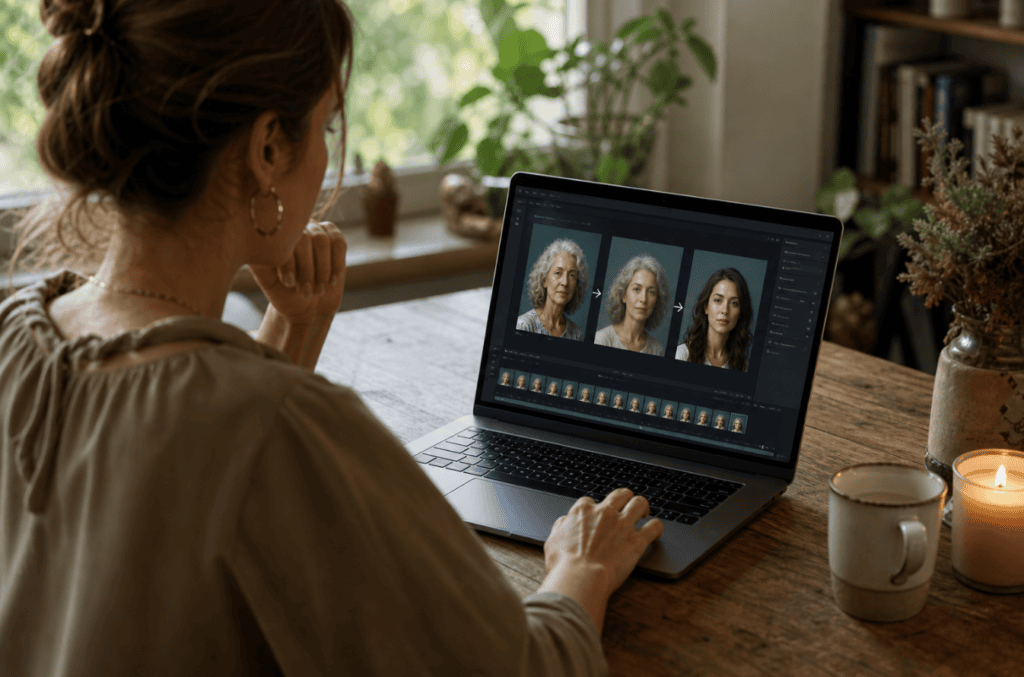
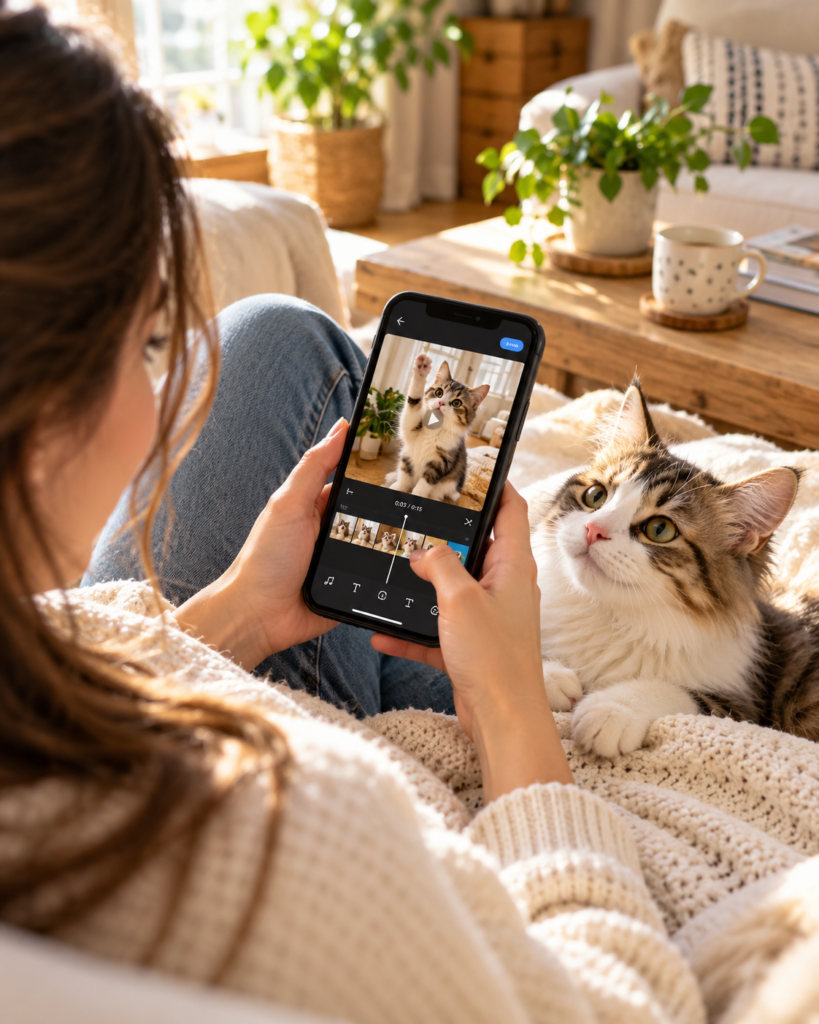
Turning a still picture into an engaging video no longer requires advanced animation or editing skills. Pic-to-video AI tools can add natural movement, camera effects, facial expressions, transitions, and audio to photographs, illustrations, product images, and AI-generated artwork.
In this guide, we compare seven of the best free pic-to-video AI tools for creating social media clips, marketing videos, character animations, music visuals, and creative stories. You will learn what each platform does best, its main limitations, and what to consider before choosing one.
Featured Snippet
The best pic-to-video AI generators for videos include VidAU AI, Pika Labs, Runway ML, Kaiber AI, DeepMotion, Reface AI, and Getimg.ai. These tools let creators animate images into lifelike motion videos, supporting both adult and creative visual storytelling.
Top Pic-to-Video AI Generators
1. VidAU AI – Best for Fast and Realistic Image Animation
Best for: Cinematic, realistic animation , and AI character motion
VidAU AI’s Image to Video generator allows creators to animate photos into lifelike motion clips. It supports expressive, sensual, or fantasy-based movement while maintaining artistic control.
Highlights:
- Converts stills into smooth, cinematic motion
- Supports 4K output and AI voiceovers
- Enables adult content under user control
- Free plan with watermark-free exports in premium
Pricing:
- Free tier available
- Starter: $25/month
- Business: Extended features
Why It’s Top Choice:
VidAU AI combines realism and creative freedom, making it the top pic to video AI tool for both adult creators and marketers seeking quality.
2. Pika Labs – Best for Creative Effects and Stylized Motion
Best for: Stylized or anime-inspired adult videos
Pika Labs transforms AI-generated portraits into motion visuals with cinematic effects. Many adult creators use it for fantasy themes.
Highlights:
- Supports anime and realistic motion models
- Adds lighting and texture to enhance visuals
- Free 80 credits monthly
Pricing:
- Free: 80 credits
- Standard: $9/month
- Pro: $35/month
3. Runway ML – Best for Cinematic Image-to-Video Productio
Best for: Realistic storytelling and cinematic adult edits
Runway ML’s Gen-2 engine enables image to video animation with detailed motion tracking. It’s used by professional studios and indie creators for artistic videos.
Highlights:
- Background and camera control
- Human motion realism
- Free limited plan
4. Kaiber AI – Best for Music and Artistic Visuals
Best for: Adult music loops and fantasy art
Kaiber animates images synced to soundtracks, perfect for artistic or short videos. It supports creative freedom and doesn’t censor mature visual styles.
Highlights:
- Audio-synced animation
- Smooth zoom and motion effects
- Free plan available
5. DeepMotion – Best for Full-Body Character Animation
Best for: Motion capture-style character movement
DeepMotion converts 2D or 3D avatars into realistic body animations. Its motion engine creates natural adult movement suited for fantasy or VR-style projects.
Highlights:
- Tracks body motion in detail
- Realistic pose transitions
- Free trial and paid plans
6. Reface AI – Best for Facial Animation and Lip-Sync
Best for: Animated adult expressions or lip-sync videos
Reface brings faces to life from photos with lip-sync and expression control. It’s widely used for creating short, safe character clips.
Highlights:
- Face morph and lip-sync generation
- Easy mobile interface
- Free with premium upgrade
7. Getimg.ai – Best for Prompt-Controlled Motion
Best for: Experimental and creative animations
Getimg.ai lets you write prompts describing how your character should move, like “slowly turns head” or “smiles seductively”, and renders that motion into video.
Highlights:
- Text-to-motion generation
- Artistic and realistic styles
- Free plan with credit limits
What Is an Pic to Video AI Generator?
A pic-to-video AI generator is a tool that transforms a still image into an animated video. It analyzes visual elements such as faces, objects, poses, backgrounds, and depth before generating new frames that create movement.
Depending on the platform, users can animate portraits, add camera movement, create talking characters, apply visual effects, or turn product images and artwork into short promotional videos.
These picture to video AI tools are especially useful for adult creators, digital artists, and fantasy content producers who want realistic movement without involving real performers.
Why Use Pic to Video AI Generators for Content
Pic-to-video AI makes video production faster and more accessible. Instead of filming new footage or animating every frame manually, creators can turn existing images into engaging clips.
Common benefits include:
- Faster production: Create animated clips in minutes.
- Lower costs: Reduce the need for cameras, actors, and complex software.
- Creative flexibility: Animate photos, illustrations, products, avatars, and AI-generated art.
- Easy experimentation: Test different movements, styles, and camera effects.
- Content repurposing: Turn existing visual assets into fresh video content.
- Scalable production: Produce multiple variations for different platforms and audiences.
How Pic to Video AI Works for Creation
Most pic-to-video AI tools follow a simple process:
- Upload an image: Select a clear photograph, illustration, product image, or AI-generated visual.
- Describe the movement: Enter instructions such as “slow camera zoom,” “the character looks toward the camera,” or “the product rotates gently.”
- Choose the settings: Select the video length, aspect ratio, resolution, and visual style when those options are available.
- Generate the video: The AI analyzes the image and produces new frames to simulate movement.
- Review the result: Check for distorted features, unnatural movement, or unwanted background changes.
- Edit and export: Trim the clip, add audio or captions, and export it for your chosen platform.
Best Tools by Use Case
| Use Case | Recommended Tool | Strength |
| Realistic image animation | VidAU AI | Smooth motion and an accessible workflow |
| Creative effects | Pika Labs | Soft motion and lighting |
| 3D or motion capture content | DeepMotion | Realistic body tracking |
| Lip-sync or reactions | Reface AI | Expressive facial animation |
| Prompt-controlled motion | Getimg.ai | Text-guided animation controls |
Monetizing AI-Generated Videos
Adult creators use picture to video AI tools to generate unique short clips. Since no real people are recorded, this method offers safety, creative control, and recurring revenue potential.
Comparison Table
| Tool | Free Plan | Starting Price | Best Use | Motion Quality | NSFW-Friendly |
| VidAU AI | Yes | $25/month | Realistic animation | High | Yes |
| Pika Labs | Yes | $9/month | Artistic motion | Medium-High | Yes |
| Runway ML | Yes | Custom | Studio editing | Very High | Limited |
| Kaiber AI | Yes | Tiered | Music sync videos | Medium | Yes |
| DeepMotion | Yes | Pro tiers | Full-body animation | High | Limited |
| Reface AI | Yes | Mobile premium | Face animation | Medium | Yes |
| Getimg.ai | Yes | Usage-based | Prompt-driven motion | Medium | Yes |
How to Choose the Best Pic to Video AI Tool
- Define your goal: realistic, stylized, or content
- Check whether the tool supports image to video generation
- Compare free limits and export quality
- Ensure compliance with adult content policies
- Choose based on realism, control, and motion length
For creators needing flexibility, VidAU AI delivers the best blend of quality, privacy, and speed, perfect for picture to video AI workflows.
How Pic to Video AI Works
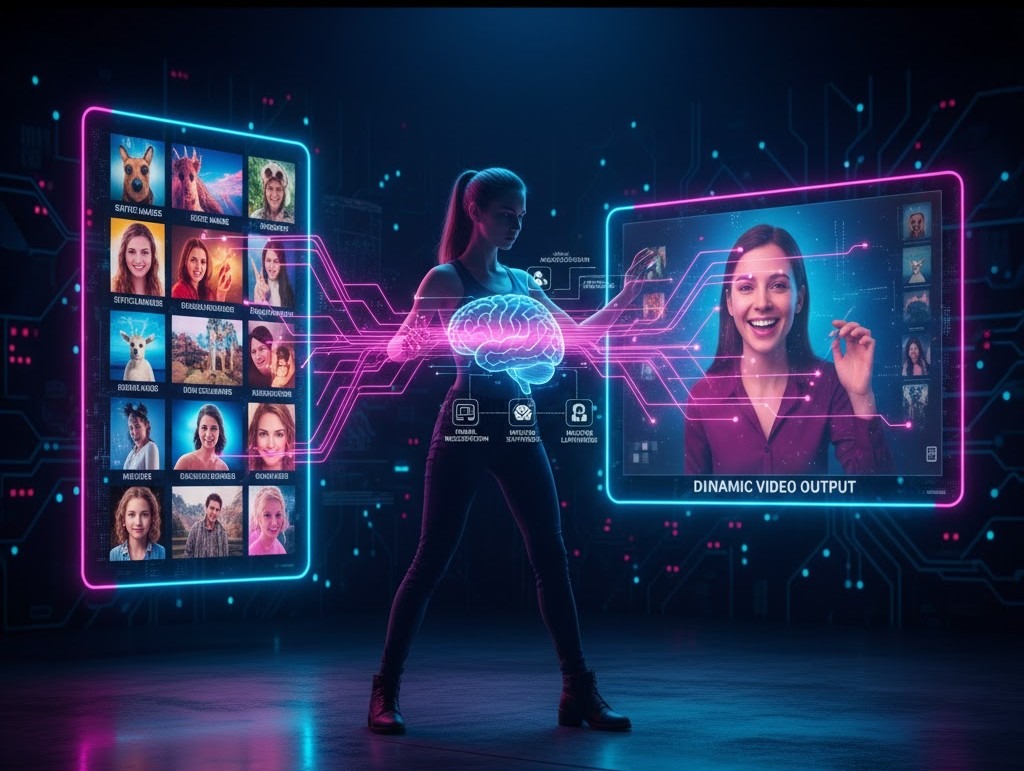
Pic to Video AI tools transform a static image into a moving video through automated motion generation. The process combines image recognition, facial mapping, and motion synthesis powered by machine learning.
Here’s how it works step by step:
- Image Upload
You start by uploading a clear portrait or full-body photo. The AI scans it to detect key visual points such as the eyes, mouth, shoulders, and body outline. - AI Detection and Motion Mapping
The system identifies the subject’s pose, expression, and symmetry. Using a model trained on motion datasets, it predicts how that body or face would move naturally in short sequences like turning, blinking, or walking. - Animation Generation
Once mapping is complete, the AI generates multiple video frames between the original still points. This creates smooth motion transitions. The best generators like VidAU, Runway ML, and Pika Labs use diffusion-based frame interpolation to keep movement realistic. - Scene Enhancement
After animation, many tools let you add lighting, camera angles, or motion blur to make the clip look cinematic. You can also choose the background or upload custom audio. - Export and Customization
Finally, you export the short video clip. Some platforms allow direct export in 1080p or 4K without watermarking. This step is where most artistic creators enhance the content with loops or voice overlays.
Common Mistakes to Avoid
- Using blurry or low-resolution pictures
- Overloading with motion prompts
- Ignoring rights and policy guidelines
- Not previewing before exporting
Best Practices for Realistic Animation
To make AI-generated videos look natural and appealing, you need precision, quality inputs, and controlled motion. These practices help you get professional results while keeping your content realistic and clean.
- Use High-Resolution Images
Start with clear HD or 4K photos. The AI reads details like skin texture, lighting, and contours. Low-resolution inputs create distorted motion or blurred outlines. - Maintain Balanced Lighting
Good lighting defines the mood. Use images with even brightness and visible contrast around the face or body. Avoid harsh shadows or overexposed spots that confuse the AI. - Add Subtle Motion Prompts
Use small, believable actions. Prompts like “slow head turn,” “eye blink,” “gentle body sway,” or “soft smile” make animations feel human. Large or exaggerated motion often looks robotic or fake. - Apply Background Blur
A light blur keeps focus on the subject and hides rendering imperfections. Many AI generators include built-in background filters or depth control tools. - Sync With Real Sound
Match your animation with soft background music, ambient sounds, or voice tracks. Sound adds emotion and realism that motion alone cannot achieve. - Refine in Post-Editing
After exporting, use a simple editor like CapCut or VidAU Studio to trim, loop, or color-grade the clip. A 5–10% adjustment in tone or brightness often improves realism. - Keep Movements Slow and Controlled
Fast or complex motions break realism. Keep transitions smooth and short—2 to 5 seconds work best for character animations.
Ethical and Platform Guidelines
Even though these tools allow content, creators must use them responsibly:
- Never replicate real individuals without consent.
- Follow the tool’s community rules.
- Avoid sharing deepfakes or explicit impersonations.
The Future of AI Image-to-Video
AI tools are evolving to offer greater realism, interactivity, and complete scene creation. In the near future, expect better facial animation, voice integration, and more engaging storytelling for adult content creators.
Conclusion
The tools above are the seven best free pic-to-video AI generators and creative content in 2026. Whether you are creating AI characters, adult stories, or social media animations, these tools offer realism, control, and free access for testing.
For the best balance between realistic motion, commercial usage rights, and flexibility, try VidAU AI’s Free Image-to-Video Generator, the easiest way to transform any image into impressive AI-powered motion.
Frequently Asked Questions
1. What is a pic to video AI generator?
A pic-to-video AI generator transforms static photographs into animated video clips using AI. It detects faces, poses, and details in a photograph to create realistic or stylized motion sequences.
2. Do I need technical skills to use picture-to-video AI?
No. Most tools provide a simple upload-and-generate workflow. You upload an image, describe the desired movement, adjust the available settings, and let the AI generate the clip.
3. Can pic-to-video AI animate product images and artwork?
Yes. These tools can animate product photographs, illustrations, digital artwork, landscapes, characters, and other still visuals. Results depend on the image quality and the selected motion instructions.
4. Can I use AI-generated videos commercially?
Commercial usage depends on the platform’s licensing terms and your subscription plan. Review the tool’s current usage policy and ensure you have permission to use the original image and any other included assets.
5. How long are AI-generated image-to-video clips?
Clip length varies by platform and subscription plan. Many tools generate short clips of several seconds, which can be combined in an editor to create a longer video.