Gemini AI Photo Generator · Nano Banana, Product Photos & Multi-Turn Realism
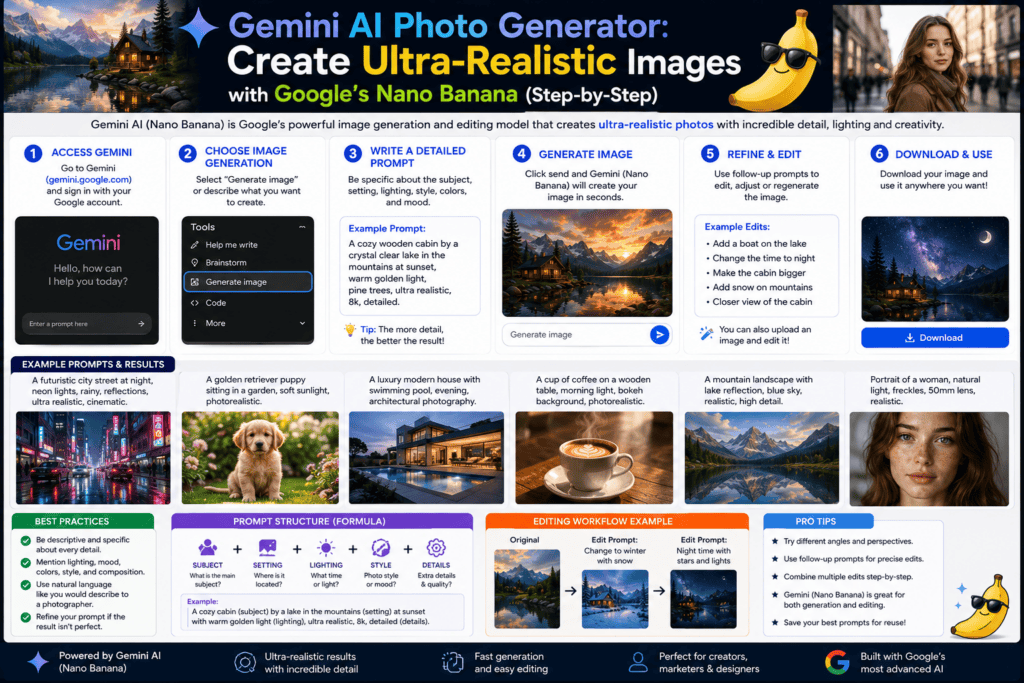
Gemini AI Photo Generator: Create Ultra-Realistic Images with Google’s Nano Banana (Step-by-Step)
Use Gemini 2.5 Flash Image, known as Nano Banana, to create realistic product photos, preserve likeness, mix designs, and build a natural AI photo generator no filters workflow.
By the VidAU Editorial Team · Gemini AI photo generator guide · Nano Banana, product photography, likeness preservation, design mixing, portrait edits, and VidAU video handoff workflows
The gemini ai photo generator, powered by Gemini 2.5 Flash Image and known as Nano Banana, can produce realistic, studio-grade photos when you structure prompts and edits correctly. This guide gives you a practical workflow for product photography, likeness preservation, multi-turn editing, and design mixing with a natural, ai photo generator no filters look.
The Gemini AI photo generator, using Gemini 2.5 Flash Image and nicknamed Nano Banana, can deliver convincing product photos and consistent portraits when you control lens, light, materials, and do short multi‑turn edits. I reviewed and analysed recent Nano Banana demos that highlight likeness preservation, product photography, and design mixing, and turned them into the precise prompts and passes below.
If you need realistic product shots fast, this workflow prioritizes believable lighting, ground shadows, and micro-imperfections without overprocessed artifacts. It is built for US creators, marketers, small businesses, designers, and enthusiasts working under time pressure who still want a natural look.
Quick Summary
- Gemini 2.5 Flash Image, aka Nano Banana, produces realistic results when you specify lens, lighting, material, background, and depth-of-field in concise prompts.
- A three-pass workflow inside Gemini — base render, shadow and ground contact, then subtle reflections and imperfections — yields more believable photos than a single prompt.
- Short, concrete tokens like 85mm lens, softbox at 45 degrees, matte stainless steel, seamless gray backdrop, and f2.8 reduce over-stylization and keep a no-filter look.
- Product marketers, eCommerce teams, and creators who need repeatable brand shots benefit most from this controlled, multi-turn approach.
In This Guide
- What the gemini ai photo generator is and how it works
- Who should use this Nano Banana workflow
- Step-by-step product photo workflow with prompt templates
- How to preserve likeness and do multi-turn portrait edits
- How design mixing and iterative edits improve realism
- Troubleshooting texture, labels, glare, and plastic skin
- When to consider alternatives and hand off to video
- Final Thoughts
- FAQ
What Is the Gemini AI Photo Generator?
The Gemini AI photo generator is Google Gemini’s image model, commonly referenced as Gemini 2.5 Flash Image and nicknamed Nano Banana, that creates and edits images from text prompts and reference inputs. It supports likeness preservation, product photography, multi‑turn editing, and design mixing for realistic results with succinct, photography‑style instructions.
Definition
The gemini ai photo generator creates and edits images from prompts and references, supporting product photography, likeness preservation, design mixing, and multi-turn edits when guided with concise photography-style instructions.
Who Is This For?
This workflow is for US creators and teams who want fast, natural photos without heavy filters:
- eCommerce and product marketers needing repeatable hero shots
- Designers producing mockups and packaging visuals
- Social creators who prefer a no-filter, photoreal aesthetic
- Small businesses building catalogs, ads, and thumbnails quickly
I reviewed multiple Nano Banana product-shot demos that emphasized controlled lighting and material constraints; the most consistent wins came from short, iterative edits instead of one-shot prompts.
Best fit
This workflow is strongest for creators, marketers, small businesses, designers, and eCommerce teams that need realistic product shots, clean mockups, catalog visuals, ad images, thumbnails, and repeatable brand photos quickly.
How Does the Gemini AI Photo Generator Work Best for Realism?
It works best when you guide it like a photographer: specify lens, light direction, material finish, backdrop, and depth-of-field, then refine in short multi-turn edits that add ground contact, realistic shadows, and tiny imperfections.
Product Hero Prompt Template
Use this structure to start. Keep words tight and factual.
- Subject: material, finish, color, scale
- Lens and framing: lens length, angle, crop
- Lighting: type, direction, softness
- Backdrop: color, texture, environment
- Depth-of-field: f-stop or shallow focus
- Realism cues: unretouched, realistic texture, true-to-scale label
Template:
Subject on seamless set, {material and finish}, {colorway}, hero angle, {85mm lens}, {softbox at 45 degrees}, {seamless gray backdrop}, shallow depth of field at f2.8, unretouched, realistic texture, accurate label spacing, mild studio reflections only.
Example for a bottle:
Matte black stainless steel water bottle, debossed logo, hero three-quarter angle, 85mm lens, softbox at 45 degrees, seamless gray backdrop, f2.8, unretouched, realistic texture, accurate label kerning, ground contact shadow.
Three-Pass Multi-Turn Sequence
From our internal analysis of recent Nano Banana tutorials, the following short passes produced the most believable shots.
Step 1: Base render
- Prompt: Generate a studio product hero as specified. Keep lighting neutral, no heavy stylization. Avoid filters, preserve natural material grain.
Step 2: Shadow and ground contact pass
- Prompt: Add a soft ground shadow directly under the product consistent with a softbox at 45 degrees. Maintain neutral backdrop and exposure. No vignette, no glow.
Step 3: Reflections and imperfections pass
- Prompt: Add subtle micro-scratches and faint fingerprint oil near touch points; maintain matte finish and avoid plastic sheen. Introduce a very mild rim reflection from a secondary fill at 135 degrees.
Comparison Table: Three-Pass Workflow at a Glance
| Stage | Recommended Inputs | Why |
|---|---|---|
| Base render | Lens, light, material, f-stop | Establish realism and scale |
| Shadow pass | Ground contact, direction | Anchor object believably |
| Imperfection pass | Micro-wear, mild reflections | Break CG look |
Key Takeaways
- Guide Gemini like a photographer with lens, light, material, backdrop, and depth-of-field.
- Use short multi-turn edits instead of one overloaded prompt.
- Add shadows, ground contact, reflections, and micro-imperfections to make product images feel less synthetic.
How Do I Get Photoreal Product Shots with the Gemini AI Photo Generator?
Follow this numbered process for consistent product photos with a no-filter look.
Step 1: Define the product and finish
- Include material and finish: matte stainless steel, brushed aluminum, pebble leather, frosted glass.
- Add color and scale cues: 750ml, 6-inch, travel size.
Step 2: Lock lens and perspective
- Use concrete tokens: 50mm or 85mm lens; hero three-quarter angle; eye-level or slight top-down.
- Avoid extreme wide angles unless you want distortion.
Step 3: Choose lighting for texture
- Start with softbox at 45 degrees; add a faint fill from the opposite side if needed.
- Ask for soft, realistic falloff; avoid high-gloss glamour lighting if you want texture.
Step 4: Pick a neutral stage
- Seamless gray or white sweeps keep color true. Add ground contact.
- Specify no vignette, no bloom, no halation.
Step 5: Generate the base image
- Keep the prompt short and factual per the template above.
- If highlights look plastic, say reduce specularity and preserve micro-texture.
Step 6: Add the ground shadow
- Request a soft, accurate contact shadow under the product based on the same key light direction.
- Ensure the product does not float; mention subtle occlusion where it meets the surface.
Step 7: Add imperfections and realism
- Ask for faint fingerprints, tiny scuffs on edges, or slight dust specks away from labels.
- Keep it subtle; realism improves when wear is plausible and minimal.
Step 8: Export and sanity-check
- Zoom 100% to confirm label kerning and legibility; resubmit a short fix if needed.
- Keep copies of the base and final in case you need a different colorway later.

Product realism tip
For product photography, short factual prompts beat stylized language. Name the material, finish, lens, lighting direction, backdrop, f-stop, scale, label behavior, and ground contact.
How Do I Preserve Likeness and Do Multi-Turn Portrait Edits?
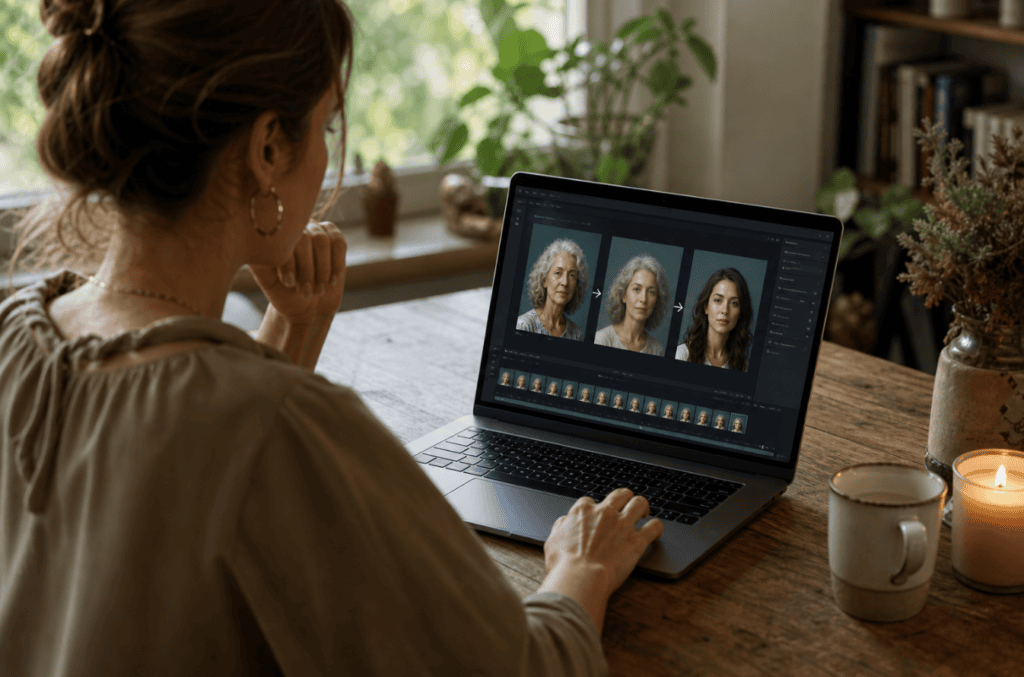
Likeness preservation works best when you describe identity anchors and restrict edits to environment, clothing, or lighting across turns.
- Identity anchors: keep face shape, eye spacing, mole near left cheek, hairstyle intact, same skin undertones.
- Base prompt: Portrait with 85mm lens, soft daylight, unretouched skin texture, neutral color grade.
- Edit turns: new background, outfit swap, or time‑of‑day change while preserving identity anchors.
- Guardrails: avoid beauty filter language; say no skin smoothing, keep pores and fine hair.
I reviewed recent Nano Banana likeness tests that showed consistency improves when you explicitly call out facial markers and limit each edit to one variable at a time.
Portrait caution
Avoid beauty filter language when preserving likeness. Use identity anchors, change one variable per edit turn, and re-state no skin smoothing, visible pores, and fine hair for a natural result.
How Do I Use Design Mixing and Iterative Edits Without Losing Realism?
Design mixing combines style or layout cues from one image with content from another, then uses short follow-ups to normalize lighting and materials.
- Mix prompt: Apply the color palette and label hierarchy of reference A to the product from reference B; keep materials true to matte stainless steel; match light from a softbox at 45 degrees.
- Iteration: If the style looks pasted on, request harmonize reflections and match label curvature to cylindrical surface.
- Constraint: Re-state realism cues every turn, such as unretouched texture and accurate scale.
Our team compared one-shot style transfers against two short turns; the two-turn approach kept materials and reflections believable more often.
Design mixing tip
Use design mixing in two short turns: first apply palette or layout cues, then normalize lighting, reflections, materials, label curvature, and scale so the result does not look pasted on.
Troubleshooting: Texture Smear, Label Legibility, Glare, and Plastic Skin
When realism slips, target the exact failure with a concise correction turn.
- Texture smear on leather or metal
- Say preserve micro-grain and anisotropic brushing; reduce denoise and sharpening artifacts.
- Label legibility and kerning
- Specify vector-sharp text, true-to-scale label, accurate kerning; ask to reproject label onto curved surface with correct perspective.
- Excess glare or plastic sheen
- Ask to reduce specularity and clamp highlights; change finish to satin or matte; maintain softbox at 45 degrees.
- Plastic skin on portraits
- Request unretouched skin, visible pores, fine facial hair, subtle color variation; avoid beauty filter or glow terms.
From the Information Gain Center research, many creators judge AI tools by how expensive failure feels, so concise correction turns help avoid repeated full regenerations.
Mistake to avoid
Do not regenerate the entire image every time realism slips. Use a concise correction turn that targets the exact issue: texture smear, label kerning, glare, plastic skin, specularity, or curved-surface projection.
When Should I Consider Alternatives and Handoff to Video?
If you need lip-synced avatars or animated portraits, a best ai talking photo generator like HeyGen or CapCut’s talking-photo workflows may fit better than static image edits. For ultra-controlled portrait cloning, some editors compare Nano Banana with other contenders often discussed as the most realistic ai photo generator; choose the one that fits your specific subject and turnaround.
Mid-article CTA: Turn your Nano Banana images into polished ad videos in minutes. Build scenes from a product URL with VidAU AI Video, animate stills with VidAU Vid Remix , localize with VidAU Text to Speech and clean edges with Object Remover. For image-first concepts, try VidAU AI Image . Repurpose for vertical ads using Text to Video and refine clarity in Video Enhancer. If you sell physical goods, test Product Sample to Video or assemble storefront clips from links via URL to Video .
Turn Nano Banana Images Into Polished Ad Videos
Create realistic Gemini product images first, then use VidAU AI Video, Vid Remix, Text to Speech, Object Remover, AI Image, Text to Video, Video Enhancer, Product Sample to Video, and URL to Video when you need ad-ready scenes, motion, localization, cleanup, and storefront clips.
VidAU workflow
Where VidAU Fits After Gemini AI Photo Generation
- Use Gemini 2.5 Flash Image for realistic stills: Build product photos and portraits with lens, light, materials, backdrop, depth-of-field, ground contact, and subtle imperfections.
- Use short correction turns for clean source assets: Fix shadows, labels, reflections, skin texture, and design mixing before turning still images into videos.
- Use VidAU AI Video and Product Sample to Video for ad scenes: Convert polished product visuals or physical-goods samples into ad-ready video creative.
- Use Vid Remix, Text to Video, and URL to Video for motion and repurposing: Animate stills, build vertical ads, and assemble storefront clips from links or product pages.
- Use Text to Speech, Object Remover, AI Image, and Video Enhancer for polish: Add localization, clean edges, create extra visuals, and refine clarity before publishing.
Key Takeaways
- Keep prompts short and photographic; avoid style slang that implies filters.
- Use a three-pass sequence for shadows and imperfections.
- Re-state realism tokens every edit turn to prevent drift.
- Hand off to the right tool when you need talking photos or finished ad videos.
Key takeaway
Final Thoughts
Nano Banana shines when you treat it like a studio: clear lens and light, true materials, and a couple of tight edit turns. Start with the hero template, add a shadow pass, and finish with subtle imperfections for a convincing no-filter result.
If you are moving from images to ads, assemble scenes with VidAU AI Video (https://www.vidau.ai/vidau-ai-video/) or build from a product link using URL to Video (https://www.vidau.ai/url-2-video/), then polish with Video Enhancer (https://www.vidau.ai/vidau-video-enhancer/).
FAQ
Here are answers to common questions about the gemini ai photo generator, Gemini 2.5 Flash Image, Nano Banana, natural no-filter AI photos, product photography prompts, likeness preservation, label legibility, texture smear, talking photos, commercial use, and multi-turn editing.
What is the gemini ai photo generator?
The gemini ai photo generator refers to Google’s Gemini 2.5 Flash Image model, often nicknamed Nano Banana, that creates and edits images from prompts and references. It supports likeness preservation, multi-turn editing, product photography, and design mixing when you provide concrete photographic instructions.
How do I get a natural, no-filter look in Gemini?
Use concise, photography-style prompts: lens length, softbox direction, matte or satin finish, seamless backdrop, and f-stop. Add a ground shadow pass, then a light imperfections pass. Avoid style slang like cinematic glow or filmic bloom, which can introduce filter-like artifacts.
What prompts work best for product photography?
Describe material and finish, lens and angle, lighting direction, backdrop, and depth-of-field. Example: matte black stainless water bottle, 85mm lens, softbox at 45 degrees, seamless gray backdrop, f2.8, unretouched texture, accurate label kerning, soft ground shadow. Keep wording short and literal.
How can I preserve likeness across different scenes?
Call out identity anchors explicitly, such as mole placement, eye spacing, hairstyle, and skin undertones. Make one change per turn, like background or outfit, and re-state preserve facial structure, no skin smoothing, and keep pores visible to avoid drift.
Why are textures smeared or labels unreadable?
Smearing often comes from high specularity or oversharpening; ask to preserve micro-grain and reduce specularity. For labels, request vector-sharp text, accurate kerning, and correct curvature projection on cylinders. A second turn focused only on text alignment usually fixes it.
Can Gemini create the most realistic photos compared to other tools?
Nano Banana can be highly realistic with tight prompts and short edits, but realism depends on subject, lighting, and your constraints. Some users prefer other models for specific faces or materials. Choose the tool that fits your task rather than a single universal winner.
Can Gemini make talking photos?
Gemini’s image model focuses on still images and edits. If you need moving mouths and lip sync, consider a best ai talking photo generator such as dedicated avatar tools, then return to stills for thumbnails or product shots if needed.
Can I use Gemini images commercially?
Usage rights vary by platform and account type. Review the official terms for licensing, attribution, and any restrictions on likeness or branded content before commercial use. When in doubt, get permission for identifiable people or trademarks.
How does multi-turn editing improve results?
Short, targeted turns let you add a ground shadow, adjust reflections, or fix text without regenerating the entire image. This keeps materials and angles consistent, reduces overcorrection, and often saves time compared with rewriting a long, one-shot prompt.