GTP Image · Image Limits, PDF Vision & Img to Prompt
GTP Image Guide: Bypass ChatGPT Image Limits, Read Images & PDFs, and Use Img to Prompt
Use safe, temporary workflows to keep moving when GTP image upload or generation limits hit, read embedded images inside PDFs, and turn reference visuals into reusable prompts.
By the VidAU Editorial Team · GTP Image guide · ChatGPT vision, OCR, PDF image extraction, image-to-prompt loops, and VidAU content workflows
Running into ChatGPT’s image upload or image generation limit? This GTP Image guide gives you safe, temporary options to keep moving, plus a fast way to make ChatGPT read images inside PDFs and a practical image-to-prompt loop. I reviewed 2026 “fix image limit” videos and a late-2024 PDF image-reading tutorial; below are the reliable, no-hype steps.
If you are blocked by ChatGPT’s image upload limit or image generation limit, this GTP Image playbook shows safe, temporary workarounds and a proven way to read images inside PDFs. I analysed recent 2026 guides on how to bypass the ChatGPT image limit and a late-2024 tutorial on PDF image reading; here are the distilled steps and prompts.
Quick Summary
- ChatGPT vision workflows: Start by triaging images (crop, compress, batch) to reduce retries and stay under the image upload limit.
- Alternate tools: When the image generation limit hits, offload to Recraft AI or Microsoft Copilot, and route quick questions via Perplexity on WhatsApp.
- PDF images: Use PyMuPDF or PDFPlumber to extract embedded images, then run OCR with Tesseract plus computer vision preprocessing for accurate text and chart capture.
- Best fit: Students, creators, marketers, and researchers who need fast image analysis, PDF visuals reading, and practical image-to-prompt templates.
What Is a GTP Image?
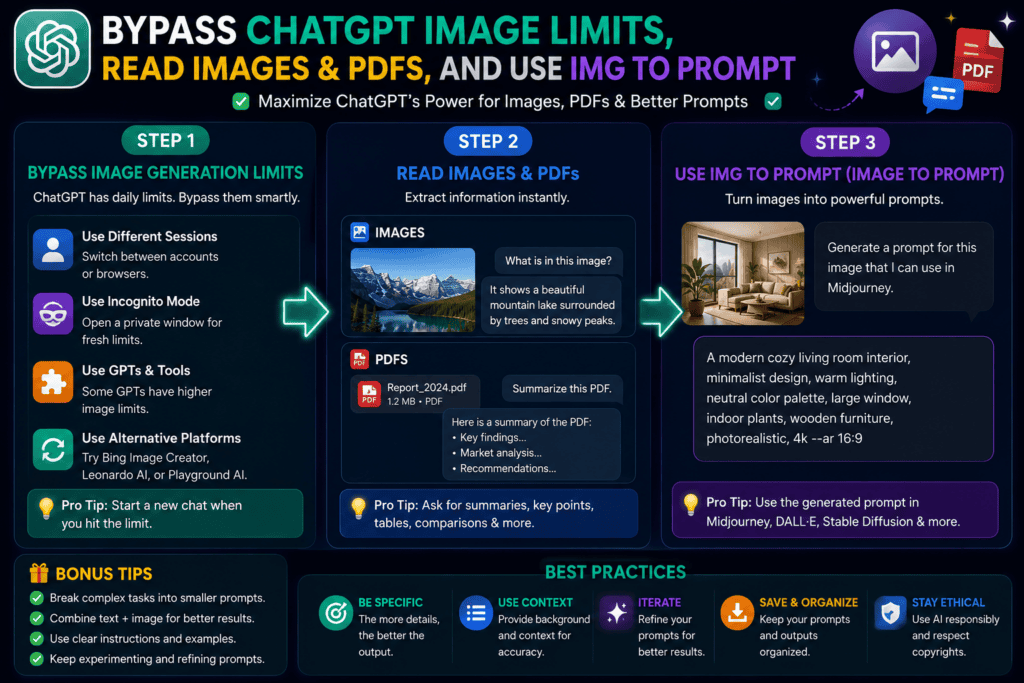
GTP Image refers to practical workflows that use ChatGPT’s vision features to analyze images, extract text, and generate or improve prompts from visuals. In this guide, GTP Image covers three tasks: staying productive under image upload or image generation limits, reading images embedded in a PDF with OCR and computer vision, and turning an image into an effective prompt (image to prompt).
Definition
GTP Image is a practical toolkit for using ChatGPT vision to analyze visuals, work around temporary image limits safely, read images embedded in PDFs, and convert reference images into reusable prompts.
Who Should Use These GTP Image Workflows?
Use these workflows if you need to quickly analyze screenshots, photos, or diagrams, read images inside PDFs, or convert an image into a detailed prompt for image generation elsewhere. This guide is for US-based ChatGPT users, students, creators, marketers, and researchers who want fast, reliable, and safe steps without relying on risky hacks.
Best fit
These workflows fit students, creators, marketers, researchers, and ChatGPT users who need quick image analysis, PDF visual extraction, OCR, or reusable image-to-prompt templates without risky hacks.
How Do You Bypass ChatGPT Image Limits Safely?
The safest path is to minimize usage per task, then use reputable alternates when caps apply. Limits and access can vary by account and region.
Step-by-Step Triage Before You Hit the Cap
Step 1: Compress and crop
Reduce resolution to what’s needed and crop to the region of interest.
Step 2: Batch smartly
Upload 2–3 images per turn with clear numbering, not 10 at once.
Step 3: Ask for structure
Request JSON or bullet outputs to avoid multiple clarifying turns.
Step 4: Deduplicate
Skip near-identical images; reference prior uploads by filename.
When you do hit a cap, use safe alternates (observed in 2026 “fix” videos and common practice):
- Offload generation: If the image generation limit trips, use Recraft AI or Microsoft Copilot to create visuals while you keep the analysis going in ChatGPT.
- Keep Q&A moving: Ask Perplexity on WhatsApp for quick visual follow-ups when ChatGPT is rate-capped, then return to ChatGPT when limits reset.
| Situation | Recommended Option | Why |
|---|---|---|
| Generation limit | Recraft AI | The external model continues images |
| Upload limit | Perplexity via WhatsApp | Fast visual Q&A channel |
| Free alternate | Microsoft Copilot | Image generation + vision |
| Stay in ChatGPT | Crop/compress first | Fewer retries and tokens |
Tip: I reviewed multiple 2026 “how to bypass ChatGPT image limit” guides; the consistent, safe takeaway was to reduce per-turn load and temporarily switch tools, not to chase risky hacks or automated multi-account rotation.
Safe-limit note
Reduce per-turn load and temporarily switch to reputable tools when capped. Avoid risky hacks, automated multi-account rotation, or tactics that ignore privacy or terms-of-service.
How Do You Make ChatGPT Read Images Inside PDFs?
Yes, can ChatGPT read images in PDFs? With the right workflow, it can. From the late-2024 tutorial I reviewed, the reliable stack is: PyMuPDF or PDFPlumber to extract embedded images, then OCR with Tesseract plus computer vision preprocessing.
Quick-Start Workflow (No Code in Your Prompt)
Step 1: Upload the PDF and state the image context
Upload the PDF and state: “Images may be embedded; use computer vision.”
Step 2: Ask ChatGPT to plan extraction
Ask ChatGPT to plan: “Outline steps using PyMuPDF or PDFPlumber to extract images.”
Step 3: Request OCR
Request OCR: “Apply Tesseract OCR with binarization/denoise for better accuracy.”
Step 4: Ask for structure
Ask for structure: “Return results by page > image index > text blocks > chart/table descriptions.”
Step 5: Validate and improve preprocessing
If text looks wrong, ask for enhanced preprocessing (thresholding, contrast).
Mini Prompt Template (Paste Into ChatGPT)
Objective: Extract and read images embedded in this PDF.
Tools: PyMuPDF or PDFPlumber for image extraction; Tesseract OCR; computer vision preprocessing (binarize, denoise, resize).
Output: For each page/image, return: metadata (w×h), OCR text, and descriptions of charts/tables.
Focus: Prioritize pages 1–3. Provide JSON blocks I can reuse.
Practical Notes
- Low-res screenshots often need resizing before OCR.
- If OCR fails, request a visual description plus any legible labels.
- If the PDF is huge, process a page range first to avoid rate caps.
Mid-workflow CTA: If you need to turn extracted text or chart insights into fast video updates or ad-ready clips, try VidAU AI Video Text to Video or URL to Video
PDF image-reading stack
Use PyMuPDF or PDFPlumber to extract embedded images, then run Tesseract OCR with computer vision preprocessing such as binarization, denoising, resizing, thresholding, and contrast improvement.
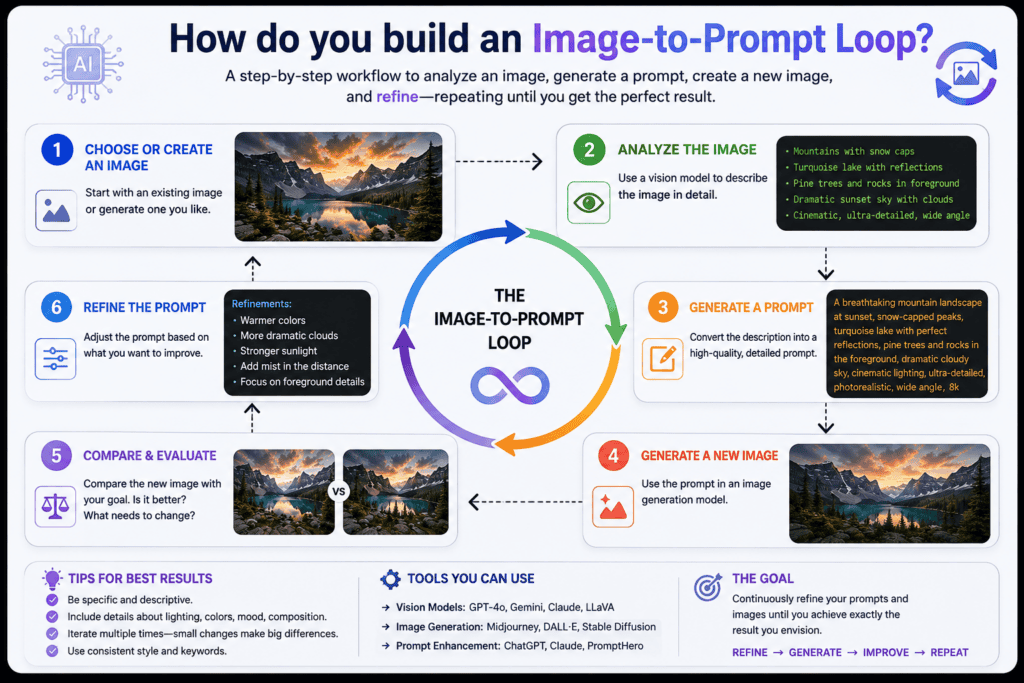
How Do You Build an Image-to-Prompt Loop With GTP Image?
An image-to-prompt loop converts a reference image into a detailed prompt you can reuse in your favorite generator.
Steps
Step 1: Upload the image with constraints
Upload the image with constraints: “Describe composition, subject, lighting, camera, lens, style, color palette.”
Step 2: Ask for a reusable prompt
Ask for a reusable prompt: “Convert that analysis into a 2–3 sentence generator prompt with negative prompts for blur/noise.”
Step 3: Add parameters
Add parameters: “Include aspect ratio, resolution target, and 3 style tags.”
Step 4: Re-run elsewhere
Paste the prompt into Recraft AI or Copilot if ChatGPT’s image generation limit is reached.
Mini Template
Analyze this image for: subject, environment, lighting, mood, lens/focal length, color, textures, post-processing.
Synthesize into a prompt with: [style tags], [aspect ratio], [resolution], [negative prompts: blur, over-sharpening, banding].
Optional: Use VidAU AI Image for creative variations if you are shaping visuals for ads or social.
Img-to-prompt tip
Ask for visual analysis first, then synthesize the reusable prompt. Separating those steps produces cleaner prompts you can paste into Recraft AI, Copilot, VidAU AI Image, or another generator.
Turn Image Insights Into Fast Visual Content
Use GTP Image workflows to extract text, analyze visuals, and build reusable prompts, then use VidAU AI Video, Text to Video, URL to Video, VidAU AI Image, Video Enhancer, Object Remover, UGC Avatars, Text to Speech, and Vid Remix when you need fast marketing outputs.
VidAU workflow
Where VidAU Fits After GTP Image Workflows
- Use GTP Image triage for analysis: Crop, compress, batch smartly, and request structured outputs before hitting ChatGPT image upload or generation limits.
- Use OCR and computer vision for PDFs: Extract embedded images with PyMuPDF or PDFPlumber, then use Tesseract OCR and preprocessing to capture text, charts, screenshots, and tables.
- Use image-to-prompt loops for reusable visuals: Analyze subject, environment, lighting, mood, lens, color, texture, and post-processing, then synthesize prompts you can reuse across tools.
- Use VidAU AI Video, Text to Video, and URL to Video for fast content: Turn extracted insights, scripts, or page URLs into explainer clips, ad-ready videos, or updates.
- Use Video Enhancer, Object Remover, UGC Avatars, Text to Speech, and Vid Remix for polish and repurposing: Enhance footage, clean frames, add a spokesperson, create voiceovers, and reuse clips after the initial analysis or prompt work.
What Common Mistakes Cause Limits or Poor Reads?
- Uploading full-resolution, multi-megabyte screenshots when a 1200–1600px crop would do.
- Sending 10+ images in one turn with vague instructions.
- Not requesting structured outputs, leading to back-and-forth clarifications.
- Expecting OCR to read tiny UI text; upscale or crop the panel first.
- Ignoring privacy or terms-of-service when considering “bypass” tactics.
I reviewed recent community examples and noticed the biggest time sink is unstructured prompts; ask for JSON or bullet sections to reduce follow-ups that trigger caps.
Mistake to avoid
Do not send too many full-resolution images with vague instructions. Use focused crops, upload 2–3 images per turn, and request structured JSON or bullet outputs to reduce retries.
What Are Advanced Tips for High-Volume Image Tasks?
- Preprocess locally: Resize to target width, compress, and crop to regions of interest.
- Use page ranges on PDFs to avoid long runs that hit rate caps.
- Request confidence notes: Ask the model to flag low-confidence OCR.
- Alternate channels: If capped, move quick checks to Perplexity on WhatsApp, then return to ChatGPT.
- Post-process visuals: For ad-ready outputs, enhance video with Video Enhancer, clean frames with Object Remover, or add a spokesperson using UGC Avatars. Turn scripts into voiceovers with Text to Speech and repurpose clips via Vid Remix
High-volume tip
Preprocess locally before upload, use PDF page ranges, ask for confidence notes, and keep alternate tools ready for quick checks when caps apply.
Key Takeaways
- Reduce image load per turn to avoid caps; switch tools temporarily when needed.
- PyMuPDF/PDFPlumber + Tesseract OCR with CV preprocessing reliably reads PDF-embedded images.
- Use img to prompt to codify visual attributes and re-run prompts across tools.
Key takeaway
Final Thoughts
GTP Image is best treated as a practical toolkit: triage images to stretch capacity, switch tools safely during caps, and use OCR plus computer vision to read images inside PDFs. When you need to turn extracted insights into content, consider VidAU AI Video or Text to Video. If you only need raw OCR scripting, a video tool may not be necessary, but for fast marketing outputs, it helps.
FAQ
Here are answers to common questions about whether ChatGPT can read images inside PDFs, how to bypass the ChatGPT image limit safely, image-to-prompt workflows, cropping and compression, OCR accuracy, chart and table extraction, image generation limits, Perplexity on WhatsApp, and turning OCR results into videos or ads.
Can ChatGPT read images inside a PDF?
Yes. In practice, you extract embedded images with PyMuPDF or PDFPlumber, then run OCR using Tesseract with computer vision preprocessing (binarization, denoising, resizing). Ask for structured outputs by page and image index. This approach, popularized in 2024 tutorials, works reliably for screenshots, charts, and scanned visuals.
How to bypass the ChatGPT image limit safely?
Treat it as a temporary workaround: minimize per-turn load (crop, compress, batch 2–3 images), request structured outputs, and switch tools when capped. Offload image generation to Recraft AI or Microsoft Copilot, and route quick checks via Perplexity on WhatsApp. Avoid risky hacks; limits vary by account and region.
What is the best way to build an image-to-prompt workflow?
Upload a reference image, ask ChatGPT to analyze composition, lighting, lens, style, and post-processing, then synthesize a reusable prompt including aspect ratio, resolution, and negative prompts. When ChatGPT’s generator is capped, paste the same prompt into Recraft AI or Copilot to continue.
Does compressing or cropping images really help with limits?
Yes. Smaller, focused images reduce token and compute demands, lowering retries that trigger the image upload limit. Crop to the region of interest, compress to a reasonable width (for example, 1200–1600px), and avoid sending near-duplicate images. Clear, structured instructions further reduce back-and-forth turns.
What if OCR misses tiny text in a screenshot?
Improve input quality first: upscale or crop the panel, then request Tesseract OCR with preprocessing (binarize, increase contrast, denoise). If text remains unreadable, ask for a visual description plus any legible labels. Capturing a higher-resolution screenshot often fixes OCR accuracy issues.
Can I analyze charts and tables embedded in PDFs?
Yes. After extracting images, use computer vision to detect chart regions and request structured descriptions: chart type, axes labels, legend, and notable values. OCR can capture axis text; for low-contrast charts, ask for edge detection or thresholding. Request a JSON summary for downstream tasks.
What should I do when the image generation limit stops my design work?
Switch generators temporarily. Recraft AI and Microsoft Copilot can continue rendering while you refine prompts in ChatGPT. Keep a shared prompt library so you can paste consistent prompts between tools. Return to ChatGPT once the image generation limit resets to maintain conversation context.
Is Perplexity on WhatsApp useful when I hit caps?
It can be. For quick visual questions or follow-ups, Perplexity via WhatsApp provides a low-friction channel during ChatGPT rate caps. It’s best for short clarifications and simple analyses. For multi-image reasoning, return to ChatGPT or a desktop workflow once limits ease.
Can I turn OCR results into short videos or ads quickly?
Yes. Use VidAU AI Video or Text to Video to convert structured findings into explainer clips, and polish footage with Video Enhancer. For creative imagery, try VidAU AI Image. These are optional if you only need text.