No-Code AI Assistant · Voice, Web Search, MCP Tools & Image Generation
How to Create an AI Assistant (No Code): Step-by-Step Guide
Build a voice-enabled AI assistant that can search, plan, draft emails, connect tools through MCP, and prepare image prompts without writing code.
By the VidAU Editorial Team · No-code AI assistant guide · ChatGPT-4o, Claude, MCP, Higgsfield, image prompts, and VidAU video handoff workflows
If you’re wondering how to create an AI assistant without writing code, this guide takes you from blank screen to a voice-enabled helper that can search, email, and generate images. You’ll start with a simple chat host, then add tool connections via MCP to stack new skills in minutes.
You’re here to learn how to create an AI assistant fast, without code. Start with a chat host (ChatGPT‑4o or Claude), enable voice and web search, then connect external tools with MCP (Model Context Protocol). Finally, add a text-to-image generator so your assistant can produce on‑brand visuals on command.
If you need visuals for ads or social, I’ll include a structured image prompt template and a copy-ready example so you can create the text-to-image prompt for this scene in seconds.
Quick Summary
- ChatGPT-4o or Claude is the fastest no-code path to a voice-enabled assistant that can search, plan, and run simple tasks.
- An MCP connector to a text-to-image generator like Higgsfield adds image creation inside the same chat with approval checkpoints.
- A strong image prompt includes subject, context, style, camera lens, lighting, color grading, aspect ratio, and negative prompts.
- Beginners, solo creators, and entrepreneurs get a usable assistant today and can add new tools later without coding.
In This Guide
- What an AI assistant is and how it works
- Who should build one with no code
- How to create an AI assistant with no code: step-by-step workflow
- How to create an AI image workflow inside your assistant
- Best no-code hosts and when to use each
- Common mistakes and how to avoid them
- Advanced strategies to scale your assistant
- Final Thoughts
- FAQ
What Is an AI Assistant?
An AI assistant is a conversational system that understands requests, reasons about context, and executes tasks through built‑in features or connected tools. In this guide, the assistant runs inside a no‑code chat host, speaks via voice, searches the web, drafts emails or calendar notes, and can generate images by calling a text-to-image generator.
Definition
An AI assistant is a conversational system that understands requests, reasons about context, and executes tasks through built-in features or connected tools.
Who Is This For?
This tutorial fits beginners, solo creators, and non-technical founders who want a practical assistant to handle research, messaging, and content snippets without writing code. If you can follow app settings and copy-paste templates, you can get a working assistant today and layer in new skills later.
Best fit
This no-code workflow is best for beginners, solo creators, and non-technical founders who need a practical assistant for research, messaging, content snippets, and visual prompt preparation.
How to Create an AI Assistant With No Code: Step-by-Step Workflow
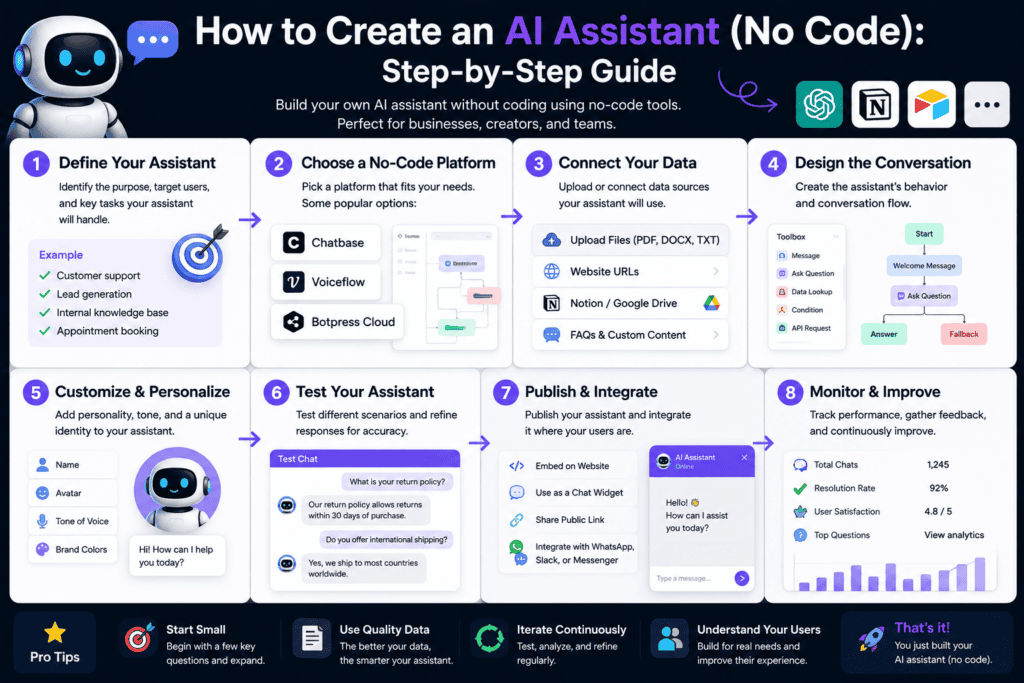
The fastest route uses a mainstream chat host, then adds tools through MCP.
Step 1: Pick your host and turn on voice
- Choose ChatGPT-4o or Claude; enable voice so you can talk hands-free.
- Set your assistant’s name and purpose (for example: personal research and content helper).
Step 2: Enable web access and safe actions
- Allow web search/browsing where available.
- Add guardrails: require explicit confirmation before sending emails or posting anything.
Step 3: Add simple built-in automations
- Configure email draft and calendar draft actions if your host supports them.
- Store a short profile: brand voice, writing dos and don’ts, and recurring tasks.
Step 4: Connect external tools with MCP (Model Context Protocol)
- MCP lets assistants call tools like generators or data sources from within chat.
- I reviewed Runway’s MCP push, and the direction is clear: modern assistants increasingly trigger creation tools rather than making you switch apps.
Step 5: Add a text-to-image generator via MCP (Higgsfield example)
- Connect a Higgsfield workflow (or another text-to-image generator) and set an approval checkpoint: the assistant must show the prompt and ask for confirmation before rendering.
- Our team reviewed current assistant workspaces and found the approval-first pattern keeps outputs on-brand and avoids wasted credits.
Step 6: Test core tasks end-to-end
- Voice asks: “Summarize today’s top two articles on [topic] and draft a reply email.”
Image ask: “Propose a product hero concept and prepare the image prompt; wait for my approval before generating.”
Step 7: Save as a reusable persona
Save your instructions, tool connections, and safety rules as a named assistant so you can relaunch it on desktop or mobile.
Key Takeaways
- Start with a voice-enabled chat host, then add tools via MCP.
- Gate risky actions (email send, purchases) behind explicit approval.
- Treat image generation as a two-step flow: draft prompt, then render.
How to Create an AI Image Workflow Inside Your Assistant
You’ll orchestrate images in two steps: the assistant drafts an image prompt, you approve, then it renders via the connected generator (Higgsfield, Midjourney, Stable Diffusion, or DALL·E).
I reviewed recent prompting guides and found consistent wins from structured prompts: tightly defined subject and context, explicit cinematic style, camera lens, lighting, color grading, aspect ratio, and negative prompts.
Use This 8-Part Image Prompt Recipe
- Subject: who/what, key attributes
- Context: setting, action, mood
- Style: cinematic style, illustration, or photorealistic
- Camera lens: focal length and camera angle
- Lighting: quality, direction, time of day
- Color grading: grading look (for example, teal and orange)
- Aspect ratio: 1:1, 9:16, 16:9, or a specific ratio
- Negative prompts: what to avoid (artifacts, blur, watermark)
Copy the Template Your Assistant Can Use to Create the Text-to-Image Prompt for This Scene
Subject: [concise subject]
Context: [setting, action, mood]
Style: [cinematic style or photorealistic]
Camera lens: [35mm prime, low angle]
Lighting: [soft key, rim light, golden hour]
Color grading: [teal and orange, filmic contrast]
Aspect ratio: [9:16]
Negative prompts: [banding, extra fingers, text, watermark]
End-to-End Example (Copy/Paste)
Subject: coral reef explorer in a vintage dive suit, air bubbles
Context: swimming past bioluminescent coral, schools of fish, serene mood
Style: cinematic style, photorealistic
Camera lens: 35mm prime, medium shot, slight low angle
Lighting: volumetric shafts, dappled caustics, soft backlight
Color grading: cool cyan blues with warm amber highlights
Aspect ratio: 16:9
Negative prompts: murky haze, blur, AI artifacts, watermark, text
Tips
- Use one decisive focal length; “35mm prime” is a reliable baseline.
- Always declare the aspect ratio to match your output platform.
- Keep negative prompts short and specific; avoid laundry lists.
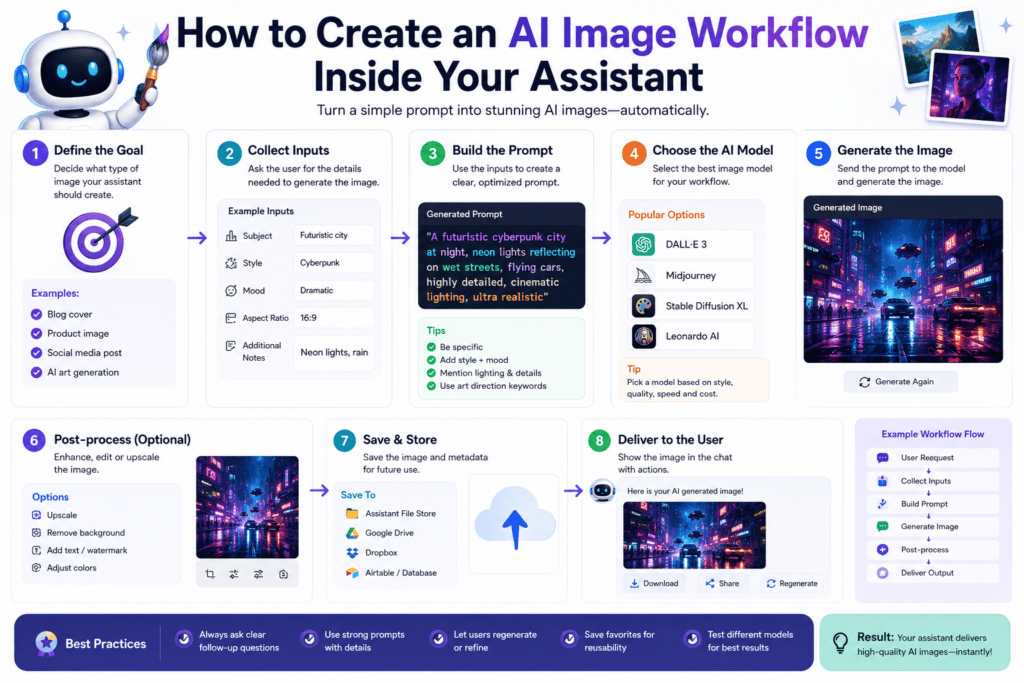
Image workflow tip
Use a two-step image flow: have the assistant draft the structured prompt first, then approve the prompt before rendering so credits and brand consistency stay under control.
Best No-Code Hosts Compared by Use Case
| Assistant Host | Best For | Notes |
|---|---|---|
| ChatGPT-4o | Fast voice chat + visuals | Strong multimodal chat UX |
| Claude | Long, careful writing | Great for planning and edits |
| Either + MCP | Tool-driven workflows | Call generators from chat |
I reviewed how Kapwing positions its AI as a conversational workspace, not a single-output button. That mindset applies here: your assistant becomes the surface where you plan, approve, and generate, then iterate.
Host selection rule
Use ChatGPT-4o when voice and visuals matter most, Claude when long careful writing matters most, and either host with MCP when connected tools become the main workflow.
Common Mistakes and How to Avoid Them
- Skipping approvals: Always confirm before sending emails or rendering images.
- Vague instructions: Give brand voice, audience, and examples in your system message.
- No aspect ratio: Declare 9:16 for shorts, 1:1 for feeds, 16:9 for landscape.
- Ignoring negative prompts: Ban artifacts and watermarks explicitly.
- Tool sprawl: Start with one image generator; add more only if outputs drift off-brand.
Mistake to avoid
Do not skip approval checkpoints. Your assistant can draft, plan, and prepare outputs quickly, but emails, posts, purchases, and image renders should wait for explicit confirmation.
Advanced Strategies to Scale Your Assistant
- Approval tiers: Auto-approve low-risk tasks; require confirmation for public outputs.
- Prompt presets: Save prompt snippets (style, lens, lighting) for repeatable looks.
- Brand tokens: Keep a mini brand kit (colors, product angles) in memory for consistent results.
- Output QA: Ask the assistant to self-critique against a 5-point checklist before final render.
Scaling tip
Use approval tiers, prompt presets, brand tokens, and output QA to keep your assistant fast without losing control over public or brand-sensitive outputs.
Mid-Article CTA
If you also need video ad assets after you generate images, consider VidAU. VidAU is an AI video ad platform that generates video ads from product URLs, images, or scripts in 49 languages. You can turn prompts or product pages into ad‑ready videos using:
- VidAU AI Video
- Text to Video
- URL to Video
- UGC Avatars
- VidAU Text to Speech
- VidAU Video Enhancer
- VidAU Vid Remix
Turn Assistant-Generated Ideas Into Video Ads
Use your AI assistant to draft prompts and concepts, then hand approved images, scripts, or product pages to VidAU AI Video, Text to Video, URL to Video, UGC Avatars, Text to Speech, Video Enhancer, and Vid Remix for ad-ready creative.
VidAU workflow
Where VidAU Fits in a No-Code AI Assistant System
- Use ChatGPT-4o or Claude as the assistant host: Start with voice, web search, drafting, and a clear persona for research, messaging, and content support.
- Use MCP for connected creation tools: Add tools like Higgsfield or other generators so the assistant can draft prompts and call external workflows from the chat surface.
- Use approval checkpoints before rendering: Ask the assistant to show the prompt first, then wait for confirmation before generating images or spending credits.
- Use VidAU for video ad production: Turn approved images, scripts, or product URLs into ad-ready videos using VidAU AI Video, Text to Video, and URL to Video.
- Use UGC Avatars, Text to Speech, Video Enhancer, and Vid Remix for scale: Add spokesperson formats, voiceovers, polish, and repurposed variants after the assistant has planned the creative direction.
Key takeaway
Final Thoughts
A practical way to learn how to create an AI assistant is to ship a small, safe build, then layer skills. Start with ChatGPT‑4o or Claude, add MCP for generation tools, and use the 8‑part image prompt recipe for consistent visuals. When you’re ready for video creatives, hand off assets to VidAU’s tools to move from images to ad‑ready videos.
FAQ
Here are answers to common questions about how to create an AI assistant without code, voice assistants, MCP connectors, image generation, text-to-image prompts, approval checkpoints, aspect ratios, negative prompts, consistent image outputs, and turning generated images into ad videos with VidAU.
What’s the fastest no-code way to get a voice AI assistant?
Pick a mainstream host like ChatGPT-4o or Claude and enable voice. Add web search, set a short system message with your goals, and require approval for any sends. This gets you a safe, useful assistant in under an hour, with room to add tools later via MCP.
How do I connect image generation to my assistant without coding?
Use MCP (Model Context Protocol) to connect a text-to-image generator such as Higgsfield. Configure an approval checkpoint so the assistant first drafts the image prompt, waits for your confirmation, then renders. This keeps outputs consistent and prevents wasted credits or off-brand results.
Which text-to-image generator should I start with?
Start with any reliable text-to-image generator you already use, then try alternatives. Midjourney tends toward stylized art, Stable Diffusion offers local or hosted flexibility, and DALL·E provides strong prompt adherence. If you connect Higgsfield via MCP, keep an approval step before rendering.
How do I write a strong image prompt?
Use an 8-part structure: subject, context, style, camera lens, lighting, color grading, aspect ratio, and negative prompts. Specify one focal length, one lighting setup, and a clear cinematic style. Always set the aspect ratio to match your platform and include short negative prompts to block artifacts.
Can my assistant generate images and also draft emails or calendar events?
Yes. Keep content generation and communications separate in your instructions. Use approval gates: the assistant can draft emails or events, but you confirm before sending or adding to the calendar. This approach balances convenience with safety.
What’s the best aspect ratio for social images?
Match the platform: 9:16 for Stories, Reels, and Shorts; 1:1 for many feed posts; 16:9 for landscape videos or thumbnails. Declare the aspect ratio inside your prompt so the generator composes for the right frame from the start.
How do negative prompts help?
Negative prompts tell the model what to avoid, such as blur, banding, extra fingers, or watermarks. Keep them short and specific. This reduces cleanup time and improves the odds that the first render is usable without heavy edits.
Should I include camera lens details even for illustrations?
Yes. Declaring lens and angle (for example, 35mm, low angle) shapes composition and perspective. It works for photorealism and stylized art. If the look feels too tight or wide, adjust focal length and angle before changing anything else.
How do I keep image outputs consistent across sessions?
Save your prompt template, brand tokens, and sample outputs inside your assistant’s memory or a shared doc. Reuse the same style, lens, lighting, and grading language. Consistency in those four fields does most of the work for visual continuity.
Can I turn my generated images into quick ad videos?
Yes. After rendering images, you can assemble them into short videos using VidAU tools like Text to Video (https://www.vidau.ai/text-to-video/), URL to Video (https://www.vidau.ai/url-2-video/), and VidAU AI Video (https://www.vidau.ai/vidau-ai-video/). For voiceovers, use VidAU Text to Speech (https://www.vidau.ai/vidau-text-to-speech/).