Shopify Setup · Ecommerce Beginner Guide
How to Make a Shopify Store: Step-by-Step Setup Guide for Beginners
A complete beginner-friendly walkthrough for creating a Shopify account, choosing a theme, adding products, setting up payments, configuring shipping, launching, and growing your store.
By the VidAU Editorial Team · Updated 2026 · 24 min read
Creating your first Shopify store can feel overwhelming when you are unsure where to begin. This detailed guide on how to make a shopify store walks you through every step, from choosing a theme to adding your first product. As you follow each stage, you build confidence and turn the setup process into something simple and rewarding.
Building an online store is no longer limited to tech experts or large companies. With Shopify, anyone can learn how to make a shopify store and launch a professional ecommerce website within hours. This guide covers every essential step to help you create a polished store that functions properly, attracts customers, and supports long-term sales growth.
Quick summary
- Shopify gives beginners a ready-made ecommerce system for building a store without coding, including hosting, checkout, payments, products, themes, and core admin tools.
- A strong setup starts with the basics: create your account, choose a theme, customize your homepage, add products, organize collections, configure navigation, and create essential pages.
- Before launching, test everything carefully including payments, shipping, checkout, navigation, product details, mobile experience, policies, and store pages.
- Growth depends on continuous improvement after launch through marketing, customer service, analytics, inventory management, SEO, video content, and conversion optimization.
Understanding the Shopify Platform
Before diving into the setup process, it helps to understand what Shopify actually is and how it works.
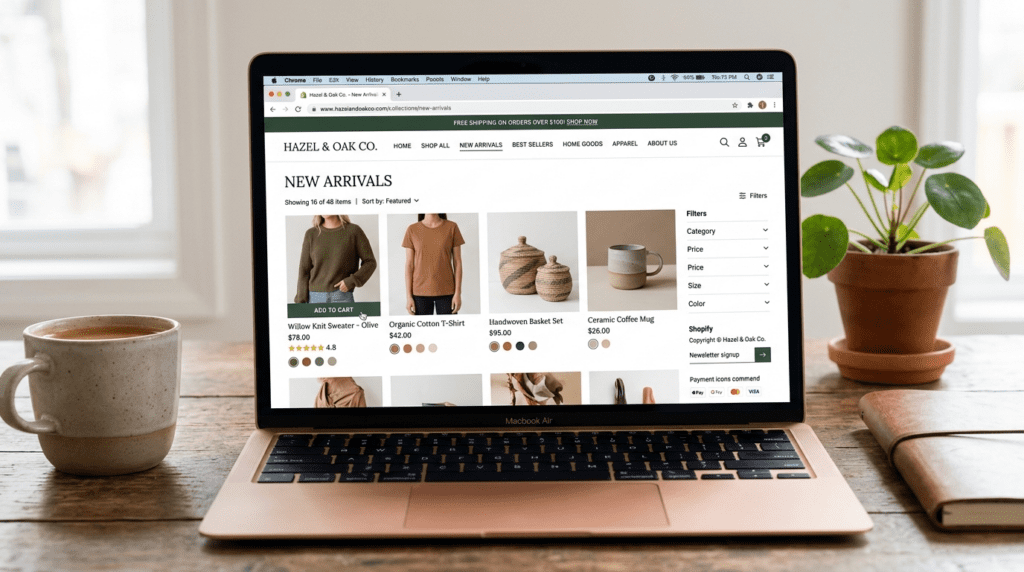
Shopify is a comprehensive ecommerce platform that provides everything you need to sell products online. Unlike building a website from scratch with code, Shopify gives you a ready-made system where you simply fill in your store details, customize the design, and add products. The platform handles the technical infrastructure, security, hosting, and checkout process so you can focus on running your business.
How does Shopify work? Think of it as a complete store-building toolkit. You sign up for an account, choose a visual theme for your store, add your products with descriptions and images, set up payment processing, configure shipping options, and launch. Customers visit your store, browse products, add items to their cart, and complete checkout. Shopify processes the payment securely and you fulfill the order.
The platform serves businesses of all sizes. Individual entrepreneurs use it to sell handmade goods. Growing brands use it to manage thousands of products. The same core system scales with your business, adding features as you need them.
Shopify operates on a subscription model with different pricing tiers. You pay a monthly fee to access the platform, and Shopify takes a small percentage of each transaction if you use their built-in payment processor. This structure means you’re not building something you own outright, but renting access to powerful ecommerce infrastructure that would cost far more to build independently.
Why this matters
Shopify gives beginners a store-building toolkit rather than requiring them to build ecommerce infrastructure from scratch. That means the early focus can stay on products, design, payments, shipping, launch testing, and customer experience.
Creating Your Shopify Account
The first practical step is setting up your Shopify account. This process takes just a few minutes and doesn’t require payment information initially.
Visit the Shopify website and click the button to start your free trial. Most accounts come with a three-day trial period, after which you can continue for three months at a reduced rate before standard pricing applies. This trial gives you time to build and test your store without financial commitment.
When you create your account, Shopify asks for basic information: your email address, a password, and a store name. The store name can be changed later, so don’t stress over getting it perfect immediately. This name appears in your admin dashboard and in your default URL.
After entering these details, Shopify presents a quick questionnaire asking about your business. Questions include whether you’re already selling, what you plan to sell, and your experience level. These questions help Shopify customize your dashboard experience, but they don’t lock you into any particular path. Answer honestly for the most relevant setup suggestions.
Once you complete the questionnaire, Shopify creates your store and takes you to the admin dashboard. This dashboard is your control center for everything related to your store. The left sidebar contains links to all major sections: Orders, Products, Customers, Analytics, Marketing, and Settings.
Your initial store URL will be something like “yourstore.myshopify.com.” This temporary URL lets you build and preview your store. Later, you’ll connect a custom domain to make your store look more professional.
Choosing and Customizing Your Theme
Your store’s visual appearance significantly impacts how customers perceive your brand and whether they trust you enough to buy. Shopify themes control this appearance, and choosing the right one matters.
Shopify offers both free and paid themes. Free themes provide solid functionality and professional design. Paid themes, which cost between $150-$350, offer more advanced features, unique layouts, and specialized functionality. For most beginners, starting with a free theme makes sense. You can always upgrade later as your business grows.
To access themes, go to Online Store in your admin sidebar, then click Themes. Shopify comes with a default theme already installed, but you should explore other options to find one that matches your product type and brand vision.
Click “Explore free themes” to browse Shopify’s free theme library. Each theme includes a preview button so you can see how it looks with sample content. Consider these factors when evaluating themes:
- Layout style: Does it emphasize large product images, or does it work better for stores with many products?
- Homepage sections: What content blocks are available for the homepage?
- Navigation: How does the menu system work?
- Product page layout: How are product details, images, and purchase buttons arranged?
- Mobile responsiveness: How does the theme look on phones and tablets?
Once you select a theme, click “Add to theme library” and then “Publish” to make it your active theme. Now you can customize it to match your brand.
Click “Customize” next to your active theme to open the theme editor. This visual editor shows your store on the right side and editing controls on the left. You build your store by adding, removing, and configuring sections.
Start by adding your logo. Click on the header section and upload your logo image. If you don’t have a logo yet, you can use your store name as text temporarily. Tools like Canva allow you to create simple logos for free.
Next, customize your brand colors. Most themes let you set primary and secondary colors that appear throughout your store. Choose colors that represent your brand and provide good contrast for readability. If you’re matching colors from an existing brand element, browser extensions like ColorZilla help you identify exact color codes.
Tip
A focused homepage with three to five meaningful sections typically converts better than one stuffed with every available option. Prioritize clarity, trust, and product understanding before adding extra design sections.
Adding Your First Products
Products are the core of your store. Adding them properly from the start saves time and creates a better shopping experience.
Go to Products in your admin sidebar and click “Add product.” This opens the product creation page where you’ll enter all relevant information.
Start with the product title. This should clearly describe what you’re selling. Use language your customers would use when searching for the product. For example, “Men’s Cotton Crew Neck T-Shirt” is more specific and searchable than just “T-Shirt.”
Next, write your product description. This is where you explain what the product is, what benefits it provides, and why someone should buy it. Good product descriptions:
- Explain key features and specifications
- Describe the problem the product solves
- Include dimensions, materials, or other technical details
- Mention what’s included in the purchase
- Address common questions or concerns
- Use clear paragraph breaks and bullet points for readability
Write descriptions for human readers first, search engines second. Clear, helpful information converts better than keyword-stuffed text.
Upload product images next. High-quality images directly impact conversion rates. Include multiple angles, detail shots, and lifestyle images showing the product in use. Images should be well-lit, in focus, and accurately represent the product color and appearance.
Shopify recommends square images at least 2048 x 2048 pixels for best quality across devices. You can upload up to 250 images per product, though most products need between 3-8 images.
After images, set your pricing. The “Price” field is what customers pay. If you want to show a compare-at price to indicate a discount, enter the original price in the “Compare at price” field. Shopify will display the discount percentage automatically.
The “Cost per item” field is for your internal tracking. Enter what you paid for the product so Shopify can calculate your profit margins in reports. Customers never see this number.
Check “Charge tax on this product” if the item is taxable in your jurisdiction. Shopify can handle tax calculations automatically once you configure tax settings.
Next comes inventory tracking. Check “Track quantity” if you want Shopify to monitor stock levels. Enter your available quantity in the “Available” field. You can choose whether to continue selling when inventory reaches zero or stop sales automatically.
The SKU field lets you assign a stock-keeping unit code for inventory management. This is optional but helpful if you use inventory management software or sell through multiple channels.
If your product requires shipping, enter the weight. Accurate weight information ensures correct shipping cost calculations. You can also add barcodes and harmonized system codes for international shipping if applicable.
For products with variants like different sizes or colors, scroll down to the “Variants” section. Click “Add variant” and specify the variant type. For a t-shirt, you might add size variants: Small, Medium, Large, Extra Large. For each variant, you can set individual prices, SKUs, and quantities.
You can create variants for up to three options per product, such as size, color, and style. Each combination creates a separate variant that customers can select.
The “Search engine listing preview” section shows how your product appears in Google search results. Click “Edit” to customize the page title, description, and URL. For best SEO, include your primary product keyword in the title and description naturally.
Finally, set product availability. Choose whether the product is available on your online store and any other sales channels you use. You can also set a specific publish date if you want to schedule the product to appear later.
Click “Save” when you’re finished. Your first product is now live in your store’s backend, ready to be displayed to customers once you launch.
Repeat this process for each product you want to sell. The more detailed and accurate your product information, the better your conversion rates and the fewer customer service questions you’ll receive.
Organizing Products into Collections
Collections help customers find what they’re looking for by grouping related products together. They also improve navigation and enable you to feature specific product groups on your homepage or in promotions.
Go to Products > Collections and click “Create collection.” Enter a collection title like “Summer Collection” or “Best Sellers” and write a description that explains what customers will find in this collection.
Collections can be manual or automated. Manual collections require you to select which products to include. This gives you complete control but requires updating the collection whenever you add new products that should appear in it.
Setting Up Store Navigation
Clear navigation helps customers find what they need quickly. A confusing navigation structure frustrates visitors and costs you sales.
Go to Online Store > Navigation to edit your menus. Most stores have a main menu that appears in the header and a footer menu with secondary links.
Click on your main menu to edit it. By default, it includes a link to your homepage and a catalog link. Add links to your important collections, key product pages, and any essential pages like About or Contact.
To add a menu item, click “Add menu item,” enter a name for the link, and select where it should point. You can link to collections, products, pages, blogs, or external URLs.
Arrange menu items logically. Put your most important collections at the beginning where they’re most visible. Group related items together.
For stores with many collections, consider creating dropdown menus. Click “Add menu item” and give it a name, but don’t link it to anything. Then add child items underneath it. These child items become the dropdown options when customers hover over the parent item.
Your footer menu typically includes links to policies, contact information, and secondary pages. Keep this menu simple and focused on essential links that build trust and provide necessary information.
Test your navigation after setting it up. Click through each link to ensure it goes to the correct destination. Check that the menu displays properly on mobile devices, where navigation often collapses into a hamburger menu.
Creating Essential Pages
Beyond product pages, your store needs several standard pages that provide information and build trust.
Go to Online Store > Pages to create new pages. Essential pages for most stores include:
About Page
This page tells your brand story. Explain who you are, why you started your business, and what makes your products special. Include photos of yourself, your team, or your workspace to create a personal connection. Customers buy from businesses they trust, and a genuine About page builds that trust.
Contact Page
Provide ways for customers to reach you. Include an email address, phone number if you offer phone support, and your business address if you have a physical location. Shopify can add a contact form automatically if you use the contact page template.
Shipping Information Page
Explain your shipping methods, typical delivery times, shipping costs, and any international shipping details. Clear shipping information reduces cart abandonment and customer service inquiries.
Return and Refund Policy
Detail your return policy including the return window, conditions for returns, and the refund process. A clear return policy reduces purchase anxiety and can actually increase sales by making customers more comfortable buying.
FAQ Page
Anticipate common questions customers might have and answer them proactively. This page saves you time on customer service and helps customers make purchase decisions faster.
When creating pages, use the rich text editor to format content with headings, bold text, bullet points, and images. Structure information clearly so visitors can scan and find what they need.
After creating pages, add links to them in your navigation menus so customers can find them easily.
Conclusion
Anticipate common questions customers might have and answer them proactively. This page saves you time on customer service and helps customers make purchase decisions faster.
When creating pages, use the rich text editor to format content with headings, bold text, bullet points, and images. Structure information clearly so visitors can scan and find what they need.
After creating pages, add links to them in your navigation menus so customers can find them easily.
Configuring Store Policies
Shopify requires stores to display certain legal policies, and customers expect to see them before making a purchase. These policies protect both you and your customers.
Go to Settings > Policies. Shopify provides policy templates for:
- Refund policy
- Privacy policy
- Terms of service
- Shipping policy
Click “Create from template” for each policy. Shopify generates standard policy text, but you must customize it to match your actual business practices. Read through each policy carefully and update any sections that don’t apply to your store or that need your specific information.
For example, the refund policy template includes blanks where you specify your return window. If you offer 30-day returns, update the policy to say so. If you only accept unopened returns, add that restriction.
The privacy policy explains how you collect and use customer data. This is legally required in most jurisdictions, especially if you sell to customers in the European Union or California. The template covers basic privacy practices, but you may need to add information about specific apps you use or marketing practices you employ.
Once you save your policies, Shopify automatically links to them in your store footer. Customers can access them before checkout.
Consider having a lawyer review your policies, especially if you’re selling in multiple countries with different legal requirements. The templates provide a starting point, but they’re not a substitute for legal advice.
Watch out
Policy templates are only a starting point. Customize them to match your actual return, privacy, shipping, and terms practices, especially if you sell in multiple countries with different legal requirements.
Setting Up Payment Processing
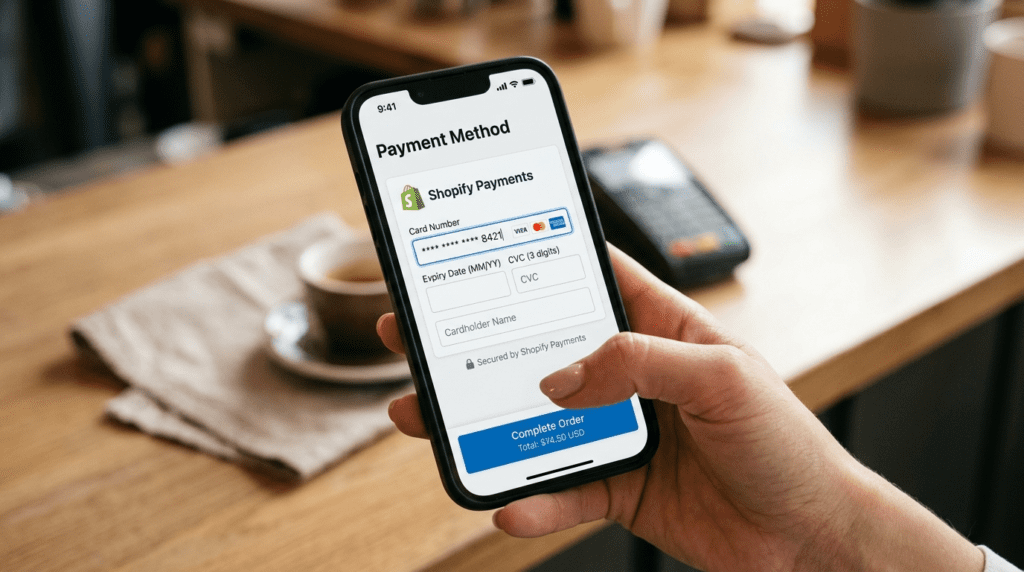
Before you can accept orders, you must configure how you’ll receive payment. Shopify offers several options.
Shopify Payments
The Shopify Payments is the platform’s built-in payment processor. It supports credit cards, digital wallets like Apple Pay and Google Pay, and payment plans through Shop Pay Installments. Using Shopify Payments offers several advantages:
- No transaction fees beyond standard credit card processing rates
- Faster setup with fewer forms to complete
- Funds deposit directly to your bank account
- All payment data appears in your Shopify admin
- Better integration with Shopify’s features
To activate Shopify Payments, go to Settings > Payments and click “Complete account setup” under Shopify Payments. You’ll need to provide:
- Business details including business type and tax ID
- Personal information for the business owner
- Bank account information for deposits
- Product information describing what you sell
Shopify reviews your application, which typically approves within a few hours to a few days for straightforward businesses. High-risk product categories might face additional scrutiny or denial.
Shopify Payments availability depends on your country. It’s available in the United States, Canada, United Kingdom, Australia, and several other countries, but not everywhere. If it’s not available in your location, you’ll need to use a third-party payment gateway.
Third-Party Payment Gateways
If you can’t use Shopify Payments or prefer a different processor, Shopify supports over 100 third-party payment gateways. Popular options include PayPal, Stripe, Authorize.net, and Square.
Third-party gateways work well but come with a transaction fee on top of their processing fees. This transaction fee ranges from 0.5% to 2% per transaction depending on your Shopify plan. Shopify charges this fee to cover the cost of integrating with external payment systems.
To add a third-party gateway, go to Settings > Payments and click “Add payment methods” in the third-party providers section. Search for your preferred gateway, click it, and follow the setup instructions. You’ll typically need to create an account with the payment provider and connect it to Shopify using API credentials.
Additional Payment Methods
Beyond credit cards, consider enabling additional payment methods that customers prefer:
- PayPal Express: Lets customers pay directly through their PayPal account without entering card details
- Digital wallets: Apple Pay, Google Pay, and Shop Pay offer faster checkout
- Buy now, pay later: Services like Afterpay and Klarna let customers split purchases into installments
Each additional payment method requires its own setup, but offering multiple options can improve conversion rates by letting customers pay their preferred way.
Configuring Shipping Settings
Shipping configuration significantly impacts customer experience, so it’s worth taking time to set it up properly.
Go to Settings > Shipping and delivery to access shipping options.
Shipping Zones
The Shipping zones define geographic areas where you ship and what rates apply. Start by creating a zone for your home country, then add additional zones for any international locations you serve.
Click “Create zone” and give it a name like “United States” or “Domestic.” Select which countries or regions belong to this zone.
Within each zone, you set shipping rates. You have several options:
Manual Rates
Manual rates are fixed amounts you charge based on order value or weight. For example, you might charge:
- $5.99 standard shipping
- Free shipping on orders over $50
- $2.99 economy shipping (5-7 days)
- $9.99 express shipping (1-2 days)
Manual rates work well when your products have similar shipping costs or when you want to keep pricing simple for customers. The downside is they might not cover your actual shipping costs accurately, especially as package weights vary.
To add a manual rate, click “Add rate” within your shipping zone, name the rate, set the price, and specify any conditions like minimum order value.
Free Shipping
Many stores offer free shipping as a marketing incentive. You can create a free shipping rate and optionally set conditions:
- Free on all orders
- Orders over a certain amount are also free
- Free for specific products
If you offer conditional free shipping, display the threshold clearly on your site. Messages like “Add $12 more for free shipping” encourage customers to increase their order size.
International Shipping
If you ship internationally, create separate zones for different countries or regions. International shipping is more complex because:
- Costs are higher
- Delivery times are longer
- Customers may pay customs duties and taxes
- Regulations vary by country
Be clear about any additional fees customers might owe. Consider whether you want to collect customs duties at checkout or require customers to pay them upon delivery. Some stores limit international shipping to certain countries to keep complexity manageable.
Local Delivery and Pickup
If you have a physical location, you can offer local delivery or local pickup options. Local delivery lets you deliver orders yourself within a specific area, while local pickup lets customers collect orders from your location.
These options work well for local businesses and can differentiate you from larger competitors. They also eliminate shipping costs for nearby customers.
Setting Up Your Domain
A custom domain makes your store look professional and memorable. Instead of “yourstore.myshopify.com,” customers visit “yourstore.com.”
You can either:
- Buy a domain through Shopify
- Buy a domain from a third-party registrar and connect it
Buying Through Shopify
Go to Settings > Domains and click “Buy new domain.” Search for your desired domain name. Shopify shows available options and pricing, typically around $11-15 per year depending on the extension.
If you buy through Shopify, connection happens automatically. Your domain appears as your primary domain, and your old myshopify.com address redirects to it.
Connecting an External Domain
If you already own a domain from providers like GoDaddy, Namecheap, or Google Domains, you can connect it to Shopify.
In Settings > Domains, click “Connect existing domain.” Enter your domain name and follow Shopify’s instructions for updating DNS records at your domain registrar.
This process involves logging into your domain provider’s control panel and adding specific DNS records that point your domain to Shopify’s servers. Shopify provides the exact records you need to add.
DNS changes can take 24-48 hours to propagate fully, so be patient. Your store might be accessible at your new domain immediately or might take some time.
Email Address
Consider setting up a custom email address matching your domain, like hello@yourstore.com or support@yourstore.com. Professional email addresses build more trust than generic Gmail addresses.
Shopify doesn’t provide email hosting, but you can purchase it from providers like Google Workspace, Microsoft 365, or Zoho Mail. These services typically cost $5-10 per month per email address.
Testing Before Launch
Before removing the password from your store and making it public, thoroughly test every aspect of the shopping experience.
Test Purchases
Shopify lets you place test orders to ensure checkout works correctly. You can use Shopify’s test payment gateway or enable test mode on your actual payment processor.
Go through the complete purchase process:
- Add products to cart
- Go to checkout
- Enter shipping information
- See shipping rate options
- Enter payment information
- Complete the order
After completing a test order, check:
- Did you receive the order confirmation email?
- Does the order appear correctly in your admin?
- Are the amounts and details accurate?
- Did shipping calculate correctly?
- Does the customer receive appropriate emails?
Test from multiple devices and browsers to ensure compatibility. Many stores discover checkout problems only after launch because they didn’t test adequately.
Navigation Testing
Click every link in your navigation menus. Verify they all go to the correct destinations. Check that dropdown menus work properly. Test navigation on mobile devices where menus often behave differently.
Mobile Testing
Over half of online shopping happens on mobile devices. Your store must work flawlessly on phones and tablets.
Open your store on your phone and:
- Browse products
- Read product descriptions
- View images
- Add items to cart
- Complete checkout
Look for:
- Text that’s too small to read
- Buttons too small to tap accurately
- Images that don’t load or look distorted
- Layout problems where elements overlap
- Slow page loading
The theme editor includes mobile preview, but nothing replaces testing on actual devices.
Product Detail Check
Review each product listing:
- Are images high quality and properly sized?
- Check if descriptions complete and accurate?
- Are prices correct?
- Are variants set up properly?
- Is inventory tracking working?
- Are product weights entered for shipping calculations?
Mistakes in product details lead to customer service issues, returns, and negative reviews.
Watch out
Many stores discover checkout, shipping, mobile, or navigation problems only after launch because they did not test the full shopping experience first.
Selecting a Shopify Plan
During your trial period, your store operates with most features available. Before your trial ends, you must select a paid plan to keep your store active.
Shopify offers several plan tiers:
Basic Plan
This entry-level plan provides all essential ecommerce features including unlimited products, 24/7 support, discount codes, and manual order creation. It includes two staff accounts beyond the store owner.
The Basic plan works well for new stores just starting to generate sales. It includes everything you need to run a functional online store.
Shopify Plan
The mid-tier plan includes all Basic features plus professional reports, lower credit card rates, and five staff accounts. It also includes gift cards and USPS shipping label printing.
This plan makes sense once you’re generating consistent sales and want better reporting or need to add team members.
Advanced Plan
The Advanced plan includes all Shopify features plus advanced report building, third-party calculated shipping rates, and 15 staff accounts. It offers the lowest credit card processing rates.
This plan suits established stores with significant sales volume where the lower processing fees offset the higher monthly cost.
When choosing a plan, consider:
- Your expected sales volume. Higher volume benefits from lower processing fees.
- Whether you need professional reports.
- How many team members need access.
- Your budget for monthly fees.
You can change plans anytime, so starting with Basic makes sense for most beginners. As your sales grow, upgrade to access additional features and lower processing rates.
Launching Your Store
Once you’ve completed setup, tested thoroughly, and selected a plan, you’re ready to launch.
Your store starts with password protection enabled, meaning visitors see a password page instead of your store. To make your store public, go to Online Store > Preferences.
Scroll down to “Password protection” and uncheck “Restrict access to visitors with the password.” Save your changes.
Your store is now live. Anyone can visit your domain and shop.
After launching, monitor your store closely for the first few days:
- Check for any technical issues that only appear with live traffic
- Monitor customer behavior in Analytics to see which pages get visited
- Watch for order issues
- Respond promptly to any customer questions
Launching is exciting but it’s just the beginning. Success comes from continuous improvement, marketing, and customer service.
Post-Launch Checklist
After your store goes live, focus on these priorities:
Marketing
A beautiful store means nothing if no one visits it. Develop a marketing plan that includes:
- Social media presence on platforms your customers use
- Content marketing through blogs or videos
- Email list building
- Paid advertising when budget allows
- Partnerships or collaborations
- SEO efforts for organic search traffic
Marketing deserves as much attention as store setup. Most new stores struggle with traffic generation more than technical problems.
Customer Service
Excellent customer service turns first-time buyers into repeat customers. Respond to questions quickly, handle issues gracefully, and go beyond expectations when possible.
Set up the Shopify Inbox app or another customer communication tool so you never miss inquiries.
Analytics Review
Shopify’s built-in analytics show you what’s working and what isn’t. Review your dashboard regularly to track:
- Total sales and revenue
- Conversion rate
- Average order value
- Top-selling products
- Traffic sources
- Customer acquisition cost
Use this data to make informed decisions about inventory, marketing, and improvements.
Inventory Management
As you make sales, keep inventory counts updated. Out-of-stock products frustrate customers and cost you sales. If a product runs out, either restock quickly or remove it from your store temporarily.
For dropshipping businesses or print-on-demand stores where you don’t hold inventory, ensure your suppliers reliably fulfill orders on time.
Continuous Improvement
Your first store version won’t be perfect. That’s expected. Improve continuously by:
- Testing different product images
- Rewriting underperforming product descriptions
- Adding new products
- Improving site speed
- Updating your design
- Responding to customer feedback
Successful stores evolve based on data and customer needs.
Common Mistakes to Avoid
Learning from others’ mistakes saves you time and money. Here are errors many new Shopify store owners make:
Launching Without Enough Products
A store with three products looks incomplete and unprofessional. Aim for at least 15-20 products at launch so your store feels substantial. If you’re still building inventory, launch with what you have but add new products regularly.
Using Low-Quality Product Images
Blurry, poorly lit, or small product images kill conversion rates. Invest in good product photography. If you can’t hire a professional, learn basic photography skills and use natural lighting.
Incomplete Product Descriptions
Two-sentence product descriptions don’t give customers enough information to make purchase decisions. Write detailed descriptions that answer likely questions and explain benefits, not just features.
Ignoring Mobile Experience
Testing only on desktop means missing problems that mobile shoppers encounter. Since mobile drives significant traffic, mobile experience must be excellent.
Overcomplicating Initial Setup
Perfectionism prevents launching. Your first version doesn’t need to be perfect. Get a good-enough store live, then improve it based on real customer feedback rather than guessing what might work.
No Clear Return Policy
Customers want to know they can return products if needed. A missing or unclear return policy increases purchase anxiety. Make your policy clear and reasonable.
Neglecting SEO Basics
Skipping page titles, meta descriptions, and alt text means missing free traffic from search engines. These basics take minimal time but compound in value.
Setting and Forgetting
Some owners launch their store and expect sales to arrive automatically. Active effort in marketing, customer service, and optimization makes the difference between successful and abandoned stores.
Watch out
Launching the store is not the same as generating sales. New stores need active marketing, customer service, optimization, and ongoing product improvements after going live.
Create Product Videos
Use VidAU AI to create product videos, ad creatives, UGC-style clips, tutorials, and social media content for your Shopify marketing strategy.
VidAU workflow
From Shopify product page to video marketing assets
- Start with the product: Use your product images, descriptions, benefits, use cases, and customer questions as the foundation for video content.
- Create practical video formats: Generate product demonstrations, tutorials, UGC-style clips, ad creatives, social videos, and behind-the-scenes-style content.
- Adapt for platforms: Create versions for product pages, TikTok, Instagram Reels, YouTube Shorts, ads, and email campaigns.
- Improve with data: Track conversion rate, engagement, clicks, and sales impact, then refine scripts, visuals, hooks, and calls-to-action.
Final Launch Considerations
Making a Shopify store from scratch requires attention to many details, but breaking the process into clear steps makes it manageable. Follow this guide systematically, test thoroughly, and launch with confidence. Your store won’t be perfect initially, and that’s okay. What matters is getting started, learning from real customers, and improving continuously.
The ecommerce landscape offers tremendous opportunity for businesses of all sizes. Shopify provides the tools, but success comes from your effort, creativity, and commitment to serving customers well. Your store journey starts now.
Key takeaway
Conclusion
Making a Shopify store from scratch becomes manageable when you break the process into clear stages: understand the platform, create your account, customize a theme, add complete product information, organize collections, configure navigation, create essential pages, set up policies, activate payments, configure shipping and taxes, test thoroughly, choose a plan, and launch.
Your store does not need to be perfect on day one. The article’s strongest message is that success comes from getting started, learning from real customers, marketing consistently, serving customers well, tracking performance, and improving continuously. Shopify provides the tools, but growth depends on your effort, creativity, and commitment to building a better shopping experience over time.
Frequently Asked Questions
How long does it take to set up a Shopify store?
Most beginners can build a functional Shopify store in 8-16 hours spread across several days. This includes account creation, theme customization, adding 10-20 products, setting up payment and shipping, creating essential pages, and testing. Stores with more products or complex requirements take longer.
Do I need technical skills to use Shopify?
No coding or technical expertise is required to build and run a Shopify store. The platform is designed for non-technical users with drag-and-drop editors, visual customization tools, and guided setup processes.
How much does it cost to start a Shopify store?
Basic startup costs include a Shopify plan subscription (starting around $39/month after promotional pricing), a custom domain ($10-15/year), and potentially some apps ($0-50/month).
Can I use my own domain name with Shopify?
Yes, you can either purchase a domain directly through Shopify or connect a domain you already own from another registrar. Connecting an external domain involves updating DNS settings at your domain provider to point to Shopify’s servers. Shopify provides specific instructions during the connection process.
What can I sell on Shopify?
Shopify supports selling physical products, digital downloads, services, memberships, gift cards, and more. The platform works for single products or catalogs with thousands of items.
How do I get paid from sales?
When using Shopify Payments, funds from sales automatically deposit to your bank account on a regular schedule (typically every few business days in most countries).
Do I need business licenses or permits?
Business licensing requirements vary by location and product type. Most locations require some form of business registration or license to operate legally. Sales tax permits may be required in jurisdictions where you collect taxes.
Can I dropship products on Shopify?
Yes, Shopify fully supports dropshipping business models where you sell products without holding inventory. When customers order, you purchase the item from a supplier who ships directly to the customer.
How do I handle shipping?
Shopify provides multiple shipping options. You can manually set flat rates, use carrier-calculated real-time rates from USPS, UPS, FedEx or other carriers, offer free shipping, or provide local pickup.
What happens if I want to cancel my Shopify subscription?
You can cancel your Shopify subscription anytime without penalty by going to Settings > Plan and clicking to deactivate your store. Shopify allows you to pause your store for a reduced fee if you want to temporarily stop operations without fully closing. When you cancel or pause, your store becomes inaccessible to customers.
Can I switch Shopify plans later?
Yes, you can upgrade or downgrade your Shopify plan anytime by going to Settings > Plan. Changes take effect immediately with prorated billing adjustments.
How do I add more products after launching?
Adding products after launch follows the same process as initial setup. Go to Products > Add product, enter all product details, upload images, set pricing, configure variants if needed, and click Save.
Do I need to buy a theme?
Shopify provides several free themes that work perfectly well for new stores. Free themes include professional designs, are mobile-responsive, and offer customization options. Paid themes ($150-350) provide more advanced features, unique layouts, and specialized functionality for specific industries.
How do I drive traffic to my new store?
Traffic generation requires consistent marketing effort across multiple channels. Start with social media marketing on platforms where your target customers spend time, creating valuable content that attracts attention. Build an email list and send regular newsletters. Optimize your store for search engines to attract organic traffic over time.
What support does Shopify provide?
Shopify offers 24/7 customer support via live chat, email, and phone for all plans. The Shopify Help Center contains detailed documentation covering most topics.