Best AI Image Generator Platforms with Advanced Output Control
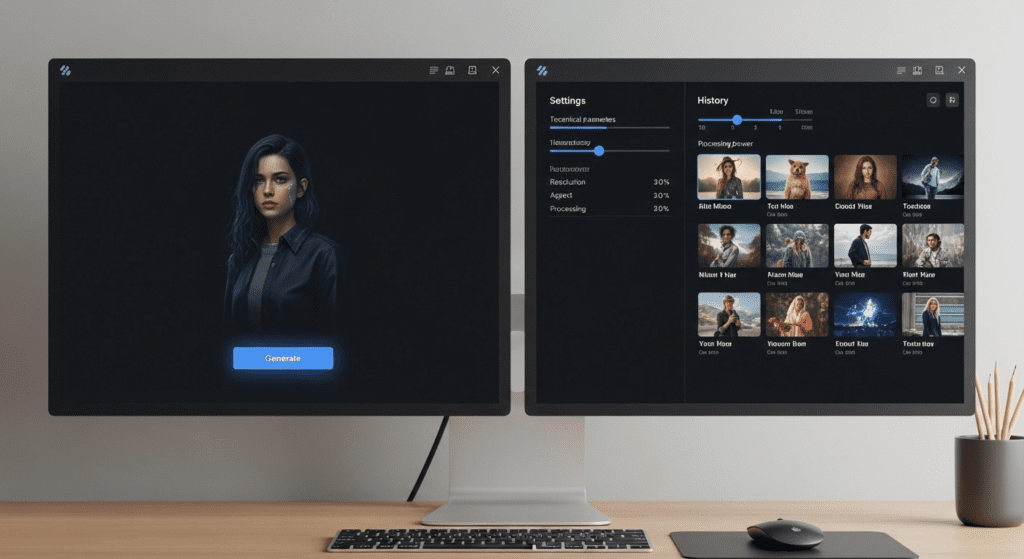
AI image generators are now standard tools for creators, marketers and developers. From concept visuals to complete product imagery, they save time and reduce creative blocks. However, most platforms limit what you can generate.If you want an AI image generator with fewer limits, choosing the right tool takes time. This guide shows you how to decide. It also explains how to turn your images into video content using VidAU.
What are the top free AI image generator options with flexible creative features today?
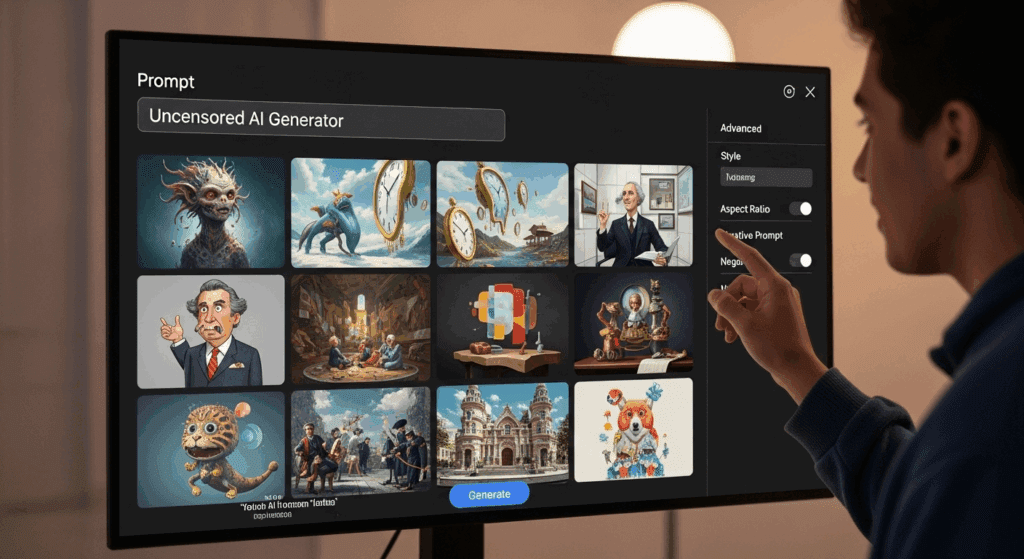
If you’re looking for more control,Some free AI image generator tools offer fewer limits, giving you more flexibility when creating different styles and concepts. These platforms allow you to generate creative images without heavy filters. However, this freedom comes with responsibility. Use them with care.
| Tool / Setup | Type | “More Flexible” stance (summary) | Practical notes |
|---|---|---|---|
| Stable Diffusion (AUTOMATIC1111 WebUI) | Local (you run it) | No mandatory filter by default; you control models & checks | Full local control; behavior depends on model/checkpoints you load. |
| ComfyUI | Local (node/workflow) | No default content block in place, though optional safety tools are available | You can choose to add or remove safety nodes, such as image detection tools, to manage content output. |
| InvokeAI | Local | Includes a content checker you can toggle, with some configurable controls | Docs & issues show a built-in checker that can be enabled/disabled (implementation details vary by version). |
| DiffusionBee (macOS) | Local app | Runs locally; no platform-level moderation | A simple Mac interface for Stable Diffusion, built for local use and privacy, with flexible community-driven capabilities. |
| Mage.space | Hosted web | Markets itself as offering more open creative options | Still has ToS & moderation flags in practice; lenient vs big brands. |
| Playground AI | Hosted web | Allows limited suggestive content under clear platform guidelines | Allows moderate suggestive content but still applies platform guidelines |
| Midjourney | Hosted web/Discord | SFW only; adult content disallowed | Community Guidelines prohibit adult/gore content. |
| Adobe Firefly / Express | Hosted web/app | Blocks explicit nudity/porn by policy | Clear prohibitions in Generative AI guidelines. |
| Tensor.art | Hosted web | Updated policy now restricts sensitive and celebrity-related content | Recent policy updates restrict the creation and sharing of sensitive or real-person content. |
| Google Vertex AI – Imagen | Hosted (enterprise) | Includes adjustable filters through settings, with controlled flexibility | Safety levels adjustable; enterprise controls, still moderated. |
| Azure OpenAI (Images via Azure AI Foundry) | Hosted (enterprise) | Content filters required; can be modified with approval | Filter controls depend on access level and are not fully open |
Best Free ‘No-Restriction’ AI Image Generators
Here are AI image generator platforms worth considering:
- Stable Diffusion (Local version): You run this tool on your own machine. It gives you full freedom over what you create.
- Mage.space: Offers adjustable settings that give you more control over content filters. Popular for realistic styles and flexible prompt results.
- InvokeAI: A tool based on Stable Diffusion, designed for advanced editing and prompt handling.
- Leonardo AI: Known for fewer content blocks and better artistic control.
- Artbreeder: Lets you blend and remix existing faces or scenes with less moderation.
These platforms give more flexibility than standard tools. However, you must check their terms and follow ethical practices.
Best Way to Choose the Right AI Image Generator for Your Workflow
Not every AI image tool gives you full control. If your workflow includes unlimited creative prompts, choose based on:
- Usage Rights: Always check licensing if you plan to use the images commercially.
- Prompt Filters: Focus on tools that offer flexible content controls and adjustable settings. Most mainstream tools block adult or controversial prompts.
- Platform Type: Use self-hosted apps like Stable Diffusion for full freedom. Web tools often still have soft moderation.
- Privacy: Offline tools offer better data control. Web-based tools may log prompts.
- Ease of Use: Web tools like Nastia AI or Perchance require no setup. Local installs need technical setup but offer more power.
- Output Style: Some tools lean photorealistic, others stylized or fantasy. Match style to your needs.
How to Generate and Upscale to 4K Image Quality (Step by Step)
4K resolution gives your visuals depth and realism. To achieve this, focus on clean base generation, efficient upscaling, and subtle finishing touches. Use this workflow to maintain professional‑grade quality from start to finish.
Step 1: Start With High Base Resolution
Use a generation size of 1024×1024 or larger. Set denoise between 0.25 and 0.45. Avoid overbaking details with extremely high CFG values.
Step 2: Add a Quality Prompt
Include elements like lighting, lens style, and environment. Example:
“woman sitting by window, soft lighting, 85mm lens look, shallow depth of field, clean background”
Step 3: Use High-Res Fix (for Stable Diffusion setups)
Set scale between 1.5x and 2x. Keep denoise strength low to preserve detail.
Step 4: Upscale in Two Passes
- Pass 1: Use an AI upscaler like ESRGAN to 2K or 3K
- Pass 2: Use VidAU’s Video Enhancer to upscale and restore details to full 4K (3840×2160)
Step 5: Polish the Result
Use face restoration or sharpening if needed. Remove artifacts with a light clean-up tool. Avoid strong filters that flatten color or detail.
This gives you a usable, professional 4K image ready for animation or export.
Ready‑to‑Use Prompt Bank for AI Image Generation
Here are 5 prompt templates to help generate sharp, realistic, or stylized visuals from text:
- Portrait Photography Look
“studio portrait of a confident Black woman, soft lighting, shallow depth of field, natural skin texture, blurred background”
Negative Prompt: “cartoon, blur, extra fingers, distortion” - Product Display
“matte skincare bottle with water droplets, soft shadows, neutral background, premium packaging, photoreal style”
Negative Prompt: “text, watermark, low quality” - Interior Space
“modern kitchen, natural light from window, clean wood textures, minimal Scandinavian style, realistic lighting”
Negative Prompt: “grainy, unrealistic shadows” - Digital Art Style
“anime-style warrior in futuristic armor, dynamic pose, glowing sword, cinematic background, high contrast”
Negative Prompt: “realistic, blur, dull color” - Social Media UGC
“influencer holding product near window, selfie angle, natural daylight, soft background, friendly expression”
Negative Prompt: “artifacts, extra limbs, harsh lighting”
Use these as-is or modify to fit your niche. Pair each with a relevant image size and export goal.
How to Convert AI‑Generated Visuals into Short Video Assets Using VidAU
AI images don’t have to stay static. Turning them into short videos helps creators gain more engagement on social media and ads. VidAU makes this process quick, structured, and beginner-friendly. Follow these image-to-video conversion steps below to convert your stills into videos seamlessly.
- Upload your image
Start with a 4K image or at least 1024×1024 in resolution to preserve clarity. - Choose a motion style
Select from gentle zooms, parallax, or slide animations for a natural effect. - Add short captions or a script
You can write your own or use VidAU’s Video‑to‑Script feature to generate it instantly. - Pick your format
Export in 9:16 for TikTok or Reels, 1:1 for grid posts, or 16:9 for YouTube. - Add branding and audio
Insert your logo, select a soundtrack, or upload your own audio. - Export in 1080p or 4K
Preview the final video and export in full HD or 4K quality.
Why are people looking for an AI image generator no restrictions?
Many users look for an AI image generator with fewer limits because popular platforms apply strict guidelines. These filters block political topics, nudity, violence and real faces. As a result, creators feel boxed in. They want creative control without being stopped by moderation bots.
Here are the most common reasons people want unlimited generation:
- Frustration after prompt rejection
- Need to depict real events or satire
- Blocked access to content featuring known figures
- Wanting to go beyond generic styles or content
Creative professionals often hit limits with their work. For instance, if you try to generate an image of a public protest, many tools will block it. The same happens if you attempt to create character designs based on historical events. These limits push creators to look for tools that give more freedom.
How does ChatGPT image generation handle restrictions?
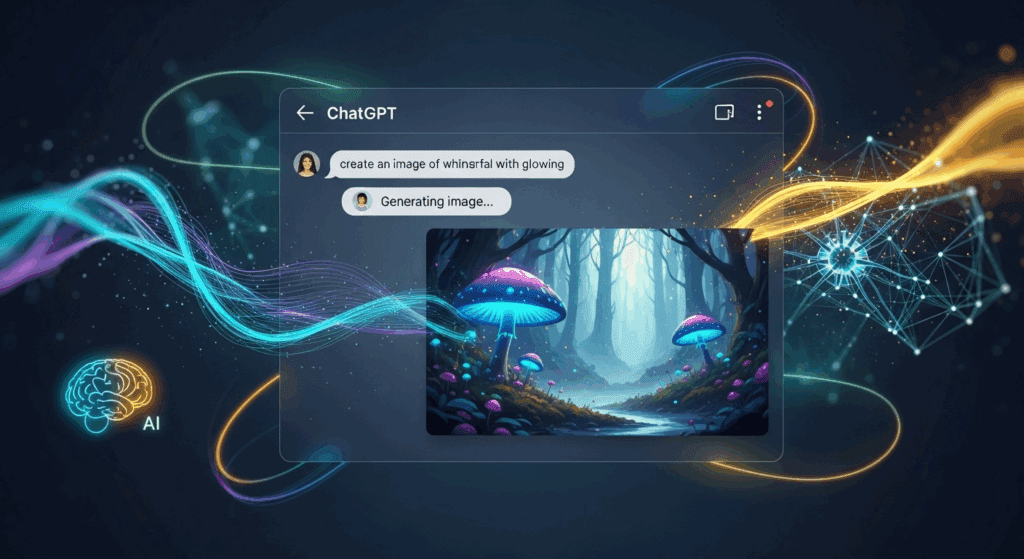
ChatGPT image generation follows safety-first rules. It filters out prompts that could lead to harmful, violent or controversial images. This means you can’t generate Unlimited content, real people or graphic themes using ChatGPT tools.
Here’s what to expect:
- No generation of real celebrities or politicians
- Blocked outputs related to nudity or graphic topics
- Simplified results with limited style controls
The restrictions are designed to protect users. Still, they limit experimentation. If you need total prompt control or want to bypass common filters, you must use different tools.
What should you check before using an AI image generator with flexible controls?
Before using an AI image generator with more open creative options, review these key factors:
- Will you need to install the tool yourself?
- What kind of content does the platform allow?
- Are there clear usage rights for generated content?
- Does the platform store your prompts or data?
When should you avoid using an AI image generator with flexible controls?
Avoid these tools if you’re unsure about legality or audience safety. While flexible generation sounds exciting, not every use case is safe or wise.
You should avoid these platforms when:
- You’re creating public-facing content for kids or general audiences
- You plan to mimic real people without permission
- Your project includes medical, legal or political claims
- You work in regulated industries like healthcare or finance
The safest approach is to only use these tools when you’re confident the content is ethical and lawful.
How is an AI image generator with flexible controls different from standard image tools?
The biggest difference lies in how much control you get. A general image tool applies automatic filters. An AI image generator with flexible controls lets you write detailed prompts and produces results with minimal automatic filtering or removal.
Here’s a clear breakdown:
| Feature | Standard Image Tool | Flexible AI Generator |
| Prompt Censorship | High | Low or None |
| Content Flexibility | Limited | Full |
| Hosting Required | No | Sometimes |
| Flexible Support | Blocked | Allowed (opt-in) |
| Real Face Generation | Blocked | Allowed |
Choose based on your project needs. If you only need simple, brand-safe visuals, a standard tool will work.
How do image tools compare to ChatGPT image generation?
Compared to ChatGPT image generation, AI image generator tools are more open-ended. You can use them for visual fiction, satire, or personal art without hitting filter walls.
But the tradeoff is you lose the polished safety features that ChatGPT offers. There’s no soft landing if your prompts go too far. You’re fully in control, for better or worse.
Use ChatGPT image generation if:
- Your work must be safe and suitable for broad audiences
- You publish on platforms with tight rules (like app stores or ad networks)
- You want easy, fast results without manual setup
Use Image Generators tools if:
- You want to generate characters with realistic faces
- You work on political, artistic or sensitive content
- You’re experimenting with bold concepts or scenes
How can you turn static images into video using VidAU?
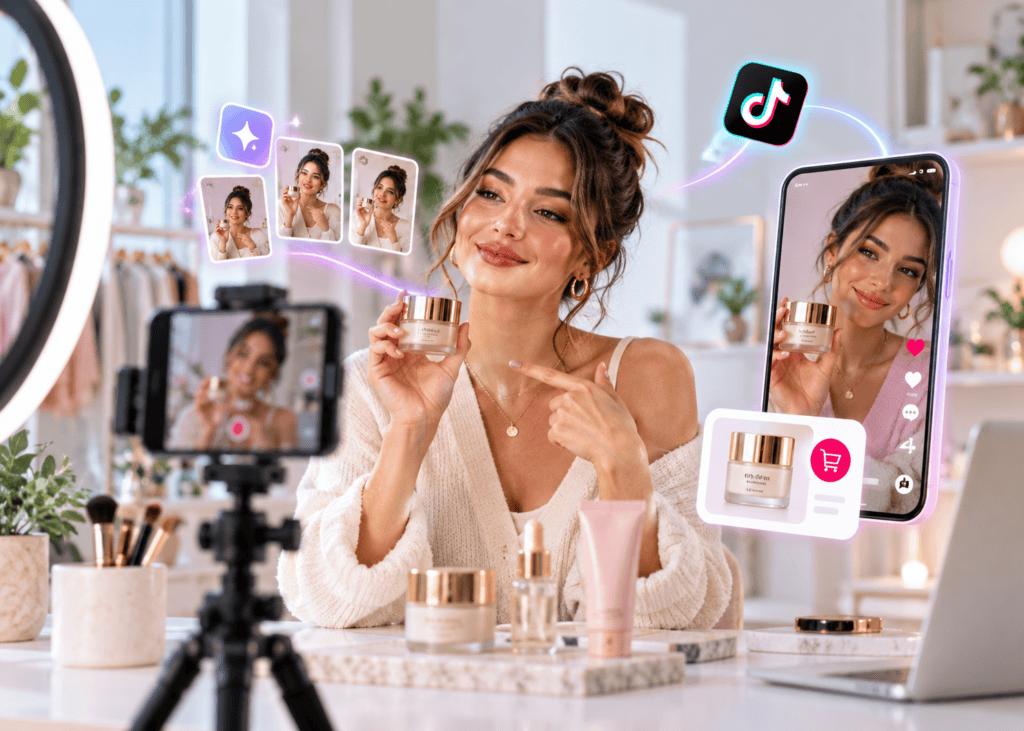
Once you generate your image, the next step is to give it motion. This is where VidAU comes in. You upload the image and use templates, motion effects or voice features to create video content.
VidAU accepts still images from any tool. You can animate a face, add subtitles, or use transitions to create:
- Promo videos for products
- Social clips for TikTok or Instagram
- Talking avatars with voice overlays
- Training or tutorial videos
This method is fast. It also gives you more output from a single image. So even if you use an AI image generator to create the visuals, VidAU helps you convert it into something useful for your audience.
Conclusion
Using an AI image generator no restrictions opens the door to more creative freedom. But freedom comes with responsibility. You choose what to create and how to use it. If your content needs to be bold or personal, tools like Stable Diffusion or Mage.space give you space to work.
At the same time, remember that safety matters. If you share or publish your images, think through the legal and ethical risks. And for creators who want to turn images into full content, VidAU is the next best step. Images start your story. VidAU helps you finish it.
FAQs
1. What is the best AI image generator available?
Stable Diffusion (especially the local version) offers full prompt freedom and custom control.
2. Can I sell images made with Image generators?
Yes, but only if your output follows copyright and usage laws. Check the license for each tool.
3. Is ChatGPT image generation good for complex designs?
It works well for basic needs. But it blocks any design with sensitive or real-world details.
4. How do I turn AI images into videos quickly?
Use VidAU. Upload your image and select how you want it animated or voiced over.
5. Are Flexible Image Generator tools legal to use?
Yes, but misuse can still lead to legal problems. Never use them for impersonation or harmful content.