Complete AI Avatar Animation Guide for Content Creators(2026): From Images to Talking Videos:
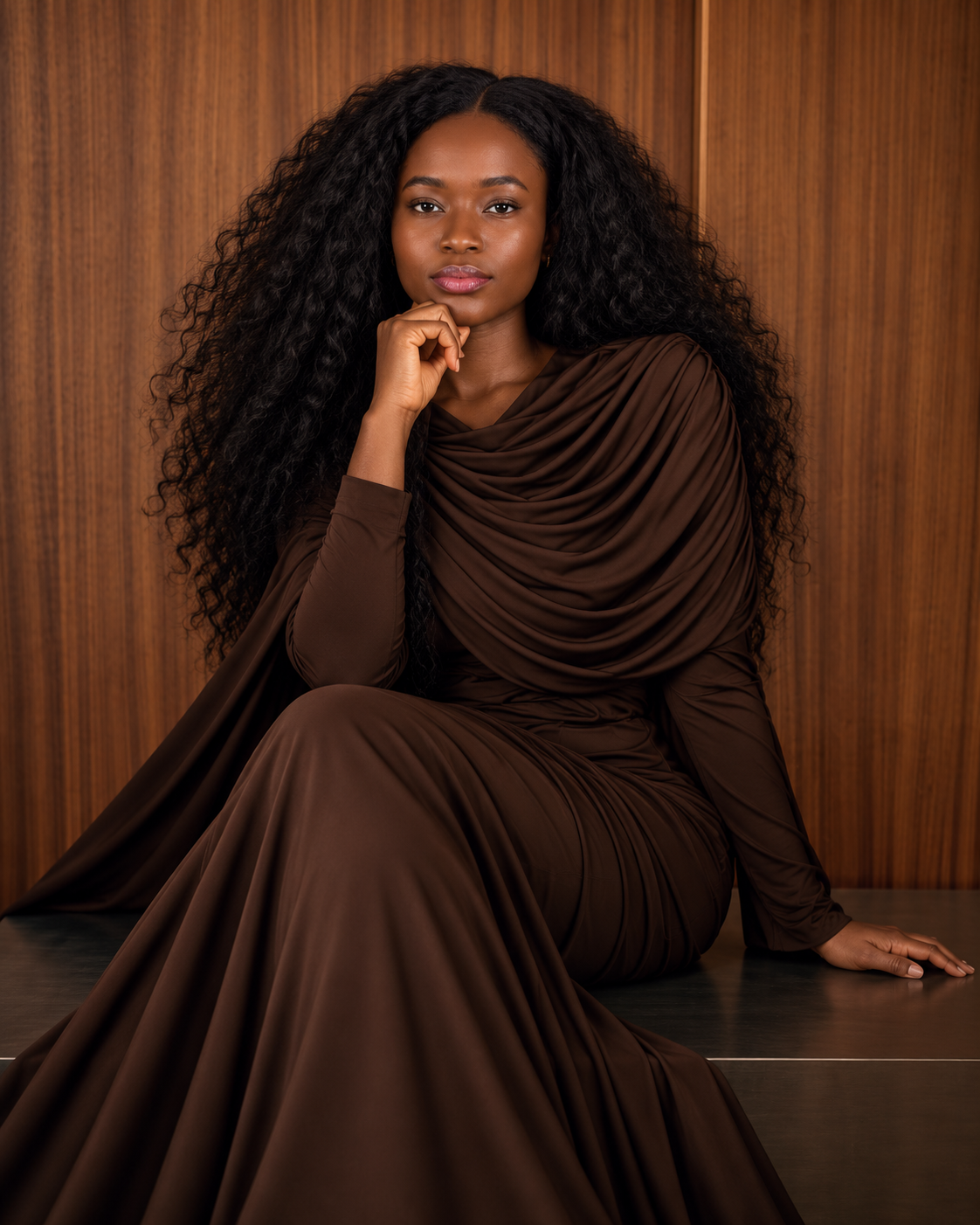
Turn any image into a realistic talking AI avatar, this capability has transformed from Hollywood-exclusive technology into accessible AI tools that visual content creators can leverage today. Whether you’re sitting on a library of portrait photography, character illustrations, or historical images, the barrier between static visuals and dynamic, speaking avatars has effectively dissolved.
This guide explains the full workflow in a simple, actionable way. You will learn how to prepare images, choose the right tools, and control motion settings for better results. You will also understand how to fix common issues like poor lip sync, flickering, and identity drift.
- Complete AI Avatar Animation Guide for Content Creators(2026): From Images to Talking Videos:
- Image Preparation and Source Selection for Maximum Avatar Quality
- Technical Workflow: Step-by-Step Image-to-Talking-Avatar Pipeline
- Quality Optimization: Lighting, Resolution, and Realism Factors
- Advanced Techniques: Audio Synchronization and Facial Landmark Mapping
- Troubleshooting Common Artifacts and Enhancement Strategies
- How to Turn AI Avatars Into Full Video Content Using VidAU AI
- Conclusion: From Static Libraries to Dynamic Content
- Frequently Asked Questions
- Q: What minimum image resolution do I need for quality talking avatar generation?
- Q: Why does my avatar's mouth movement not match the audio perfectly?
- Q: What causes flickering or temporal instability in generated avatar videos?
- Q: Which expression intensity setting should I use for professional content?
- Q: How can I fix artifacts around the mouth and teeth in my avatar?
- Q: Should I export my avatar videos at 4K resolution for better quality?
- Q: How do I prevent my avatar's facial features from changing gradually throughout the video?
- Q: What's the best way to batch process multiple images into talking avatars?
- Q: What type of images work best for talking avatar videos?
- Q: How long does it take to generate a talking avatar video?
- Q: Why does my avatar look unnatural during speech?
- Q: Can I use my own voice for avatar videos?
- Q: How do I fix lip sync issues in AI avatar videos?
- Q: What causes flickering in avatar videos and how do I fix it?
- Q: Can I create multiple avatar videos at once?
Image Preparation and Source Selection for Maximum Avatar Quality
Understanding Source Image Requirements
The foundation of convincing talking avatars begins long before you upload to any AI platform. Your source image quality directly determines the fidelity ceiling of your final output. For optimal results, your image should meet these technical specifications:
Resolution Standards: Minimum 512×512 pixels, with 1024×1024 or higher strongly recommended. Higher resolution inputs provide the neural network with more facial detail information, enabling finer mouth movement articulation and micro-expression generation. Images below 512px will undergo AI upscaling, which introduces latent noise that compounds during the animation phase.
Facial Positioning: The subject’s face should occupy 40-60% of the frame with clear facial landmark visibility. Extreme angles (beyond 30 degrees off-center) create geometric challenges for facial rig mapping. Front-facing or slight three-quarter poses provide the most stable keypoint detection for jaw, lip, and eyebrow animation.
Lighting Topology: Even, diffused lighting with minimal harsh shadows is critical. Facial mapping algorithms rely on consistent luminance values across facial planes. High-contrast shadows create ambiguous depth information that manifests as jittering or sliding textures during mouth movement. If working with existing images, apply subtle shadow lift in preprocessing (aim for shadow luminance no lower than 30 on a 0-255 scale).
Pre-Processing Pipeline
Before entering the AI workflow, implement these preparation steps:
Background Separation: Use semantic segmentation tools to isolate the subject from complex backgrounds. Tools like Remove.bg or Photoshop’s subject selection create clean alpha channels. While not mandatory, background separation reduces computational load on facial region detection and prevents background warping artifacts during animation.
Color Space Normalization: Convert images to sRGB color space with 8-bit depth. Some AI pipelines struggle with wide-gamut ProPhoto or 16-bit images, causing color banding in output videos. Standard sRGB ensures compatibility across platforms.
Facial Enhancement: Apply subtle sharpening (Unsharp Mask at 0.5-0.8 strength, 1-2px radius) to facial features, particularly eyes and mouth regions. This enhances edge detection for landmark tracking without introducing obvious oversharpening artifacts.
Technical Workflow: Step-by-Step Image-to-Talking-Avatar Pipeline
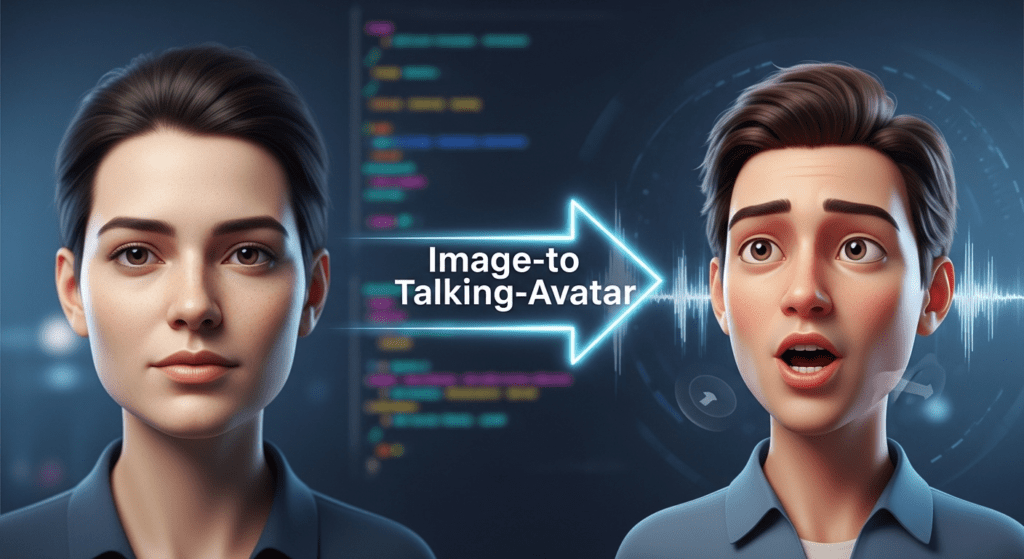
Platform Selection and Architecture Understanding
Modern talking avatar generation operates on diffusion-based architectures combined with facial motion models. The primary platforms employ different technical approaches:
D-ID Studio: Utilizes a proprietary “Live Portrait” system combining StyleGAN facial synthesis with phoneme-driven animation. The system extracts 68 facial landmarks, creates a 3D mesh proxy, then applies learned motion vectors synchronized to audio phonemes.
Synthesia: Implements a dual-encoder architecture—one for facial identity preservation, another for motion generation. Uses Temporal Consistency Models to maintain frame coherence, reducing the “flickering” common in earlier generation systems.
HeyGen: Leverages audio-driven facial reenactment networks with built-in Euler ancestral schedulers for smooth motion interpolation. Particularly strong with non-English phoneme matching due to multilingual training data.
Runway Gen-2 with Face Animation: Offers more granular control through latent diffusion parameters. Allows seed locking for reproducible results and CFG scale adjustment (7.5-12 range optimal for avatar animation).
Step-by-Step Generation Process
Step 1: Image Upload and Facial Detection Verification
Upload your prepared image. The platform will run facial landmark detection—you should see keypoint overlays on eyes, nose, mouth, and jaw. If detection fails or shows incorrect mapping, adjust the image crop or try facial detection preprocessing in FaceApp or similar tools to standardize the facial structure.
Step 2: Audio Input Configuration
You have three primary options:
– Text-to-Speech (TTS): Built-in neural voice synthesis. Select voices with prosody variation—monotone TTS creates unnatural-looking mouth movements. Adjust speech rate to 0.9-1.1x normal speed; faster speech can cause mouth animation lag.
– Audio Upload: Your pre-recorded voiceover. Ensure clean audio with minimal reverb (reverb confuses phoneme timing). 44.1kHz sample rate, mono or stereo, with consistent loudness normalized to -16 LUFS.
– Script with Timing: Some platforms allow phoneme-level timing adjustments. This granular control enables fixing synchronization issues where specific sounds (especially plosives like ‘p’ and ‘b’) don’t match mouth shape.
Step 3: Motion Parameter Configuration
This is where technical depth separates amateur from professional results:
Expression Intensity: Controls facial movement amplitude. Range typically 0.5-1.5, where 1.0 is natural. Lower values (0.6-0.8) suit corporate/professional content; higher values (1.1-1.3) work for energetic or entertainment content. Beyond 1.5 enters uncanny valley territory with exaggerated movements.
Head Motion: Enables subtle head nods, tilts, and rotations synchronized to speech prosody. “Natural” presets apply procedural motion, but custom settings allow frequency control (0.1-0.3 Hz produces gentle, human-like movement). Disable entirely for formal presentation contexts.
Blink Rate: Natural human blink rate is 15-20 per minute. AI defaults often use 12-15 to avoid distracting frequent blinks. For emotional or intense deliveries, reduce to 8-10 blinks per minute.
Seed Control (Advanced platforms): Locks the random number generator for reproducible results. Critical when generating multiple takes—changing seed alters subtle motion patterns. Lock seed when you find a generation you like, then only modify specific parameters.
Step 4: Generation and Iterative Refinement
Initiate rendering. First-pass generation typically takes 1-3 minutes per 30 seconds of video, depending on platform and queue load.
Review at full resolution for:
– Lip-sync accuracy: Mouth shapes (visemes) should match phonemes, particularly on hard consonants
– Temporal stability: No flickering, texture sliding, or identity drift across frames
– Eye coherence: Pupils should maintain consistent direction and not show “wandering” or mismatched gaze
– Artifact checking: Watch for common issues like teeth multiplication, tongue anomalies, or neck warping
If issues appear, adjust expression intensity first (±0.2 units), then try different seeds before re-uploading alternative source images.
Quality Optimization: Lighting, Resolution, and Realism Factors
Technical Factors Affecting Output Realism
Latent Space Consistency: AI avatar systems encode facial features into compressed latent representations. Faces with unusual features (extreme asymmetry, occlusions, unconventional proportions) may reside in under-trained latent regions, causing instability. If your subject has unique features, generate multiple seeds and select the most stable output.
Texture Frequency Preservation: High-frequency details (skin texture, hair strands, fabric weave) can exhibit temporal incoherence looking sharp in one frame, blurred in the next. This results from insufficient temporal attention mechanisms. Mitigation: Apply subtle temporal smoothing in post-processing (2-3 frame averaging with 15% opacity) or use platforms with explicit temporal consistency layers like Synthesia’s TCM architecture.
Motion Boundary Coherence: The transition area between animated face and static background/body is critical. Advanced platforms use learned boundary masks that feather the animation region. If you notice hard edges or “cutout” effects, the platform likely uses geometric masking. Solution: Upload images with simpler backgrounds or use platforms with diffusion-based boundary blending.
Resolution and Export Settings
Internal vs. Output Resolution: Most platforms process at fixed internal resolutions (often 512×512 or 768×768) then upscale for export. Requesting 4K output doesn’t add detail beyond this internal processing resolution—it only applies AI upscaling.
Codec Selection: For maximum quality, export in ProRes 422 or H.264 at high bitrate (15-25 Mbps for 1080p). Lower bitrates create compression artifacts that are particularly noticeable in facial regions with subtle motion.
Frame Rate Considerations: 24fps is cinematic standard, 30fps for web content, 60fps for ultra-smooth motion. However, avatar generation at 60fps doubles rendering time and file size with minimal perceptual benefit—30fps is the sweet spot for most applications.
Advanced Techniques: Audio Synchronization and Facial Landmark Mapping
Phoneme-to-Viseme Optimization
The audio-to-visual mapping is governed by phoneme-to-viseme conversion tables. Each spoken sound (phoneme) should trigger a corresponding mouth shape (viseme):
– Plosives (P, B): Require full lip closure
– Labiodental (F, V): Lower lip touches upper teeth
– Vowels (A, E, I, O, U): Varying degrees of mouth opening with specific tongue positions
Platforms use pre-trained mappings, but accent variations can cause mismatches. If you notice sync issues with specific words:
1. Phonetic Respelling: Use platform text input with phonetic spelling (“gonna” instead of “going to”) to better match actual pronunciation
2. Audio Preprocessing: Apply subtle EQ to boost consonant clarity (2-4kHz range) helping the phoneme detection algorithm
3. Manual Timing Adjustment: Some platforms (D-ID Studio Pro) offer frame-level timing correction for problematic sections
Custom Facial Rig Integration
For advanced users working with 3D character pipelines:
ComfyUI Workflow Integration: Use AnimateDiff with ControlNet facial landmark conditioning. This approach extracts facial keypoints from generated avatar videos, then applies them to custom 3D models. Enables style transfer while maintaining motion quality from professional avatar platforms.
Blendshape Export: Platforms like Synthesia offer ARKit-compatible blendshape exports—52 facial parameters per frame. Import into Blender, Maya, or Unreal Engine for integration with custom characters.
Troubleshooting Common Artifacts and Enhancement Strategies
Artifact Taxonomy and Solutions
1. Temporal Flickering
– Cause: Insufficient temporal conditioning in diffusion model
– Solution: Enable temporal smoothing if available; in post-production, apply frame blending (2-frame average) at 10-20% opacity
2. Identity Drift
– Cause: Facial features gradually change across video duration
– Solution: Use platforms with identity preservation encoders (Synthesia, HeyGen); reduce video length to <60 seconds per generation; apply reference image conditioning every 5 seconds if platform supports
3. Mouth Interior Artifacts
– Cause: Under-trained mouth cavity regions in training data
– Solution: Select source images with closed or slightly open mouths; avoid wide smiles showing teeth; use lower expression intensity (0.7-0.8)
4. Background Warping
– Cause: Motion field bleeding into non-facial regions
– Solution: Use background separation preprocessing; select platforms with explicit facial segmentation masks; opt for blurred or solid color backgrounds
5. Audio Desynchronization
– Cause: Phoneme detection errors or frame rate mismatches
– Solution: Ensure audio is 44.1kHz or 48kHz; avoid heavily compressed MP3s; use WAV or AAC format; check that speech rate is 0.9-1.1x normal speed
Post-Processing Enhancement Pipeline
After generation, apply this enhancement sequence:
Color Grading: Match avatar footage to surrounding video content. Use LUTs or manual grading to adjust skin tones, which AI often renders slightly desaturated.
Subtle Sharpening: Apply 1-2% high-quality sharpening at 1080p+ resolutions to restore detail lost in compression. Use Unsharp Mask with 0.3-0.5 radius to avoid over-sharpening.
Noise Grain Addition: AI-generated video is often “too clean.” Adding subtle film grain (2-4% intensity) at final output resolution increases perceived realism by matching organic video texture.
Edge Refinement: If boundary artifacts are visible, use edge feathering or subtle blur (1-2px) on the face-body transition zone. RotoBrush in After Effects or manual masking in DaVinci Resolve provides fine control.
Batch Processing Strategies
For creators with large image libraries:
Consistent Parameter Templating: Once you identify optimal settings (expression intensity, motion frequency, seed), save as a template. Apply to entire image batches for consistent output quality.
Source Image Standardization: Create a preprocessing action in Photoshop that: crops to 1024×1024, adjusts lighting to -30% shadows, applies subtle sharpening, and converts to sRGB. Batch process your library before upload.
Seed Management: Maintain a spreadsheet tracking image filename, generation seed, and quality notes. This enables reproducible results and helps identify which seeds work best for different face types.
How to Turn AI Avatars Into Full Video Content Using VidAU AI
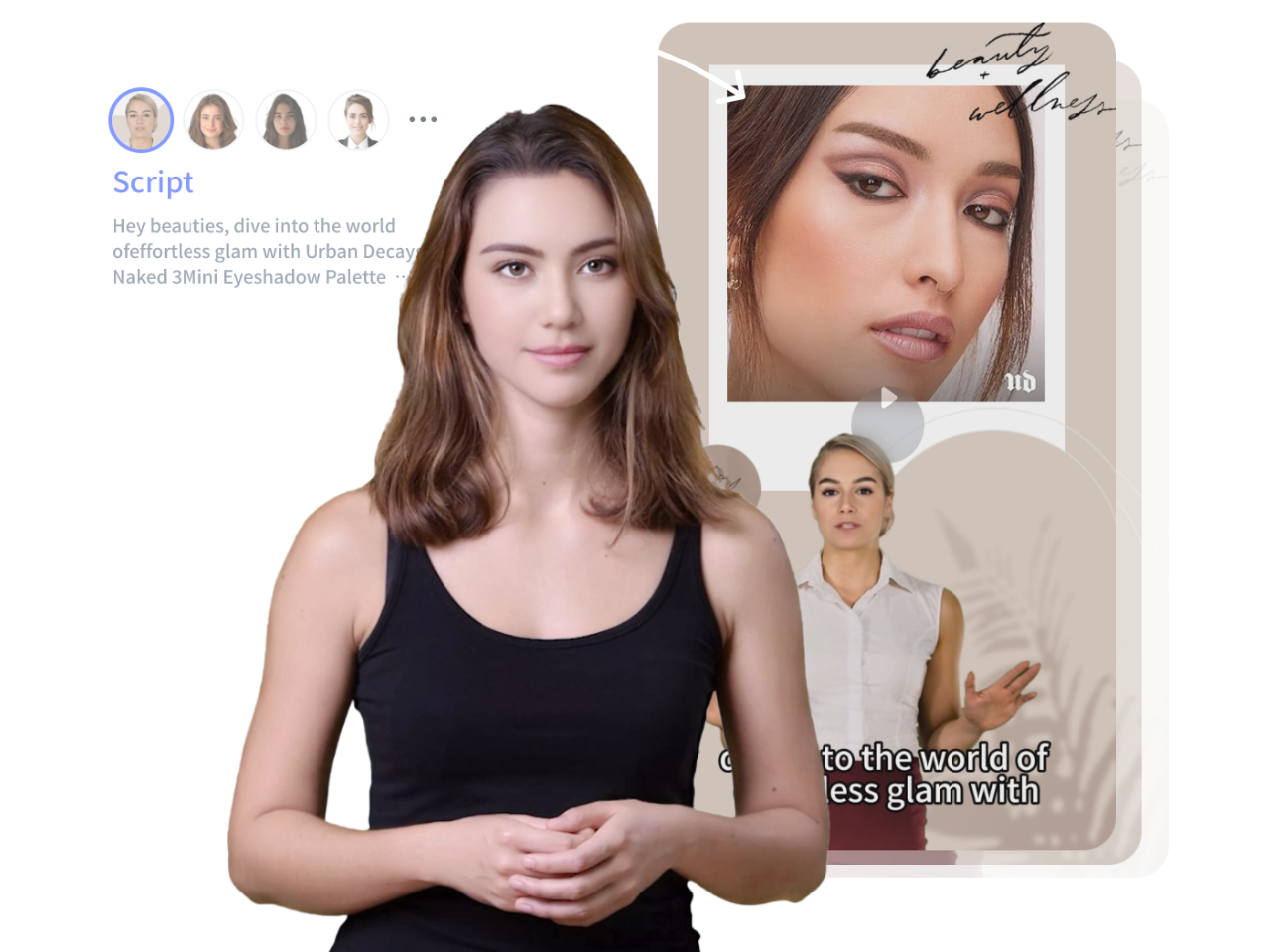
AI avatars help you create videos without filming yourself. You control the message while the avatar handles delivery.
Step 1: Define Your Video Goal and Format
Choose one clear goal like a product review or short tutorial. Keep your video between 15 and 45 seconds for better engagement.
Step 2: Write a Script That Sounds Natural
Write short, clear sentences with a strong hook at the start. Focus on one message and end with a simple call to action.
Step 3: Create or Select Your AI Avatar
Pick an avatar that matches your audience and content style. Use the same avatar across videos to stay consistent.
Step 4: Add Voice and Lip Sync
Select a voice tone that fits your content and ensure the lip sync aligns well. Clear audio improves trust and retention.
Step 5: Build Visual Flow With Scenes
Break your video into short scenes with visuals and text overlays. This keeps viewers engaged from start to finish.
Step 6: Optimize for Vertical Platforms
Use a 9:16 format with large captions and centered visuals. Fast cuts every few seconds help hold attention.
Step 7: Export and Test Variations
Create different versions by changing hooks or visuals. Test performance to see what drives more views and clicks.
Step 8: Scale Content Production
Repeat what works and reuse your structure. This helps you produce more videos in less time with consistent quality.
Conclusion: From Static Libraries to Dynamic Content
The transformation from static images to talking avatars represents a fundamental shift in content creation economics. What previously required motion capture studios, 3D animators, and rendering farms now executes in minutes through AI platforms leveraging diffusion architectures and facial reenactment networks.
The technical quality gap between AI-generated avatars and traditional video continues narrowing. Understanding the underlying mechanics—facial landmark mapping, phoneme-to-viseme conversion, temporal consistency models, and latent space encoding—enables creators to push these tools beyond default settings into professional-grade outputs.
Your existing image library isn’t just a static archive—it’s a potential content engine. Each portrait, character design, or historical figure photo can become a speaking persona, delivering scripted content, educational material, or narrative storytelling. The workflow mastery outlined here provides the technical foundation to exploit this capability at scale.
Start with your highest-quality portrait images, apply the preprocessing pipeline, select appropriate platform architecture for your needs, and iterate through parameter refinement. The learning curve is measured in hours, not months—and the content possibilities expand with each generated avatar.
The future of visual content isn’t choosing between static images or expensive video production. It’s intelligently transforming existing visual assets into dynamic, speaking content through systematic application of AI video generation technology.
Frequently Asked Questions
Q: What minimum image resolution do I need for quality talking avatar generation?
A: A minimum of 512×512 pixels is required, but 1024×1024 or higher is strongly recommended for professional results. Higher resolution images provide more facial detail information, enabling finer mouth movement articulation and micro-expression generation. Images below 512px will undergo AI upscaling, which introduces latent noise that compounds during animation and reduces final quality.
Q: Why does my avatar’s mouth movement not match the audio perfectly?
A: Lip-sync issues typically stem from phoneme detection errors, audio quality problems, or speech rate mismatches. Ensure your audio is 44.1kHz or 48kHz in WAV or AAC format, avoid heavily compressed MP3s, and maintain speech rate between 0.9-1.1x normal speed. You can also try phonetic respelling in text inputs to match actual pronunciation, or use platforms offering manual frame-level timing adjustments for problematic sections.
Q: What causes flickering or temporal instability in generated avatar videos?
A: Temporal flickering results from insufficient temporal conditioning in the AI model’s diffusion architecture. High-frequency details like skin texture can appear sharp in one frame and blurred in the next due to inadequate temporal attention mechanisms. Solutions include enabling temporal smoothing features when available, using platforms with explicit temporal consistency layers like Synthesia’s TCM architecture, or applying 2-3 frame averaging at 15-20% opacity in post-processing.
Q: Which expression intensity setting should I use for professional content?
A: Expression intensity typically ranges from 0.5-1.5, with 1.0 being natural human movement. For corporate and professional content, use lower values between 0.6-0.8 for subtle, controlled facial movements. Energetic or entertainment content works better with 1.1-1.3. Values beyond 1.5 enter uncanny valley territory with exaggerated movements that appear unnatural. Start at 1.0 and adjust ±0.2 units based on review.
Q: How can I fix artifacts around the mouth and teeth in my avatar?
A: Mouth interior artifacts occur because these regions are under-represented in training data. Select source images with closed or slightly open mouths rather than wide smiles showing full teeth. Use lower expression intensity settings (0.7-0.8) to reduce extreme mouth movements that expose problematic cavity regions. If artifacts persist, try different generation seeds or use platforms with more extensive training on diverse mouth positions.
Q: Should I export my avatar videos at 4K resolution for better quality?
A: Most platforms process avatars at fixed internal resolutions (512×512 or 768×768) then upscale for export. Requesting 4K output doesn’t add detail beyond this internal processing resolution—it only applies AI upscaling. For optimal quality-to-file-size ratio, export at 1080p using H.264 codec at 15-25 Mbps bitrate. This preserves all available detail without creating unnecessarily large files from artificial upscaling.
Q: How do I prevent my avatar’s facial features from changing gradually throughout the video?
A: Identity drift occurs when the AI model lacks strong identity preservation mechanisms. Use platforms with dedicated identity preservation encoders like Synthesia or HeyGen. Reduce video length to under 60 seconds per generation, then stitch segments in post-production. If your platform supports it, apply reference image conditioning every 5 seconds to reinforce facial consistency throughout longer generations.
Q: What’s the best way to batch process multiple images into talking avatars?
A: Create a standardized preprocessing pipeline: crop all images to 1024×1024, adjust lighting to lift shadows by 30%, apply subtle sharpening (0.5-0.8 strength), and convert to sRGB color space. Once you identify optimal generation parameters (expression intensity, motion settings, seed) through testing, save them as a template. Maintain a spreadsheet tracking image filenames, generation seeds, and quality notes for reproducible results across your entire image library.
Q: What type of images work best for talking avatar videos?
A: Use clear, front-facing images with even lighting. The face should be visible and not covered by shadows or objects. This helps the AI detect facial landmarks accurately.
Q: How long does it take to generate a talking avatar video?
A: Most platforms generate 30 seconds of video in 1 to 3 minutes. The speed depends on video length, resolution, and platform processing time.
Q: Why does my avatar look unnatural during speech?
A: Unnatural motion often comes from high expression settings or poor audio input. Reduce expression intensity and use clear voice recordings for better results.
Q: Can I use my own voice for avatar videos?
A: Yes. Upload a clean voice recording instead of using text to speech. This improves realism and makes lip sync more accurate.
Q: How do I fix lip sync issues in AI avatar videos?
A: Use high-quality audio with clear pronunciation. Avoid background noise. You can also adjust speech speed or rewrite words to match natural pronunciation.
Q: What causes flickering in avatar videos and how do I fix it?
A: Flickering happens when the AI struggles with frame consistency. Use platforms with temporal smoothing or apply light post-editing to stabilize frames.
Q: Can I create multiple avatar videos at once?
A: Yes. Use batch processing with saved settings. Prepare your images in the same format, then apply the same animation parameters to keep results consistent.