CapCut AI Video Generator · Shorts Video Workflow
How to Use CapCut AI Video Generator: Complete Tutorial for Beginners
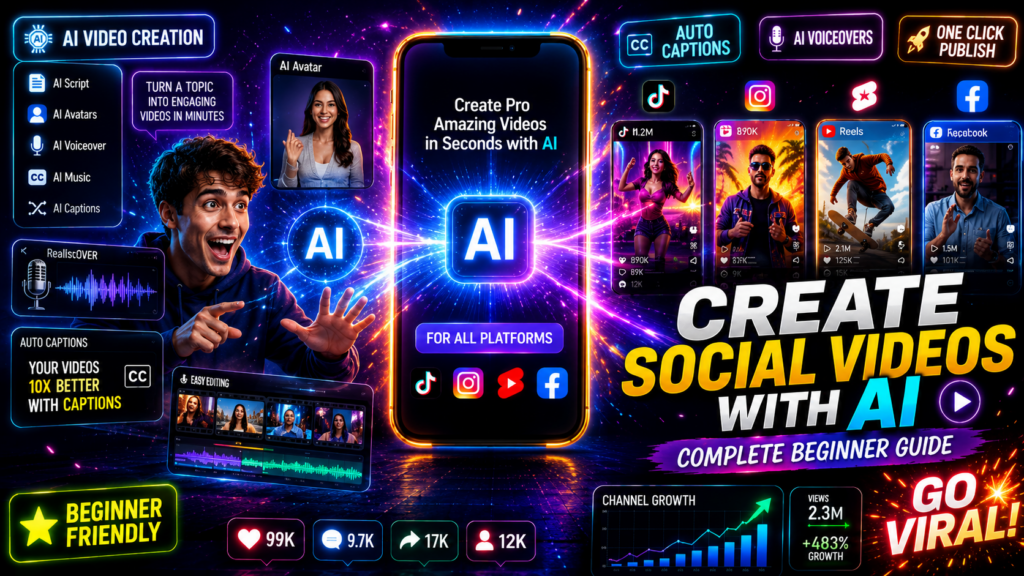
Learn how CapCut’s AI Video Generator can transform text prompts or static images into dynamic short-form videos for YouTube Shorts, TikTok, and Instagram Reels.
By the Sarah Iruoje · CapCut AI Video Generator Tutorial · Beginner guide
Learn how CapCut’s AI Video Generator can effortlessly transform your text prompts or static images into dynamic video content. Perfect for beginners aiming to create short-form videos without fuss, this tutorial walks you through each step.
Creating videos used to mean hours of editing, sourcing footage, and wrestling with timelines. CapCut’s AI video generator changes that. You can go from a text prompt or a static image to a finished short-form video in minutes, with no prior editing experience needed.
The capcut ai video generator is particularly well-suited for creators building faceless YouTube channels, TikTok pages, or Instagram Reels. It handles scene generation, motion, and basic editing automatically, which means you spend time on ideas rather than tools.
This guide walks you through every step, from accessing the feature inside CapCut to exporting a polished video ready for upload.
Create Video Now
Quick Summary
- CapCut’s AI video generator lets you create videos from text prompts or images without manual editing.
- You can use it to produce short-form content for YouTube Shorts, TikTok, and Instagram Reels quickly.
- The tool offers model selection, motion speed controls, and duration settings to shape your output.
- Writing specific, descriptive prompts significantly improves the quality of AI-generated results.
In This Guide
- What CapCut AI video generator is and how it works
- Why it matters for short-form content creators
- Step-by-step: how to access and use the tool
- Text-to-video and image-to-video walkthroughs
- Best practices for prompts and settings
- Platform-specific tips for Shorts, TikTok, and Reels
- Common mistakes beginners make
- Advanced strategies to improve output quality
- Final thoughts
- FAQ
What Is CapCut AI Video Generator?
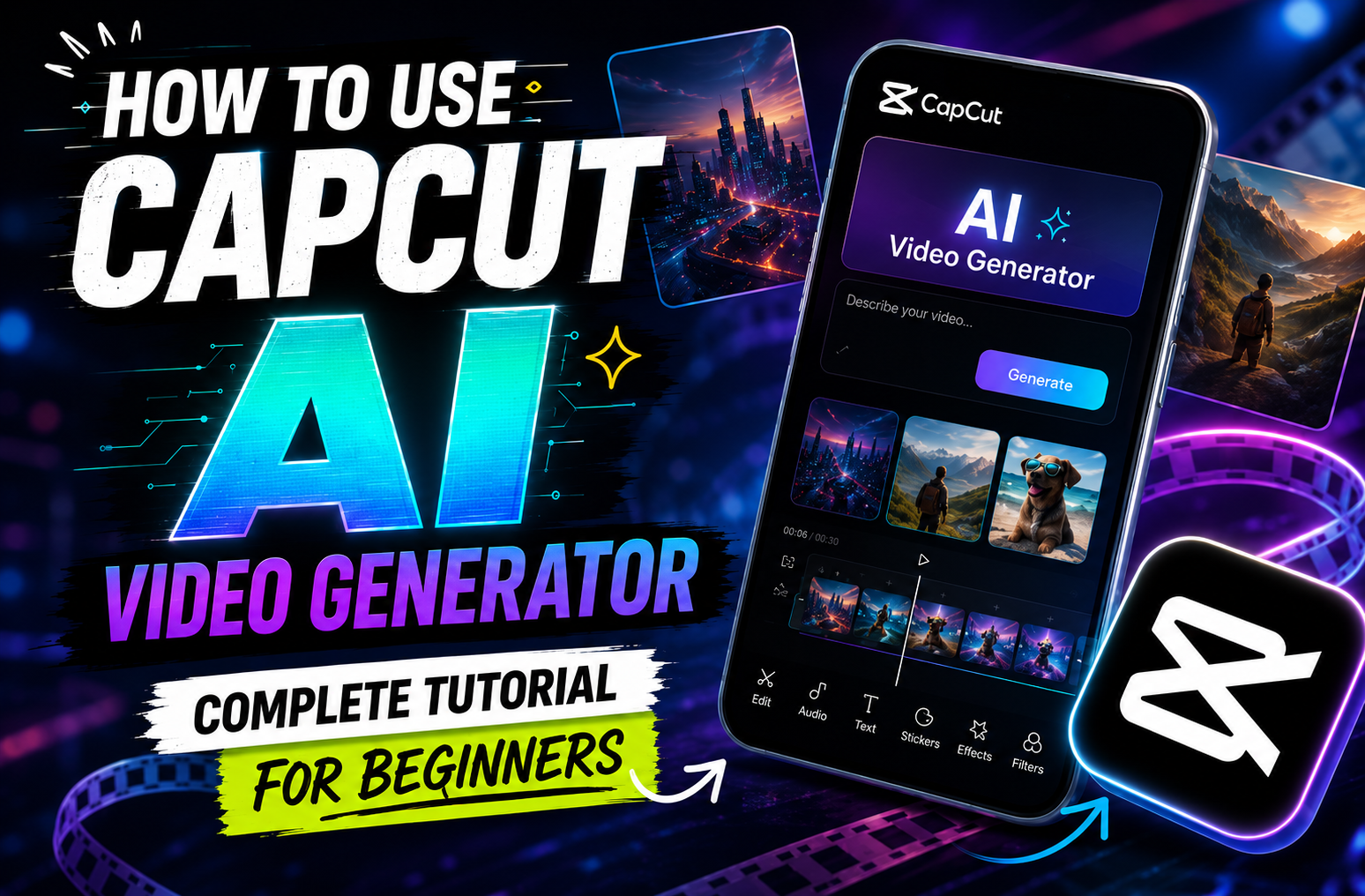
CapCut AI video generator is an AI-powered feature inside CapCut’s web and desktop platform that converts text prompts or uploaded images into short video clips. It uses AI models to generate motion, scenes, and visual sequences automatically, reducing the need for manual clip sourcing or frame-by-frame editing.
The tool supports both text-to-video and image-to-video workflows, making it flexible for different content types and styles.
Key definition
CapCut AI video generator converts written prompts or uploaded still images into short AI-generated video clips, supporting both text-to-video and AI image to video generator workflows inside CapCut’s web and desktop platform.
Why CapCut AI Video Generator Matters for Short-Form Creators
Short-form video demand is not slowing down. YouTube Shorts, TikTok, and Instagram Reels all reward consistent, high-quality output. The problem for most beginners is that consistent output takes time they do not have.
The capcut ai video generator closes that gap. Instead of recording, sourcing stock footage, or learning complex editing, you describe what you want or upload an image and let the AI handle the heavy lifting.
This is especially useful for:
- Faceless YouTube channels that rely on AI-generated visuals
- Social media managers running multiple accounts
- Marketers who need quick video ads without a production team
- Beginners who want to start creating immediately
The automation does not replace creative judgment, but it removes the technical barrier. That is a meaningful shift for anyone just getting started.
Step-by-Step: How to Use CapCut AI Video Generator
Step 1: Access the AI Video Generator
Open CapCut on your desktop or through the CapCut web app. From the main dashboard, look for the AI tools section. The AI video generator is typically listed under AI creation tools or video generation features. Click to open it.
If you are using the mobile app, note that some AI generation features are more fully available on desktop or web. For the best experience with text-to-video and image-to-video, use the desktop or browser version.
Step 2: Choose Your Creation Mode
You will see two main options:
- Text to video: enter a written prompt and the AI generates video clips based on your description
- AI image to video generator: upload a still image and the AI animates it into a moving clip
Choose based on what you have. If you are starting from scratch with an idea, use text. If you have product images, character art, or photos, use the image mode.
Step 3: Write Your Prompt or Upload Your Image
For text-to-video: Type a descriptive prompt in the input field. Be specific about the scene, mood, motion, and style. Vague prompts produce generic results. Specific prompts produce much better output.
Strong prompt example: “A close-up of a steaming coffee cup on a wooden table near a rainy window, cinematic lighting, slow zoom in”
Weak prompt example: “A coffee video”
For image-to-video: Upload a high-quality image. JPEGs and PNGs work well. Make sure the image is clear and well-lit. The AI animates based on what it detects in the image, so blurry or cluttered images give inconsistent results.
Step 4: Configure Your Settings
Before generating, adjust these settings:
- AI model: different models produce different visual styles; some are more realistic, others more stylized
- Motion speed: controls how fast elements move in the generated clip
- Video duration: typically between 2 and 8 seconds per clip; shorter clips work well for fast-paced short-form videos
- Aspect ratio: select 9:16 for vertical shorts video content on TikTok, YouTube Shorts, and Instagram Reels
Taking a moment to configure these before hitting generate saves you from multiple failed attempts.
Step 5: Generate and Review
Click generate. The AI will process your prompt or image and produce one or more video clips. Review the output carefully.
Check for:
- Unnatural motion or distorted elements
- Mismatched visual style
- Clips that do not match your prompt well
If the output is not right, adjust your prompt, change the model, or modify the motion speed and regenerate. This iteration step is normal and expected.
Step 6: Edit Your Generated Clips
Once you have clips you are happy with, bring them into CapCut’s main editor. From here you can:
- Trim or extend clips
- Add text overlays and captions
- Layer background music or voiceover
- Apply transitions between clips
- Adjust color grading
This is where you shape the raw AI output into a finished video. The AI handles generation; you handle polish.
Step 7: Export Your Video
When editing is complete, export your video. For short-form platforms, 1080p at 30fps is generally sufficient. Make sure your aspect ratio is correct for the platform you are targeting before exporting.
Text-to-Video and Image-to-Video Walkthroughs
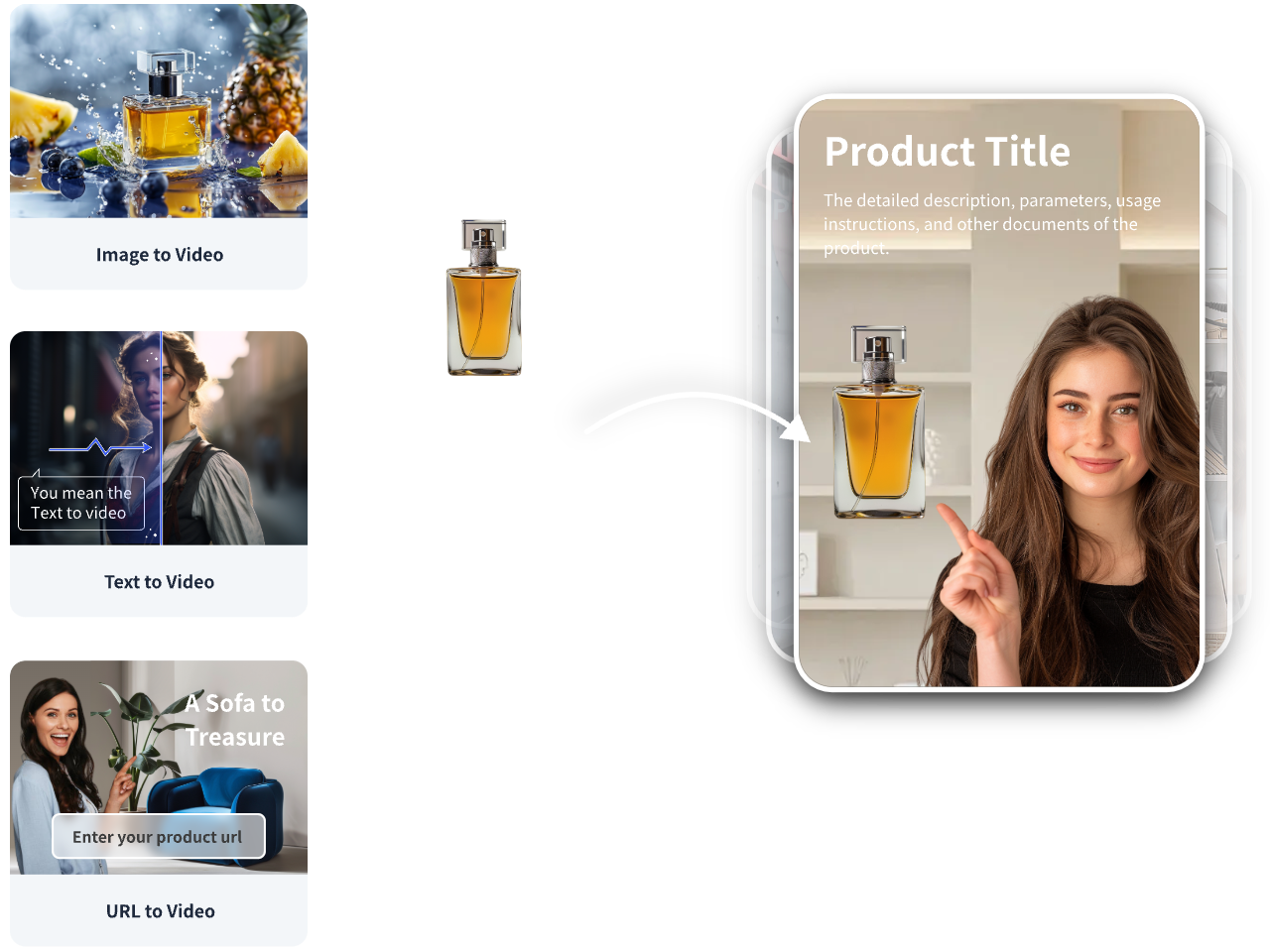
CapCut’s AI video generator supports two workflows: text-to-video and image-to-video. Text-to-video is best when you are starting from an idea and want the AI to generate scenes based on a written description. Image-to-video is better when you already have a still image, product photo, character art, or visual concept that you want to animate.
For text-to-video, prompt quality matters most. Be specific about subject, motion, lighting, and style. For the AI image to video generator workflow, image quality matters most. Use clean, clear, well-lit images because the AI animates based on what it detects in the image.
Tip
Use text-to-video when you have an idea but no visual asset. Use image-to-video when you already have product images, character art, photos, or visual references that should guide the final clip.
Best Tools and Settings for CapCut AI Video Generator
| Setting | Recommended Option | Why |
|---|---|---|
| Aspect ratio | 9:16 vertical | Fits YouTube Shorts, TikTok, Reels |
| Video duration | 3 to 6 seconds per clip | Matches short-form pacing |
| AI model | Realistic or cinematic | Better for product and lifestyle content |
| Motion speed | Medium | Avoids jittery or overly fast clips |
| Resolution on export | 1080p | Standard for most platforms |
For creators who want more control over video creation beyond CapCut’s built-in features, tools like VidAU AI Video offer additional AI video generation options built for marketing and ad content. If you need to turn product images into video, Product Sample to Video is worth exploring as a complementary workflow.
Create Video Now
Use VidAU alongside CapCut when you need AI video generation, product-to-video workflows, text-to-speech narration, UGC avatars, and video remixing for marketing, ads, and short-form content at scale.
VidAU workflow
How VidAU fits into an AI short-form video pipeline
- Start with the idea: Use a strong prompt, image, product asset, or script as the foundation for the video.
- Generate visual content: Use CapCut for quick AI clips or VidAU AI Video for additional marketing-focused video generation options.
- Add narration: Use Text to Speech (https://www.vidau.ai/vidau-text-to-speech/) to create narration without recording yourself.
- Build ad or UGC formats: Use UGC Avatars when the video needs a spokesperson-style format instead of raw AI visuals.
- Repurpose and scale: Use VidAU Vid Remix to adapt content across formats and placements instead of starting every video from scratch.
Platform-Specific Optimization for Shorts, TikTok, and Reels
The same video will not perform equally on every platform. Here is how to think about it:
YouTube Shorts
Aim for 15 to 60 seconds. Use vertical 9:16 format. Add captions since many viewers watch without sound. Hook within the first two seconds.
TikTok
TikTok rewards fast-paced, engaging content. Use short clips stitched together. Add on-screen text to guide attention. Trending audio helps with distribution.
Instagram Reels
Slightly more polished aesthetic tends to perform well. Good lighting and clean visuals matter more here than on TikTok. Keep Reels under 30 seconds for best reach.
For all three platforms, the AI-generated clips from CapCut work best when combined with a clear hook, a concise message, and purposeful editing rather than used as raw output.
If you are also exploring AI-generated voiceovers to layer over your video content, Text to Speech (https://www.vidau.ai/vidau-text-to-speech/) can add narration without recording anything yourself.
| Platform | Recommended approach |
|---|---|
| YouTube Shorts | 15 to 60 seconds, 9:16 vertical, captions, and a hook within the first two seconds. |
| TikTok | Fast-paced clips, on-screen text, stitched short scenes, and trending audio where useful. |
| Instagram Reels | Polished aesthetic, good lighting, clean visuals, and videos under 30 seconds for best reach. |
Common Mistakes Beginners Make
Using vague prompts. “A nature video” will get you something generic. Add details about lighting, motion, subject position, and mood.
Skipping the settings panel. A lot of beginners click generate immediately without setting aspect ratio or motion speed. This leads to clips that need to be resized or re-generated.
Accepting the first output. Regenerating with slight prompt tweaks usually improves results significantly. Treat the first generation as a draft.
Not editing after generation. Raw AI clips rarely work perfectly on their own. The editing step is where your video becomes usable.
Ignoring audio. Silent videos perform worse on all platforms. Add music, voiceover, or sound effects during editing.
Watch out
Raw AI clips are rarely finished videos. Treat generation as the first draft, then use editing, captions, sound, transitions, and pacing to make the content usable.
Advanced Strategies to Improve Your AI Video Output
Combine Text-to-Video with AI Image to Video Generator
For more varied content, alternate between generating scenes from text and animating specific images. This gives you stylistic variety across a single video, which helps maintain viewer attention.
Use Reference-Style Prompts
Describe what you want by referencing visual styles or cinematic techniques. Phrases like “aerial drone shot,” “golden hour lighting,” “slow motion,” or “documentary style” give the AI clearer direction and produce more intentional outputs.
Build a Prompt Library
When a prompt works well, save it. Over time you will build a collection of reliable prompts for common video types, which speeds up your workflow significantly.
Layer AI Video with Other AI Tools
AI video generation works well as one part of a larger content workflow. Pair it with AI image generation for thumbnails, AI voiceover for narration, and AI-assisted scripting for your prompts. Tools like VidAU AI Image can support the visual side of that pipeline. For repurposing content across formats, VidAU Vid Remix offers additional options.
Key Takeaways
- Specific, descriptive prompts consistently outperform short, vague ones.
- Iterating on settings like model choice and motion speed dramatically changes output quality.
- Combining text-to-video and image-to-video in one project adds variety and depth.
- Post-generation editing is essential, not optional.
Key takeaway
Final Thoughts
CapCut’s AI video generator is one of the more accessible entry points into AI-assisted video creation available right now. The combination of text-to-video and AI image to video generator features means you can produce short-form content quickly, even without a single clip of footage or any editing experience.
The key is treating AI generation as a starting point rather than a finished product. Write specific prompts, experiment with model settings, and spend time in the editor shaping the output into something that matches your creative intent.
If you want to explore additional AI video tools alongside CapCut, VidAU AI Video and Text to Video are worth testing, especially if your goal is ad content, product videos, or UGC-style formats through UGC Avatars. Building a multi-tool workflow gives you more creative options and faster output at scale.
FAQ
Here are answers to common questions about CapCut AI video generator, shorts video workflows, text-to-video, AI image to video generator features, AI video generator from image workflows, mobile use, prompts, and VidAU AI video tools.
What is CapCut AI video generator?
It is an AI-powered feature inside CapCut that converts text prompts or uploaded images into short video clips automatically.
Is CapCut AI video generator free to use?
CapCut offers free access to many of its AI features, though some advanced options may require a subscription or use credits.
Can I use CapCut AI video generator on mobile?
Some AI video generation features are available on mobile, but the most complete experience is currently on the desktop or web version.
What is the best way to write prompts for the AI video generator?
Be specific about the scene, mood, lighting, motion, and style rather than using short or generic descriptions.
Can I use CapCut AI to create shorts video content for YouTube?
Yes, set the aspect ratio to 9:16 and keep clip durations short to create vertical shorts video content suited for YouTube Shorts, TikTok, and Instagram Reels.
How does the AI image to video generator work in CapCut?
You upload a still image and CapCut’s AI animates it by generating natural motion based on the content of the image.