VIDAU AI VIDEO GUIDE
Image to Video AI Generator — How I Make 1,000 Videos From One Image
Use an image to video AI generator to animate one photo, test 10 motion clips, and create up to 1,000 video edits with new hooks, layouts, and endings.
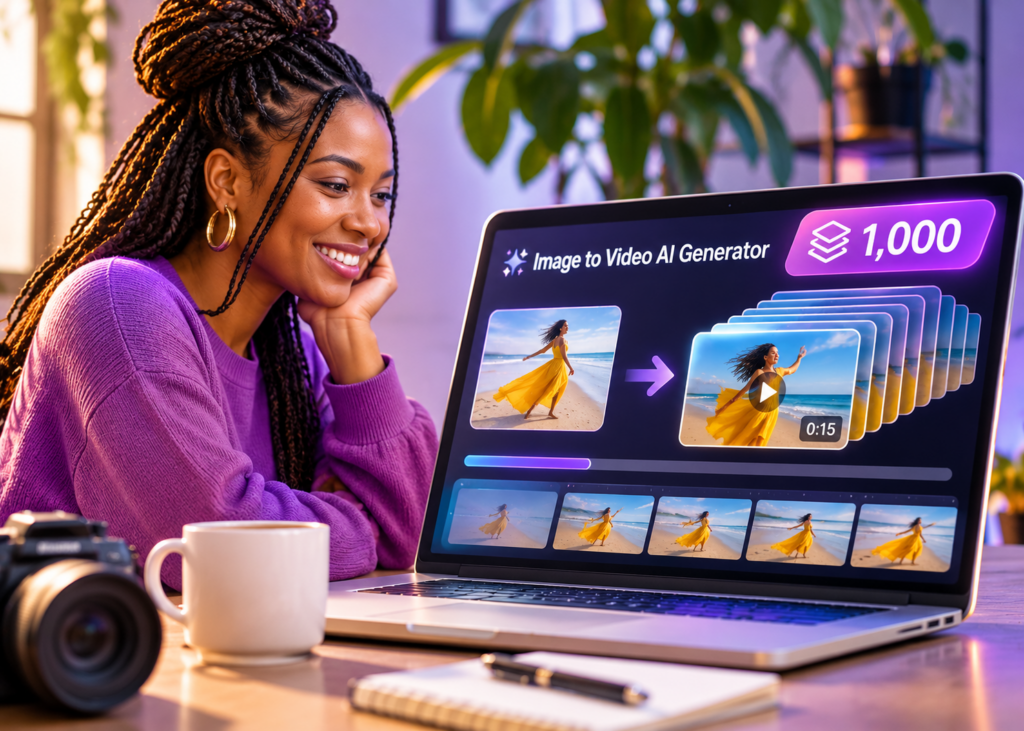
An image to video ai generator turns a still photo into a short clip with motion you describe in a prompt. I use one product photo to make 10 clips, then edit them with different opening lines, layouts, and endings. Using every combination gives me up to 1,000 video variants.
The first 10 clips do most of the work. If the logo warps or the motion feels wrong, every edit built from that clip inherits the problem. I test the source image and motion prompts before I build out the rest.
Quick Summary
Watch the image-to-video workflow on YouTube
- Start with one sharp image and write 10 prompts that each direct one clear movement.
- Render a small pilot to check motion, subject consistency, and room for captions.
- Combine 10 approved clips, 10 hooks, five placement layouts, and two endings for up to 1,000 edits.
- Expand the combinations that serve a real campaign need and keep track of the ones you’ve already exported.
Jump to Section
- Step 1. Choose a Source Image for AI Video
- Step 2. Write 10 Image-to-Video Prompts
- Step 3. Test AI Video Clips Before Scaling
- Step 4. Turn 10 Approved Clips Into Up to 1,000 Videos
- Step 5. Export, Review, and Reuse the Best Edits
- How I Keep the Product Consistent Between Shots
- How I Decide Which Video Variants to Make Next
- Conclusion
- Frequently Asked Questions
Step 1. Choose a Source Image for AI Video
For a product ad, I look for a sharp image with a clear silhouette, even lighting, and enough space around the subject for a vertical crop. I keep the original file as the master and check the planned crops before generating video. A tight crop that looks great on a product page can leave nowhere to put a headline in a Reel.
For this example, I’d use one photo of a matte black travel mug on a light countertop, with the lid and logo both visible. I can get a close-up of the finish, a slow reveal of the lid, and a clean background for a text-led ad from that same setup. If the campaign starts with a catalog photo, VidAU’s product photo to video tool offers another way to build promotional clips from the source asset. If I need to create the source still first, I use VidAU’s Nano Banana 2.1 image model comparison to compare options for the product image.
Step 2. Write 10 Image-to-Video Prompts
I upload the master image to VidAU’s image-to-video tool and direct one main action per prompt. I specify what moves, what stays fixed, and how the shot ends. I keep the original image as the input for each generation so that distortions from one clip don’t carry into the next.
A prompt you can copy
Image-to-video prompt
“Create a five-second shot from this image. Slowly push the camera toward the travel mug. Keep the mug upright and the lid, logo, and countertop unchanged. Keep the light soft and steady. Hold the final framing for the last second so there’s room for an end card.”
For the other nine prompts, I try a slow pullback, a short slide left, a short slide right, a gentle tilt toward the lid, a shallow arc, a focus shift from the countertop to the mug, a soft highlight sweep across the finish, a subtle background shadow shift, and a locked camera with a small reflection moving across the lid. I keep the moves small because a wide orbit asks the model to invent parts of the mug that the photo never shows.
Step 3. Test AI Video Clips Before Scaling
I render three shots first: a push-in, a lateral slide, and a lighting change. I compare the first frame, the midpoint, and the final frame with the source image. On the mug, I check the outline, lid seam, and logo. Then I watch each clip at normal speed to catch flicker or sudden changes in motion. When a logo keeps warping, I try a gentler move or choose a shot where the label remains front-facing.
When comparing AI video generation platforms, I run the same image and prompt through each candidate and record the usable clips, credits spent, and time to review. The cost per approved clip gives me a better basis for budgeting than the listed cost per render. VidAU’s Vidu model comparison offers more context on reference controls and motion options. If you’re searching for an “image to video AI free” option or an AI video generator free online, check the current VidAU plans and credits and confirm that your chosen model and export settings fit the allowance. For a closer look at reference images and motion controls, see VidAU’s guide to generating AI videos with Vidu Q4 Preview.
What to check before scaling
If the logo warps or the motion feels wrong, every edit built from that clip inherits the problem. Check the outline, lid seam, logo, flicker, and motion before approving a source clip.
Step 4. Turn 10 Approved Clips Into Up to 1,000 Videos
I generate the footage with AI, then reuse it in a video editor. For example, I take one clip that slowly zooms in on the mug, add “What’s in your commuter bag?” at the start, format it for Stories, and finish with “Explore the mug.” I duplicate that edit and change just the opening line to make a second version.
10 motion clips
I use the approved clips from Step 3 as the visual base. A close-up can support a hook about the finish. A wider reveal leaves more room for a headline and can work better with a hook about where the mug fits into a daily routine.
10 opening hooks
I write hooks around different angles, such as a question, a use case, a feature, a product detail, or a gift idea. For the mug, I could test “What’s in your commuter bag?” against “A closer look at the matte finish.” I add the text in the editor so the letters stay legible and the wording is easy to revise.
Five layouts for different placements
I make a 9:16 Stories layout, a 9:16 short-form feed layout, a 4:5 feed layout, a 1:1 square layout, and a 16:9 widescreen layout. The two vertical layouts get different text positions and pacing. I preview every layout at its intended size to make sure the headline stays clear of interface overlays and the crop preserves the subject.
Two endings
I make one product end card with “Explore the mug” and one brand end card with “See the collection.” I match each call to action to the actual page a viewer reaches after clicking.
One clip can yield 100 edits if I combine all 10 hooks, five layouts, and two endings. Across 10 clips, that’s up to 1,000 possible exports. I start with two versions in the same layout and keep the footage and ending fixed so I can compare the opening lines.
How 1,000 Video Variants Add Up
10 approved clips × 10 opening hooks × five placement layouts × two endings = up to 1,000 possible exports.
| Component | Number of variations |
|---|---|
| Approved motion clips | 10 |
| Opening hooks | 10 |
| Placement layouts | 5 |
| Endings | 2 |
| Possible exports | Up to 1,000 |
Step 5. Export, Review, and Reuse the Best Edits
I give each export a filename that records the clip, hook, layout, and ending, such as mug_push-in_commute_stories_product.mp4. I track the prompt, model, export filename, review status, and results in one sheet. That makes it easy to find the original clip when an edit performs well or rerun one shot when the product details change.
Before publishing, I play the finished export through once with sound and once muted. I check the first frame, caption readability, product details, and whether the ending gives viewers enough time to act. If I need animated headlines or graphic overlays, VidAU’s AI motion graphics guide covers options for that part of the edit.
How I Keep the Product Consistent Between Shots
I keep a three-point checklist beside the source image. For the travel mug, I check that the lid has the same shape, the logo stays in the same place, and the body keeps its proportions. I compare clips side by side before pairing them in an edit. A small change in the finish may be hard to see in one clip, but it can jump out when two shots play back to back.
When a shot needs to land on a precise composition, I can take a clean frame from an approved clip and use it alongside the original photo in VidAU’s frame-to-video tool. For example, I could use the original wide shot as the start frame and a clean close-up from the push-in as the end frame. I review the transition at full speed before using it, since the model still has to generate the movement between those frames.
Product Consistency Checklist
- The lid has the same shape.
- The logo stays in the same place.
- The body keeps its proportions.
How I Decide Which Video Variants to Make Next
I pick a metric that matches the goal before exporting a second batch. For a hook test, I look at how many viewers keep watching past the opening. For a call-to-action test, I compare click-through rates within the same placement. I keep the clip, layout, and ending fixed when testing hooks so I can tell which change drove the result.
For example, if “What’s in your commuter bag?” holds attention longer than “A closer look at the matte finish,” I’d test the commuter hook on a second clip before adapting it for other placements. I use VidAU’s Instagram video ad resources and TikTok video ad resources when preparing those versions. I review each export on a phone to check that captions and calls to action clear the app controls.
Testing Tip
Keep the clip, layout, and ending fixed when testing hooks so you can tell which change drove the result. For call-to-action tests, compare click-through rates within the same placement.
Create Video Variants From One Product Photo
Upload one product photo to VidAU’s image to video AI generator and test three simple moves: a push-in, a slide, and a lighting change.
VidAU Image-to-Video Workflow
- Upload the original product photo.
- Test three simple movements: a push-in, a lateral slide, and a lighting change.
- Review the clips for motion quality and product consistency.
- Approve 10 source clips and combine them with hooks, layouts, and endings in an editor.
- Export, review, and track results before expanding the next batch.
Key Takeaway
Conclusion
One strong image can support up to 1,000 video variants when I reuse 10 approved clips across 10 hooks, five layouts, and two endings. The combinations give me room to test. The results tell me which edits are worth making next.
To try this workflow, upload one product photo to VidAU’s image to video AI generator and test three simple moves: a push-in, a slide, and a lighting change. Pick the clip that preserves the product best, then export two versions with different opening lines to see which one holds viewers’ attention.
Frequently Asked Questions
Answers to common questions about image-to-video AI generators, free AI video tools, music videos, product consistency, and creating up to 1,000 video variants from one image.
Can I make 1,000 videos from one image for free?
That depends on your generation and export allowances. The workflow uses 10 approved source clips, plus any retries, to build up to 1,000 edited variants. Check the model’s credit cost, export resolution, watermark rules, and commercial-use terms before committing to a large batch.
What should I compare across AI video generator tools?
Start with how closely the output preserves your subject, then compare motion quality, usable clips per batch, supported aspect ratios, and export options. For a product image, I’d choose the tool that keeps the item recognizable throughout the shot and leaves the least cleanup work.
Can I use a free AI music video generator with this workflow?
Yes. Use short clips from the same image as your visual material, then cut them to the beat of a track in an editor. Mark the strongest beats before picking your cuts and use the more dramatic camera moves sparingly. Choose music you have permission to use for the intended release.
What kind of image works best for image-to-video AI?
Start with a sharp, evenly lit image where the subject is easy to distinguish from the background. Leave space around the subject for different crops and captions. For product shots, keep important details such as the label and silhouette visible in the original image.
How do I fix warped logos or flickering details in an AI video?
Return to the original photo and try a shorter shot with one simple movement, such as a slow push-in. Keep the logo facing the camera and check the middle and final frames for distortion. If the label still warps, use the original still for the branded end card.