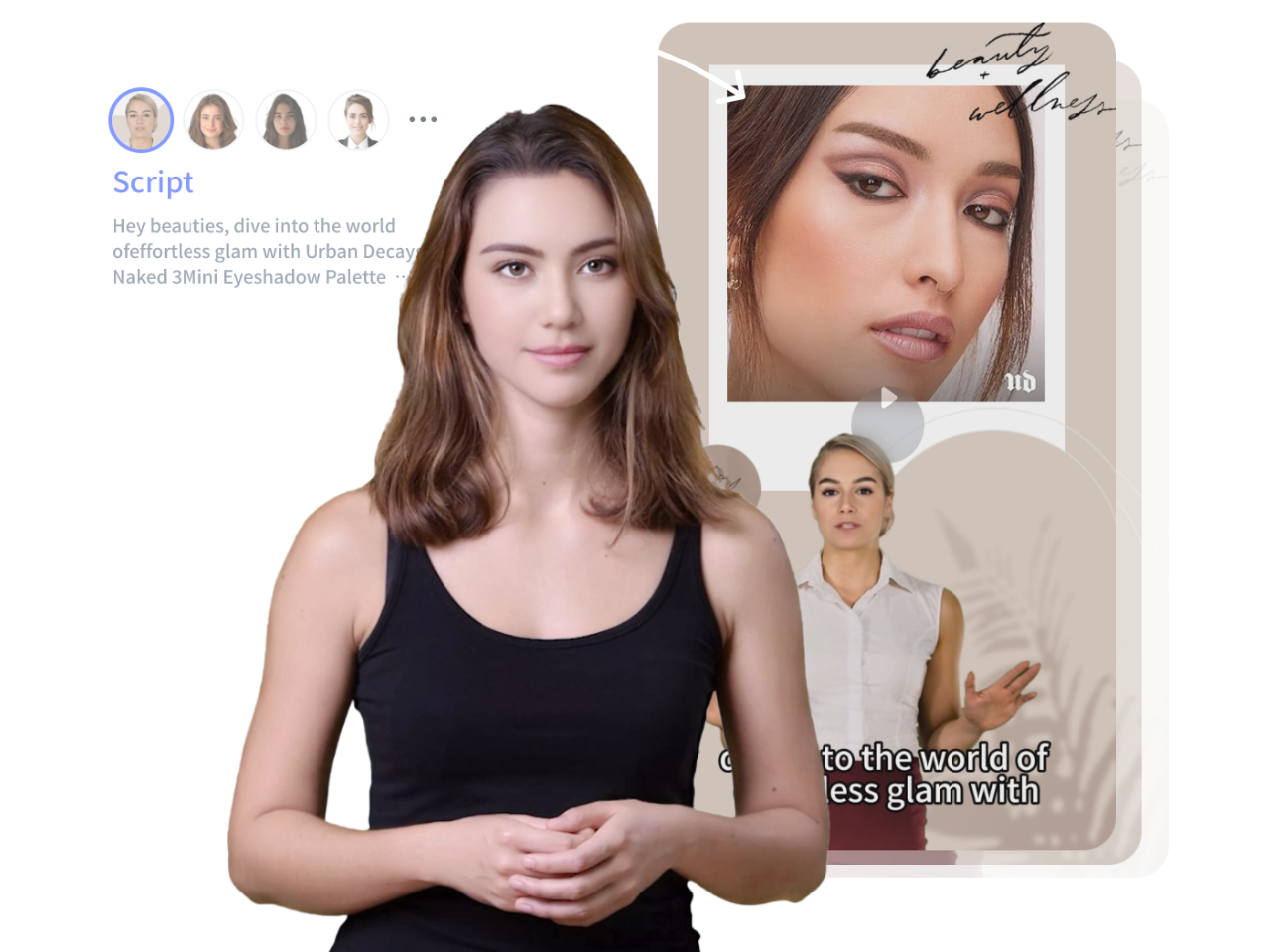
VEED Text to Video Tutorial: Create AI Avatar Videos in Under 10 Minutes (2026 Beginner’s Guide)
From Text Prompt to Talking Avatar Video in Under 10 Minutes
Creating professional AI avatar videos no longer requires complex pipelines, GPU clusters, or months of technical training. VEED’s text to video platform has democratized AI video generation, allowing complete beginners to produce talking avatar content in under 10 minutes. This guide breaks down the exact workflow, prompt engineering techniques, and critical mistakes that trip up 90% of first-time users.
By the end, you will know how to create consistent, high-quality AI avatar videos faster than traditional filming. You will also see how to scale this workflow using VidAU for better output, faster production, and more control.
- VEED Text to Video Tutorial: Create AI Avatar Videos in Under 10 Minutes (2026 Beginner's Guide)
- Understanding VEED's Text-to-Video Pipeline Architecture
- Simplest Workflow: From Text Prompt to Talking Avatar
- Prompt Engineering for Quality AI Avatars
- Common Beginner Mistakes and Technical Pitfalls
- Advanced Settings: Frame Interpolation and Voice Synthesis
- Optimization Tips for Faster Rendering
- Your First Production Workflow
- How to Create AI Avatar Videos with Text to Video Using VidAU
- Conclusion: Moving Beyond Beginner Status
- Frequently Asked Questions
- Q: How long does it actually take to generate an AI avatar video in VEED?
- Q: Do I need technical knowledge or AI experience to use VEED's text-to-video features?
- Q: What's the difference between preset avatars and custom text-to-avatar generation?
- Q: Why does my avatar's lip-sync look off after the first minute of video?
- Q: Can I use VEED AI avatar videos commercially, or are there licensing restrictions?
- Q: What script length works best for AI avatar videos?
- Q: What makes AI avatar videos different from traditional videos?
- Q: How do I improve the quality of my AI avatar videos?
- Q: Why does my AI avatar video look unnatural?
- Q: What video length works best for engagement?
- Q: Can I use AI avatar videos for marketing and ads?
- Q: How do I make my AI videos look more professional?
- Q: Why should I use VidAU instead of other tools?
Understanding VEED’s Text-to-Video Pipeline Architecture
Before diving into production, understanding VEED’s underlying architecture prevents confusion and accelerates your workflow. Unlike traditional video editing that requires separate tools for avatar generation, voice synthesis, and lip-syncing, VEED employs an integrated pipeline that handles three core processes simultaneously:
Neural Avatar Rendering: VEED’s avatar engine uses latent diffusion models trained on diverse human facial datasets. When you input a text description or select a preset avatar, the system generates a base character model using semantic tokenization—breaking your text into visual feature descriptors (age, ethnicity, clothing, background).
Text-to-Speech Synthesis: Your script is processed through neural voice models that support 50+ languages and dialects. The system analyzes prosody patterns, emotional context, and punctuation to generate natural-sounding speech with appropriate pauses and intonation.
Phoneme-Based Lip Synchronization: This is where beginner-friendly platforms separate from professional tools. VEED automatically maps generated audio phonemes to viseme sequences (visual representations of speech sounds), ensuring your avatar’s mouth movements match the audio without manual keyframing.
The entire process operates on cloud-based inference servers, meaning you don’t need expensive hardware, just a stable internet connection.
Simplest Workflow: From Text Prompt to Talking Avatar
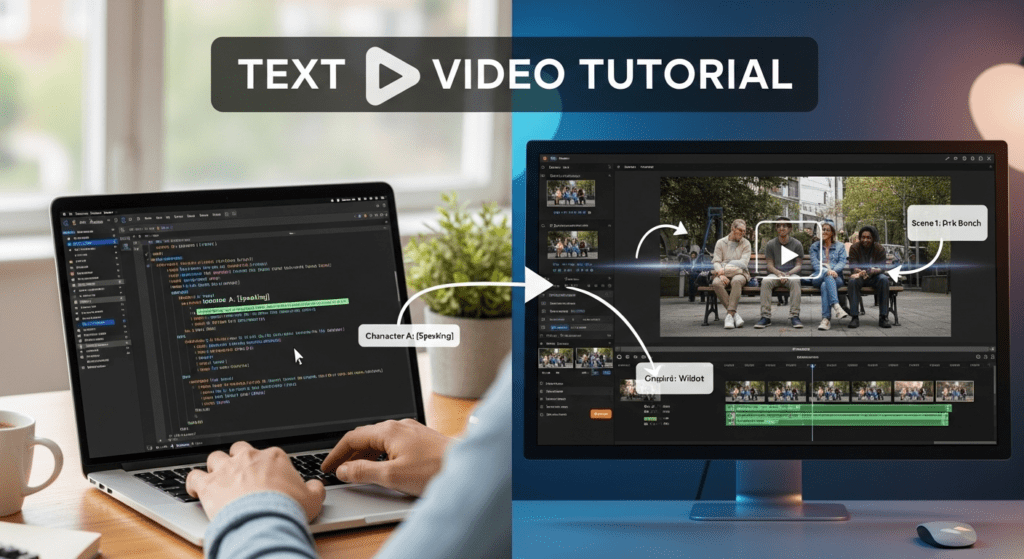
Step 1: Access VEED’s Text-to-Video Interface
Navigate to VEED’s dashboard and select “AI Avatars” from the creation menu. You’ll see two primary pathways:
– Preset Avatars: Pre-rendered characters optimized for consistency
– Custom Text-to-Avatar: Generate unique characters from text descriptions
For your first project, start with preset avatars to avoid prompt engineering complexity. Select a character that matches your content niche (professional, casual, educational).
Step 2: Script Input and Voice Configuration
Paste your script into the text editor. VEED supports up to 10,000 characters per generation. Critical formatting tips:
– Use double line breaks for natural pauses
– Add commas for breath points
– CAPITALIZE words for emphasis (the TTS engine interprets this as stress markers)
– Avoid special characters that may disrupt phoneme parsing
Select your voice model from the dropdown menu. Key parameters to adjust:
Voice Speed: Default is 1.0x. Reduce to 0.85x-0.90x for educational content where comprehension matters. Increase to 1.1x-1.15x for energetic social media clips.
Pitch Modulation: Standard pitch works for 90% of use cases. Adjust only if targeting specific demographics (lower pitch for authority-focused content, higher for younger audiences).
Emotional Tone: VEED offers neutral, friendly, serious, and enthusiastic presets. This setting influences prosody patterns—the rhythm and stress of speech.
Step 3: Avatar Customization (Optional)
If using custom text-to-avatar generation, your prompt structure determines output quality. Use this framework:
`[AGE] [GENDER] [ETHNICITY], [CLOTHING DESCRIPTION], [SETTING], [LIGHTING], [CAMERA ANGLE]`
Example: “35-year-old professional woman, South Asian, navy blazer, modern office background, soft natural lighting, medium close-up shot”
The system processes this through semantic layering, generating each element progressively. More specific prompts reduce generation randomness (lower sampling temperature in technical terms).
Step 4: Generation and Preview
Click “Generate Video.” VEED’s rendering pipeline typically completes in 3-7 minutes depending on video length. The process:
1. Audio Synthesis (30-60 seconds): TTS model generates speech
2. Lip-Sync Mapping (60-120 seconds): Phoneme-to-viseme alignment
3. Frame Rendering (120-300 seconds): Avatar animation at 24-30 fps
4. Encoding (30-60 seconds): Final H.264 video compression
Use preview mode to check lip-sync accuracy before final export. Look for phoneme drift—when mouth movements desync from audio after 30+ seconds. This indicates processing errors requiring regeneration.
Step 5: Export Settings
For social media: 1080×1920 (vertical), H.264 codec, 8 Mbps bitrate
For YouTube/web: 1920×1080 (horizontal), H.264 codec, 12 Mbps bitrate
VEED automatically handles frame rate stabilization and audio normalization to -14 LUFS (industry standard for perceived loudness).
Prompt Engineering for Quality AI Avatars
When graduating from presets to custom avatars, prompt engineering becomes your primary quality control mechanism. VEED’s avatar generator uses CLIP-based text encoding, meaning it interprets prompts through vision-language associations.
Effective Prompt Structure
Specificity Over Ambiguity: “Professional businessman” generates generic results. “45-year-old executive, salt-and-pepper hair, charcoal suit, standing in glass-walled boardroom” leverages specific visual tokens the model recognizes with higher confidence scores.
Lighting Descriptors: Include lighting terms to guide the rendering engine’s illumination model. Keywords like “soft key light,” “golden hour,” “studio lighting,” or “natural window light” significantly impact facial rendering quality. Poor lighting descriptions result in flat, unrealistic avatars.
Background Context: Always specify the environment. The model uses background context to inform avatar scaling, perspective, and color grading. “White background” works for simple projects, but “modern podcast studio with acoustic panels” creates depth and professionalism.
Advanced Prompt Techniques
Negative Prompting: While VEED doesn’t explicitly support negative prompts in the interface, you can guide generation away from unwanted features by omission. If you don’t want glasses, don’t mention eyewear at all—the model defaults to most common features.
Style Consistency: For multi-video projects, save your exact prompt text and use identical wording. Avatar generators use seed randomness—even slight prompt variations create different characters. Some advanced users extract seed values through API access for perfect consistency.
Ethnicity and Representation: VEED’s training data includes diverse representations. Be specific about ethnicity when needed for authentic representation: “West African,” “East Asian,” “Indigenous Australian” rather than broad continental terms.
Common Beginner Mistakes and Technical Pitfalls
Mistake #1: Script-First Thinking
New users write scripts without considering TTS limitations. AI voice synthesis struggles with:
– Acronyms without context (write “artificial intelligence” instead of “AI” for first mention)
– Numbers without formatting (“$1,234” may be read as “dollar sign one comma two three four”)
– Multiple consecutive questions (TTS loses intonation patterns)
Solution: Write for speech, not reading. Use VEED’s preview function to test problematic phrases before final rendering.
Mistake #2: Ignoring Phoneme Drift
Lip-sync accuracy degrades in videos longer than 2 minutes due to cumulative phoneme mapping errors. The synchronization algorithm maintains accuracy within ±80ms for the first 90 seconds, but temporal drift accumulates.
Solution: Break longer scripts into multiple video segments. VEED allows batch processing—generate three 90-second videos instead of one 4-minute video, then concatenate in the editor.
Mistake #3: Over-Customization Paralysis
Beginners often spend 45+ minutes adjusting avatar details, voice parameters, and background elements, then generate only to discover the overall composition doesn’t work.
Solution: Use the rapid iteration method:
1. Generate with default settings (3 minutes)
2. Review and identify the single biggest issue
3. Adjust only that parameter
4. Regenerate and reassess
This incremental approach provides faster learning than trying to perfect everything simultaneously.
Mistake #4: Neglecting Audio Quality
VEED’s TTS engines are high-quality, but they can’t fix poor script flow. Beginners focus on visual avatar quality while ignoring unnatural speech patterns that break viewer immersion.
Solution: Read your script aloud before generation. If you stumble or lose breath, the TTS model will create awkward pauses. Add punctuation strategically—commas create 0.3-second pauses, periods create 0.6-second pauses.
Mistake #5: Wrong Aspect Ratio Selection
Generating horizontal videos for vertical platforms (Instagram Stories, TikTok, YouTube Shorts) forces awkward cropping or letterboxing that screams “amateur.”
Solution: Choose your distribution platform first, then set aspect ratio accordingly. VEED’s preview shows exactly how your video appears on each platform before rendering.
Advanced Settings: Frame Interpolation and Voice Synthesis
Once comfortable with basic workflows, these advanced settings improve output quality:
Frame Rate Optimization
VEED’s default 24 fps works for most content, but certain use cases benefit from adjustments:
30 fps: Better for fast-paced content with graphics or text overlays. The additional frames reduce motion blur during transitions.
60 fps: Overkill for talking avatars—increases file size 2-3x without perceptible quality improvement. Reserve for action-oriented content.
Voice Clone Integration
VEED’s voice cloning feature (paid tier) allows custom voice models from 30-second audio samples. Technical requirements:
– Clean audio (no background noise)
– Consistent volume levels
– Natural speaking pace
– Minimum 30 seconds, optimal 2-3 minutes
The system extracts prosody patterns, pitch characteristics, and phoneme articulation to create a voice model. First-generation quality typically reaches 75-80% similarity; subsequent training iterations improve accuracy.
Background Video Integration
Replace static backgrounds with video footage for dynamic content. Technical considerations:
Resolution Matching: Background video should match or exceed avatar resolution. Upscaling low-res backgrounds creates artifacts around avatar edges.
Motion Speed: Keep background motion subtle. Fast movement competes for viewer attention and makes avatar lip-sync less noticeable.
Color Grading: Match background color temperature to avatar lighting. Cool-toned backgrounds with warm-lit avatars create visual discord.
Optimization Tips for Faster Rendering
VEED’s cloud rendering means you can’t directly control processing hardware, but these strategies reduce generation time:
Batch Processing During Off-Peak Hours: Server load affects rendering speed. Generating videos between 2-6 AM (your timezone) often completes 20-30% faster.
Shorter Segments: As mentioned earlier, multiple short videos render faster than single long videos due to parallel processing capabilities.
Preset Avatars Over Custom Generation: Presets skip the avatar creation phase, reducing total time by 60-90 seconds per video.
Script Optimization: Remove unnecessary words. Every second of audio adds proportional rendering time. Tight scripts = faster production.
Your First Production Workflow
Putting everything together, here’s your 10-minute production timeline:
Minutes 0-2: Write script (100-150 words for 60-second video), read aloud for flow
2-3: Select preset avatar, choose voice model, paste script
3-4: Preview first 15 seconds, adjust voice speed if needed
Minute 4: Click generate, wait for processing
Minutes 4-9: Rendering completes (typically 3-5 minutes)
Minutes 9-10: Download and upload to target platform
This framework consistently produces publish-ready AI avatar videos in under 10 minutes once you’ve completed 3-5 practice runs.
How to Create AI Avatar Videos with Text to Video Using VidAU
VidAU AI Avatar V2 follows a structured text to video workflow. You move from avatar selection to script input, then generate and refine your video. The platform handles voice, animation, and lip sync automatically, which removes manual editing steps and speeds up production.
Step 1: Select an AI avatar
Start by choosing from VidAU’s Inspiration. Pick one that matches your content style, brand voice, or audience type.
Step 2: Choose video format and language
Set your aspect ratio based on your platform. Use vertical for short-form content and horizontal for long-form videos. Then select your language for voice delivery.
Step 3: Input your script
Paste your script into the editor. The text to video system converts your text into speech and prepares your avatar to deliver it with synced lip movement.
Step 4: Customize voice and avatar settings
Adjust voice tone, speed, and style. Refine subtitles, background, and visual elements to match your content goal.
Step 5: Generate the video
Click generate. VidAU processes your script, voice, and avatar together, producing a complete talking video within minutes.
Step 6: Edit and enhance
Review the output and make quick edits. Adjust scenes, replace visuals, or improve timing without restarting the process.
Step 7: Export and publish
Download your final video in the correct format and publish directly to your platform.
Conclusion: Moving Beyond Beginner Status
VEED’s text-to-video platform removes technical barriers that previously made AI avatar creation inaccessible to non-technical creators. By understanding the underlying pipeline architecture, mastering prompt engineering basics, and avoiding common mistakes, you’ll produce professional avatar videos faster than traditional recording and editing workflows.
The key differentiator between beginners and advanced users isn’t access to complex tools, it’s systematic workflow optimization and understanding how text inputs translate to visual outputs. Start with preset avatars, master script formatting, then gradually experiment with custom avatar generation as you build intuition for what works.
Your first video won’t be perfect. Your tenth video will be significantly better. By video 25, you’ll generate content faster than you can write scripts. The technology handles the complexity; your job is learning to communicate effectively with the AI systems doing the work.
Frequently Asked Questions
Q: How long does it actually take to generate an AI avatar video in VEED?
A: For a 60-second video with preset avatars, total production time is 6-10 minutes: 2-3 minutes for script preparation and setup, 3-5 minutes for VEED’s cloud rendering, and 1-2 minutes for preview and export. Custom avatar generation adds 2-4 additional minutes. Longer videos (2-3 minutes) extend rendering to 8-12 minutes total.
Q: Do I need technical knowledge or AI experience to use VEED’s text-to-video features?
A: No technical background is required. VEED’s interface is designed for complete beginners—you write a script, select an avatar, and click generate. The platform handles avatar rendering, voice synthesis, and lip-syncing automatically. Understanding basic concepts like aspect ratios and voice speed helps optimize results, but isn’t mandatory for creating functional videos.
Q: What’s the difference between preset avatars and custom text-to-avatar generation?
A: Preset avatars are pre-rendered characters optimized for consistency and faster generation (saves 2-3 minutes per video). Custom text-to-avatar generates unique characters from your text descriptions, offering unlimited creative options but requiring prompt engineering skills and longer rendering times. Beginners should start with presets, then experiment with custom generation after mastering basic workflows.
Q: Why does my avatar’s lip-sync look off after the first minute of video?
A: This is called phoneme drift—cumulative errors in the lip-sync algorithm’s phoneme-to-viseme mapping. Accuracy stays within ±80ms for 60-90 seconds but degrades in longer videos. Solution: Break scripts into 90-second segments, generate separately, then concatenate in VEED’s editor. This maintains consistent lip-sync quality throughout your final video.
Q: Can I use VEED AI avatar videos commercially, or are there licensing restrictions?
A: VEED’s paid plans include commercial usage rights for generated content—you own the videos you create. The free plan restricts commercial use and adds VEED watermarks. Always review VEED’s current terms of service, as licensing terms vary by subscription tier. For client work or monetized content, paid plans ensure full commercial rights without attribution requirements.
Q: What script length works best for AI avatar videos?
A: 60-90 seconds (100-150 words) is the sweet spot for beginners. This length maintains lip-sync accuracy, keeps viewer attention, and renders quickly. Scripts under 30 seconds feel abrupt; scripts over 2 minutes increase phoneme drift risk and rendering time. For longer content, create multiple 90-second segments covering different topics rather than one continuous 5-minute video.
Q: What makes AI avatar videos different from traditional videos?
A: AI avatar videos remove the need for cameras and manual recording. You use text input, and the system handles voice, animation, and lip-sync automatically.
Q: How do I improve the quality of my AI avatar videos?
A: Focus on three areas: script clarity, voice settings, and avatar selection. Short sentences, proper punctuation, and natural flow improve both audio and visual output.
Q: Why does my AI avatar video look unnatural?
A: This often comes from poor script structure or wrong voice settings. Fast speech, lack of pauses, and unclear wording reduce realism.
Q: What video length works best for engagement?
A: 60 to 90 seconds performs best. This keeps attention high and reduces lip-sync errors that happen in longer videos.
Q: Can I use AI avatar videos for marketing and ads?
A: Yes. Many brands use AI avatars for product demos, TikTok ads, and educational content. Short-form videos perform better for engagement and conversions.
Q: How do I make my AI videos look more professional?
A: Use proper lighting descriptions, clean backgrounds, and consistent avatar styles. Also match your voice tone to your content type.
Q: Why should I use VidAU instead of other tools?
A: VidAU combines multiple steps into one workflow. You avoid switching tools, reduce production time, and maintain consistent video quality across projects.